

So you finally have your own Moog One polyphonic analog synthesizer. It’s an incredible blessing to have such a ridiculous number of parameter options. Having all that control means you can program pretty much anything you can imagine, but it can also be intimidating — especially at first.
Never fear. This article will help you learn your way around the One and make you comfortable with the front-panel knobs and buttons before you delve into the deeper parameters found on the LCD center screen.
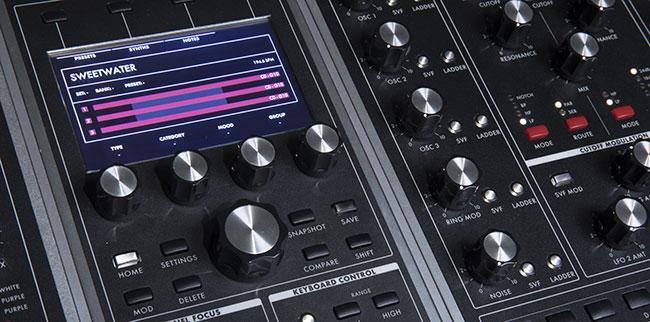
Getting Started

First, we’ll create an INIT (Initialized) preset. Regardless of where you are on your One, you can always create an INIT preset by pressing the Compare and Shift buttons at the same time. The preset title on the screen will read INIT. You can play and hear OSC 1, as that is the only input that is lit in the Mixer module. The Ladder LED for OSC 1 is lit to tell you that OSC 1 is being routed to the ladder filter.
Oscillator 1
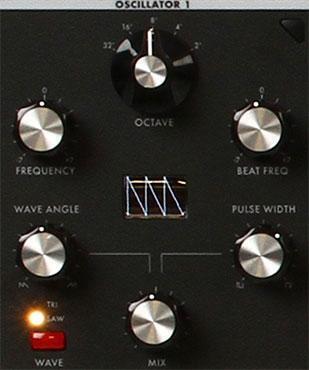
After setting a comfortable volume level (Master Volume for mixer/speakers and Headphones for the two headphone jacks), try out all the positions of the Oscillator 1 Octave rotary switch. Notice that your pitch can go even farther in either direction by using the Octave up and down buttons (above the Pitch bend and Mod wheels). A quick press of both up and down brings you back to the middle octave. (A long press creates an all-notes-off panic.)
Try the Oscillator 1 Frequency knob to hear that it can go up or down seven half steps (a perfect 5th). Return the Frequency knob to 12 o’clock. We’ll get to the Beat Freq knob when we add OSC 2.
Leaving the Wave button at Saw, turn the Wave Angle knob from min to max, and notice that the tone of the saw wave goes from very bright to very warm. These represent the various types of saw waves that were available in all the famous analog synths.
Now, press the Oscillator 1 Wave button to light the Tri (Triangle) LED. Listen and watch as you sweep the Wave Angle knob to go from saw to triangle to ramp.
The next knob to try is OSC 1 Mix. Turn it fully clockwise so that you’re only hearing the square/pulse wave. Sweeping the Pulse Width knob will sonically and visually change the wave from pulse to square (mid-position) and then pulse again.
And finally, bring the Mix knob to mid-position to hear and see what happens when you mix the saw/tri/ramp wave with the square/pulse wave. Spend some time tweaking the Wave Angle, Mix, and Pulse Width knobs to get a sense of the sonic versatility that’s available from a single Moog One oscillator!
Oscillator 2
Now it’s time to add a second oscillator. Create a fresh INIT by pressing the Compare and Shift buttons together. In the Mixer module, press and light the OSC 2 Ladder LED. You should hear a more powerful saw sound from the two oscillators that also exhibits a gentle phasing motion. (That’s why you bought an analog synth!)
By tweaking OSC 2’s Frequency knob, you can create musical intervals such as a major or minor 3rd, perfect 4th, tritone, and perfect 5th. You can also set OSC 2’s Frequency knob just slightly away from 12 o’clock to create detuning. But as you go higher and higher up the keyboard, you may find that the detuning amount becomes too annoying. This is exactly why there’s a Beat Freq knob for every oscillator. This knob is also used to create detuning between oscillators, but it (very musically) keeps the amount of detuning the same, regardless of how high or low you go on the keyboard.

Now it’s time to explore the Hard Sync button found on Oscillators 2 and 3. Historically, its original purpose was to lock the pitch of one oscillator to another, but a far more interesting trick is to move the frequency of a hard synced oscillator, which creates very interesting harmonic sweeps as it attempts to correct back to the frequency of the master oscillator. Here’s how.
Try this: Start with an INIT preset (Compare+Shift). Turn off (or turn down) OSC 1 in the Mixer module. Turn on OSC 2 by pressing its Ladder LED, and make sure its volume is up. Now, press the Hard Sync button on OSC 2. Turn the OSC 2 Frequency knob and listen to the complex harmonic textures being created. You can also try changing octaves with the OSC 2 Octave knob, and then go back to its Frequency knob. Always remember that all the knobs that you’re moving can also be moved by one of the LFOs, envelope generators, controllers, and more!
Modulation
Now it’s time to explore the four panel sections directly under the three oscillators. These knobs and buttons have direct connections to all three of those oscillators. The leftmost section, Pitch Modulation, allows you to modulate the frequency oscillators with LFO 1 and the Mod Envelope. Try each knob separately while you’re also changing the Rate of LFO 1 and the ADSR of the Mod Envelope. All this can be done without using the LCD screen.

Next is the Ring Mod section. Pressing the Sources button toggles a ring modulation between OSC 1 and 2 or between OSC 2 and 3. And you don’t even have to patch anything to hear ring modulation, as there’s already a dedicated Ring Mod knob on the Mixer. Just light the Ladder LED and turn the Ring Mod knob clockwise to hear it.
Two LFO 3 AMT knobs in the Waveform Modulation section allow LFO 3 to modulate both the wave angle and the pulse width of all three oscillators for luscious ensemble effects. Experiment with both knobs while changing the LFO 3 Rate knob.
The Frequency Modulation section gives you the power to modulate the frequency of one oscillator with the frequency of another. The FM AMT knob changes the FM depth from mild to radical.

Noise
The last built-in audio source is Noise, and it offers many exciting innovations. Turn down (or off) all the Mixer inputs and turn on Noise by lighting the Noise Ladder LED and turning up the Noise knob. Set the Noise Attack knob to M-Sec 1, then light the Sustain LED. Press the Noise Color button until it shows Red – White. Play and hold any key while experimenting with the Color Mix knob. Now try Red – Purple and White – Purple. If you turn off the Sustain LED, you can now use the Release knob to have noise fade during a key hold.
For the grand finale of this tour, light all five Ladder LEDS in the Mixer panel, turn up some or all of their associated knobs, and tweak away on all the parameters you’ve tried so far. You will soon get a sense of just how much material you have to begin building the sounds of your dreams.
For further information and ideas about accessories for your Moog One, please contact your Sweetwater Sales Engineer at (800) 222-4700. Happy programming!