It wasn’t that long ago that churches gave out physical media to a member when they wanted to find out what they had missed at church. Over the years, cassettes had progressed to compact discs, but not much else had changed.
Then, in 2007, the iPhone launched, and everyone’s expectations shifted overnight. When streaming worship services in real time became a practical reality, it seemed like the perfect solution. So, you could buy a little hardware, buy a little software, and then you were in business. Your church had entered the Internet-TV age.
However, when you went back and excitedly listened to the audio with the video stream, you might have been disappointed, embarrassed, or worse. The service sounded great in your auditorium, but the Internet stream sounds weak, anemic, or just plain terrible. What is going on here?
What’s Missing?
If you’ve ever watched an award show on TV, you know that the audio from a live event can sound really good, which is just another kind of streaming. The question is: What are they doing differently?
One substantial difference is that they have two people mixing the show. One is mixing the live sound for the people in the venue, and one is mixing the broadcast feed. They use two mixers because the sound going to the house system sounds different than what you’d want to hear on a livestream. That’s because you are immediately taking one major component out of the equation: the room. This can leave the mix sounding very dry and antiseptic.

The process for making something sound good in a large space with PA speakers and live performers is quite different than mixing for a small speaker on a computer or a phone. Ideally, you would have a separate room with someone else mixing the feed for the audio stream on a completely separate console. This person would be making decisions based on something much closer to reality, and your live sound mix engineer should be focusing on making the experience the best it can be for the people that are in the room.
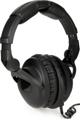
If that approach isn’t practical for your church, then it is critical that the person who is setting up the streaming mix needs to be checking the mix on a good pair of headphones with solid passive rejection. That way, they are making decisions based on what is really going out. A pair of headphones such as the Sennheiser HD 300 PRO will reject 32dB of outside noise and give you accurate reproduction to help you make quality audio decisions.
It is also important to be cognizant of the issues that are likely causing your problems. Then, you can actually account for them while you are setting up the mix.
No Room
If you are pleased with the way your service sounds live, then a simple approach is to add a microphone for capturing the impact of the room. A mic such as the Crown PZM-30D works well for this. Boundary microphones are mounted on a flat surface and have a hemispherical pattern to pick up nearly everything going on in the room. Mounting it fairly high will keep it from picking up too much extraneous noise.
This microphone can be blended into your streaming mix to put some of that space back into the audio. You may find that this microphone by itself is a pleasing solution, or it may be a little light for the spoken-word portions of your service, depending on how far it is from the speakers. Be careful not to route this microphone back into your live PA mix, as that can easily create feedback.

Holes in Your Mix
One thing to be aware of as you are evaluating your streaming mix is what doesn’t make it to that mix. The most common offenders are high-output sources like guitar amplifiers and kick drum. These sources tend to be loud enough that even if you have a microphone on them, they don’t get turned up very much on the mixer.
Unfortunately, if you don’t turn it up, then it doesn’t go to your streaming mix. If you are doing a streaming mix from an auxiliary send on your console, be aware that you are going to have to turn up these sources far more than the levels in the auditorium to get the same sound.
If your FOH (front-of-house) mixer is using an aux send to drive the subwoofers (a pretty common trick), you may find that they are making up for a lack of low end by turning up the send to the sub fairly hot. If this is the case, then your streaming mix is likely light on low end. While this may not matter since most people are listening on smaller speakers, it may be obvious once you put in earbuds. Make sure to check your mix on the kind of systems that people will tend to listen on. Adding a judicious amount of output EQ (say, about 2dB at 100Hz) can warm up the mix quite a bit. Do not overdo this, as you are going to just make a mess if you do much more than that.
Bootstraps, Baby!
If you are creating your streaming mix on a digital console, then you almost certainly have a compressor on the output channel you are using for this mix. You should use it. While the finished settings will depend on your levels and your mix, this is a good place to start.
Set the ratio to 2.5:1, set a fast attack time in the 40–80 millisecond (ms) range and the release around 300ms. Set the output/makeup gain to about 3dB and slowly lower the threshold until the compressor starts to work a little bit. This kind of setup will raise the average level of your mix and glue everything together, making it sound fuller and a bit louder without crushing the life out of it. Remember that the lower you set the threshold, the more you are compressing the audio, so you may need to increase the makeup gain to account for this loss.

A Spoonful of Sugar
In a modern worship service, we have a tendency to stack a lot of instrumentation in the same frequency range. Male vocals, guitars, and keyboards all tend to gravitate in the low midrange and can build up a fair amount of mud in your mix. The live sound engineer is likely using EQ to treat these channels to make them gel better in the room.
If you are using an aux-send mix for your streaming feed, then you likely had two major choices you had to pick from for configuration: pre or post. These refer to where in the channel the send for the aux is coming from and may vary a bit from console to console.
A send that is “post” means that it is “after” the fader (or EQ or processing) and the mix level will go up and down as the main fader changes and any processing that has happened will typically be applied to your streaming mix. This is probably a bad choice, as your processing decisions are being made depending on the sound of the room. Lots of church auditoriums build up a lot of energy at 200Hz, so the engineer may be pulling a lot of that frequency out, leaving your mix sounding hollow and cold. Alternatively, they may be cutting a lot of high or mid frequencies out for feedback reasons, and this could leave your mix dull and make spoken word difficult to understand. And, if the bass guitar is too loud in the house (because the bass player’s amp is turned up too loud), the FOH mixer may pull the bass fader completely down, taking it completely out of the house mix. That will result in the streaming mix not having any bass guitar in it at all.
If you choose a pre-fader (“before” the fader) send for the streaming mix, you will avoid these problems, but you might inherit another one. Depending on how the console is configured, all those midrange instruments could now be left untreated and can build up a muddy sound in the mix. If you have a little bit of EQ on the output you are sending for your streaming mix, it can often benefit by pulling out a little bit of energy in the 300Hz–400Hz range. This approach is far more effective than grabbing the EQ and boosting a bunch of 2kHz to try and get some intelligibility back. Use your ears as you do this, but it is a good policy to keep this kind of EQ processing to about 2dB or 3dB so as not to overdo things.
These are only a sampling of the things that might be impacting the sound of your streaming mix; so if you want to talk through these options as they apply to your church, give your Sweetwater Sales Engineer a call at (800) 222-4700.