
Yamaha Seqtrak Quickstart Guide
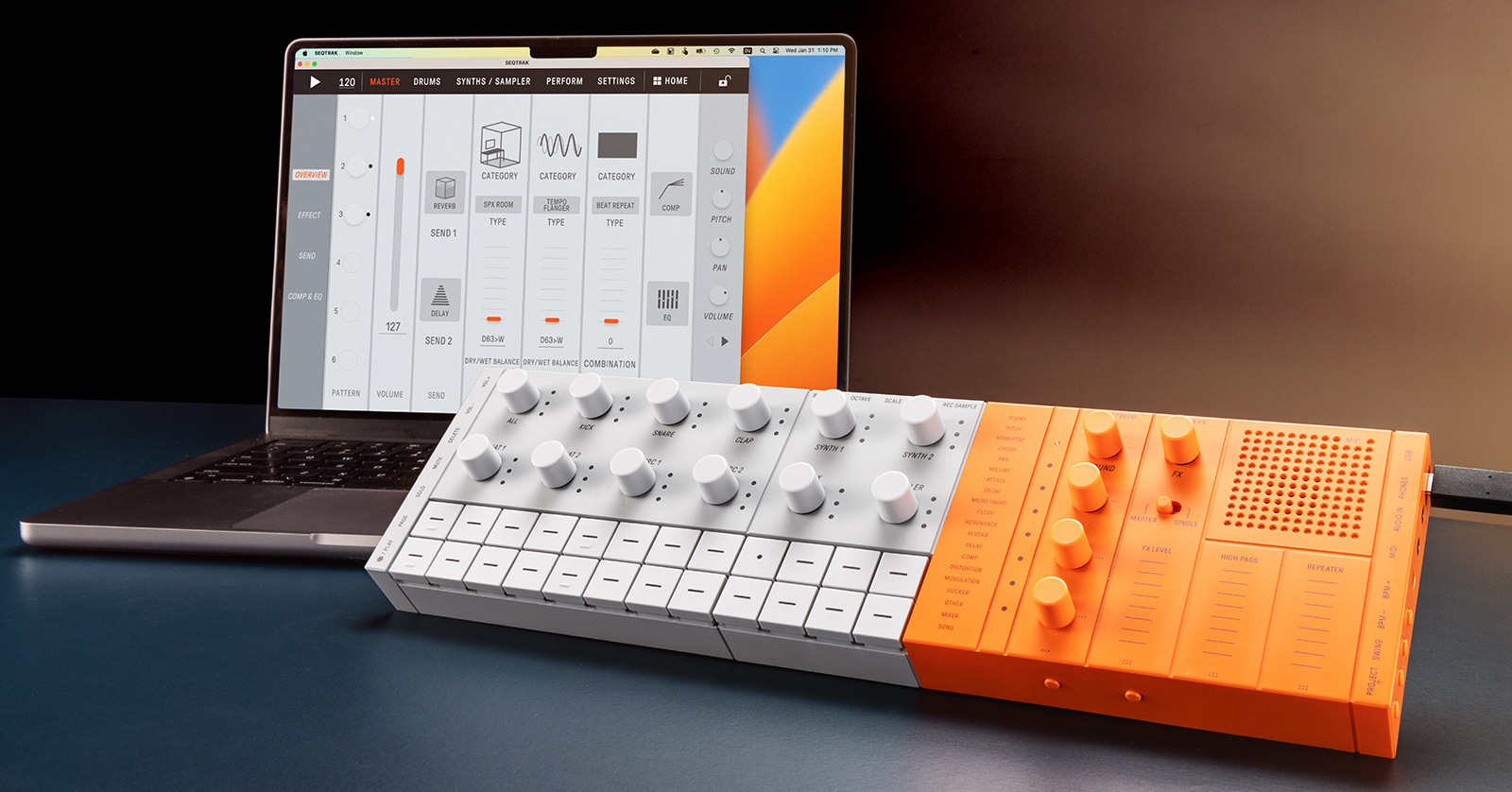
The Yamaha Seqtrak Mobile Music Ideastation is an all-in-one platform for capturing ideas and producing music that you can carry with you. Hook it up to your computer or device, and the Seqtrak app gives you access to its many deeper functions, along with Dynamic Tutorial contextual help and the rave-ready Seqtrak Visualizer. Let’s get started.
- Register Your Purchase with Yamaha
- The Yamaha Seqtrak App and Visualizer
- Download the Seqtrak Manuals
- Powering the Seqtrak
- Connecting a MIDI Keyboard
- Getting Started with the Seqtrak
- Updating the Seqtrak Firmware
- Sweetwater’s Seqtrak Demo Video
Register Your Purchase with Yamaha
We know you are eager to start sequencing beats, but please take a minute to register your purchase with Yamaha. When you do, you’ll not only get Yamaha’s warranty, but Yamaha will also send you OS update notifications and tips and tricks.
In the box, you’ll find a card with “Welcome” written on it in many languages. The card also contains a QR code. Scan it, or click this link to Yamaha’s registration page. On the page, click Register Now.
On the sign-up page, fill out the information, then create a new Yamaha user account or log in to your existing account. Enter the product name, Seqtrak, and the serial number from the bottom of the unit.
The Yamaha Seqtrak App and Visualizer
Next, on your computer, go to the Seqtrak download page.
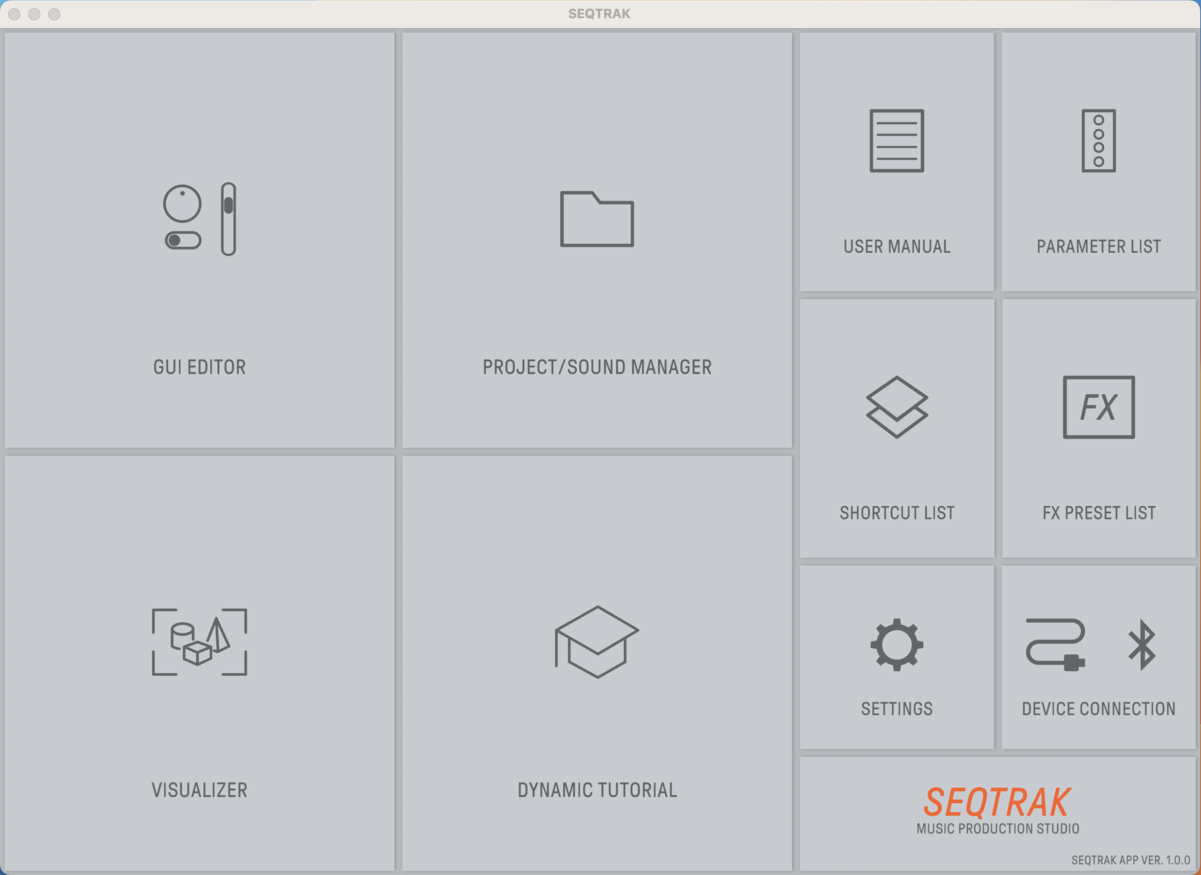
The home screen of the Yamaha Seqtrack app
While you can make music on the Seqtrak alone, it has no display screen to give you information about its many functions. The Seqtrak is much easier to learn to use if you connect the Seqtrak to your computer, phone, or tablet and use the Seqtrak app. The app also makes it easier to access all the Seqtrak’s features. The app provides detailed displays of all the features and enables you to access effects and libraries of sounds you can’t access from the hardware alone. The app also provides Yamaha’s amazing Dynamic Tutorial for contextual help. Touch any button, knob, or pad on the Seqtrak, and the app’s display will provide an explanation of its function and how to use it.

The Visualizer mode in the Seqtrak app
The Seqtrak app provides the amazing Seqtrak Visualizer, which lets you program live, dynamic videos with elements that follow and react to the beats and musical events in your sequences. Once you see it, you’ll understand.
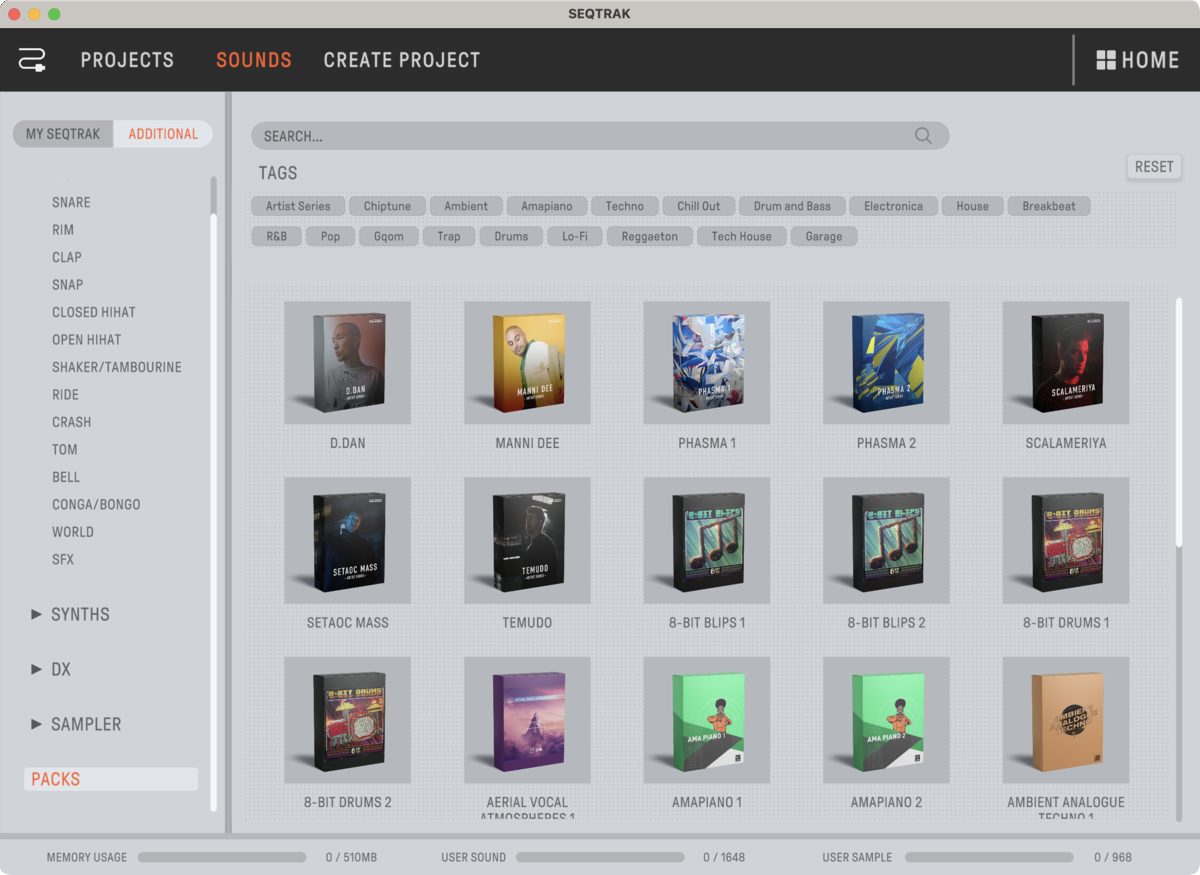
Use the Seqtrak app to download additional sound libraries from Yamaha.
Among its many other features, using the Seqtrak app is how you download hundreds of additional drum and synthesizer sounds and samples from Yamaha.
Download the Seqtrak app for Mac or Windows from the Firmware/Software section of the Downloads page.
If you are on Windows, you must also download and install the Yamaha Steinberg USB Driver for Windows.
On macOS, the Seqtrak’s connection is class-compliant, meaning no custom driver is required.
Connecting your Seqtrak to your Mac or your Windows PC via the USB-C cable enables you not only to use the Seqtrak app, but also to charge the Seqtrak’s internal battery from your computer and to transmit digital audio from the Seqtrak to your DAW for recording. It’s also possible to connect the Seqtrak to your Mac or PC via Bluetooth and Wi-Fi.
Yamaha also provides versions of the Seqtrak app for iOS, iPadOS, and Android. These can connect to the Seqtrak over Bluetooth or USB.
On your iPhone or iPad, download the Seqtrak app from the Mac App Store.
On your Android device, download the Seqtrak app from Google Play.
The tutorial videos below will explain how to make the Bluetooth connection.
Download the Seqtrak Manuals
Even if you are using the Seqtrak app’s Dynamic Tutorial function, you will want to download copies of the Seqtrak User Guide and other manuals for reference. Do so from the Manuals section of the Downloads page.
The current version of the Seqtrak User Guide is also online in HTML format here.
Powering the Seqtrak
Your Seqtrak uses an internal battery; there is no place to insert your own batteries. You must use the USB-C connection to plug the Seqtrak into a power source to charge the battery for standalone use. It will take three to five hours to completely charge. You can use the Seqtrak while it’s plugged in and charging.
Use the included USB-C cable to connect your Seqtrak to a Mac or a Windows PC with a USB-C port or to a powered USB hub. You can also use a USB power adaptor or a USB mobile battery (not included). Learn more in the Seqtrak Quick Operation Guide, page 7, Charging.
Connecting a MIDI Keyboard
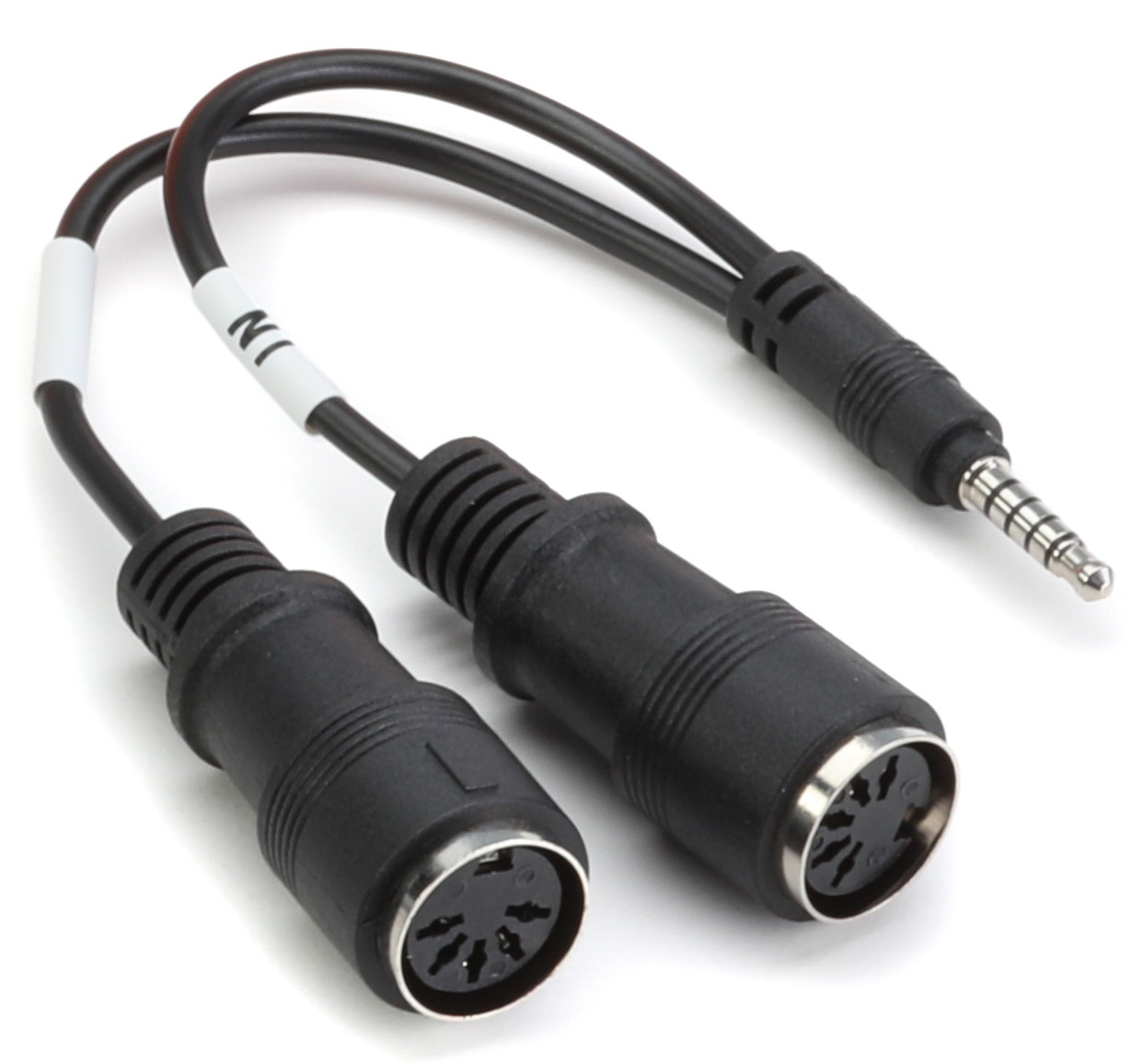
The Seqtrak MIDI conversion cable
While you can sequence drum parts and play simple melodies using the hardware pads on the Seqtrak, you can play more expressively if you connect an external MIDI controller keyboard. There are two means of doing this: via 5-pin DIN MIDI cables or by MIDI over USB-C.
For controllers with standard MIDI cables, Yamaha includes a MIDI conversion cable. It has a 1/8-inch plug on one end and a pair of 5-pin DIN MIDI connectors labeled In and Out on the other. To use it, first shut down the Seqtrak. Connect the 1/8-inch plug of the conversion cable to the port labeled MIDI on the side of the Seqtrak, then connect your controller using MIDI cables. Power on the Seqtrak.
Getting Started with the Seqtrak
Yamaha provides an excellent series of tutorial videos that walk you through all the features and will get you creating musical masterpieces in no time. Check these out!
These videos explain how to use the Seqtrak in a standalone manner and how to create tracks and sequences:
This video explains how to use the app to learn to use the Seqtrak. It begins with instructions for connecting the Seqtrak to your computer or device over USB or Bluetooth. But there’s much more: it explains how to access all the features that aren’t obvious from the hardware controls.
Updating the Seqtrak Firmware
From time to time, Yamaha will provide a new operating system, or firmware, that you can install on the Seqtrak. Each update will not only fix bugs, but may also provide new features, effects, and sounds. Here’s our Seqtrak Firmware Update Guide.
Sweetwater’s Seqtrak Demo Video
Here’s Creative D’Will with Sweetwater’s introduction to the Seqtrak.
Yamaha Seqtrak: Game-changing Mobility, DX Synthesis & Reality-bending Rhythms
When you need help, Sweetwater has the answers!
Our knowledge base contains over 28,000 expertly written tech articles that will give you answers and help you get the most out of your gear. Our pro musicians and gear experts update content daily to keep you informed and on your way. Best of all, it’s totally FREE, and it’s just another reason that you get more at Sweetwater.com.

