

Yamaha Seqtrak Firmware Update
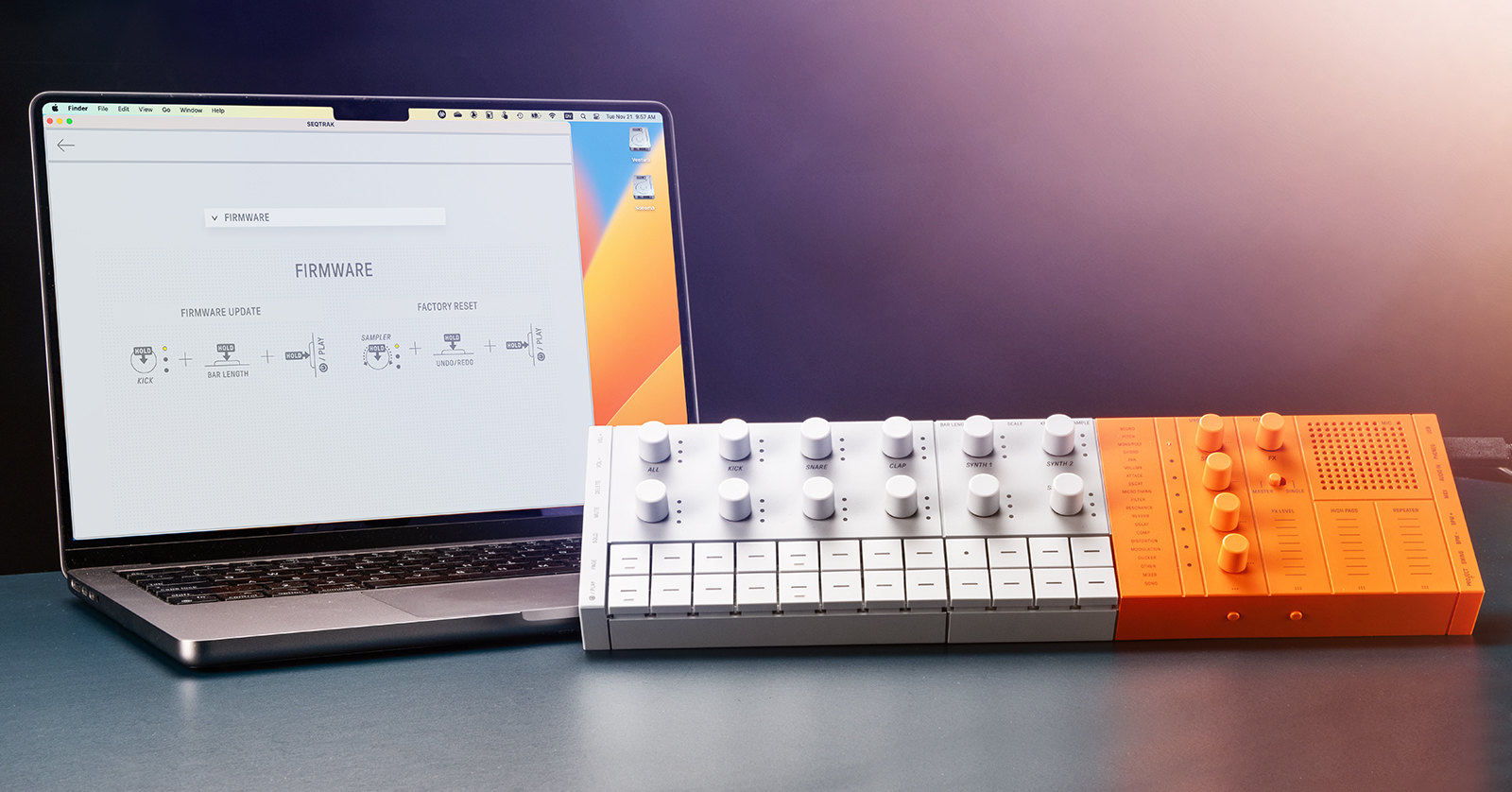
From time to time, Yamaha will provide a new operating system, or firmware, that you can install on the Seqtrak. Each update will not only fix bugs, but may also provide new features, effects, and sounds. You should always install a new firmware update if one is available.
Before you update, fully charge the battery on the Seqtrak. Learn more in the Seqtrak Quick Operation Guide, page 7, Charging.
Yamaha provides three methods for updating the firmware:
- Over USB-C connection to a Mac or a Windows PC using the Seqtrak app
- Over Bluetooth from your iPhone, iPad, or Android device using the Seqtrak app
- The older, “offline” method of downloading the firmware update files to a USB flash drive on your computer, then connecting the flash drive to your Seqtrak and updating from there
As we explained in our Yamaha Seqtrak Quickstart Guide, the easiest way to get started with the Seqtrak is to connect it to the Seqtrak app on your Mac or your Windows PC using a USB-C connection. This also provides the most straightforward way to update the firmware.
If you have not already installed the Seqtrak app on your Mac or your Windows PC, follow the instructions in our Yamaha Seqtrak Quickstart Guide, then come back here.
Firmware Update Procedure
- Connect the Seqtrak to your Mac or your Windows PC with the USB-C cable. Power it on.
- Start the Seqtrak app.
- The Seqtrak app will automatically check online and let you know if there is a firmware update available. If there is, follow the on-screen instructions to perform the update.
If the update fails, don’t worry; you can try it again.
Learn more in the Seqtrak User Guide > 17. Firmware Updates > 17.2 Using the Seqtrak App (for a Wired Connection).
Checking Your Firmware Version
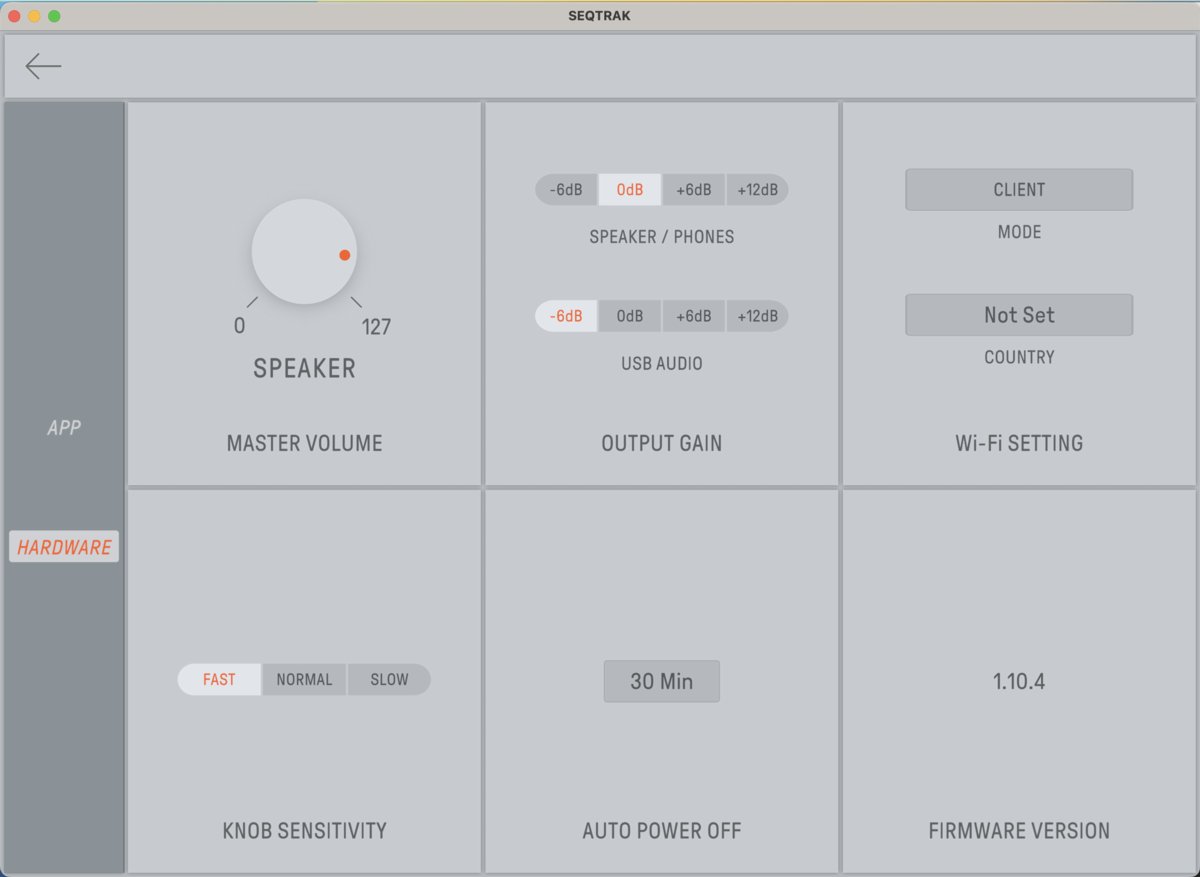
Displaying the version of your Seqtrak’s firmware
- In the Seqtrak app’s Home page, click Settings.
- In the pane on the left, click Hardware.
- In the pane on the lower right, the Firmware Version number will be displayed.
Related Articles
When you need help, Sweetwater has the answers!
Our knowledge base contains over 28,000 expertly written tech articles that will give you answers and help you get the most out of your gear. Our pro musicians and gear experts update content daily to keep you informed and on your way. Best of all, it’s totally FREE, and it’s just another reason that you get more at Sweetwater.com.

