

Which version of Pro Tools do I have?
If you need to know which version of Pro Tools you have so that you can choose the correct upgrade path, follow the instructions below to find out.
Mac
1. Launch Pro Tools.
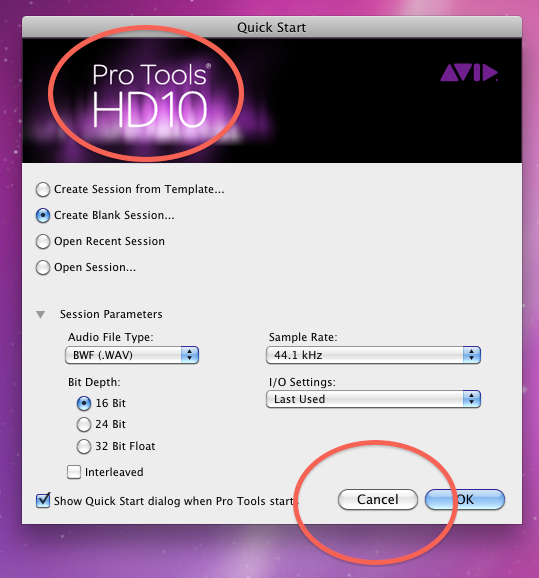
2. When the Quick Start dialogue pops up, it will say which version of Pro Tools you are running in the top left corner. If you want to get more specific about which version you have after any updates, click cancel on the Quick Start dialogue and continue to the next step.
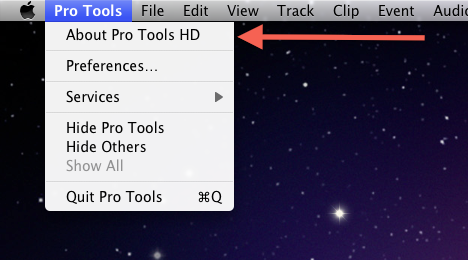
3. Click “Pro Tools” in the upper left hand corner of the screen next to the Apple logo and select “About Pro Tools.”
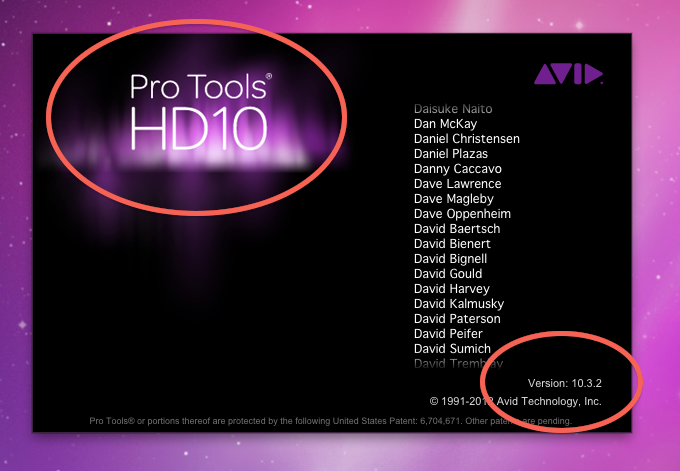
4. A window will pop up in the middle of the screen. In the top left corner, you will see the same indication of which version you are running that was in the Quick Start dialogue. If you look to the bottom right hand corner, you will see the specific version number you are running.
Windows
1. Launch Pro Tools.
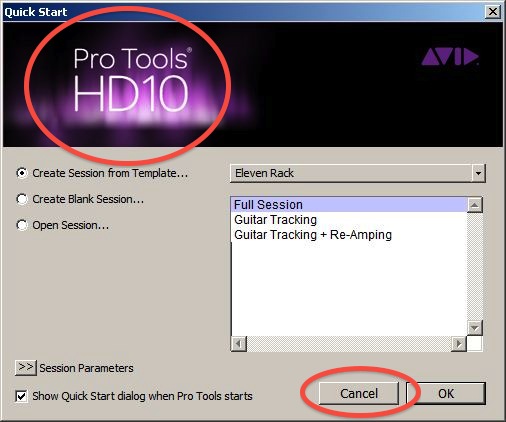
2. When the Quick Start dialogue pops up, it will say which version of Pro Tools you are running in the top left corner. If you want to get more specific about which version you have after any updates, click cancel on the Quick Start dialogue and continue to the next step.
3. Click the “Help” menu within Pro Tools and select “About Pro Tools.”
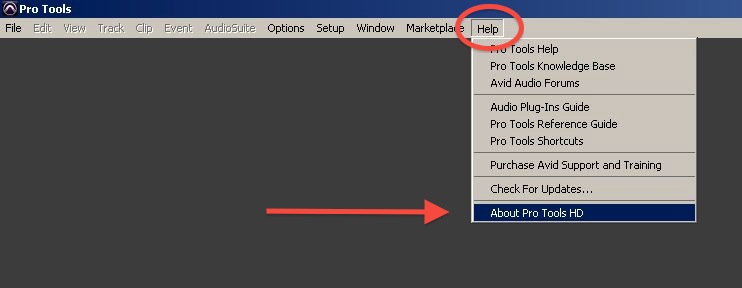
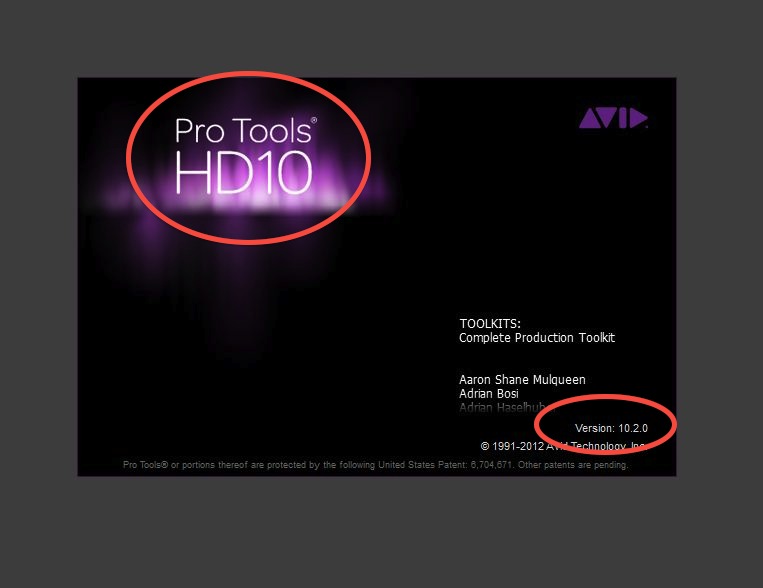
4. A window will pop up in the middle of the screen. In the top left corner, you will see the same indication of which version you are running that was in the Quick Start dialogue. If you look to the bottom right hand corner, you will see the specific version number you are running.
When you need help, Sweetwater has the answers!
Our knowledge base contains over 28,000 expertly written tech articles that will give you answers and help you get the most out of your gear. Our pro musicians and gear experts update content daily to keep you informed and on your way. Best of all, it’s totally FREE, and it’s just another reason that you get more at Sweetwater.com.

