

What can I do to eliminate audio dropouts in Sonar?
How to eliminate audio dropouts in Sonar
In this guide we will show you a few ways on how you eliminate audio dropouts in Sonar. Follow the steps below to get started.
If SONAR suddenly stops producing audio during recording or playback followed by a popup saying Audio Dropout “The audio engine has been stopped unexpectedly.”, you’ve very likely experienced an audio dropout. Sometimes instead of an audio dropout, a stutter during playback (a small section of audio repeats itself once or twice before normal playback resumes). Or, you may occasionally experience a glitch or pop during audio playback (a brief interruption or clicking noise is heard, but audio playback then usually continues from that point).
Eliminating audio dropouts in Sonar
If you’re having issues with audio dropouts in Cakewalk Sonar, there could be a few reasons why, but fixing it is simple. If you’ve already gone through our audio interface troubleshooting guide for PC and still have audio dropouts, it’s typically caused by two different things. The first is being a corrupt setting in the AUD.INI file. An .INI file is a configuration file that essentially tells specific parts of the software how to run, so even if one “instruction” is incorrect, audio dropouts will occur. The other has to do with the hard disk buffer size settings.
Rename the Sonar AUD.INI file
- Close Sonar, click the Windows icon on the bottom toolbar, then type %appdata%.
- Open the Cakewalk folder, double-click the Sonar folder.
- Locate AUD, single-click it so you can edit the text, and give it a unique name (i.e., AUD ORIGINAL), then press your Enter key.
- While you can delete it, renaming will let you go back to the original one if necessary.
- Relaunch Sonar and see if you still have audio dropouts.
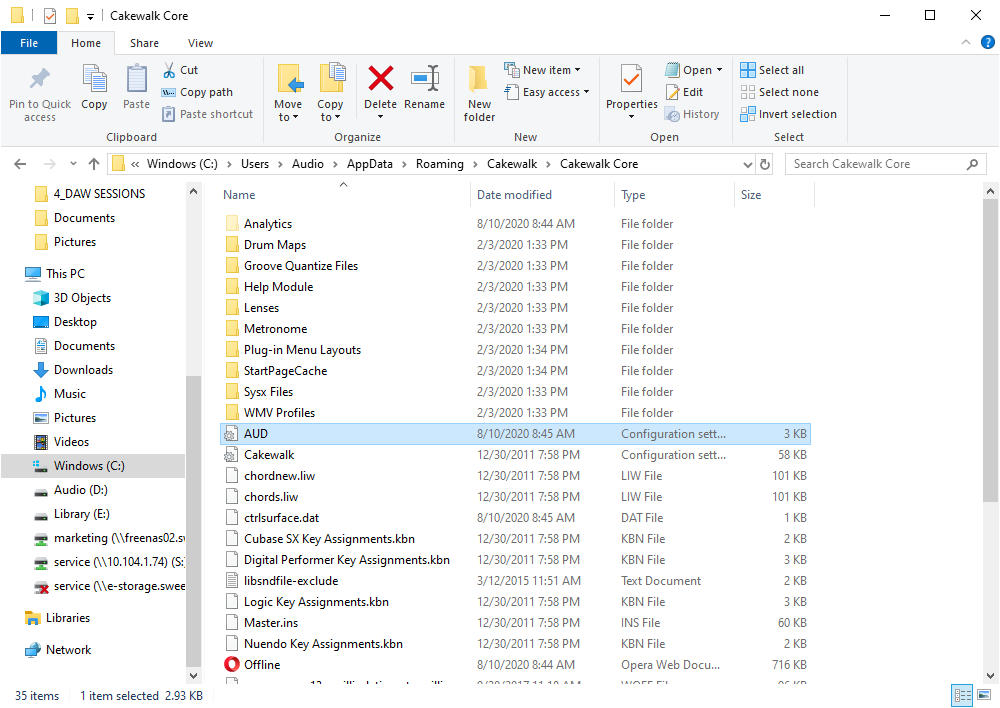
Location of the AUD.INI file
Editing the AUD.INI file
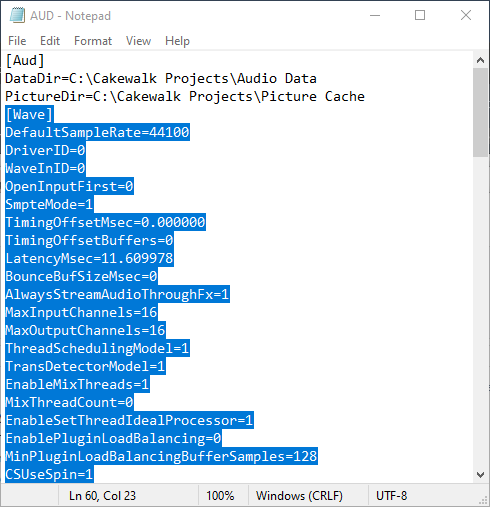
You do have the ability to edit the AUD.INI file to achieve the same result to fix audio dropouts. You will need to open the file in Notepad, however.
- Locate the AUD file using the instructions above.
- Right-click the .AUD file, select Open with, then choose Notepad.
- Delete all of the text below PictureDir=C:\Cakewalk Projects\Picture Cache, then save the INI file.
- Relaunch Sonar.
- If you still have audio dropouts after trying this solution, check out Cakewalk’s article on the error codes and what the issue is.
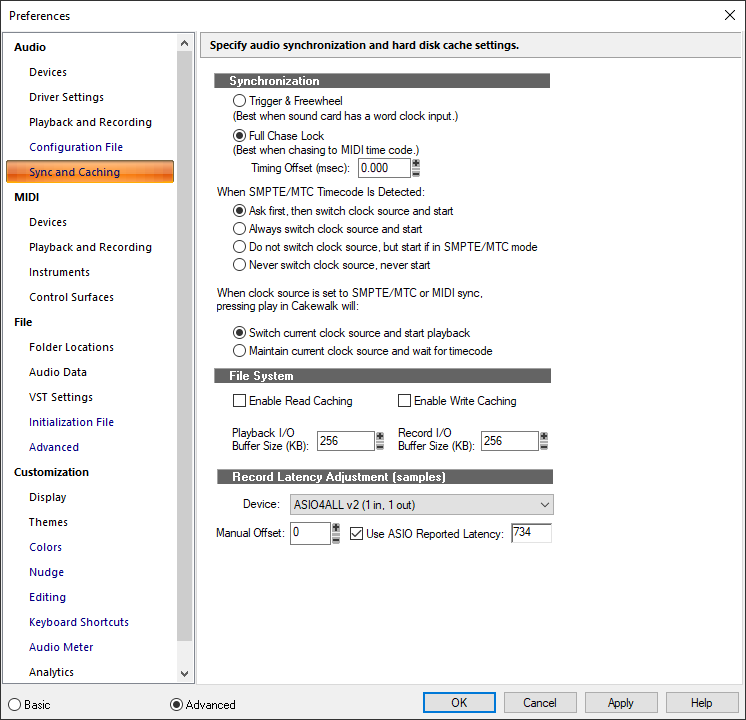
Audio dropouts in Sonar can also occur due if the hard disk buffer size is too low. Follow these steps to fix audio dropouts by increasing your hard drive buffer size.
- Launch Sonar, click Edit, then select Utilities.
- Click the Advanced button at the bottom of the window, then in the Audio section, click Sync and Caching.
- Navigate to the File System section and increase the Playback I/O Buffer Size and Record I/O Buffer Size.
- It is NOT recommended to enable Read Caching or Write Caching as this will use our hard drive’s resources and slow down your computer.
If you still have audio dropouts after trying this solution, check out Cakewalk’s article on the error codes and what the issue is.
When you need help, Sweetwater has the answers!
Our knowledge base contains over 28,000 expertly written tech articles that will give you answers and help you get the most out of your gear. Our pro musicians and gear experts update content daily to keep you informed and on your way. Best of all, it’s totally FREE, and it’s just another reason that you get more at Sweetwater.com.

