
Vir2 Software Activation Instructions
In this guide, we will show you how to activate, download, and install your new Vir2 software. Follow the sections below to get started.
- Redeem the activation code
- Download & install the Vir2 libraries
- Install Native Access and Kontakt Player
- Activate serial number with Native Access
Redeem the activation code
The first step in the activation process is to redeem the activation code you received from your Sweetwater Sales Engineer. In order to redeem the Vir2 code, you first need to create an account with Big Fish Audio. Follow these steps to redeem the activation code.
- Log in to your Big Fish Audio account. If you haven’t created one yet, you can create one here.
- On your account page, click Redeem Code, paste the activation code from the Sweetwater activation e-mail into the blank field and then click Continue.
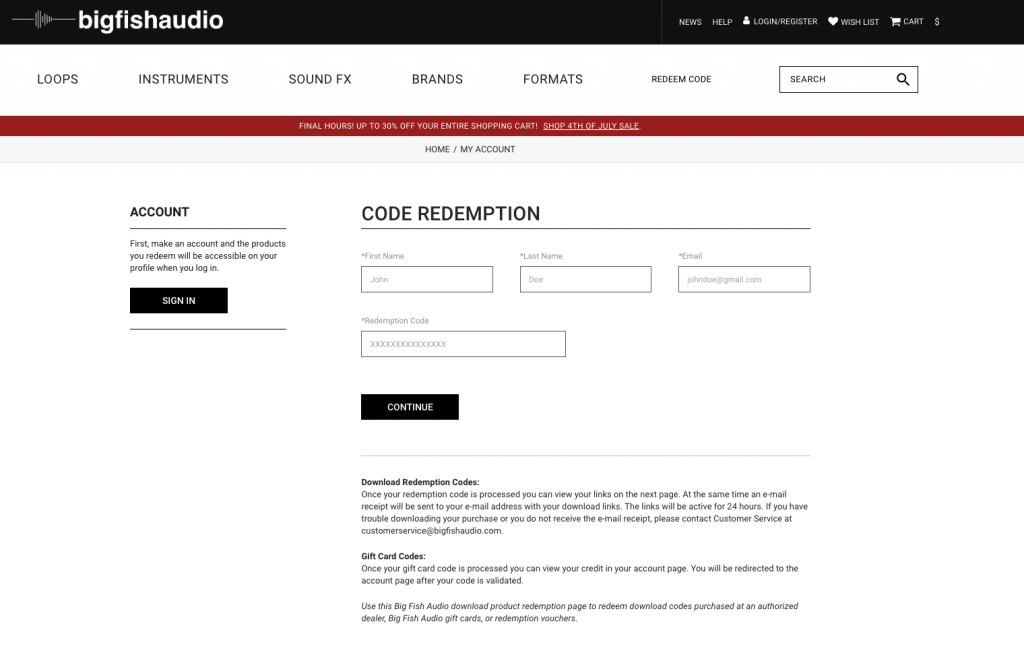
Click here to redeem your Vir2 activation code.
Download and install the Vir2 libraries
The next step in the process is to download and install the Vir2 libraries. The sample libraries contain a lot of files, so download times will vary depending on your internet connection. We recommend downloading one file at a time. Follow these steps to download and install the library files.
- In your account page, download the library .rar files, and then move all of the folders to the desired library location.
- Once all of the .rar files are downloaded and moved, extract ONLY the first .rar file.
- PC users: You will need to install software such as 7-Zip to extract the .rar file.
- Mac users: You will need to install software such as Unarchiver to extract the .rar files.
Install Native Access and Kontakt Player
All Vir2 libraries require the use of Native Instruments Kontakt Player; a sample-based virtual instrument player. In order to get Kontakt 6, you’ll need to create a Native Instruments account and download the Native Access app.
- Visit the Native Access page and download the app for your operating system.
- Open your Downloads folder and launch the installer
- PC: Right-click the Native Access Installer .zip file, select Extract all…, and then click Extract. Double-click the new Native Access Setup PC .exe file and follow the on-screen instructions.
- Mac: Double-click the Native Access Installer .dmg file to decompress it. In the window that appears, drag the Native Access app to the Applications folder.
- Launch the Native Access app log in to your Native Instruments account. If you don’t have an account, create one and open the confirmation email sent from Native Instruments.
- Click the Kontakt 6 Player’s INSTALL button. Once done, continue below to enter the Serial Number.
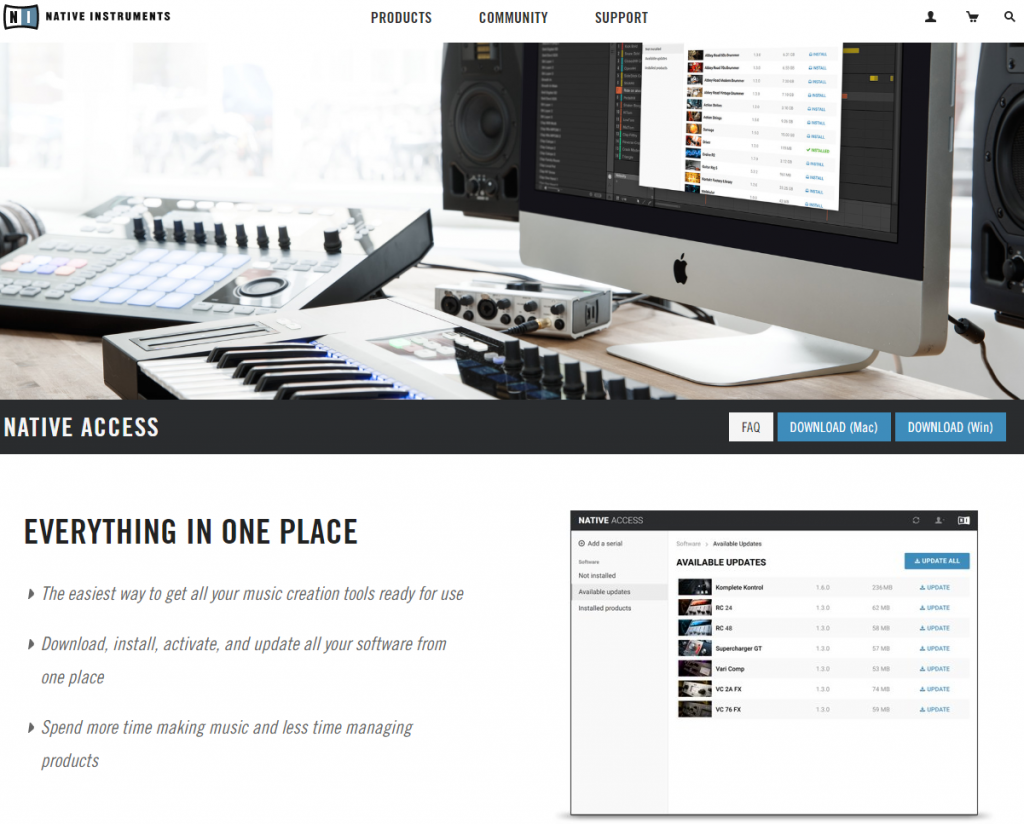
Click here to download Native Access
Activate serial number with Native Access
IMPORTANT: The Serial Number for Native Access is different than the activation code you received from your Sweetwater Sales Engineer. It is five sets of five digits (12345-12345-12345-12345).
Once a sound library is installed, it must be activated and linked to Kontakt within Native Access. All you need to do is enter the Serial Number provided by Sample Logic and then select the folder you installed the library. Once done, you’ll be able to launch Kontakt and use your Vir2 instrument.
- In the Native Access app, click the Add a serial button.
- Enter your Serial Number from your Big Fish Audio account page, and click Add Serial.
- When prompted, select the folder you installed the library files.
Adding a serial number in Native Access.
Additional resources
Vir2 Instruments Install Tutorial
Setting up a Third Party KONTAKT Library
When you need help, Sweetwater has the answers!
Our knowledge base contains over 28,000 expertly written tech articles that will give you answers and help you get the most out of your gear. Our pro musicians and gear experts update content daily to keep you informed and on your way. Best of all, it’s totally FREE, and it’s just another reason that you get more at Sweetwater.com.

