
Universal Audio OX Registration Guide

In this guide, we will show you how to get started with the Universal Audio OX. You’ll learn how to install and register your device and software for the first time. Follow each of the sections to get started and learn more about the OX with these helpful links.
Download and install the OX app
BEFORE WE BEGIN: Be sure you meet the following system requirements before downloading:
- Wi-Fi network with an internet connection (for first-time registration only)
- iPad with iOS 11
- macOS High Sierra
- Windows 10
- Android tablets and Windows 2-in-1 devices are not supported.
The first step in the registration process is to download the OX application for your OS. If you are using an iPad to connect, please visit the OX Amp Top Box App page here.
- Navigate to the OX App download page. If you’re using an iPad, visit the App Store to download the OX Amp Top Box app.
- When prompted, log in to your Universal Audio account. If you don’t have one, you can do so here.
- Go to your Downloads folder, then extract and launch the installer file.
- PC: Right-click the .zip file, select Extract all…, and then click Extract. Double-click the new .exe file and follow the on-screen instructions.
- Mac: Double-click the .dmg file, and then drag the OX app to the Applications folder.
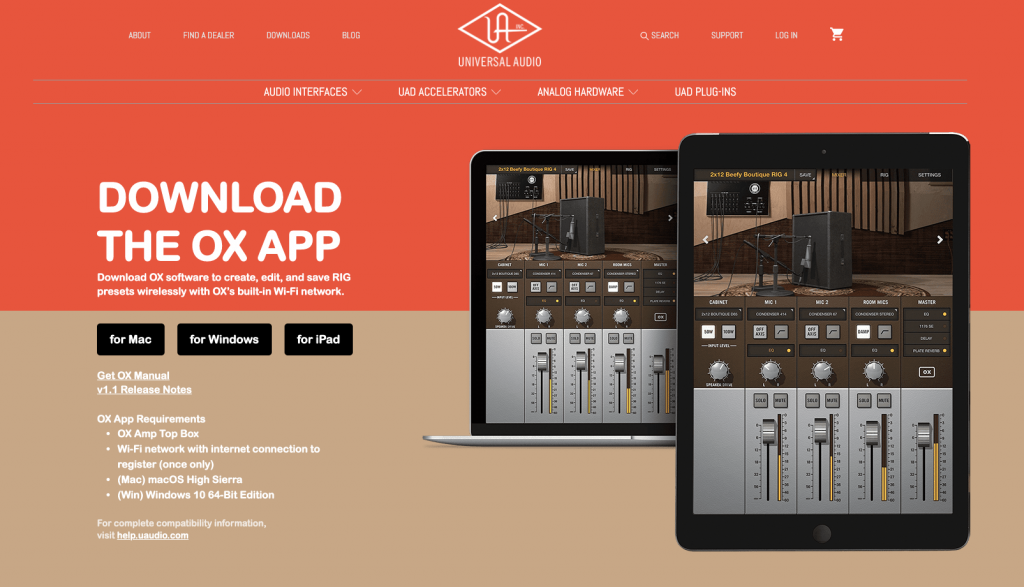
Click here to download the OX app.
Register the OX hardware
The final step is to register your OX hardware and application. You will need a Wi-Fi connection with internet access and the OX to be powered on. The registration only needs to be completed once, so follow these steps to complete the registration process.
- Go to your computer (or iPad) network settings, select the OX Wi-Fi hotspot, then enter the Password located on the back of the device to pair your device with the OX wireless hotspot.
- Launch the OX application, and then click Find My OX to display the Wi-Fi network list. Select a network from the list, enter that password, then click OK.
- Windows Users: If a Windows Security box appears, be sure to check both the Private Networks and Public Networks boxes, and then click Allow Access.
- Navigate to your computer (or iPad) network settings, pair the device to the exact network you connected to in Step 2, and then enter the network password.
- Launch the OX app to take you to the registration page, then follow the on-screen instructions to complete the hardware registration.
- Go back to the OX app, and then click Find My OX to complete the software registration.
- If you receive an error saying the device is unable to be found, click the arrow next to “Still can’t connect?” then click Reset Computer Wi-Fi.
Additional vendor resources
When you need help, Sweetwater has the answers!
Our knowledge base contains over 28,000 expertly written tech articles that will give you answers and help you get the most out of your gear. Our pro musicians and gear experts update content daily to keep you informed and on your way. Best of all, it’s totally FREE, and it’s just another reason that you get more at Sweetwater.com.

