
BeatBuddy Quickstart Guide
NOTE: This article is about the original BeatBuddy. For the BeatBuddy 2, consult our guides here.
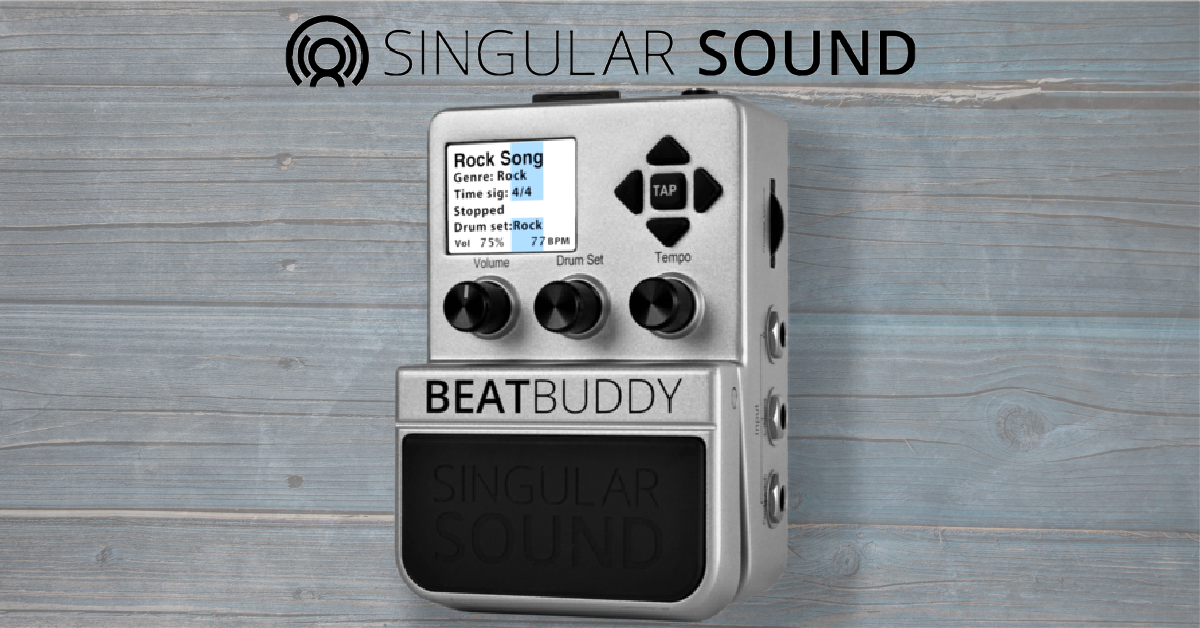
Singular Sound’s BeatBuddy is an innovative drum machine pedal that allows you to easily control everything at your feet, making it a perfect tool for performing live. Sweetwater’s Tech Support team has tons of experience with them, so we decided to put together a few things that every BeatBuddy user should know. Also be sure to check out the BeatBuddy Owner’s Manual for more information!
BeatBuddy Manager Online

The BeatBuddy Manager Online app showing Song view
At one time, Singluar Sound provided an app that you download to your Mac or Windows PC, called BeatBuddy Manager. This is no longer provided, and has been replaced by BeatBuddy Manager Online, which is an app that runs in the web browser of your computer.
You can use BeatBuddy Manager Online to create projects, importing files, editing song files and drum sets on your computer screen where it’s easy to see multiple parameters and whole song structures at once.
BeatBuddy Manager Online works with the original BeatBuddy, the BeatBuddy 10th Anniversary model, and the BeatBuddy 2.
To use BeatBuddy Manager Online, you start by removing your SD card from your BeatBuddy and attaching it to your computer using an SD card reader.
On your computer, you copy all the files from the SD card to a folder on your hard drive.
Then, through a compatible web browser (Google Chrome, Microsoft Edge, Opera or Vivaldi are listed) you can open the BeatBuddy Manager Online landing page and log in to your account.
The BeatBuddy Manager Online app will then access the files you copied from your SD card. You can get to work creating and editing projects which will be saved to your computer’s hard drive.
You can then load your work from your computer’s hard drive back onto your SD card, eject it from your computer, and insert the SD card into your BeatBuddy unit to take to the gig.
To use the BeatBuddy Manager Online, follow the instructions in Singular Sound’s BeatBuddy Manager Online (BBMO) Tutorials video tutorial playlist on YouTube.

Download the BeatBuddy Manager Online owner’s manual for full information. From the BeatBuddy Manager Online home page, click on “BBMO Manual.” This will take you to the Singular Sound Forum page with a link to the newest version of the manual.
Update the BeatBuddy firmware
Singular Sound is constantly providing Beatbuddy firmware updates to give you access to great new features, such as additional drum kits. The firmware update will also address any bugs present in the current firmware. For those reasons, it’s a good idea to keep your firmware up-to-date so your BeatBuddy runs smoothly. Follow the instructions below to learn how to update your BeatBuddy firmware.
- Insert your BeatBuddy’s SD card into your computer. Then, download the firmware.
- Go to your Downloads folder and unzip the file.
- Drag the files (app, app.bin, boot.bin, MLO, MLO.bin) to the SD card’s main window. If prompted to skip or replace files, click Replace.
- Insert the SD card into your unplugged BeatBuddy. The firmware will automatically upgrade upon powering on.
How to Upgrade Your BeatBuddy Firmware For the Latest Drum Machine Features
Using SD cards with BeatBuddy
IMPORTANT: If your computer or laptop doesn’t have a built-in SD card reader, you will need an adapter that connects via USB to transfer the files.
It’s reassuring to know that you can always retrieve the files that came with your BeatBuddy by downloading the SD Card Backup file. Should anything ever happen to your BeatBuddy’s SD card, this backup file will get you back to how it was when you first got it.
Go to the Singular Sound BeatBuddy 10th Anniversary product page and scroll down to the Downloads and Documentation section. Click on “Downloads” and find the link to download the BeatBuddy Default Content (SD Backup) file.
If you’re uncomfortable working with zip files, read through How to Zip and Unzip Files.
- Download the SD Card Backup zip file.
- Open the .zip file to create a new uncompressed file.
- Transfer the FINAL Content v120 – SD card files to your SD card’s main folder.
- Within the file, make sure you have Drumsets, Effects, Params, Songs, and the file HASH.BCF.
BeatBuddy Drum Machine Premium Library Collection – How To Import Drumsets
BeatBuddy Drum Machine Premium Library Collection – How To Import Individual Songs
No SD Card or No Song error messages
Although it’s uncommon, you may come across an error message that reads No SD Card or No Song when working with BeatBuddy Manager. Luckily, it’s quickly remedied by reformatting the SD card so it is FAT32. Check out these videos to reformat an SD card for Windows and Mac.
Additional BeatBuddy resources
- What kind of cable do I need to use the MIDI sync on my Singular Sound BeatBuddy?
- Which MIDI sync functions are supported by my Singular Sound BeatBuddy?
- Can I use WAV files with my Singular Sound BeatBuddy?
Related Articles
When you need help, Sweetwater has the answers!
Our knowledge base contains over 28,000 expertly written tech articles that will give you answers and help you get the most out of your gear. Our pro musicians and gear experts update content daily to keep you informed and on your way. Best of all, it’s totally FREE, and it’s just another reason that you get more at Sweetwater.com.

