

Roland SPD-SX Kits and Samples
Getting started
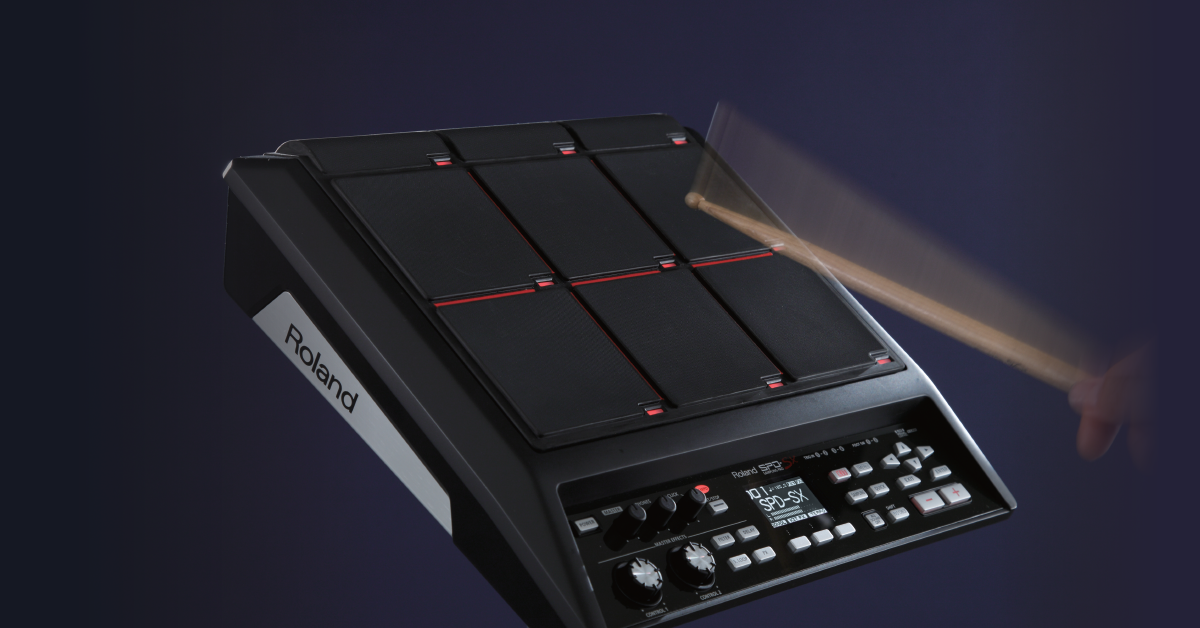
You can use samples in many different ways with the SPD-SX. In this guide, we will show you how to record and import custom samples, and also how to create and edit kits so you get the most out of your gear. Follow the sections below to get started.
Record and import samples
The SPD-SX has 4GB of internal memory (the Special Edition has 16GB) and supports USB thumb drives with a capacity of up to 32GB formatted to either FAT or FAT32. It’s flexible, as you can record external audio directly to the SPD-SX or you can import custom .WAV files from a USB thumb drive or a computer. Check out our articles on formatting external devices on Mac and PC for more information.
Record external audio samples
You can record samples from an external source such as a phone, mixer, or dynamic microphone. First, connect ¼” TS cables to the AUDIO IN jacks on the back of the SPD-SX. You can then assign them to either a single pad (Basic sampling) or multiple pads (Multi Pad).
Basic sampling
Basic sampling allows you to record a sample onto a single pad. When recording a sample, you can only select an empty pad that does not have a wave currently selected.
- Press the Sampling button and use the cursor arrows to select BASIC.
- Start streaming the external audio and adjust the REC LEVEL to a point where it doesn’t clip. Once you’ve found a good level, you can stop streaming.
- Strike the pad where you wish to record the sample to select it.
- Press the STBY button to arm the recording, and then press START to begin recording. Press STOP after you’ve finished recording the sample.
- If you set Auto Off to anything other than off, it will start recording once the external audio reaches the specified level.
- If necessary, trim the Start and Stop locations on the next screen using the + and – buttons.
- Press ENTER to save the sample then strike the pad you selected in Step 3 to preview the new sample.
Multi Pad
Multi Pad sampling is used when you want to record sequential samples without needing to constantly start and stop the external audio. For example, if you are wanting to sample an intro, verse, and pre-chorus from a song that’s currently playing, use the Multi Pad sampling function to capture them.
- Press the Sampling button and use the cursor arrows to select MULTI PAD.
- Begin streaming the external audio and adjust the REC LEVEL to a point where it doesn’t clip. Once you’ve found a good level, you can stop streaming.
- Strike the first pad to begin recording the sample to that pad. Strike the next pad to begin recording the next sample.
- Strike a pad that has already been sampled to stop the recording.
- If necessary, trim the Start and Stop locations on the next screen using the + and – buttons.
- Press ENTER to save the sample then strike the pads you selected in Step 3 to preview the new sample.
Import samples from a USB thumb drive
Importing samples from a USB thumb drive is simple. Just connect it to your SPD-SX, go to the Wave Import menu, and then assign it to a pad. Audio files must be 16-bit 44.1 kHz .WAV or .AIF/.AIFF files. If it isn’t, you will receive an Unsupported Format message.
- Connect the USB flash drive to the back of the SPD-SX.
- Press the MENU button, navigate to UTIL, and then select WAVE IMPORT.
- Use the UP and DOWN cursor buttons to select the sample, use the + and – buttons to mark the audio file, and then press ENTER.
- Use the LEFT and RIGHT cursor buttons to navigate to KIT and use the + and – buttons to select the kit you want to import the sample to. Follow the same procedure to change which pad it’s imported to.
- Press ENTER to import the sample.
Import samples from SPD-SX Wave Manager
TIP: You won’t be able to play the pads while in Wave Manager mode. You will need to switch the USB mode back to Audio/MIDIto perform on the SPD-SX.
Another way to import .WAV and .AIF/AIFF files are through the SPD-SX Wave Manager app. You first need to download it from Roland’s website, and if you haven’t already, the driver, as well. Follow these steps to use the SPD-SX Wave Manager app to import samples.
- Go to the SPD-SX download page and download the latest version of Wave Manager.
- Mac users: You will need to download and install the latest driver for your OS as well.
- On the SPD-SX, Press MENU, navigate to SETUP, select OPTION, and use the + or – button to change the USB mode to Wave Manager.
- Connect the SPD-SX to an available USB port on your computer, and launch the Wave Manager app.
- Open the folder location where the audio file resides and click and drag it to the pad you wish to assign it to.
- You can also import multiple audio files by navigating to File, selecting Wave Import, and then click Add.
- Click EXIT once you’re finished.
Using SPD-SX Manager
Working with kits
Once you’ve created a kit and imported samples, you can route your sounds, add effects, and create kit chains.
Add and edit effects
There are three ways to apply effects; at the pad level, kit level, and master level. Applying effects to individual pads require you to route the pad output. Adding effects to individual kits or to the entire device is a bit different.
Individual kits
- Press MENU, select KIT FX and then press FX1 or FX2.
- Use the cursor arrows to select a parameter and the + and – buttons to change each parameter.
- Press EXIT and use the two FX knobs to control the level of the effect. Those effects will only save to the current kit.
Master Effect
- While on the Kit screen, press the QUICK button, select MASTER EFFECT and press ENTER.
- Use the LEFT and RIGHT cursor buttons to select the effect (e.g. Filter, Delay, Other) and use the + and – buttons to select the effects preset.
- Press the FX button located next to the FX knobs. You can use the other three buttons to recall Filter, Delay, and S. Loop.
Route the pad output
You can route individual pad outputs to the Master out, Sub out, or just the headphones. You can also route them through one of the two FX channels.
- Press MENU, select KIT and hit the pad you wish to change the routing to.
- Use the + and – to change the routing. The arrow will show the current signal flow.
- Press EXIT and then play that pad. The routing will automatically save to the kit.
Create a Kit chain
Kit chains allow you to arrange multiple kits for quick recall. This is very useful in live situations, where you use Kit number 2 on one song, and Kit number 89 for the second song. There are eight banks, and you can load 20 kits per bank.
- While on the Kit screen, press the QUICK button, press the + button to enable Kit Chains, and then select KIT CHAIN.
- Press the + and – buttons to select a kit, and then press the DOWN cursor arrow to move to the next slot.
- After you finish building your Kit Chain, press the QUICK button once more, navigate to CHAIN NAME, and rename the chain.
- Press EXIT to return to the Kit screen and use the + and – buttons to navigate through the created Chain.
When you need help, Sweetwater has the answers!
Our knowledge base contains over 28,000 expertly written tech articles that will give you answers and help you get the most out of your gear. Our pro musicians and gear experts update content daily to keep you informed and on your way. Best of all, it’s totally FREE, and it’s just another reason that you get more at Sweetwater.com.

