
How To Use RME TotalMix FX
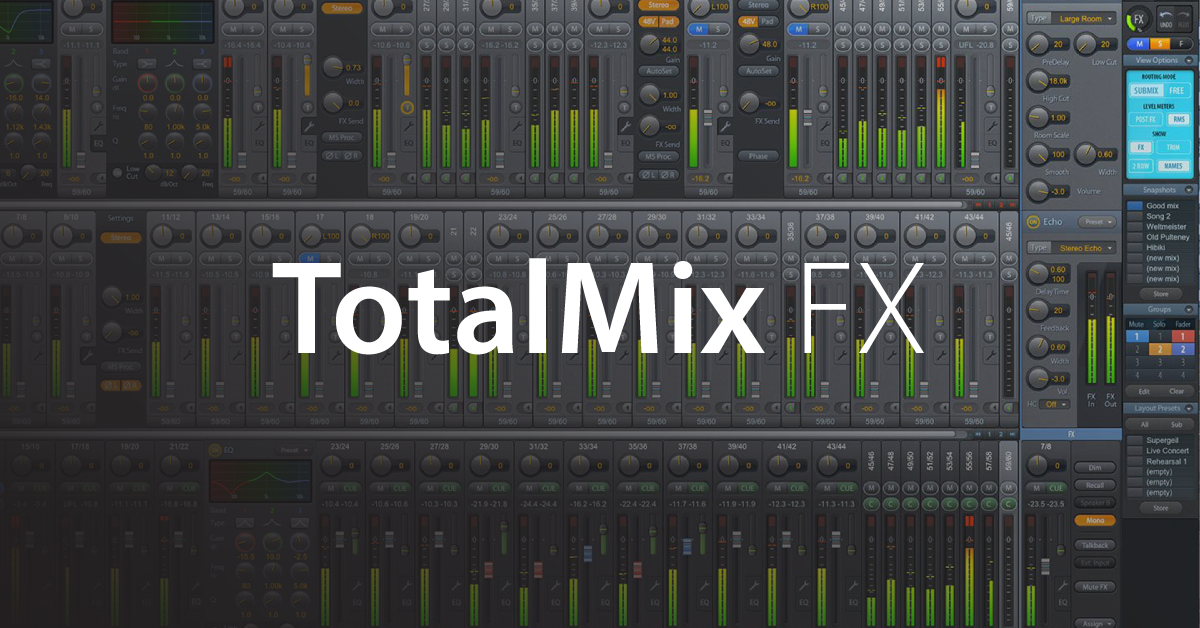
In this guide, we will show you how to work with RME’s TotalMix FX software. We’re only scratching the surface, but our friends at RME have created tons of helpful content to help you along the way! Follow the sections below to get started.
TotalMix FX explained
TotalMix FX is the standalone software where you will make various changes with the RME interfaces. Some of these settings include changing routing, loopback functionality, and engaging phantom power. When you open TotalMix FX, three rows are on the left side: Hardware Inputs, Software Playback, and Hardware Outputs.
The hardware input and software playback sections are where you’ll control levels from anything connected to the interface (hardware inputs) and software playback (DAW audio, OS audio, etc.) RME interfaces are multi-client, which means that you can have other audio software open and play back all at once, even other DAW’s!
The Hardware Outputs are the physical output connections of your interface and allow you to select where the hardware and software playback is routed (headphones, main monitors, etc.).
How to route in TotalMix FX
BEGINNERS TIP: If this is your very first time using TotalMixFX, click SUBMIX within the blue Routing Mode window on the right side of the screen.
When you first launch TotalMixFX, you must adjust the settings within the Control Room window (located on the bottom right). The Control Room is where you will assign the main outs and your headphones. To update, just click Assign, choose the output you want to edit (Main Out, Phones, Cue), and then select its output destination. Once you’ve updated the outputs, adjust the channel input to a point where it isn’t clipping.
TotalMix FX For Beginners – Routing & Layout Basics
TotalMix FX For Beginners – Headphone Mix
TotalMix FX For Beginners – Monitor Mix
TotalMix FX For Beginners – Free Vs. Submix Mode
TotalMix FX For Beginners – Channel Groups
Route and Mix Hardware Insert Effects in TotalMix FX
Customize your mix and layout
One great thing about TotalMix FX is that you can customize almost everything to speed up your workflow. What’s better you can create mixes and save them as user presets! This is especially useful if you have multiple projects. There are two different ways to save: Snapshots and Workspaces. A Snapshot includes routing, internal effects, and levels for the current mix session you’re working with. On the other hand, workspaces are backups of all of the existing data TotalMix FX – including all Snapshots you create.
TotalMix FX For Beginners – Vocal Recording with RME Audio Interfaces
TotalMix FX For Beginners – Customizing the Channel Layout
TotalMix FX For Beginners – Channel Groups
TotalMix FX For Beginners – Recording FX with Loopback
Easy Setup of Loopback in TotalMix FX
Additional RME resources
DAW Setup Guides For RME Audio Interfaces (Playlist)
An In Depth Look at TotalMix FX
TotalMix FX Essentials Episode 1: The Basics
When you need help, Sweetwater has the answers!
Our knowledge base contains over 28,000 expertly written tech articles that will give you answers and help you get the most out of your gear. Our pro musicians and gear experts update content daily to keep you informed and on your way. Best of all, it’s totally FREE, and it’s just another reason that you get more at Sweetwater.com.

