
RealTime Audio Software Activation Instructions

In this guide we will show you how to get up and running with the RealTime Audio portal. Follow the instructions below to get started.
Create An Account
The first step in the registration process is to create an account with RealTime Audio.
- Connect your RealTime Audio audio interface to your computer.
- The device is class-compliant so no additional driver software is necessary.
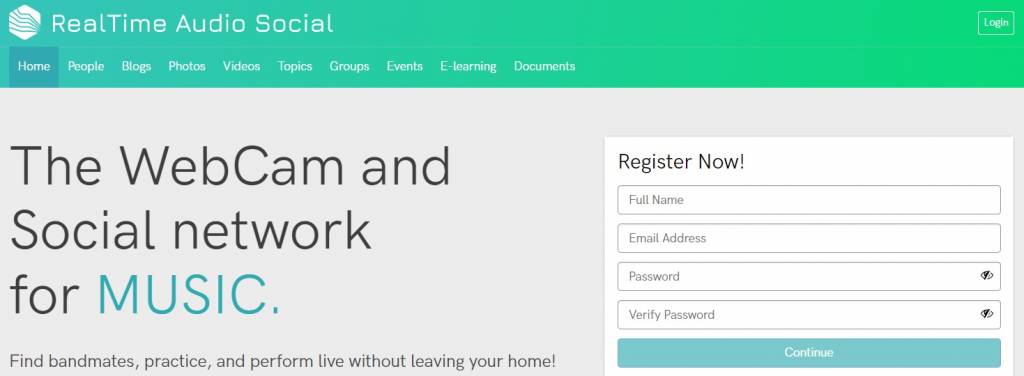
- Go to the RealTime Audio homepage and click Sign Up.
- Fill out the necessary information, then click Webcam Tool.
Activate Your subscription
Once the account is created and you’ve opened the Webcam Tool, you’ll need to activate your subscription.
- From the Webcam Tool window, name the “Room” you wish to create, then click Join.
- When prompted, enable the webcam and audio device from your browser.
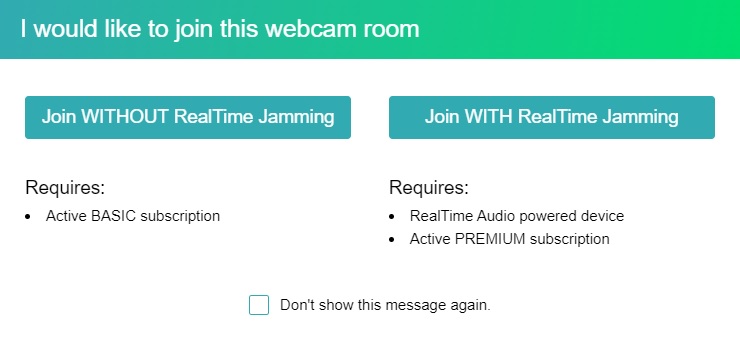
- Click Join WITH RealTime Jamming, select Annual, then click Click here to enter coupon code.
- Copy and paste the code you received from your Sweetwater Sales Engineer to complete the process.
When you need help, Sweetwater has the answers!
Our knowledge base contains over 28,000 expertly written tech articles that will give you answers and help you get the most out of your gear. Our pro musicians and gear experts update content daily to keep you informed and on your way. Best of all, it’s totally FREE, and it’s just another reason that you get more at Sweetwater.com.

