¡Obtenga asesoría en español!  Llámenos hoy a (800) 222-4701
(800) 222-4700 Talk to an expert!
Loading Cart
Your Cart Is Empty

See what's new at Sweetwater.

My Cart this.cartQty

Pro Tools Compatibility Issues with Windows 10 Version 20H2

Avid has released a statement saying that Pro Tools 2020 is NOT currently supported on Windows 10 version 20H2. Among other glitches, customers have reported issues such as distorted playback if an instrument or audio track is record-enabled. If you do use Pro Tools and have Windows 10 version 20H2 installed, we recommend uninstalling it to avoid any issues for the time being. Be sure to check out Avid’s system requirement page for more information.

  1. How to check Windows 10 version
  2. How to uninstall a Windows 10 update

How to check Windows 10 version

Windows Cumulative updates are occasionally rolled out to address any bugs and software issues on the current Windows 10 build. Follow these steps to check which version of Windows 10 is currently installed on your computer. Be sure to check out Microsoft’s Windows Update FAQ for more info on updating Windows!

  1. Click the Windows icon on the toolbar, type About, then click About your PC.
  2. Scroll down to the Windows specifications section to view which version of Windows 10 is currently installed.
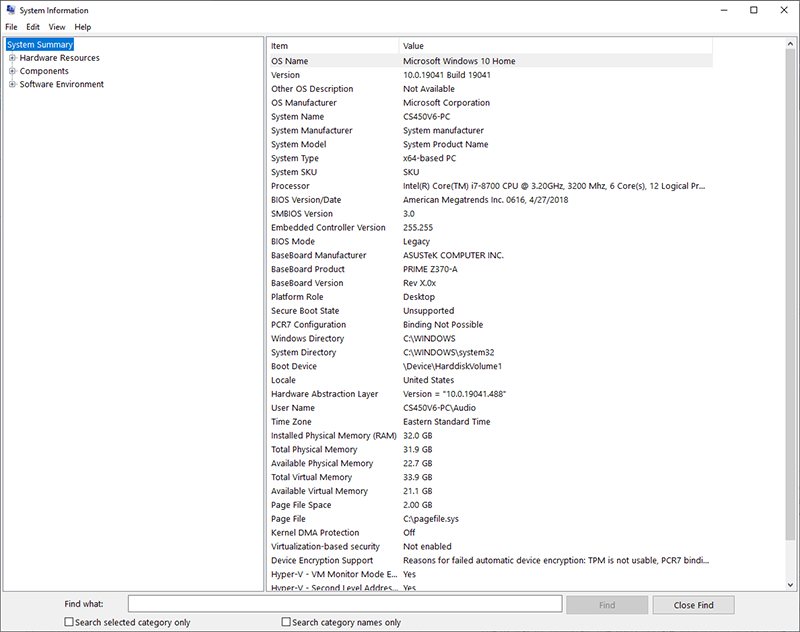
    • To view more detailed information about your computer, type System Information, then press the Enter key on your keyboard.
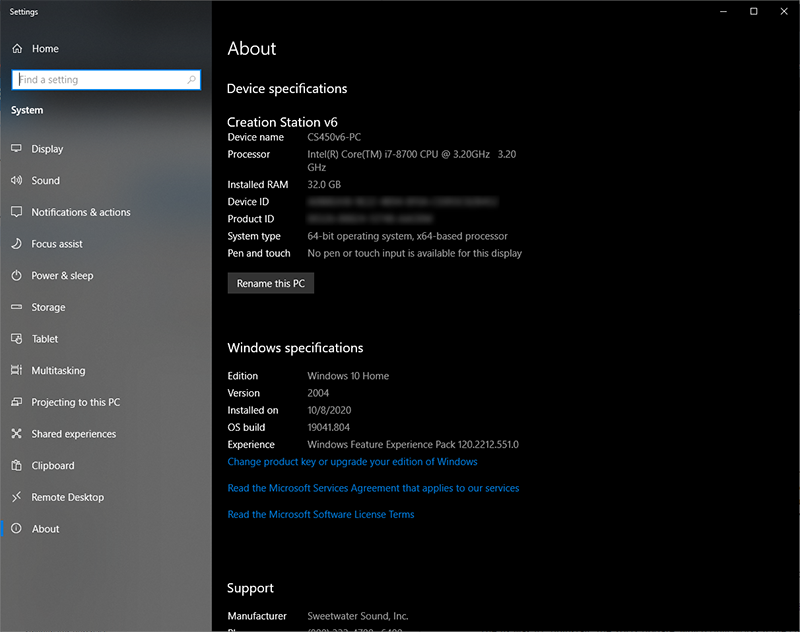
About this PC window

About your PC

Windows System Information

How to uninstall a Windows 10 update

If your computer is eligible for either a cumulative or feature update, it will automatically be installed when you shut down or restart your computer (unless you have used the Pause Update feature). If the 20H2 update was installed, you’ll need to consider temporarily uninstalling it until Avid releases a patch to fix any issues.

  • If you see the Windows update icon but aren’t sure of the build number, click the Windows icon on the toolbar, type Update, and click Windows Update settings.
  • When your computer is eligible for an update, you will see the Windows icon with an orange circle on the right side of the toolbar
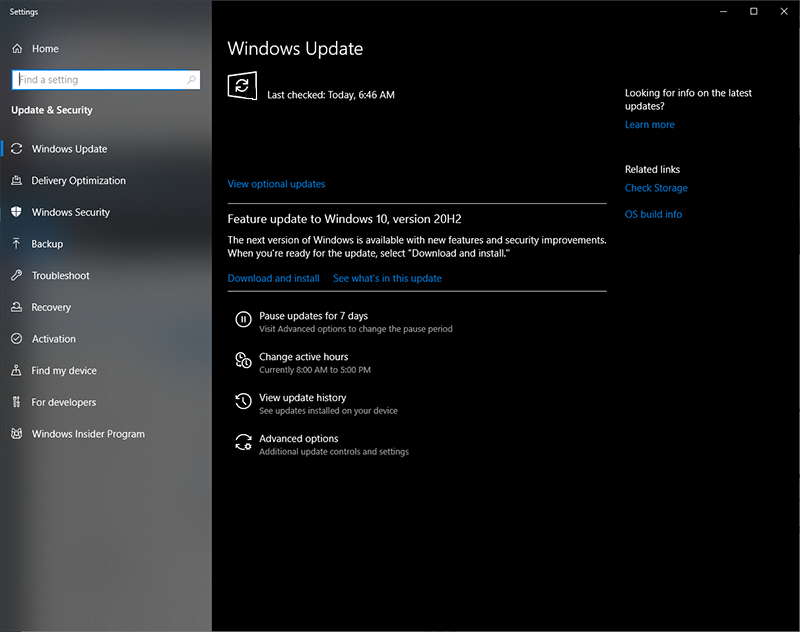
Windows update window
  1. Click the Windows icon on the desktop toolbar, type Update, then click Windows Update settings.
  2. Next, click View update history, then click Uninstall updates.
  3. In the new window, locate Feature Update to Windows 10 20H2 via Enablement Package (KB4562830), right-click it, then select Uninstall.
  4. Once the update has been uninstalled, restart your computer when prompted.
Windows uninstall update window

Uninstalling a Windows update

When you need help, Sweetwater has the answers!

Our knowledge base contains over 28,000 expertly written tech articles that will give you answers and help you get the most out of your gear. Our pro musicians and gear experts update content daily to keep you informed and on your way. Best of all, it’s totally FREE, and it’s just another reason that you get more at Sweetwater.com.


Click here for 28,000 answers to your tech questions Knowledge Base

Hundreds of Deals in the DealZone

Offer applies only to single-receipt qualifying purchases. Select manufacturers may require that only the manufacturer’s products qualify towards the minimum purchase amount needed to be eligible for promotional financing. Otherwise, an invoice that meets the minimum purchase amount and contains at least one qualifying manufacturer product is eligible for promotional financing. No interest will be charged on promo purchase balance, and equal monthly payments are required on promo purchase until it is paid in full. The payments equal the amount financed divided by the number of months in the promo period, rounded up to the next whole dollar. These payments may be higher than the payments that would be required if this purchase was a non-promo purchase. During the last month(s) of the promo period the required monthly payment may be reduced due to the prior months’ rounding. Regular account terms apply to non-promo purchases. New Accounts as of 07/31/2025: Purchase APR is 34.99%. Penalty APR is 39.99%. Min Interest Charge is $2. Existing cardholders: See your credit card agreement terms. Subject to credit approval.

Offer applies only to single-receipt qualifying purchases. No interest will be charged on the promo balance if you pay it off, in full, within the promo period. If you do not, interest will be charged on the promo balance from the purchase date. The required minimum monthly payments may or may not pay off the promo balance before the end of the promo period, depending on purchase amount, promo length and payment allocation. Regular account terms apply to non-promo purchases and, after promo period ends, to the promo balance. New Accounts as of 07/31/2025: Purchase APR is 34.99%. Penalty APR is 39.99%. Min Interest Charge is $2. Existing cardholders: See your credit card agreement terms. Subject to credit approval.

The estimated required monthly payment shown which excludes taxes and delivery equals the amount financed divided by the number of months in the promo period, rounded up to the next cent. During the last month(s) of the promo period the required monthly payment may be reduced due to this rounding. These payments apply only with the financing offer shown. If you make these payments by the due date each month, you should pay off this amount financed within the promo period, if it is the only balance you are paying off. If you have other balances on your account, this payment will be added to any other minimum monthly payments.

Applies only to select items from this manufacturer. Ask your Sweetwater Sales Engineer for more details.