

Why Has My Mouse Cursor Turned Into a Spinning Color Wheel?
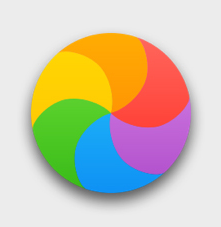 When your arrow turns into a colorful spinning “beach ball” or “color wheel”, your Mac is hard at work. In general, this is normal behavior. Your Mac may be rendering, calculating something, or even spinning up the hard drive after being awakened from sleep. Depending on what your Mac is working on and how many applications you currently have open, you may occasionally see your cursor turn into a”beach ball” or “color wheel” for a few second and then return to normal after a few seconds but it can occasionally it can get stuck.
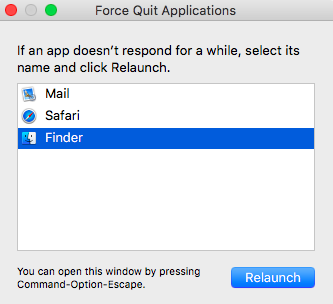
If the spinning color wheel won’t go away for several minutes, you can make it stop by doing a Force Quit for any applications that are not responding.
Force Quit
- Force Quit the application (or Finder window) that you’re stuck in by simultaneously pressing the Command, Option, and Escape (Esc) keys. Please note that you will lose any unsaved changes in the affected application.
- In the resulting Force Quit window, select the affected application and click Force Quit.
Restart your Mac
It might sound cliché but it works. Sometimes an application or a process will get stuck and the best way to resolve it is a good ‘ol fashioned restart. If the beach ball persists after a restart, you may need to make some space on your hard drive or repair hard disk with Disk Utility.
Repair the Disk
Mac OS 10.7 – Current
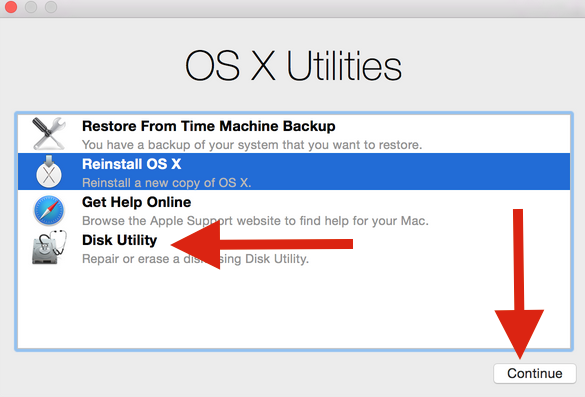
- Hold down Command (⌘)-R immediately after turning on or restarting your Mac until you see the screen to the right.
- Select Disk Utility and click continue.
- Select your computer’s hard disk volume from the left pane, then click the First Aid tab.
- Click Repair Disk. When the repair is finished, restart your Mac from the Apple menu.
Mac OS 10.6 and earlier:
- Insert the Software Install disc that came with your computer.
- When you see its icon appear on the Desktop, restart your computer (from the Apple menu, choose Restart), then press and hold down the C key on your keyboard to start up your computer from the disc.
- Continue holding the C key until your Mac finishes starting up. When you see the Installer screen, choose Open Disk Utility from the Installer menu.
- Select your computer’s hard disk volume from the left pane, then click the First Aid tab.
- Click Repair Disk. When the repair is finished, restart your Mac from the Apple menu.
Helpful Links
How to Zip and Unzip Files
How to Take a Screenshot on a Mac
Mac Optimization Guide for macOS 10.13 High Sierra
When I attempt to install software on my Mac, I get a warning that it is from an unidentified developer. What should I do?
My Mac won’t recognize my Thunderbolt device.
When you need help, Sweetwater has the answers!
Our knowledge base contains over 28,000 expertly written tech articles that will give you answers and help you get the most out of your gear. Our pro musicians and gear experts update content daily to keep you informed and on your way. Best of all, it’s totally FREE, and it’s just another reason that you get more at Sweetwater.com.


