

macOS Security Warnings and Gatekeeper De-Mystified

On the Mac platform, as you work with music, pro audio, video, and content creation, you need to download and install new software and update existing apps. The majority of the time, this goes off without a hitch, but during the normal installation of an app, you may encounter a range of warnings from macOS that, due to macOS privacy and security protocols, will require you to grant permission for the app to run. We wrote this article to demystify the process so you can install the software you need while keeping your system secure.
- What Does It Mean When macOS Puts Up Security Warnings When I Open a New App?
- What Should I Do If I Encounter Security Warnings?
- Enabling Apps from Identified, Known Developers in Settings > Privacy & Security
- Security Warnings in macOS Sequoia and macOS Tahoe 26
- Security Warnings in macOS Sonoma and Earlier
- Allowing an Update of an App
- Additional Privacy & Security Settings for Hardware and Software
- Sweetwater Support Is Here for You
What Does It Mean When macOS Puts Up Security Warnings When I Open a New App?
macOS is a leading platform for music, pro audio, video, and content creators, not least because Apple is serious about security.
When you install new software, macOS performs security checks designed to prevent you from inadvertently running downloaded software that may be infected with malicious content (malware or viruses). Malware could steal your personal information and compromise the security of your system. If macOS warns you that an app may be compromised, then you should heed those warnings.
However, for a variety of reasons, there are circumstances under which a legitimate app that you know is from a good source might not be set up to pass the macOS security checks. In that case, you’ll need to know how to configure your system to run the app anyway. We’ll explain that below.
If macOS can’t verify the source of an app you have installed, then macOS will put up a series of warning messages requiring you to make choices.
You’ll see messages with variations on:
- “Example App” can’t be opened because it is from an unidentified developer.
- “Example App” can’t be opened because the developer cannot be verified.
- macOS cannot verify that this app is free from malware.
Rather than just clicking “OK,” “Allow,” or “Done” at every turn, it’s better that you first have an understanding of what these messages mean. We’ll explain what actions you need to take.
What Is macOS Gatekeeper?
Gatekeeper is the name of Apple’s technology designed to protect users from installing apps that may be infected with malware.
Each time you install a new piece of software, there is a procedure whereby Gatekeeper and other security processes in macOS check the software to verify that it’s safe. If an app is deemed safe, then you can open and run it as normal.
However, if a newly installed piece of software doesn’t meet the macOS security criteria, then Gatekeeper will present the user with warnings that suggest how the user should proceed.
When Apple released macOS Sequoia (macOS 15) in 2024, it changed its Gatekeeper procedures and added additional security warnings. We’ll provide further information for Sequoia users below.
How Does macOS Gatekeeper Work?
Gatekeeper is based on a relationship between Apple and the third-party software developers that write apps that run on macOS.
Third-party developers who create software to run on macOS are expected to register and to obtain an Apple Developer ID certificate. Whenever a developer releases a new version of any software to the public, Apple expects the developer to submit the finished app to Apple to be checked to make sure that it hasn’t been compromised by the inclusion of malicious software. An app that passes Apple’s inspection is digitally notarized.
At the point from which you first run a new piece of software on your Mac, Gatekeeper’s functions are twofold:
- Gatekeeper checks to verify that the developer that makes the app is registered with an Apple Developer ID.
- Gatekeeper checks the code in the app to confirm that it has been notarized by Apple.
The first time you run a newly installed app, you will see a dialog with a question similar to:
- “Example App” is an app downloaded from the Internet. Are you sure you want to open it?
When you click Open, you’ll next see the brief appearance of a progress window that says “Verifying.” That’s Gatekeeper examining the app’s signed digital receipts that are registered with Apple.
If the app isn’t from a known developer and/or isn’t notarized, then Gatekeeper will present you with warnings.
Can I Disable Gatekeeper or Bypass Gatekeeper on macOS?
Not exactly, no. Let’s get our terminology straight. You can’t disable or bypass Gatekeeper. It’s always there to provide protection.
Instead, each time you install a piece of software that gives security warnings, macOS will give you the means to grant a specific exception to Gatekeeper, case by case, to allow that one app to run and to access the system resources it needs.
The important point is that there are valid situations where a legitimate developer has put out a new version of an app that, for various reasons, hasn’t gone through the Apple notarization process. In those cases, macOS will present you with warnings, but it will give you the means to override them so you can run the app anyway.
What Should I Do If I Encounter Security Warnings?
When you encounter a security warning, before you go any further, it’s up to you to check and confirm that the software you are installing is legitimate and was downloaded from a trustworthy source.
If you bought your software from Sweetwater, then we already sent you an email with our SweetCare Software Activation Instructions tailored specifically to that software, instructing you how to download it, install it, and activate it. That’s where you should start. But in some cases, you may need to take further steps.
IMPORTANT: If you encounter security warnings while running an app for the first time, then visit the support section of the website of the company that makes the software you are installing. The company will already know about these Gatekeeper security problems with its software, and they should provide specific instructions on the responses you should make and on the macOS settings to configure that will enable that particular app to run on your system.
If the company that makes the software doesn’t provide instructions that explain security exceptions, then it may be the case that you have downloaded a compromised or broken app that may contain malware from an unreliable source. If you encounter that situation, then stop. Contact the company’s tech support and ask for further help.
Enabling Apps from Identified, Known Developers in Settings > Privacy & Security
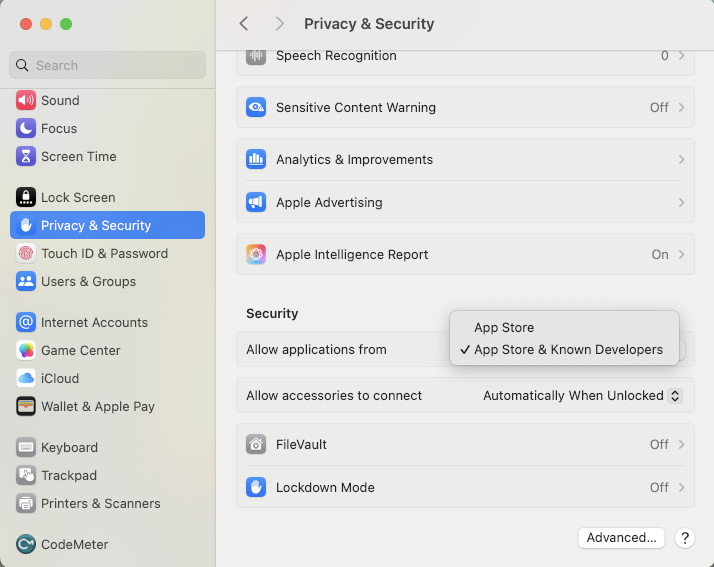
Privacy & Security in System Settings in macOS Sonoma
With a brand-new Mac, System Settings > Privacy and Security is configured by default to only allow applications downloaded from Apple’s App Store. Since practically everybody installs some applications that are not sold through the App Store (for example, software purchased from Sweetwater), you will want to change this setting.
- In the Privacy & Security pane, scroll down to Security. Select App Store & Known Developers.
- A Privacy & Security dialog will appear. It will require you to enter the username and password of an administrator account on your Mac to enable this change. Click Modify Settings.
Now that you’ve done this, macOS will permit you to run apps that were not downloaded from the App Store and were published by third-party developers that have registered with Apple.
Security Warnings in macOS Sequoia and macOS Tahoe 26
In macOS Sequoia (macOS 15) and macOS Tahoe 26, if you try to open a newly installed app that doesn’t meet Gatekeeper’s criteria, then you may see a message similar to the following. Here is how to proceed.
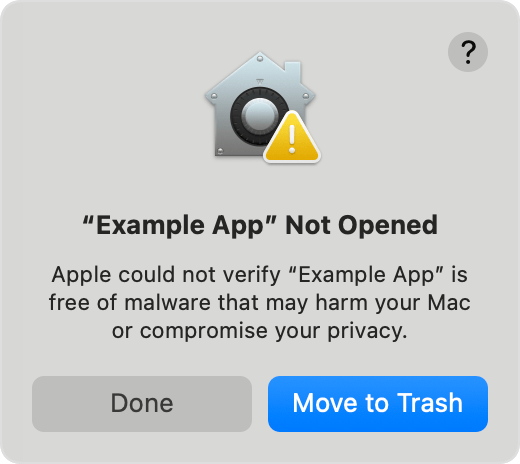
An example of the first app-security warning message in macOS Sequoia and macOS Tahoe 26
You may see a warning that says:
- “Example App” Not Opened
- Apple could not verify “Example App” is free of malware that may harm your Mac or compromise your privacy.
The two button options are “Done” and “Move to Trash.”
If you are certain that the app is legitimate, and you have verified this by going to the website of the developer and following its installation instructions, then click “Done.”
However, this action alone won’t enable the app to run. There are additional steps you must perform.
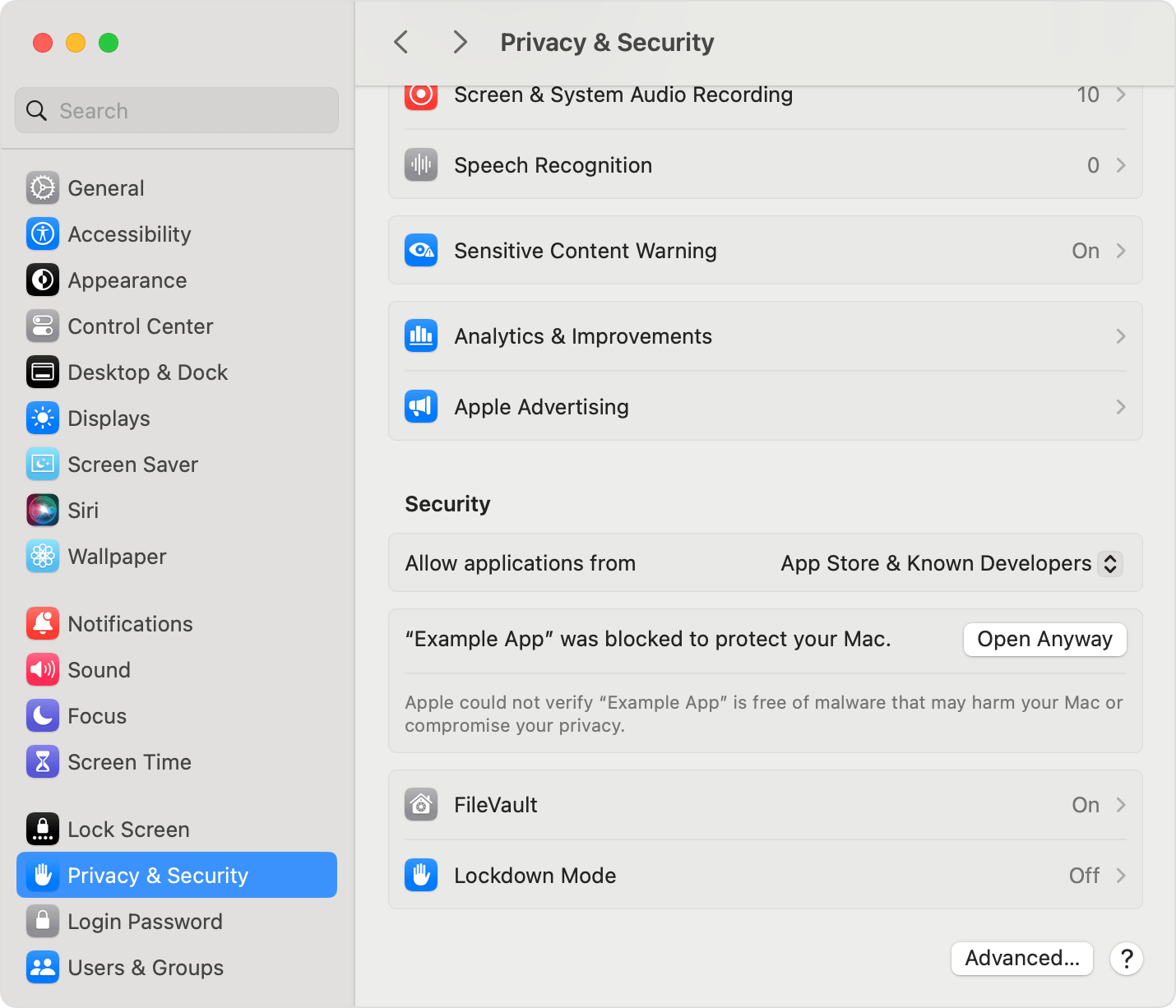
Granting permission to an app by clicking “Open Anyway” in Privacy & Security
Next, you must go to System Settings > Privacy & Security and scroll down to Security.
You’ll see a message that says, “‘Example App’ was blocked to protect your Mac.” Click Open Anyway.
(Note that you must go to System Settings and click Open Anyway within an hour of first seeing the “Not Opened” message.)
To enable this, you will be asked to authenticate by entering the password of an administrator account.
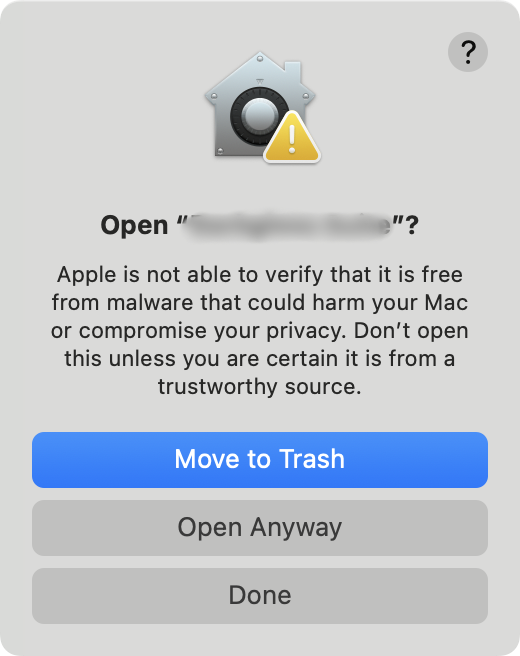
The next app security warning message in macOS Sequoia and macOS Tahoe 26
You must then return to the Finder and launch the app again.
When you try to launch the app, a prompt similar to the first warning will appear. The text will be similar to:
- Open “Example App”?
- Apple is not able to verify that it is free from malware that could harm your Mac or compromise your privacy. Don’t open this unless you are certain it is from a trustworthy source.
There should be three buttons this time: “Move to Trash,” “Open Anyway,” and “Done.”
If you are certain that your app is from a trustworthy source, then click Open Anyway.
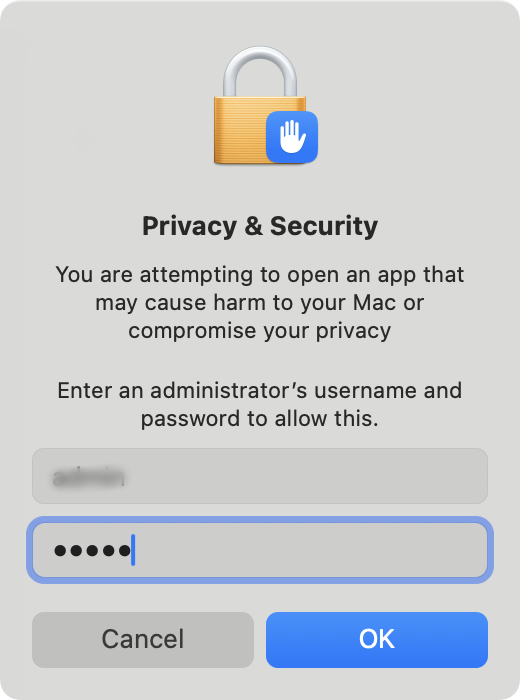
The final app security warning message in macOS Sequoia and macOS Tahoe 26 requires you to enter an administrator password.
The next message reads:
- Privacy & Security
- You are attempting to open an app that may cause harm to your Mac or compromise your privacy.
- Enter an administrator’s username and password to allow this.
Since you are certain you want to allow this, enter your administrator’s username and password and click OK.
Your Mac’s security settings will record that an exception has been made, and you can now open the app anytime by double-clicking it as usual.
Learn more in the Apple Support document Safely open apps on your Mac.
Also reference macOS Sequoia 15 User Guide > Open a Mac app from an unknown developer.
Security Warnings in macOS Sonoma and Earlier
In earlier versions of macOS, up to and including macOS Sonoma (macOS 14), it’s easier to allow an exception to permit an app to run.
When you try to open a newly installed app for the first time in the normal fashion (by double-clicking on it) and you get a security warning saying that the app can’t be opened, dismiss the warning.
If you are certain that the app is legitimate, and you have verified this by going to the website of the developer and following its installation instructions, then do this:
- View the app in the Finder’s Applications folder. (You can’t perform this action from within Launchpad.)
- Control-click or right-click the app icon. In the resulting pop-up menu of shortcuts, choose Open.
- In the resulting security warning dialog, click Open.
Your Mac’s security settings will record that an exception has been made, and you can now open the app anytime by double-clicking it as usual.
Learn more in the Apple Support document macOS Sonoma 14 User Guide > Open a Mac app from an unidentified developer.
Allowing an Update of an App
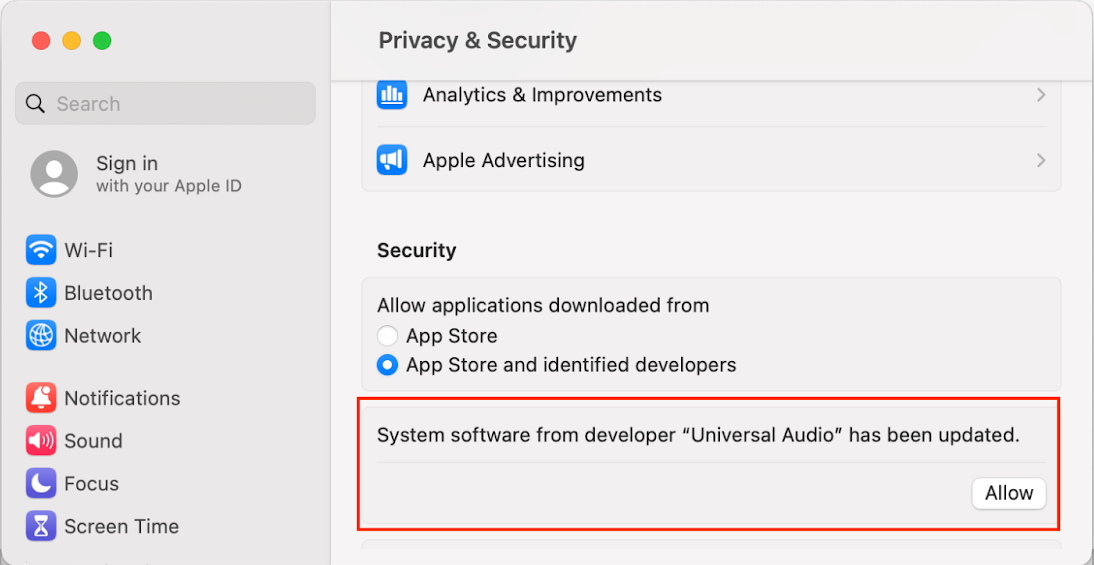
Allowing an update of an app in Privacy & Security
For certain kinds of audio and video apps, among others, every time an update to an existing app is installed, you have to go back to Privacy & Security and explicitly allow the app to run.
The developer will provide installation instructions in these cases. The procedure is:
- Go to System Settings > Privacy & Security and scroll down to the Security section. You’ll see a message explaining what was blocked, such as, “System software from developer ‘Universal Audio’ has been updated.”
- Click Allow.
- You may be asked to authenticate by entering the username and password of an administrator account on your Mac and clicking Modify Settings.
In a situation like this, when you install a new app, you will have only about 30 minutes to go to Privacy & Security and click Allow. Otherwise, the app will not run.
Consult the instructions from the manufacturer for additional steps to set up your device and its software.
Additional Privacy & Security Settings for Hardware and Software
Allowing Accessories to Connect
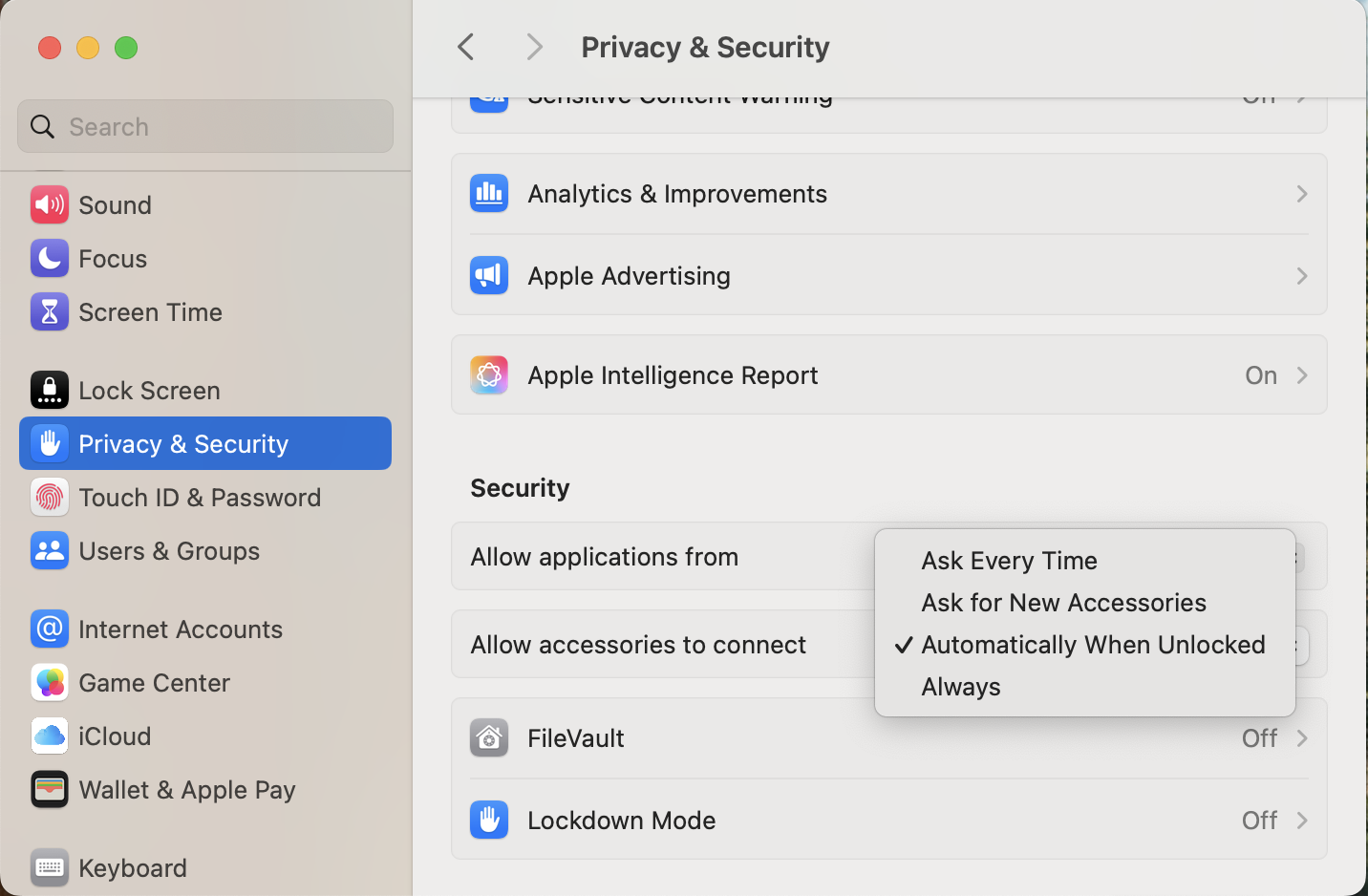
Allowing accessories to connect to your Mac
On a Mac with Apple silicon, Privacy & Security is set, by default, to ask you to grant permission every time you connect a new peripheral or an external hard drive. If you don’t want to do this each time, then you can change the setting in System Settings > Privacy & Security > Security under Allow accessories to connect.
The options are “Ask Every Time,” “Ask for New Accessories,” “Automatically When Unlocked,” and “Always.”
To enable the change of setting, you’ll be asked to enter the password for your administrator account.
Privacy & Security Settings for Apps
Beyond Gatekeeper, macOS provides an additional Privacy & Security framework to enable you to have precise control over what system resources are available to each app you install. As you use an app, macOS will put up dialogs asking you to grant or deny permission for the function that the app is about to perform. If you approve the function, then it will be registered in the Privacy & Security section of System Settings, and you can turn these permissions on or off.
For example, when you install an app that records or streams audio, the first time you open the app, you’ll see a dialog like this:
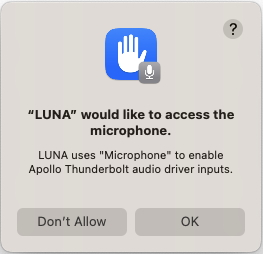
macOS Microphone access dialog
The dialog says:
- “LUNA” would like to access the microphone.
- LUNA uses “Microphone” to enable Apollo Thunderbolt audio driver inputs.
The options are “Don’t Allow” and “OK.”
In this case, “Microphone” does not only refer to the microphone that’s built into your MacBook. It actually refers to any audio input, such as a signal connected to an audio interface. Therefore, any time you start an app that records audio and you see the microphone-access dialog, you must click OK to permit this to happen. Otherwise, macOS will prevent the app from recording audio from any source.
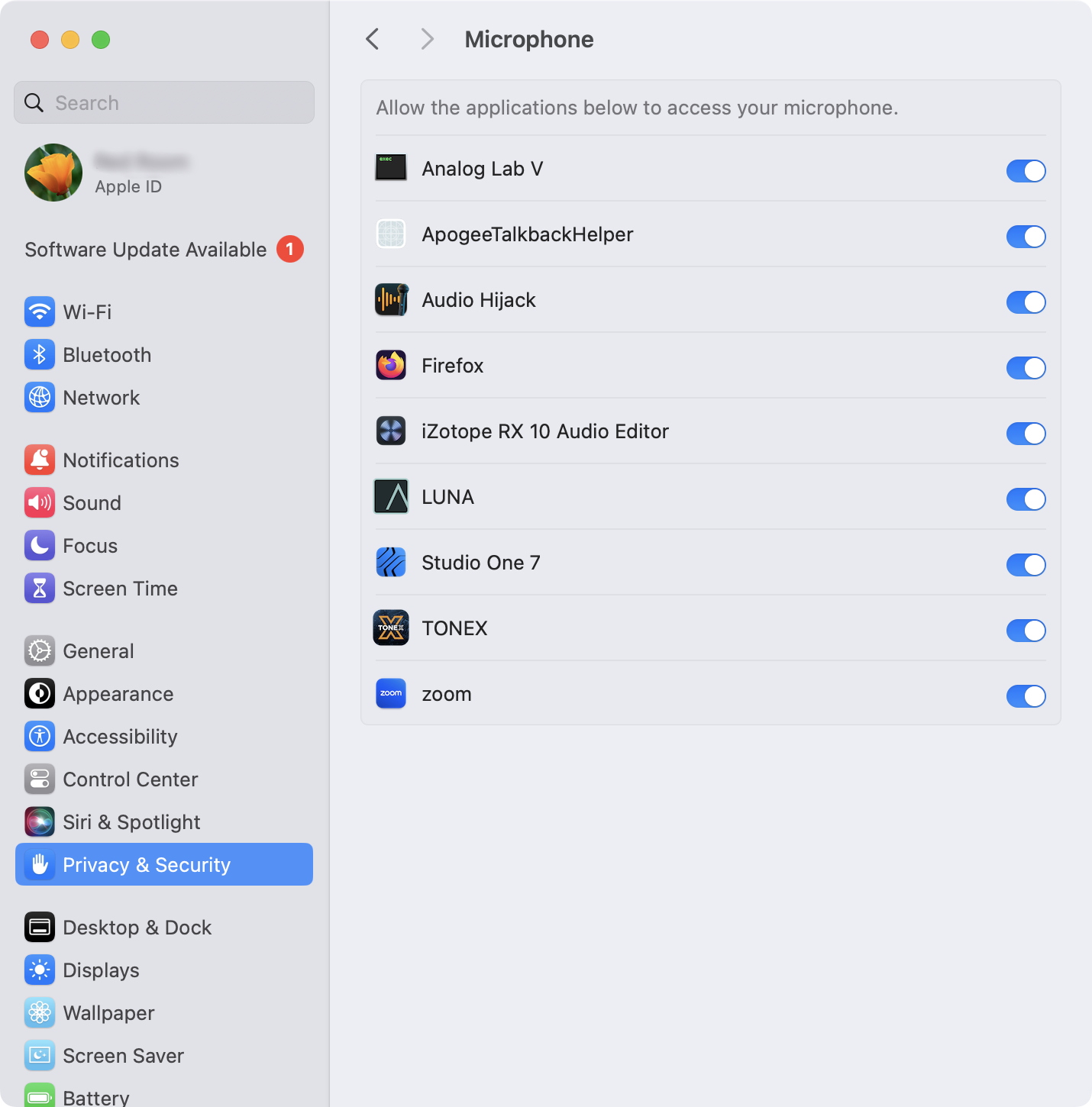
The Microphone pane in System Settings > Privacy & Security > Audio
If you want to see a list of all apps on your system that process audio input, then go to System Settings > Privacy & Security > Microphone. Here, you can turn access for each app on or off individually.
Other examples include, but are not limited to, permissions for:
- Accessibility
- App Management
- Camera
- Files & Folders
- Full Disk Access
- Microphone
- Screen & System Audio Recording
As with the Microphone settings, you can see the results listed by app in the corresponding section of System Settings > Privacy & Security.
Some apps may come with installation instructions telling you to configure specific settings within Privacy & Security before you start working with the app. If you don’t follow these instructions, then your app may not be able to perform all the functions it’s designed to do.
Sweetwater Support Is Here for You
We hope this article has provided some useful information.
If you bought your Mac-related software or hardware from Sweetwater, and you are having issues with these security measures and settings, you can always contact Sweetwater Support at (800) 222-4700 for help with troubleshooting.
Related Articles
When you need help, Sweetwater has the answers!
Our knowledge base contains over 28,000 expertly written tech articles that will give you answers and help you get the most out of your gear. Our pro musicians and gear experts update content daily to keep you informed and on your way. Best of all, it’s totally FREE, and it’s just another reason that you get more at Sweetwater.com.


