
Maschine Mikro Setup Guide
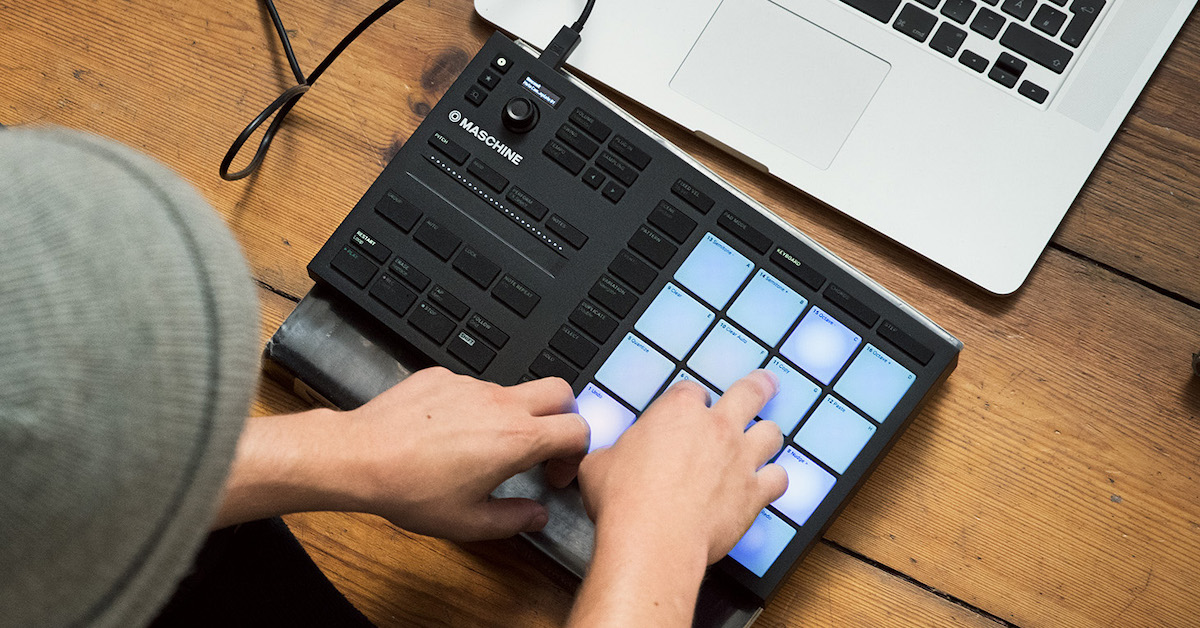
In this guide, we will show you how to get started with the Native Instruments Maschine Mikro. Start by following the setup and configuration section, and then use the other sections to get started making beats and creating music.
Setup and Configuration
Native Instruments products are registered, installed, and updated via their all-in-one software management application, Native Access. If you haven’t yet, install the latest version of Native Access, log in with your Native Instruments account, and then register your Maschine Mikro Serial Number. Once registered you will see the Maschine software available for download. Make sure to configure your download and installation locations before proceeding. View our activation instructions or the Native Instruments support page for more information.
- MASCHINE MIKRO Hardware Troubleshooting Guide
- MASCHINE MIKRO MK3 – Troubleshooting Guide
- MASCHINE Solution Wizard
Getting Started with Maschine Mikro
Once you’re set up and feel comfortable, it’s time to start making music! The Quickstart video below shows you how to get started making beats, but you can use their Maschine Mikro Quickstart pages for more information about each topic.
Native Instruments Maschine Mikro Quickstart Pages
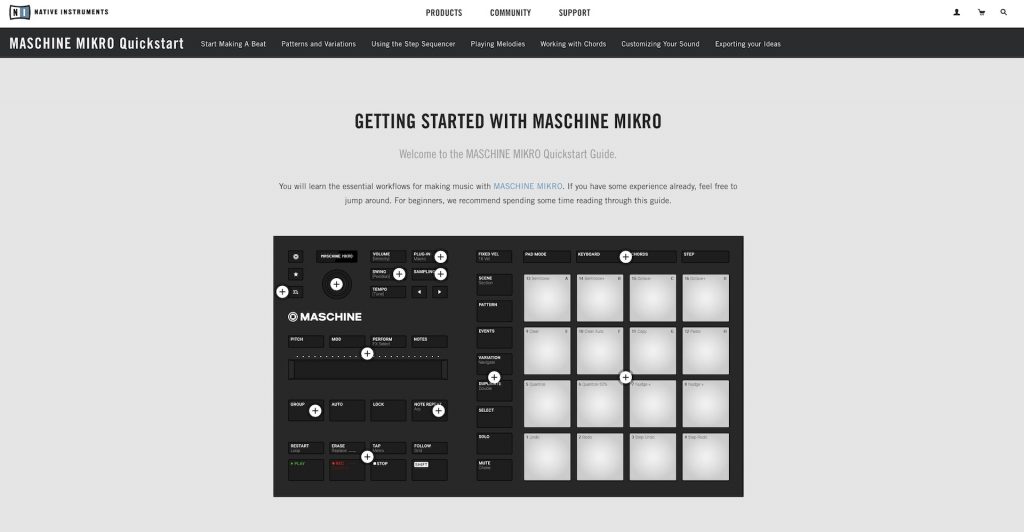
Native Instruments has created an interactive Quickstart web experience for Maschine Mikro to make getting started very easy. We found it particularly useful for learning how to use the Mikro MIDI controller with its Maschine software. Click the buttons below to access each page of the Maschine Mikro Quickstart guide and start making music.
Maschine Mikro Videos
When you need help, Sweetwater has the answers!
Our knowledge base contains over 28,000 expertly written tech articles that will give you answers and help you get the most out of your gear. Our pro musicians and gear experts update content daily to keep you informed and on your way. Best of all, it’s totally FREE, and it’s just another reason that you get more at Sweetwater.com.

