

macOS Sequoia Download and Install Guide
IMPORTANT: Apple released macOS Sequoia on September 16, 2024. Do not upgrade to macOS Sequoia until you have confirmed that your music, audio, and content creation apps, and your audio and MIDI hardware devices are compatible with macOS Sequoia. Sweetwater’s macOS Sequoia Compatibility Guide is your one-stop resource for information from 180 manufacturers and developers.
In this guide, we will show you how to upgrade your Mac to macOS Sequoia, also known as macOS 15.
However, there are several points you must consider before you decide that it’s safe to upgrade. We’re here to help.
- Are You Sure It’s the Right Time to Upgrade?
- Create a Time Machine Backup
- Install macOS Sequoia
- Getting Started with macOS Sequoia
- Optimize Your Mac for Digital Audio
- macOS Sequoia Support Resources
Are You Sure It’s the Right Time to Upgrade?
If you are a musician, an audio engineer, or a content creator, consider this before you upgrade.
You are probably using a DAW, virtual instruments, plug-ins, audio apps, and hardware, such as an audio interface and MIDI controllers, that are provided by third-party manufacturers and developers. Under your current version of macOS, your system is solid and reliable. Under macOS Sequoia, however, you may discover incompatibilities.
As we at Sweetwater well know, when Apple releases a new macOS each year, manufacturers and developers have to provide updates to their products to provide compatibility, and that takes weeks or even months after the new macOS is released.
You should wait to upgrade to macOS Sequoia until you can verify that all the software and hardware you use can be updated.
We explain this in our macOS Sequoia Compatibility Guide. Please review this, then come back here if you are sure that you are ready to install macOS Sequoia.
Create a Time Machine Backup
We cannot stress enough how important it is to create a Time Machine backup of your current system before you upgrade. If you encounter problems, a backup allows you to revert your system to the way it was before.
Follow the instructions in Sweetwater’s macOS Time Machine Backup Guide.
Install macOS Sequoia
Once you have reviewed our macOS Sequoia Compatibility Guide, confirm that:
- Your Mac is a macOS Sequoia–supported device.
- You can obtain updates to all your software and hardware to make them macOS Sequoia–compatible.
- You have a complete Time Machine backup saved on an external disk.
Make Sure You Have Enough Space on Your Hard Drive
If you are upgrading from an earlier version of macOS, the macOS Sequoia installation process will require around 45GB of free space on your startup disk. You may need to remove files to make room. Make use of cloud storage such as iCloud, and consider moving documents, projects, virtual instruments, and sample libraries to an external hard drive if more space is needed.
You can start the download in one of two ways.
Download and Install macOS Sequoia from Software Update
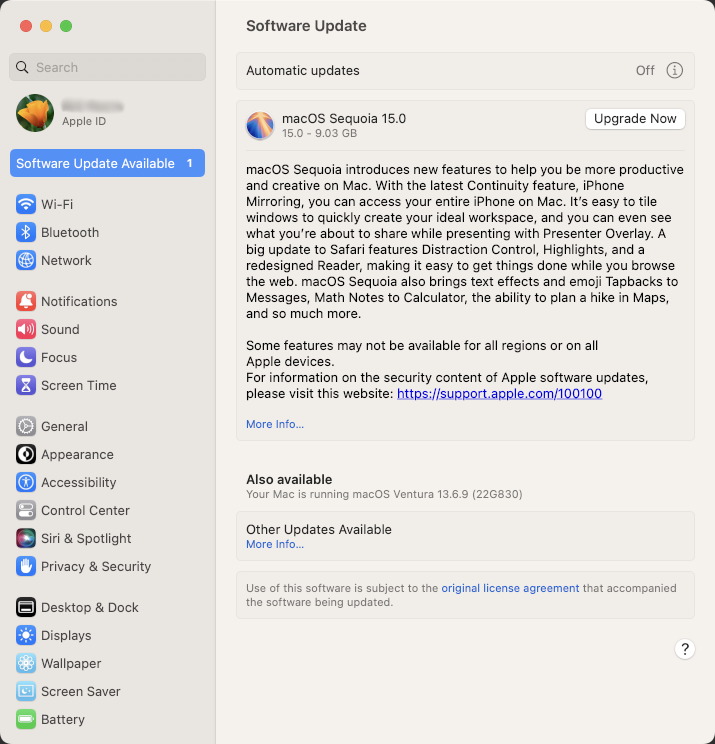
Software Update showing the Sequoia upgrade
Pull down the Apple menu, then go to System Settings > General > Software Update. You should see a message that macOS Sequoia 15 is available to download.
Download and Install macOS Sequoia from the Mac App Store
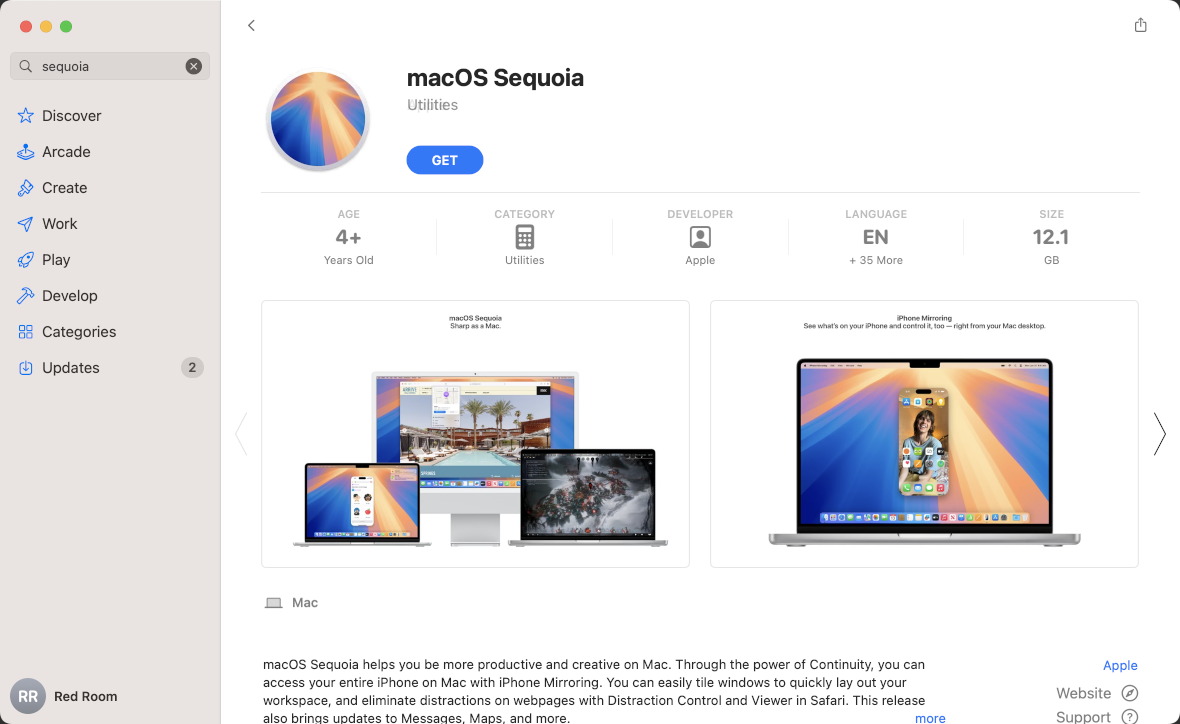
The macOS Sequoia installer in the App Store
You can also pull down the Apple menu, go to the App Store, and search “Sequoia.” Clicking Get will download the installer app to your Applications folder.
The installer app is 15.5GB in size. How long it will take to download depends on your Internet connection speed.
Once the installer has downloaded, it will prompt you to begin the installation.
Follow the prompts. The process may take half an hour or longer. Your Mac may restart more than once. When the installation is complete, your Mac will launch macOS Sequoia and prompt you through the setup procedure. You’ll discover that the large installer app has deleted itself to save disk space.
Getting Started with macOS Sequoia
New Features in macOS Sequoia
Apple Intelligence
The most sensational features of macOS Sequoia come under the name Apple Intelligence. They were not present in the initial Sequoia 15.0; they first appeared in macOS 15.1, released on October 28, 2024. Apple will roll out additional features with subsequent updates in the coming year. Apple Intelligence will only be available on Mac with Apple silicon systems that run Sequoia. The Apple Intelligence features will not be supported on Intel-based Mac systems running Sequoia.
On Apple silicon, Writing Tools, Genmoji, Image Wand, Image Playground, memory movies, a new era for Siri, and even integration with ChatGPT will be available across many apps. They will also be available on iPhone and iPad models that have sufficient specifications and are running iOS 18.1 and iPadOS 18.1 and higher.
Other Sequoia Features
A Mac with Sequoia paired with an iPhone running iOS 18 can use the new iPhone Mirroring feature. This allows you to view your iPhone on your Mac screen and control everything with your Mac keyboard and mouse. You can drag and drop files, photos, and videos between your iPhone or iPad and your Mac.
Compatible models of Apple AirPods will have improved voice isolation and control features when used with Sequoia.
There are new features in the Finder for organizing windows and laying out your workspace. Apple provides enhancements for sharing screen content in video-calling apps. Safari provides improvements to Reader mode and the ability to summarize and pull up relevant information from websites. A new Passwords app makes managing all your passwords easy.
The new macOS also brings security updates. Apple will continue to provide security responses to older macOS versions for some time, but one good reason to upgrade to the newest macOS is to make sure your Mac has the best security working behind the scenes.
Rosetta 2
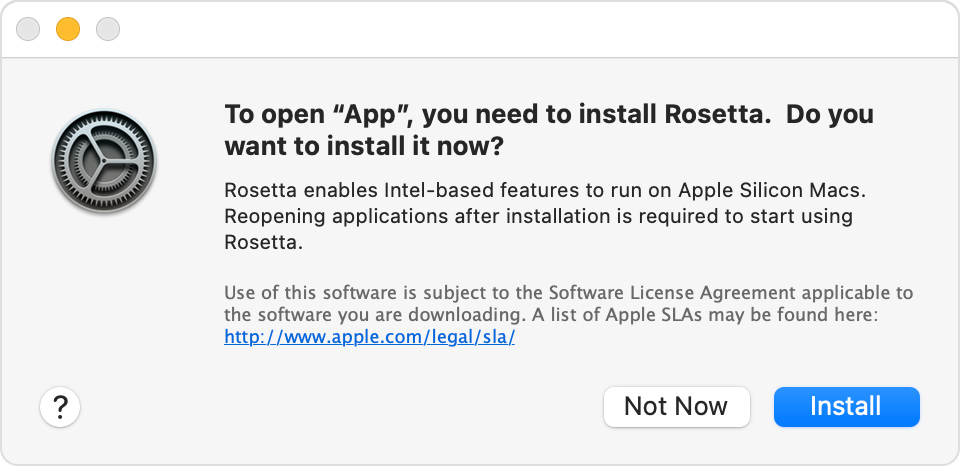
The prompt to install Rosetta 2
Apple no longer offers Intel-based Mac computers; all current models are Macs with Apple silicon (M1, M2, M3, and M4). However, there is still Mac software out there written for the Intel processor. If you have a Mac with Apple silicon, Apple has ensured that this software will also run on your system as long as the app is otherwise compatible with macOS Sequoia. This is done by means of Rosetta 2, which is not an app per se: it’s a software-emulation system that translates code compiled for Intel and runs it on your Mac with Apple silicon. Rosetta 2 works in the background, and in most cases, you won’t even notice it’s there.
If you have a Mac with Apple silicon and macOS Sequoia, the first time you launch an Intel-native app, you will be prompted to download and installRosetta 2. It will only take a moment, and you won’t be bothered about it again. Click Install, and you’ll be good to go.
Learn more in this Apple Support article: If you need to install Rosetta on your Mac.
While most music and digital audio software run fine under Rosetta 2, there may be exceptions.
Software developers are working on new versions of their apps that are native to Apple silicon. There are also cases where developers report that their apps or plug-ins don’t yet support a particular model of Apple silicon processor. It’s always a good idea to check with the software developers and manufacturers of the apps and gear you use to see if they have compatibility updates.
Check Sweetwater’s macOS Sequoia Compatibility Guide for the latest information. There are links to developers’ support pages.
Optimize Your Mac for Digital Audio
You can take steps to improve the performance of your Mac and optimize it for audio production. Check out Sweetwater’s macOS Audio Optimization Guide.
On a related note, Sweetwater provides our iPad Optimization Guide for Live Musicians.
macOS Sequoia Support Resources
Sweetwater has created a comprehensive series of support pages for macOS and Windows with musicians, audio engineers, and content creators in mind.
Related Articles
When you need help, Sweetwater has the answers!
Our knowledge base contains over 28,000 expertly written tech articles that will give you answers and help you get the most out of your gear. Our pro musicians and gear experts update content daily to keep you informed and on your way. Best of all, it’s totally FREE, and it’s just another reason that you get more at Sweetwater.com.

