
Line 6 Catalyst Combo Amplifiers – Getting Started Guide
Overview and Getting Started
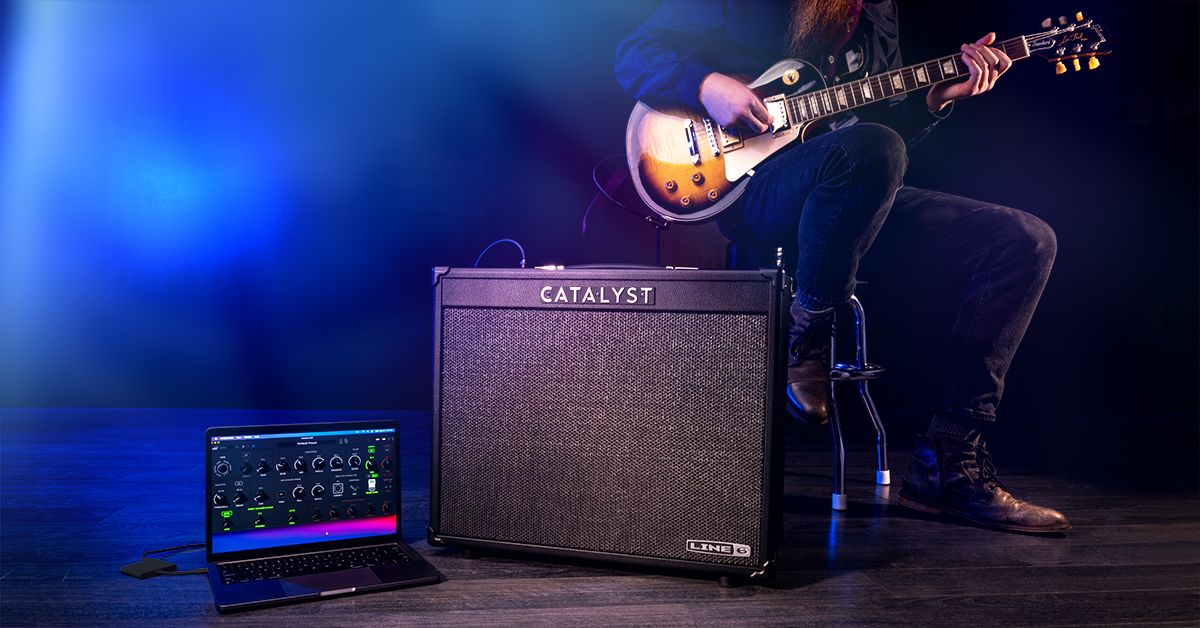
Line 6 Catalyst amplifiers sound great and are easy to set up. Included with your amplifier is the Catalyst Pilot’s Guide, which can also be downloaded from Line 6’s Manuals page. The Pilot’s Guide has everything you need to access all the sounds and effects from your new Catalyst combo amplifier.
Connect your guitar to the amp, and you’re ready to make sounds in manual mode. You can also save your settings as a recallable preset or sample Catalyst’s built-in effects. Each Catalyst amp has six banks of presets, and each bank has two selectable channels: A and B. That’s useful for switching “amps” between songs or “sounds” whenever you like.
Catalyst Pilot’s Guide
Activate the Tuner
- Press and hold TAP; Three LEDs light, flashing left to right.
- If the note is in tune, TAP LED lights WHITE, while the EFFECT and REVERB LEDs illuminate GREEN.
- If the note is flat, the EFFECT LED illuminates gradually moving from RED through to GREEN as you approach in-tune.
- If the note is sharp, the REVERB LED illuminates from RED through to GREEN as you approach in-tune.
- Press any button other than TAP to exit the tuner.
Important! Tuning = Mute
When the built-in tuner is engaged, Catalyst’s speaker, direct output, and headphones connection are all muted.
Change Presets
- Press the desired CHANNEL button (A, B, or MANUAL) at any time to return to that amp channel.
- Turn the SELECT knob to cycle through the Amp Voicings.
Save a Preset
- After making any changes to a preset, simply press and hold CHANNEL A or B to store your edited settings for the preset.
- Note that after holding the button for approximately two seconds, the front panel channel LEDs will blink, then turn solid when saving is complete.
Change Banks
- Press and hold the MANUAL channel button, and use the AMP SELECT encoder to scroll through the six banks of channel selections.
- You can save the channel settings for each bank when that bank is selected.
- Optionally, use the CATALYST Edit software to save your settings to any of the 12 preset locations.
Amplifier Types
- Boutique: Inspired by iconic, hand-crafted tones
- Chime: Classic chime, only bigger and deeper
- Crunch: Crunchy, with a British accent
- Dynamic: Highly touch-responsive, mid-gain tone
- Hi Gain: Contemporary hi-gain, with extended lows
- Clean: Pristine clean, even when cranked
Other Features
Catalyst amplifiers also have features for boosting the gain, a noise gate which mutes when not playing, and even a switchable artificial hum to simulate a real tube circuit.
- Boost
- Noise Gate
- Hum
Effects and Advanced Features
The Built-in Catalyst Effects are easily accessible from Manual Mode. You can also save unique effects settings to presets, which are recalled manually or via the MIDI IN and a MIDI footswitch. The Catalyst footswitch is also available for toggling the effects manually or alternating between Channel A and B.
Bypass/Enable FX
- Press the EFFECT button to enable the effects.
- Press and hold the EFFECT button for two seconds to enter Effect Selection mode. The AMP SELECTOR encoder LED ring will dim, and you can then use the SELECTOR to scroll through the six different effects within a given category. Press EFFECT again to set that effect within your preset.
- To change EFFECT categories, press and hold the EFFECT button for two seconds. The Amp SELECTOR light will dim. Then release and use the TAP button to scroll through the three separate effect types (Delay, Modulation, and Pitch/Filter). Press the EFFECT button again to exit selection mode. Remember to press and hold CH A or CH B to save your settings to that preset.
- EFFECT TYPE is indicated by the color LED (Delay = GREEN, Modulation = BLUE, and Pitch/Filter = PURPLE).
- Press The EFFECT button again to select that effect category.
Delay
- Simple Delay
- Vintage Delay
- Transistor Tape
- Adriatic Delay
- Dual Delay
- Ducking Delay
Modulation
- PlastiChorus
- Optical Trem
- Script Mod Phaser
- Grey Flanger
- Ubiquitous Vibe
- Rotary
Filter/Synth/Pitch
- Bass Octaver
- Growler
- Pitch Harmony
- Pitch Shift
- Tycoctavia Fuzz
- Synth String
Bypass/Enable REVERB
- Press the REVERB button to enable the Reverb
- Press again to switch the Reverb off.
- Like the EFFECTS, press and hold the REVERB button for two seconds to enter reverb selection mode. The AMP SELECTOR encoder LED ring will dim, and you can use the SELECTOR to scroll through the six different reverbs.
- Press the REVERB button again to exit selection mode. Remember to press and hold CH A or B to save your reverb settings to that preset.
Reverbs
- Spring
- Hall
- Chamber
- Plate
- Ganymede
- Plateaux
Direct Out/Headphones/USB Settings
Cabinets
- 112
- 212
- 412
Mics
- 57 Dynamic
- 421 Dynamic
- 20 Dynamic
- 160 Ribbon
- 414 Condenser
- 67 Condenser
- 47 Condenser
- 12 Dynamic
- 409 Dynamic
- 30 Dynamic
- 121 Ribbon
- 4038 Ribbon
- 84 Condenser
- 87 Condenser
- 112 Dynamic
- 7 Dynamic
Catalyst Software Downloads
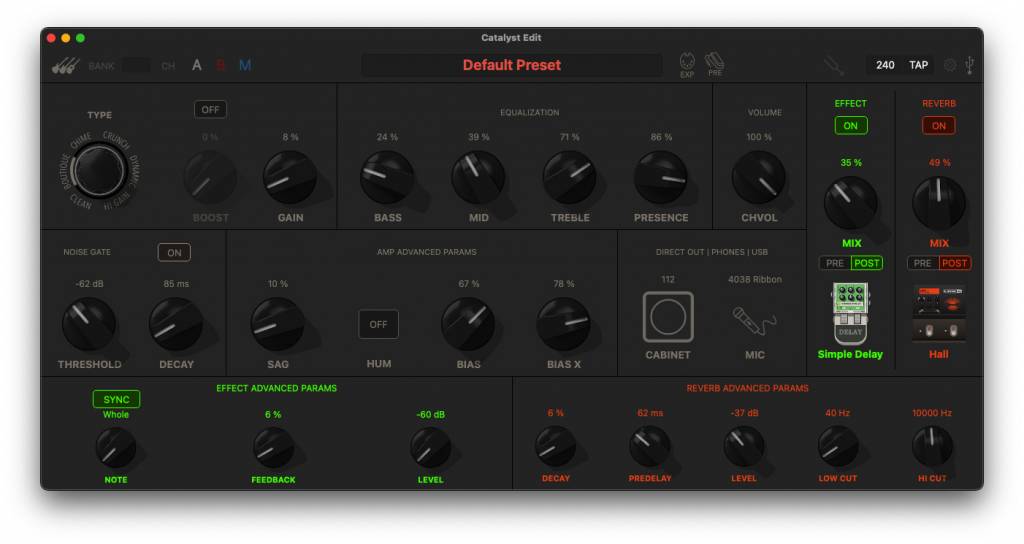
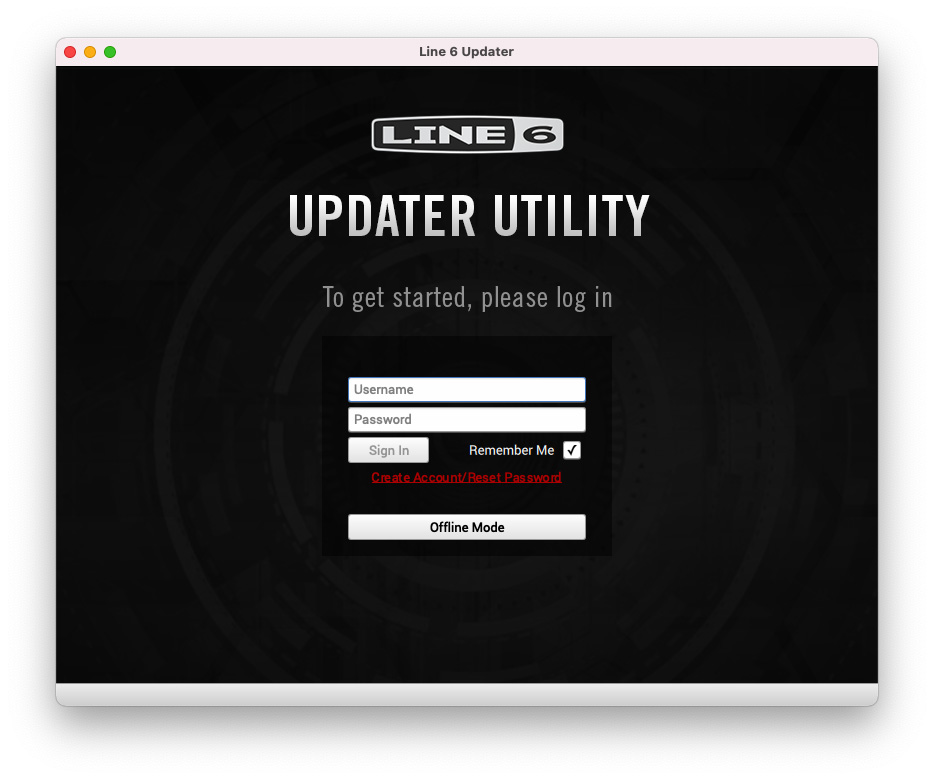
Catalyst amplifier sounds can be managed with the Catalyst Edit software. In addition to the custom editor, you can also keep your Catalyst amplifier’s built-in software up-to-date with the Line 6 Updater app.
Important! – ASIO Driver for Windows
Catalyst is a class-compliant audio device, so you can just plug it into any Mac and start recording and playing audio. For recording on Windows, however, there’s an ASIO driver that is compatible with most DAWs. To get the ASIO driver:
- Go to http://line6.com/software.
- From the first pull-down menu, select Catalyst.
- From the second pull-down menu, select “Drivers.”
- From the third pull-down menu select your PC’s operating system and click GO.
- Download and install the Catalyst ASIO Driver.
- Connect Catalyst via USB (do not use a USB hub) and launch your DAW software.
Catalyst Edit
- Go to the Line 6 Software Downloads page.
- Click Choose Hardware and select your Catalyst amplifier.
- Click Choose Software and select Catalyst Edit.
- Click Choose OS and select your computer’s operating system.
- Click Go.
- Click the Get Download button to download the latest version of Catalyst Edit.
- Open your Downloads folder and double-click the Catalyst installer file to install it to your Windows or Mac computer.
Line 6 Updater
- Go to the Line 6 Software Downloads page.
- Click Choose Hardware and select your Catalyst amplifier.
- Click Choose Software and select Line 6 Updater.
- Click Choose OS and select your computer’s operating system.
- Click Go.
- Click the Get Download button to download the latest version of Line 6 Updater.
- Open your Downloads folder and double-click the Line 6 Updater installer file to install it to your Windows or Mac computer.
- Connect Catalyst to your computer via a standard USB cable and turn it on.
- Launch Catalyst Edit. If there’s a newer version of the Catalyst flash memory, Catalyst Edit will walk you through the updating process.
When you need help, Sweetwater has the answers!
Our knowledge base contains over 28,000 expertly written tech articles that will give you answers and help you get the most out of your gear. Our pro musicians and gear experts update content daily to keep you informed and on your way. Best of all, it’s totally FREE, and it’s just another reason that you get more at Sweetwater.com.

