

How do I install my East West software that came on DVDs?
The installers and some of the included instructions for the East West DVDs are not current and you may find that they don’t work on your computer. Do not worry; the steps below will easily walk you through the install process. These instructions will walk you through installing the libraries, however, you may also need to install PLAY, activate your product using the License Center, set the instrument directory, and update your library.
Mac: Installing PLAY Libraries from DVD
1. Before inserting the first DVD, decide where you would like to install the library content and create a folder called Play Libraries.
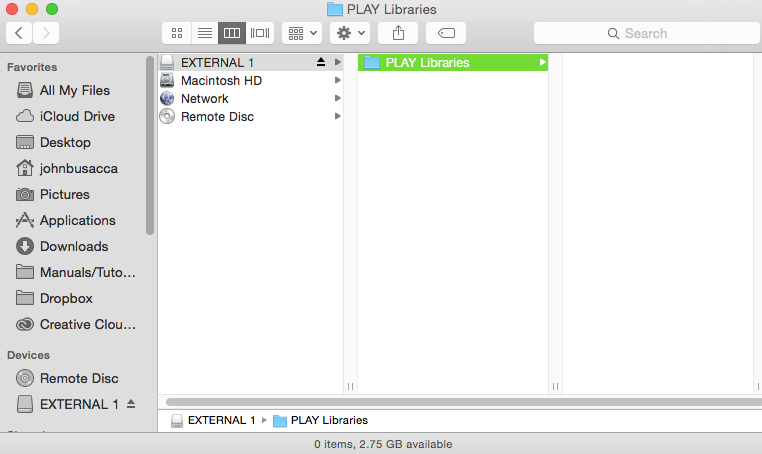
Create Play Libraries Folder, click to enlarge.
3. Locate the library folder (it contains the product’s Instruments and Samples folder). Drag this folder from the DVD and into the Play Libraries folder you created in step 1.
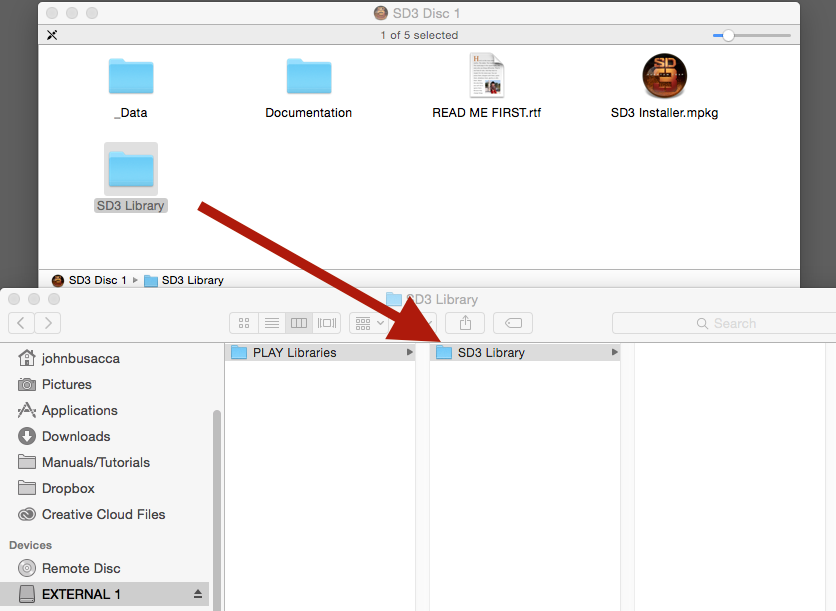
Drag Library Folder to new “Play Libraries” folder, click to enlarge.
4. Once the transfer is complete, insert to Disc Two.
5. On Disc Two, open the “_Data” folder, then double-click on library installer. When presented with the welcome screen below, press “continue”.
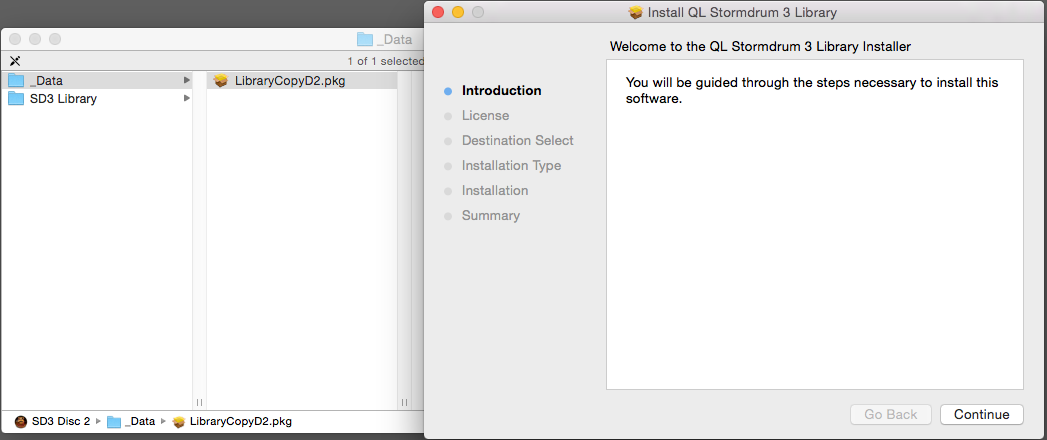
Double click Library Installer, click to enlarge.
6. Next, you will be prompted to select a destination. Choose the hard drive where you created the Play Library folder in Step 1 and click “Install”.

Choose installation hard drive, click to enlarge.
7. In the window that appears after clicking “Install”, navigate to the product’s library folder within the Play Libraries folder and click “choose” as shown below.
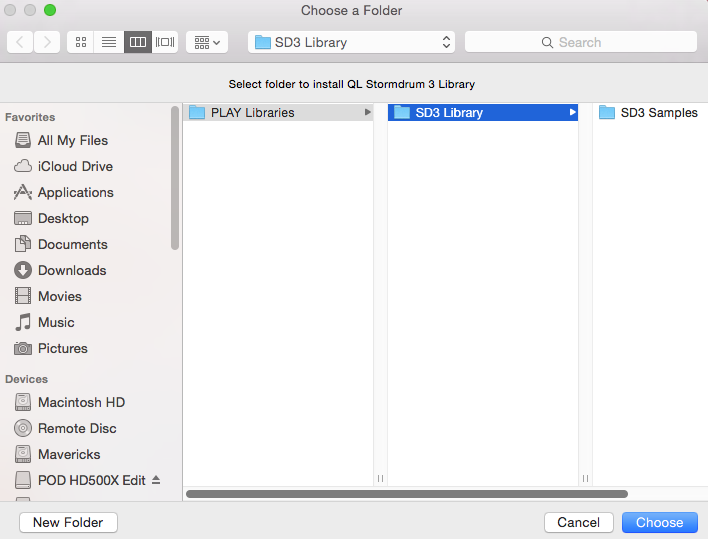
Choose library folder, click to enlarge.
8. Next, click “Install” to begin. You may need to enter the administrator password.
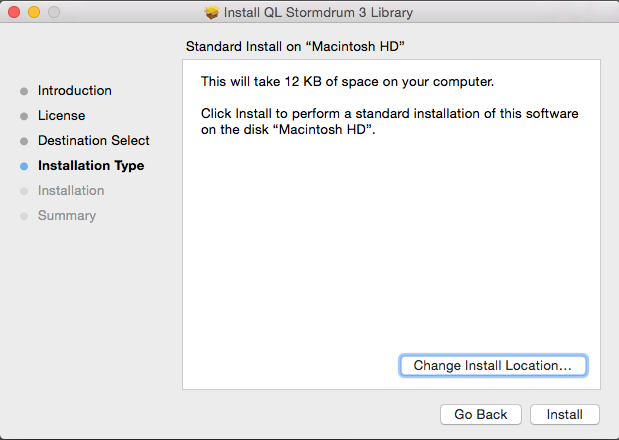
Install window, click to enlarge.
9. Repeat steps 5 – 8 for all remaining discs.
Windows: Installing PLAY Libraries from DVD
1. Before inserting Disc One, decide where you would like to install the library content and create a folder called “Play Libraries” at that location.
2. Now, insert Disc One into your DVD Drive (do not run the installer from the DVD yet).
3. Locate the library folder (it contains the product’s Instruments and Samples folder).
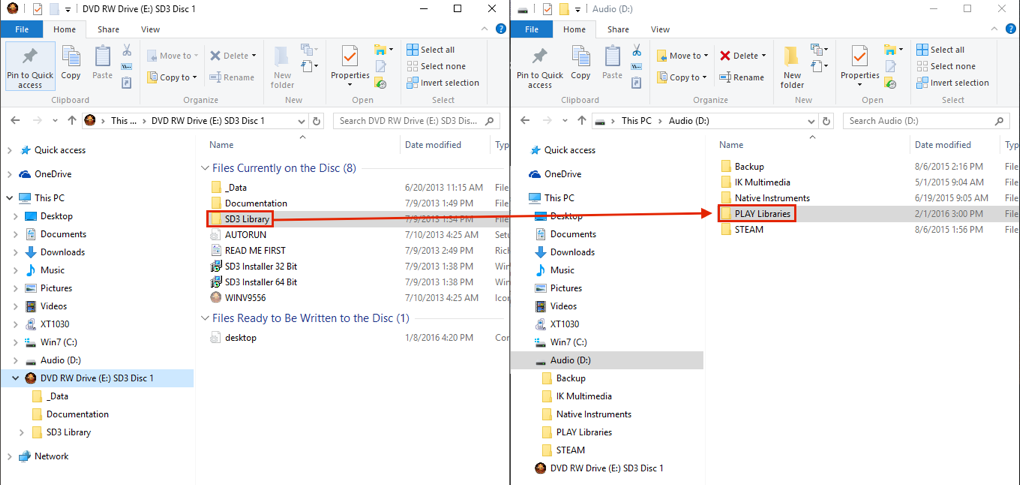
Move library folder, click to enlarge.
5. Once the transfer is complete, proceed to Disc Two and repeat the drag/drop process with the remaining DVDs. Be careful to drag/drop the library folders into the same location and allow enough time for Windows to merge your samples into your library folder.
You’re now ready to install the latest PLAY software. Click here for instructions.
When you need help, Sweetwater has the answers!
Our knowledge base contains over 28,000 expertly written tech articles that will give you answers and help you get the most out of your gear. Our pro musicians and gear experts update content daily to keep you informed and on your way. Best of all, it’s totally FREE, and it’s just another reason that you get more at Sweetwater.com.

