

XLN Audio Software Activation Instructions

In this article, we will walk through how to register and install your XLN Audio software. This process can be broken down into the three steps below:
System Requirements: Check that your computer meets the minimum system requirements for your XLN Audio software.
Register XLN Audio products
Before you can register your products, you will need to either create an account or log in to your existing account. If you already have an account, do not make a new one. You can then register your software through your account by following the instructions below.
- Log in to your XLN Audio account. If you don’t have one yet, you can create one here.
- Click My Account, located at the top right hand of the screen (located next to Cart.)
- Once on your account homepage, Click Register Product (located on the left-hand side of the window.)
- Go to your email inbox, then copy the Registration Code you received from your Sweetwater Sales Engineer.
- Paste that code and click Register Product Key.
- NOTE: You can also enter your registration code by hovering over the My Account link at the top of the page.
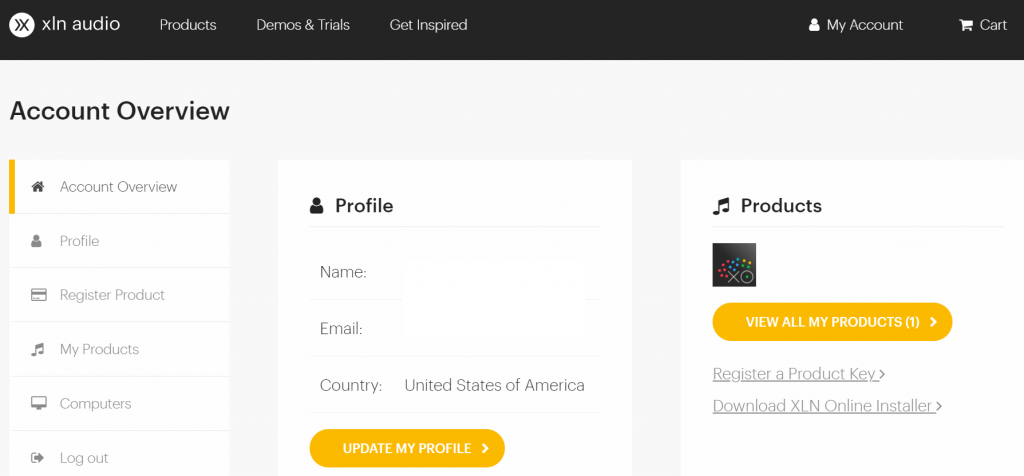
Click the image to register your XLN Audio plug-in
Download the XLN Online Installer
After registering your products, visit the installation page and install the XLN Online Installer. You will be prompted to sign in to your account and to name your computer while running the installer. Follow the instructions below.
- Go to the XLN Online Installer download page and select the download for your OS.
- Go to your Downloads folder, launch the installer, then follow the on-screen instructions.
- PC: Double-click the XLN Online Installer.exe installer file.
- Mac: Double-click the XLN Online Installer.dmg installer file
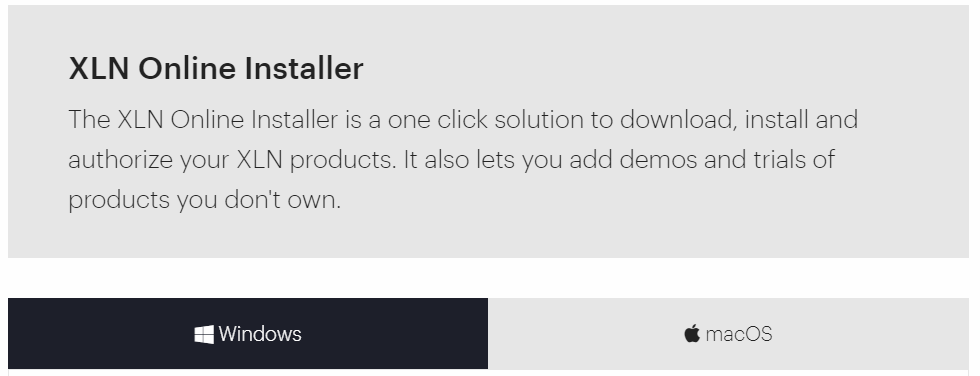
Click the image to download the XLN Online Installer
Install and update your products
Now that the XLN Online Installer is successfully downloaded and installed, you can install your new software. All you have to do is select the orange Click to Install button and it will install and update your products. You will know that everything is installed and updated when the same button becomes green and reads Everything is Up to Date. Follow the instructions below.
- Select the orange Click to Install button.
- If the button becomes green and reads Everything is Up to Date you’re all set!
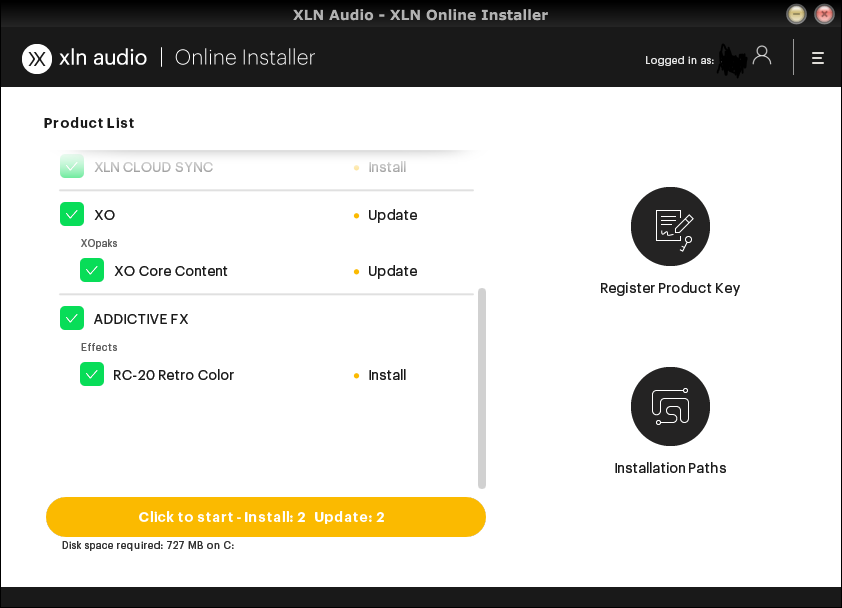
XLN Online Installer window
When you need help, Sweetwater has the answers!
Our knowledge base contains over 28,000 expertly written tech articles that will give you answers and help you get the most out of your gear. Our pro musicians and gear experts update content daily to keep you informed and on your way. Best of all, it’s totally FREE, and it’s just another reason that you get more at Sweetwater.com.

