

How to Register and Activate Magix Software

In this guide, we’ll show you how to register and install Magix software. Follow the sections below to get started. To ensure that your Magix software works with your current operating system, verify that your computer meets the System Requirements. To view the requirements, select your product and click on the Specifications tab.
IMPORTANT: The “Code” in your software activation e-mail is known as a Voucher Code.
Register the voucher code
Before you can register your software, you will need to create an account if you haven’t made one already. Once you’ve done that, visit Magix’s Software Download Page to redeem your voucher code. Your voucher code can be found in the Software Activation Instructions email sent from your Sweetwater Sales Engineer. Follow the instructions below:
- If you haven’t already, create an account with Magix.
- Visit Magix’s Software Download Page.
- Enter your Magix log-in information and click Proceed.
- Enter your voucher code then click Proceed. (The voucher code can be found in the Sweetwater Software Activation Instructions email.)
Subscription codes
If you purchased a subscription, please visit your product’s subscription registration page below to enter the voucher code you received from your Sweetwater Sales Engineer.
- Vegas Edit 365: https://rdir.magix.net/?page=2X5M2LDF0VT3
- Vegas Pro 365: https://rdir.magix.net/?page=5366BHKLNJDC
- Vegas Post 365: https://rdir.magix.net/?page=T4H1KU3ERKN3
Registering your product using the voucher code.
Install and activate your software
After registering your Magix software, you can download and install your new software as shown below. On the same page, you will see your product’s serial number that will be used to activate your software. Your serial number can also be found in the confirmation email from Magix. Once the software is installed, launch it then enter your serial number and login info when prompted.
- Download your software by clicking Installation program.
- Run the installer.
- After downloading and installing your software, launch your new software.
- When prompted, enter your serial number and log into your account.
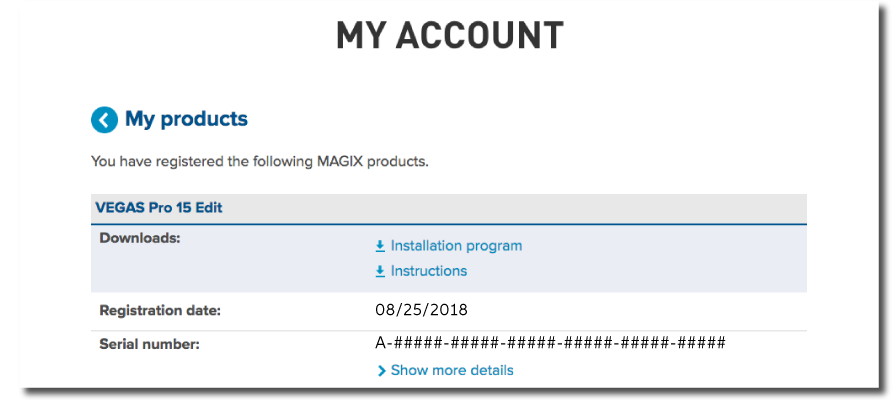
After registering your product, download and install your software as shown above.
Activate Magix Sequoia
IMPORTANT! You will receive the Activation Ticket within three days after registering the Voucher Code.
Magix Sequoia registration is a bit different, in that Magix sends you an Activation Ticket to fully activate your software. To use the software immediately, you can download and install the trial version.
- Register the Voucher Code you received from your Sweetwater Sales Engineer as outlined above.
- Go to the Magix Sequoia download page, then download and install the trial version of the software.
- At the end of the installation process, click Let’s get started. This will open Sequoia License Central. Click Start trial to use the demo version of Sequoia.
- Once you receive the Activation Ticket from Magix, launch Sequoia, click Activate license, copy and paste the Activation Ticket number, then click Continue.
- Click CmDongle to transfer the license file to a USB dongle or click CmActLicense to transfer the license to your computer.
- Click Activate now.
Related Articles
When you need help, Sweetwater has the answers!
Our knowledge base contains over 28,000 expertly written tech articles that will give you answers and help you get the most out of your gear. Our pro musicians and gear experts update content daily to keep you informed and on your way. Best of all, it’s totally FREE, and it’s just another reason that you get more at Sweetwater.com.

