

How do I load 3rd party plug-ins on my AKAI MPC Renaissance?
How to load 3rd party MPC VST plugins on an Akai MPC Renaissance
In this article, we will show you how to load third party plugins and MPC essentials plugins into your MPC software. Follow the instructions below to get started.
- First, ensure that your third-party plugin is installed correctly and that you know the location of the plugin on your computer.
- Next, in the MPC software, ensure that the program is ‘pointing’ to the correct location of your third-party plugin and your MPC VST. To do this, open your Preferences menu and choose the Plugins tab.
- On a Windows computer the Preferences menu can be accessed by going to Edit > Preferences
- On a Mac the Preferences menu can be accessed by going to MPC > Preferences
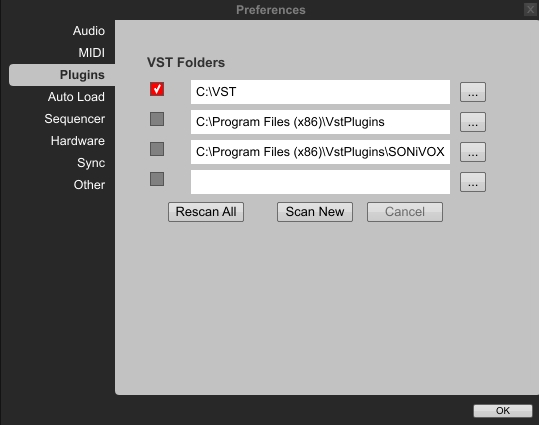
MPC Renaissance Plugin Preference location
- Choose the location of your plugins folder. You can do this by clicking on the box labelled ” … “ next to an empty field and navigating to the location of the plugin on your computer.
- Once you have chosen the correct location of your plugin, put a check in the box to the left of the field that now contains that location.
- Press OK and then close the MPC software and re-open it.
- Once you have re-opened the MPC software, in the Main tab, locate the Track area and change the drop-down menu next to the word TYPE to Plugin.
- A couple new drop-down menus will then appear below. Click on the down arrow in the drop-down menu next to the word PLUGIN.
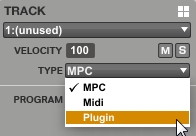
Select Plugin Type
- In the window that opens, ensure that there is a check in the Sort by type field and click on the + sign next to the words VST or Audio Units to expand the menu to view all your available third-party plugins.
- Click on the plug-in you wish to use and then choose Select.
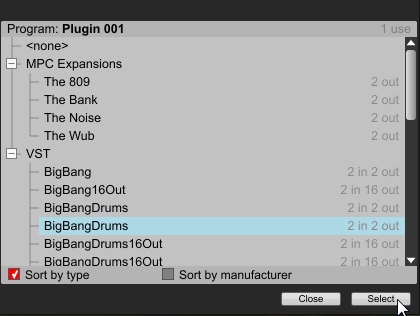
VST Plug-in list
- Your third-party plugin will now load into the MPC software.
- Once you see the name of your third-party or MPC VST plugin located next to the word PLUGIN in the Track area of the Main tab of the MPC software, click on the ” e ” button to the right of the drop-down menu that contains your plugin’s name and your plugin’s interface will appear.
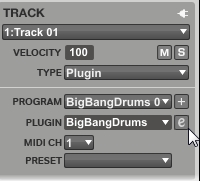
VST Plugin loaded onto a track
Related content
MPC Renaissance Plugins – The Basics
Akai MPC Renaissance – Expansion Plugins: The Basics
When you need help, Sweetwater has the answers!
Our knowledge base contains over 28,000 expertly written tech articles that will give you answers and help you get the most out of your gear. Our pro musicians and gear experts update content daily to keep you informed and on your way. Best of all, it’s totally FREE, and it’s just another reason that you get more at Sweetwater.com.

