
HandHeldSound Software Activation Instructions
Getting started
IMPORTANT: All HandHeldSound sound libraries require the FULL retail version of Native Instruments Kontakt v 5.1 or higher. The sound libraries will not work with the free version, Kontakt Player and will not use the Native Access app.
In this guide, we will show you how to activate, download, and install your new HandHeldSound virtual instrument. Follow the instructions below to get started.
- Download the Pulse Downloader application
- Activate HandHeldSound virtual instruments
- Add your HandHeldSound sound library to Kontakt
Download the Pulse Downloader application
The first step in the registration process is to create an account with HandHeldSound and download the Pulse Downloader application, where you will download, activate, and install your virtual instrument.
- Go to the Pulse Downloader homepage, and click your OS to begin the Pulse download.
- Navigate to your Downloads folder, and launch the installer.
- Log in with your HandHeldSound account credentials. If you don’t have one yet, click Register.
- Please enter a valid email address as the Pulse software servers use that for product links and download confirmations.
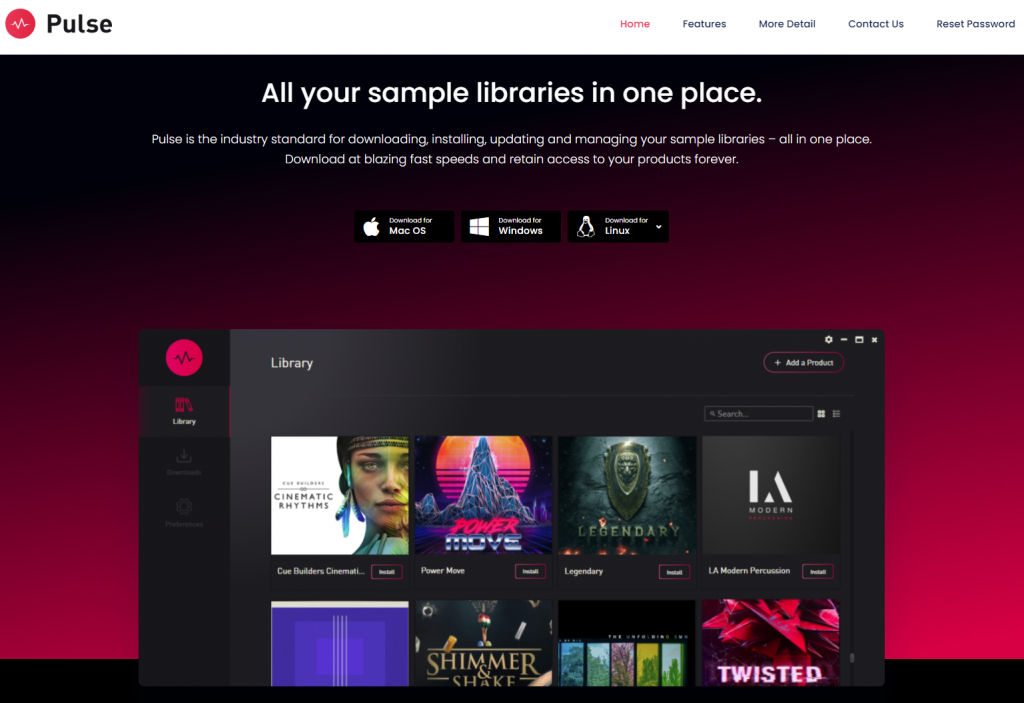
Click the image to download the Pulse Downloader app
Activate HandHeldSound virtual instruments
Once the account has been created, the next step in the process is to enter the Redemption/Serial Key you received from your Sweetwater Sales Engineer. Please note that a valid internet connection is required, as the Pulse and HandHeldSound servers manage the Pulse software downloads and activations. Follow these steps to activate your virtual instrument.
- Click Add a product, then copy and paste the Redemption/Serial Key from the Software Activation email you received from your Sweetwater Sales Engineer.
- Click Redeem.
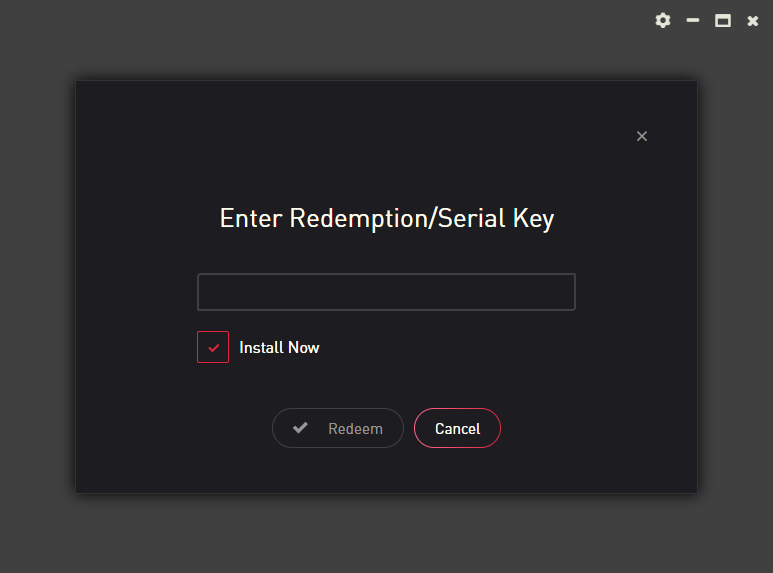
Click Add a Product to activate your sound library using the Pulse Downloader application
Install the virtual instrument libraries
TIP: The HandHeldSound sound libraries are large, so It’s best to store them on either an external drive or a separate internal drive. Installing libraries to the same hard drive as your operating system will decrease performance (slow things down) and take up a lot of space!
- Navigate to the Library section of the Pulse Downloader app, locate your product, then click Download & Install.
- If you checked the Install Now box, you just need follow step 2.
- Choose the folder where you’d like the sound library to be installed.
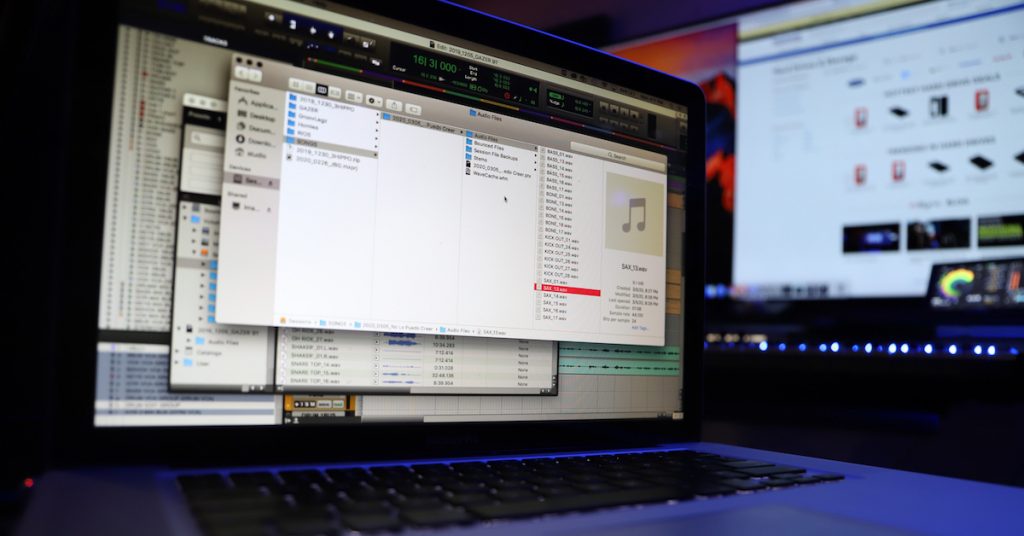
Learn more about how to effectively manage your files for music production!
Add your HandHeldSound sound library to Kontakt
The final step in the process is to add your HandHeldSound sound library to Native Instruments Kontakt. The process is straightforward, as Pulse does most of the work for you. Follow these steps to install and add your HandHeldSound sound libraries.
- Launch the standalone version of Kontakt.
- Click the Manage Libraries button, then click Database.
- Click Add, select the location you installed your HandHeldSound sound libraries, then click Close.
- Click the Refresh button (located to the left of Manage Libraries), then let it scan.
- Be patient, as the scan may take a long time depending on how many other Kontakt libraries you have installed.
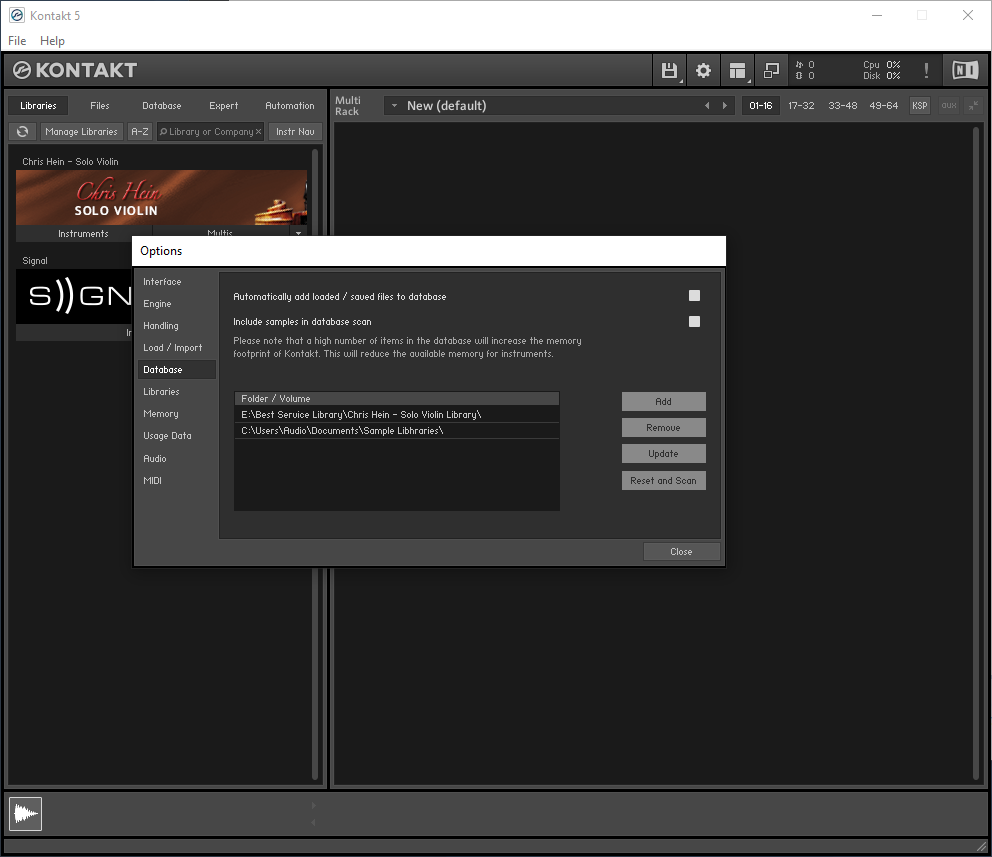
Loading a sound library in Kontakt
Related content
Learn more about optimizing your Windows 10 computer for music production!
Learn More
Learn more about optimizing your Mac computer for music production!
Learn More
Learn more about how to manage Native Instruments library content!
Learn More
Learn more about how to create hard drive partitions on PC and Mac!
Learn MoreWhen you need help, Sweetwater has the answers!
Our knowledge base contains over 28,000 expertly written tech articles that will give you answers and help you get the most out of your gear. Our pro musicians and gear experts update content daily to keep you informed and on your way. Best of all, it’s totally FREE, and it’s just another reason that you get more at Sweetwater.com.

