
Digitech TRIO FAQ
Overview
In this guide, we will provide you answers to some of the most frequently asked questions with the Digitech TRIO. If this is your first time using one, check out our DigiTech Trio Pedal Quick Start Guide and also see Tips for getting the best results with your Digitech Trio Band Creator.
Q. What is the USB port on my Digitech TRIO for?
The USB port on the Digitech TRIO Band Creator pedal is for updating the pedal’s firmware. You can download the latest firmware here under the “Downloads” section.
To update the firmware, connect your TRIO pedal to your computer via a USB cable, then run the firmware updater application.
Q. Why do the drums and bass on my Digitech TRIO sound bad through my guitar amp?
When using your guitar amp to play the drums and bass from TRIO, set the amp to run as cleanly as possible in order to avoid distorting the drums. The drums and bass are pre-EQ’d to sound best through a clean amp with typical EQ settings.
Q. What is the difference between the AMP and MIXER outputs on my Digitech TRIO?
The AMP output, when used on its own, will send the drums, bass, and your guitar signal to your amplifier. The drums and bass have a preset EQ to enhance their sound through your guitar amp’s cabinet. For the best results, use a clean setting on your amp.
The MIXER output, when used on its own, will send the drums, bass, and your guitar signal with cabinet modeling to your mixer.
When used at the same time, the AMP output will only pass your guitar signal, and the MIXER output will only pass the drums and bass.
When using the headphone output, both the AMP and MIXER outputs will be muted.
Q. Why am I not getting any sound out of the AMP or MIXER outputs on my Digitech TRIO?
Make sure you don’t have anything plugged in to the headphone output. If anything is plugged in here, the AMP and MIXER outputs will be muted.
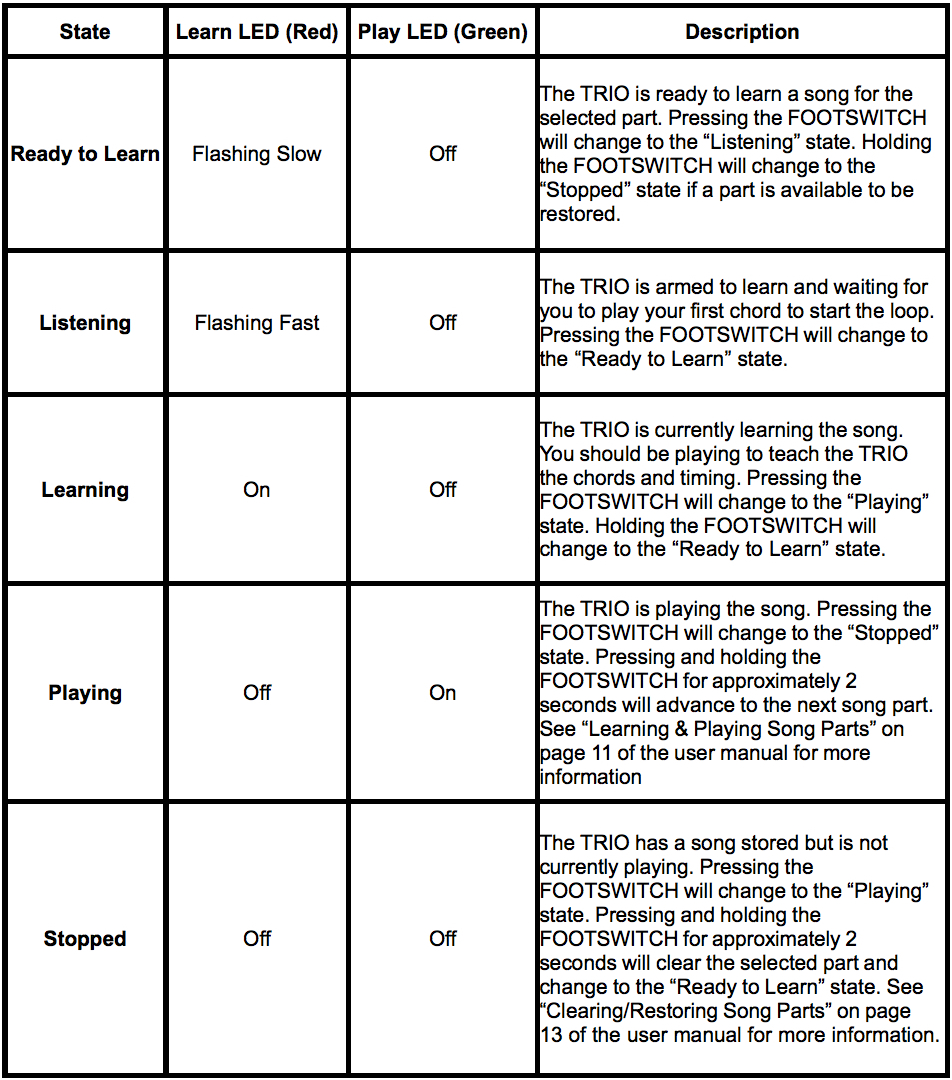
Q. What do the different LED states on my Digitech TRIO pedal mean?
The LEARN and PLAY LED’s indicate the status of the selected song part. Here’s what they mean:
Q. Why does my Digitech TRIO pedal play twice as fast or slow as I expected?
Try pressing the ALT TIME button. This button selects an alternate interpretation for the song’s tempo.
Q. Why isn’t my Digitech TRIO pedal playing in the correct time signature?
Be sure you’re using the appropriate style for the time signature you are playing in. Styles 1-9 are 4/4, and 10-12 are 3/4.
Q. I see the Guitar FX, Part, and Alt-Time LED’s on the top of my Digitech TRIO pedal, but how do I turn them on and off?
Those LED’s are actually the buttons themselves! Simply press the buttons to select them. Alternatively, you can use the optional Digitech FS3K footswitch to change parts, select styles, and toggling the “learning” state for a new part or play/stop for an existing part.
Q. How do I clear the parts on my Digitech TRIO?
Make sure playback is stopped, then press and hold the footswitch to erase the selected part. The LEARN LED will start flashing slowly to indicate the part has been cleared.
Q. How do I update the firmware on my Digitech TRIO?
Updating the firmware on your Digitech TRIO is easy. To begin, click here and download the latest version of the TRIO Updater from the right-hand side of the page. Once the download is complete, install the updater application and proceed with the instructions below.
- Launch the TRIO Updater application (You can find it in your Applications folder if you’re on a Mac, or in your Programs folder if you’re on a PC running Windows.
- Power up the TRIO by connecting it to the power supply, then connect a mini USB cable (not included) from the TRIO to your computer.
- The Updater will automatically detect your TRIO pedal and state the currently installed firmware. Click the “Check for Update” button.
- If a newer version exists, you will be prompted to begin the update.
- While the update is executing, do not power off the TRIO. This may take a few minutes to complete.
- When the update is complete, a message will pop up on your screen instructing you to wait for the STYLE LED’s to light green indicating that the update is complete. Once this happens, you can safely power-cycle your TRIO pedal by unplugging the power and plugging it back in, then quit the Updater application.
- If the STYLE LED’s turn red in step 6, this means the update failed. If this happens, power-cycle the TRIO pedal and try the procedure again.
Q. After I teach my DigiTech TRIO a chord progression, the Style lights do nothing and it goes back into standby.
When you go to press the footswitch to bring your TRIO out of Learn mode and into Playback, make sure you are not holding the footswitch for any amount of time. If it is anything other than a quick tap, the TRIO will forget whatever it just learned and go back into Standby.
Q. How do I reset my Digitech TRIO?
To reset your TRIO Band Creator:
- Press and hold the Guitar FX and Alt Time buttons while connecting the power supply
- When the lights start to cycle, you can let go of the buttons
- When the cycle wheel is fully lit, you may power the pedal off.
Your TRIO pedal has now been reset.
When you need help, Sweetwater has the answers!
Our knowledge base contains over 28,000 expertly written tech articles that will give you answers and help you get the most out of your gear. Our pro musicians and gear experts update content daily to keep you informed and on your way. Best of all, it’s totally FREE, and it’s just another reason that you get more at Sweetwater.com.

