

Alesis Strike Factory Reset
Getting started
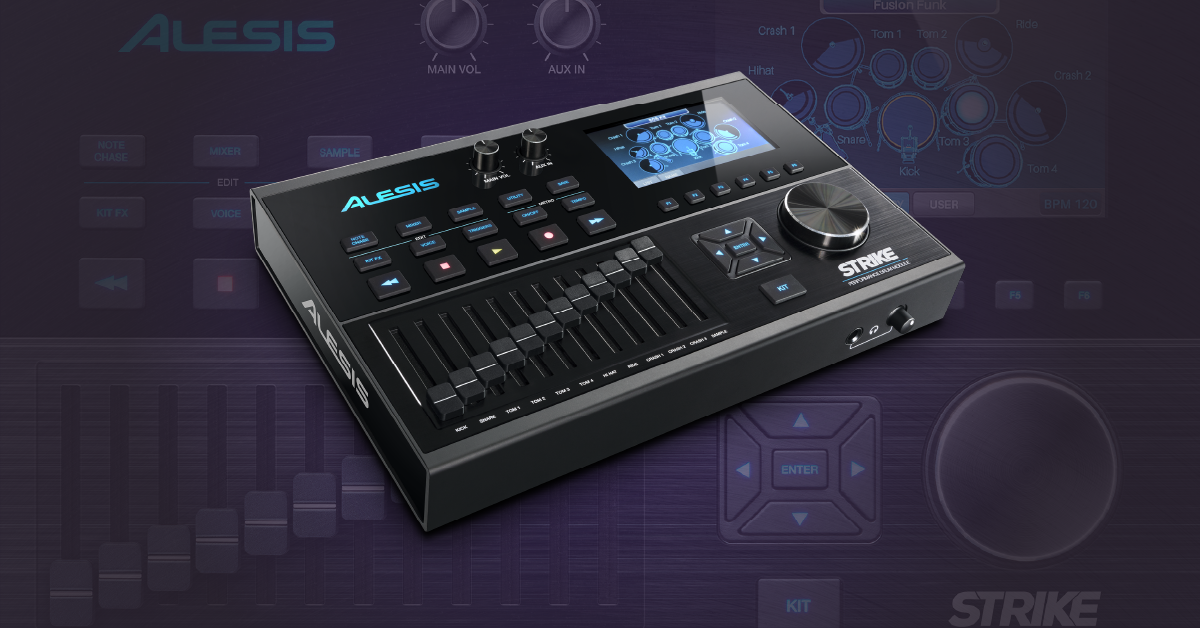
In this guide, we will show you how to perform a factory reset on an Alesis Strike module. Performing a factory reset will restore the module to its default state with its out-of-the-box settings. Follow the instructions below to get started.
Back up module data
TIP: All user saved kits and recorded samples will not be erased when performing a factory reset as they are automatically saved to the SD card.
Your samples and kits are saved onto the SD card, but the module settings such as MIDI routing, pad sensitivity, and metronome routing must be saved as a SysEx (.syx) file. This means you will need to connect the Strike module to your computer and use a MIDI utility to create the backup. Follow the steps below or learn more about how to create, send, and receive SysEx files.
- Launch the MIDI-OX (PC) or SysEx Information (Mac), and select your Strike as the MIDI device.
- Press the Utility button and press F4 to select SYSEX.
- Press the Enter button to send all trigger settings. Once the SysEx information has been received, save the file.
If this is your first time working with SysEx files, read our article on how to create, send, and receive SysEx files.
Perform a factory reset
- Press and hold the STOP and ENTER buttons and turn the unit on. You should see the Alesis loading screen with a message saying Resetting Factory Defaults…
- Once the Kit screen appears, let go of the buttons. The factory reset will then be complete.
- Wait a few seconds afterwards so that the sound libraries can be reloaded.
When you need help, Sweetwater has the answers!
Our knowledge base contains over 28,000 expertly written tech articles that will give you answers and help you get the most out of your gear. Our pro musicians and gear experts update content daily to keep you informed and on your way. Best of all, it’s totally FREE, and it’s just another reason that you get more at Sweetwater.com.

