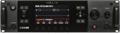
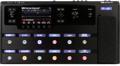
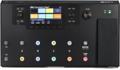
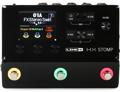
Getting great guitar sounds with a Helix is easy; the sounds are killer and there’s a lot of options. Beyond that, there are reasons to consider Helix for re-amping. The Helix platform is well thought out. Each piece in the Helix universe has a specific purpose, but they all have a consistent look, feel, operation, and sound. They also communicate through the common home of the HX Edit app. Whether you use Helix Floor, Helix Rack, or Helix LT, you have access to the same info and can get the same sounds on all of them. HX Stomp is only slightly different because it has less processing power. There’s also Helix Native, the software plug-in version that looks and operates like the rest of the Helix family without the hardware component. Native communicates easily with HX Edit, so sharing sounds is simple. Factor in the easy connectivity of Helix, and it’s a natural for re-amping.
Why Re-amp?
I’m all for dialing up a guitar tone and committing to it. Being in the moment to capture a performance requires a great guitar sound. If the sound feels right for the song and for your part, then it’s good enough to print. However, having the option to tweak details or to totally alter a sound later in the recording process can be helpful. For instance, if a song is in the writing phase, the addition of lyrics or melody may take an idea in a totally different direction. Being able to change a guitar sound easily to fit the new direction can keep the idea flow alive without having to stop and re-record a guitar part just to alter the sound.
Additionally, there are times when you’re dealing with an incomplete mix for various reasons. You may be tracking either to drum sounds that are unprocessed or to sounds that will be replaced. There may be other instruments to overdub, background vocals to add, or a virtual orchestra that will be layered over it. All of those alter the sonic space in a mix and can ultimately affect your guitar-sound choices. Guitar sounds can be approached and manipulated in so many ways to fill up, sit in, or stand out of a mix, which is one of the beautiful things about the guitar. Tracking with a complete guitar tone is very inspiring, and having the option to fine-tune a guitar sound for a final mix can be a lifesaver. The Helix affords you both options. Even better, the killer sound you tracked with can be saved and, when you get to the final mix, maybe it needs a little more delay or a little less gain — no problem. This way, you have a sound to get the perfect performance that can easily be tweaked for the final mix.
Helix Makes It Simple
Using the USB output on a Helix automatically routes your guitar signal through eight different ins and outs. The dry, unaffected, guitar-only signal is always available on Output 7; the current sound dialed up on the Helix is always on Outputs 1/2. This is great for tracking because you have a great sound to monitor while you track along with a dry guitar signal that is perfect for re-amping on a separate track. If you only want to monitor — and not record — the effected sound from Outputs 1/2, there’s no need to assign them to tracks in your DAW. The audio is always audible through Outputs 1/2 and, since it’s hardware-based, there’s near-zero latency.
Normally, splitting your guitar signal is a task that requires the right gear and some experimentation. With a typical guitar-pedalboard-amp setup, you’d split the guitar signal at the input of the pedalboard with a direct box, sending one signal to your rig and the other to a console/interface. Not all direct boxes are created equally, and finding the one that properly represents the output from your guitar is a make-or-break situation. I personally have dealt with ground hum through either one or both outputs, which took time to troubleshoot and sometimes had unintended effects on the signal. There are excellent hardware splitter boxes designed specifically for this job, but Helix does it internally, instantly, and painlessly.
Connecting your Helix to your computer via USB is easy, and Helix is a serious audio interface. If you want more options and info, check out Craig Anderton’s excellent article “Line 6 Helix: The Overachieving Audio Interface.”
Getting Started
Once you’re connected, create a single mono track in your DAW and assign the Input to 7 and the Output to 1/2. This will be your dry guitar track. If you want to record the sound you’re monitoring, create a stereo track, or two mono tracks, and assign the Inputs and Outputs to 1/2. I’ve done this in Pro Tools with the tracks labeled “DI” and “Helix.” You can mute the output of both tracks since you’ll be monitoring the hardware sound from the Helix. Hit “record” and record your perfect performance.

Now, you’ll want to send your recorded dry-guitar track back to the Helix and experiment with some sound options. Start by creating another stereo track, or mono pair, set to Input 1/2 and Output 1/2. I’ve named mine “Re Amp.” Next, reroute the output of your dry guitar to any outputs other than 1/2. Let’s use 3/4. Don’t forget to unmute this track. On your Helix, find the Input block on the preset you want to use and set it to USB 3/4. Arm your re-amp tracks to record and, as the dry track plays, it will be coming through the Helix. You are officially re-amping. Record the re-amp tracks in real time when you’re ready.


Helix Native
The other option is to use Helix Native, which sounds and responds remarkably like the hardware versions. To share presets between HX Edit and Native, save the preset to a preset folder, click “Import” on either platform, open the folder, and import the preset. The most common use of this is to take a favorite live-performance sound from your Helix Floor and transfer it to Native to record with, or vice versa. Another use is to share your sound with your collaborators, whether it’s a writing partner or producer/engineer. This way, whatever stage a project is in, you’re all working with the same tools. Native is also very useful if you’re editing or mixing remotely on your laptop or in another situation where you don’t have access to Helix hardware.

Comparing Sounds
I recorded a single performance and treated it in various ways to show the consistency and versatility of the Helix universe. My physical signal chain was guitar-cable-Helix LT-laptop. The DAW used was Pro Tools, and the guitar was my PRS 513. The entire process was relatively easy, and the results are outstanding.
Here’s the stereo Helix track, recorded on Inputs 1/2:
Helix
Here’s the dry guitar from the mono DI track: (NOTE: I had to bump up the clip gain +15dB for it to be audible for this purpose, but the output was set to 0 for re-amping.)
Dry DI +15dB
Now, here’s the sound of the dry guitar re-amped and recorded on the stereo Re Amp track using the same preset:
ReAmp
This is the mono DI track with the Native plug-in:
DI with Native
I used the exact same settings for the three examples: a customized version of the “Essex A30” preset. It’s amazing how close they all sound. The only tweaks I made were to raise the output of the Re Amp track +0.2dB and to lower the output of the DI/Native track -3.3dB. I also lowered the Input Gain on Native -2.94dB because the DI track was driving the input stage of the preset a little too hard. You could probably achieve the same results by lowering the clip gain of the DI track. I did find that using both outputs of the LT and a single DI track with Native had the most consistent sound.

For the next example, I changed the sound in Native on the DI track:
Native Mahadeva
In this next example, I blended the Helix track with the original sound and the new DI sound in Native, panned hard L/R:
Helix and Native
I like how the darker sound with delay complements the original sound. It makes it thicker and wider. The guitar occupies a lot more sonic space, and a single performance sounds big. This is an example of the re-amping possibilities with Helix; I hope it opens your imagination to some possibilities. Helix is an easy-to-use, flexible system that sounds great and keeps the creative flow going so you don’t get bogged down in tech. The goal, as always, is to make more music.
If you are interested in any of the Line 6 Helix products, consult your Sweetwater Sales Engineer at (800) 222-4700 or start your search at Sweetwater.com.