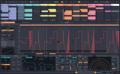
Here’s a helpful tip for you Ableton Live users who want to push the envelope. If you want to play it safe, don’t read the following. If you are ready to go beyond the limits of your computer’s power, keep reading. Surely you have noticed your computer’s reactions get sluggish when you use too many effects. That is due to the CPU drain caused by the audio calculations, which have a much greater priority than the user-interface calculations. Live measures the CPU load caused by audio processing and displays it in the meter on the right-hand side of the control bar.
Prior to version 1.5, all effects in a Set would cause CPU overload, even while you couldn’t hear them. Version 1.5 brings a major improvement: Effects incur CPU cost only when they are needed. Some tricky logic is at work that will, for instance, stop calculating a reverb effect when there is no more input and the reverb tail has died off. This mechanism allows you to use a larger number of effects in a Set than your computer can process, provided you don’t need all of them all the time.
Suppose you have a sound that you want to play with a reverb in scene 1 and with a grain delay in scene 2. Just put the reverb in track 1 and the grain delay in track 2, and put two copies of the same clip in slot 1:1 and slot 2:2, respectively. While scene 1 is playing, the grain delay has nothing to do and therefore causes no CPU cost. As you proceed from scene 1 to scene 2, the effects will switch without an interruption. After the reverb tail has died off, only the grain delay will cause CPU load. As you can see from the example, often some transition time is involved with more effects being active than appear. You should be aware of this if you drop loads of effects into your Set.