

Have you ever had a song that you’ve always wanted to sing karaoke to but never could find an instrumental version? Or is there a song that you want to remix but can’t find the isolated vocals? Or are you a drummer and want to play along to your favorite track with brand-new grooves without the old drums getting in your way? For a long time, if an artist didn’t release instrumentals or stems for a song, then all you had was the original released track to work with. But now, with the Music Rebalance tool in iZotope’s RX 7, musicians and producers have more control over songs than ever before.
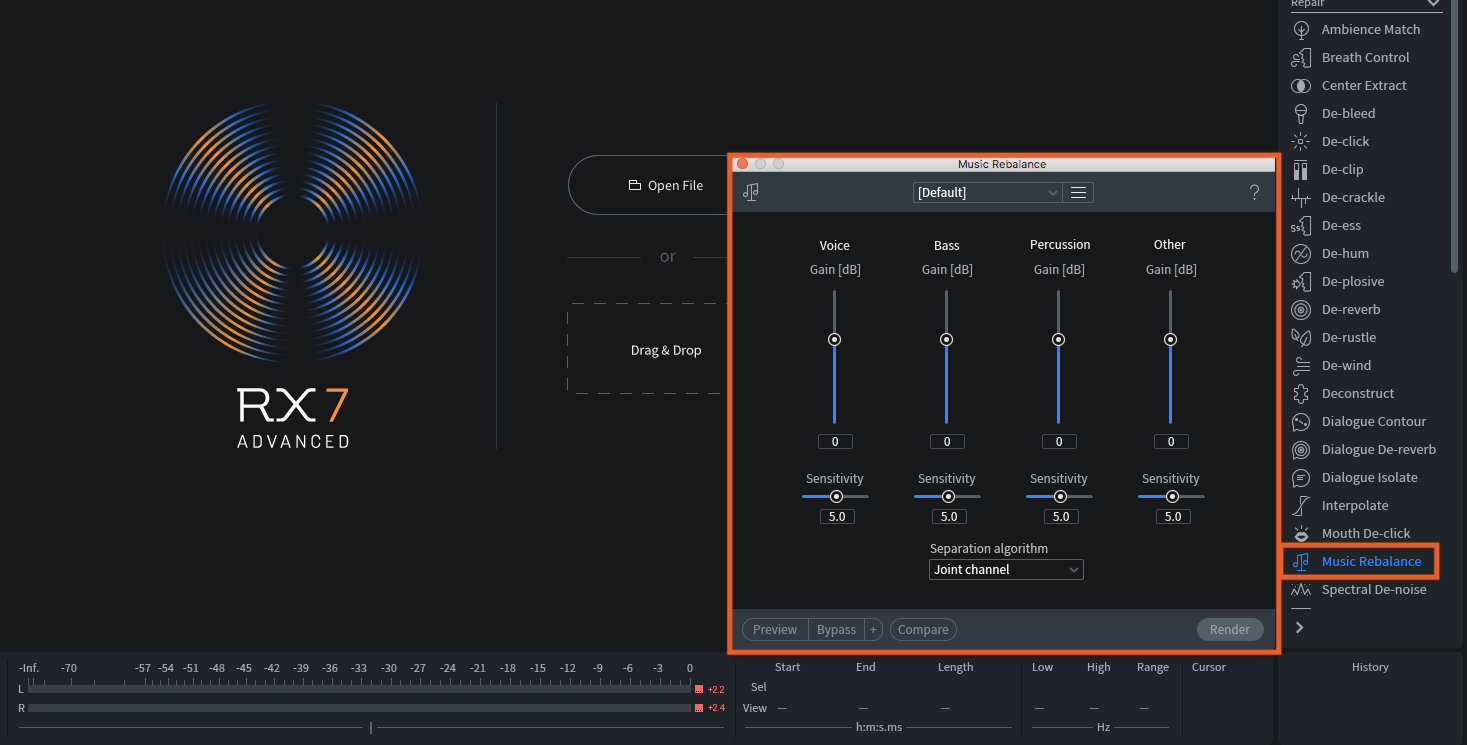
The Music Rebalance tool in RX 7 is a simple but powerful tool that allows you to gain control over individual elements of a song when all you have is a summed mix. You have four faders that give you control over Voice, Bass, Percussion, and Other (meaning guitars, strings, synths, and anything that doesn’t fit into the previous three categories). These faders give you control over the volume of those individual elements.
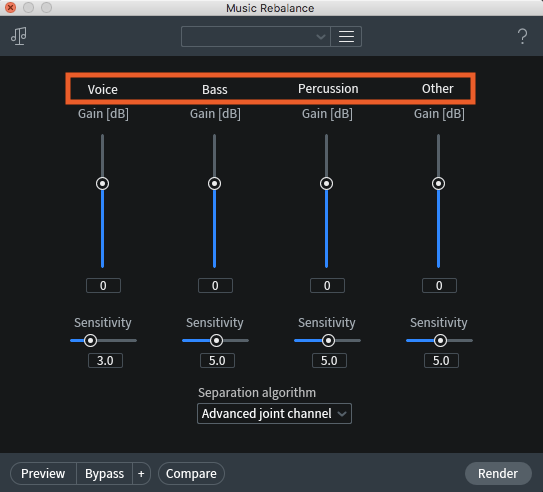
At the top of the tool window, you can browse presets from a drop-down menu. You can also save your own or import others’ presets for a faster workflow.

Below each fader is a Sensitivity slider. This informs the algorithm how much of the incoming signal to separate from the other elements. At a lower value, the algorithm will narrowly select what information is in the given mix element; while, at a higher value, it will broadly select the content. This will take some fine-tuning on the engineer’s part to find what best suits the incoming signal.
For example: If you have the Sensitivity value too low when trying to remove a vocal, some of the vocal may be left in after it is rendered. If your value is set too high, then the algorithm may see other elements as part of the vocal and remove those, as well. A high sensitivity value may also cause unwanted artifacts and phasing, so it’s best to experiment to find the sweet spot for the particular song.
Below the sliders, you have the option to choose from three different separation algorithms: Channel Independent, Joint Channel, and Advanced Joint Channel.
- In the Channel Independent algorithm, the mix elements are determined before processing is applied. This mode also offers the most efficient processing to preview at a higher quality.
- In Joint Channel mode, processing is applied to the audio before determining the mix elements.
- In Advanced Joint Channel mode, additional processing is applied before separating the mix elements. This mode will typically give you the best results but will also take the longest time to render.
At the bottom of the tool window, you have the option to preview the processing before it is rendered to the audio file. You also have the option to choose the buffer size for previewing. Music Rebalance will preview with reduced quality compared to the rendered result.
There is also a Compare feature that will bring up an additional window to allow you to preview different settings quickly. This will help you determine the best settings to achieve your goal. You can also rename the settings in this window for added organization.

It should be noted that Music Rebalance is not available as an AudioSuite plug-in, unlike many of the other RX 7 tools. To use it in conjunction with Pro Tools, use iZotope RX Connect in the AudioSuite menu. This will capture the audio from Pro Tools and send it directly to RX 7 as a standalone program. You can then send it back to your DAW and render the changes. Be sure to note which audio outputs are assigned from Pro Tools and RX 7, as they may not be the same.
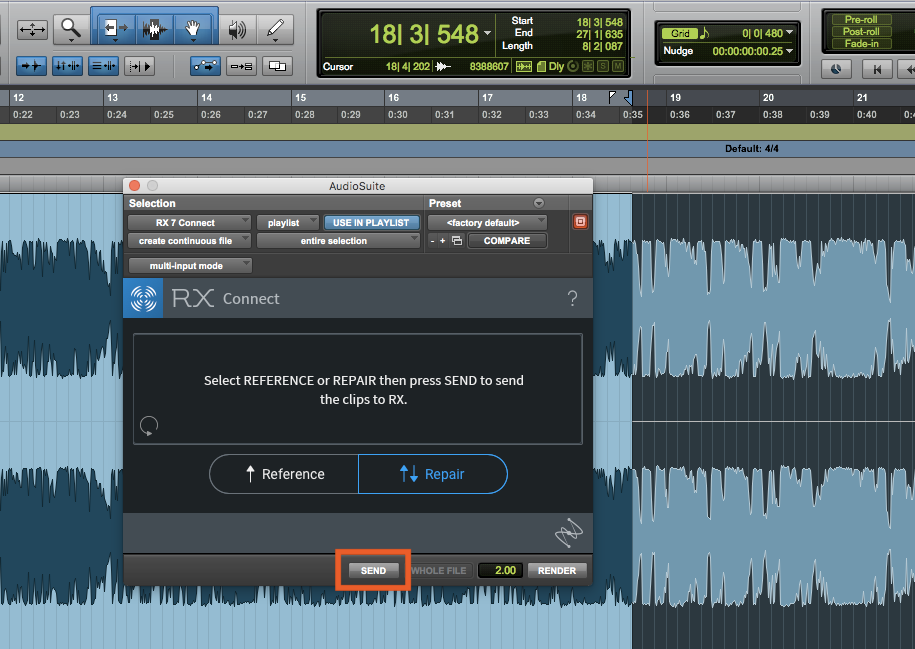
Let me demonstrate this technique with these three clips from the song “Leeches” by Jordan West, recorded here at Sweetwater Studios. The goal was to remove the vocals from this 30-second section of the song. I used the Advanced Joint Channel separation algorithm, had the Vocal element turned all the way down, and left the rest of the mix elements at unity gain. I then tried two different sensitivity settings on the vocal element: one at 3, and one set to 7. Listen to the audio clips below.
Original Mix
Modified mix with vocal sensitivity setting at 3
Modified mix with vocal sensitivity setting at 7
As you can hear, RX 7 does a great job of isolating the vocal elements of the song and removing them, but there is a clear difference between setting the Sensitivity to 3 vs. to 7. At 3, most of the vocal is removed, though you can hear some still left in, especially in the high end. There are also some artifacts and phasing left in the song from removing the vocal. With the Sensitivity set to 7, more of the vocal is removed, but there are more artifacts left over in the track from removing more audio information.
As you can tell, RX 7 Music Rebalance is an incredibly powerful tool for isolating, removing, and adjusting elements within a final mix. Though the program is very intuitive with its algorithms, you’ll still have to tweak the controls to achieve the sound you are looking for.
To get your copy and start exploring the power of iZotope RX 7, contact your Sweetwater Sales Engineer at (800) 222-4700.