
Working with External Instruments in Studio One
In this guide we will show you how to get up and running with external instruments in Studio One. Follow the sections below to get started.
Configure the MIDI settings
When setting up your external instrument in Studio One, the first thing you must do is configure it within the MIDI settings. Doing so will allow your hardware to communicate with Studio One.
- Open the Studio One Options/Preferences.
- Click on the External Devices tab.
- Click on Add… and select New Keyboard from the list on the left.
- Set the Device Name field to the name of your MIDI Controller.
- Select all of the MIDI channels you would like Studio One to receive from your MIDI controller.
- If you are receiving multiple MIDI channels, ensure you have Split Channels checked off. This would allow you to select the MIDI channel input per instrument track when working with multiple instruments and 1 MIDI Controller.
- Set the Receive From field to the MIDI port your MIDI Controller is connected to. Leave the Send To as None, then click OK.
- Click on Add… again and select New Instrument from the list on the left.
- Set the Device Name field to the name of your instrument.
- Select the correct MIDI channel to send to your instrument. If you would like the option to send multiple MIDI channels, you can add more by clicking on each channel you would like to send on.
- This is useful if you have a multi-timbral instrument that can accept multiple MIDI channels like the Roland Integra-7.
- Set the Send To field to the MIDI port your instrument is connected to. Leave the Receive From as None, then click OK.
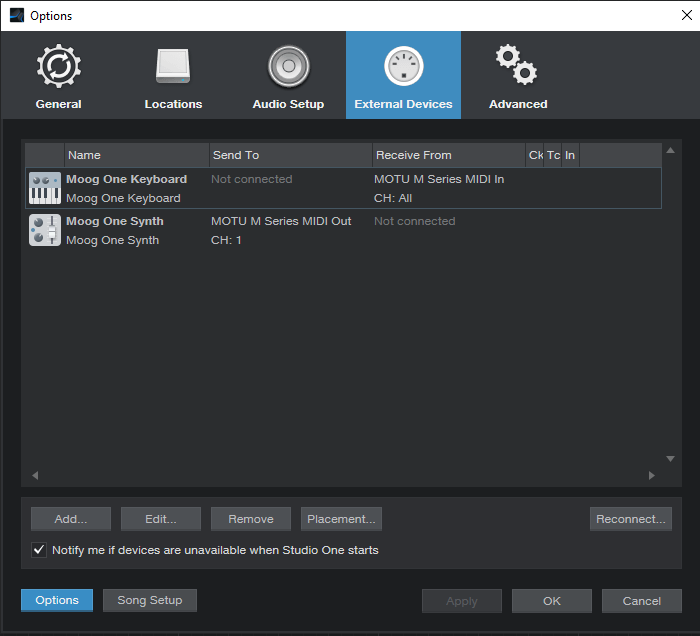
Studio One External Devices settings window
Setting up the tracks
After your external instrument is set up in the MIDI settings, and you’ve verified that it’s sending MIDI signal, the next thing to do is to set up two tracks: an instrument track and an audio track. Once complete, Studio One will capture both MIDI and audio when recording.
- Create an instrument track and an audio track.
- Set the audio track input to your instrument’s input connected to your audio interface.
- Set the instrument track input to the controller you are using. This could be a keyboard or pad MIDI controller.
- You may need to expand the track vertically to see the input settings for the instrument track. You can do this by clicking on the down arrow in the track view section, then setting it to Medium.
- Ensure that the instrument track’s MIDI input channel matches the MIDI channel on your MIDI controller.
- Set the Instrument track output to your instrument.
- Ensure that the instrument track’s MIDI output channel matches the MIDI channel on your instrument.
- Record enable the Instrument track and enable input monitor for the audio track.
- After you record your MIDI notes on the instrument track, make the changes you’d like, if any. Once you are prepared to commit, you can record just the audio track by arming just the audio track and clicking the master record button.
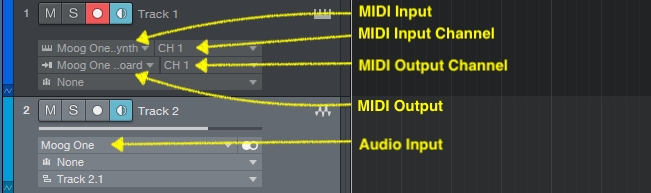
Global track settings
When you need help, Sweetwater has the answers!
Our knowledge base contains over 28,000 expertly written tech articles that will give you answers and help you get the most out of your gear. Our pro musicians and gear experts update content daily to keep you informed and on your way. Best of all, it’s totally FREE, and it’s just another reason that you get more at Sweetwater.com.

