

BeatBuddy Maintenance Tips & Tricks
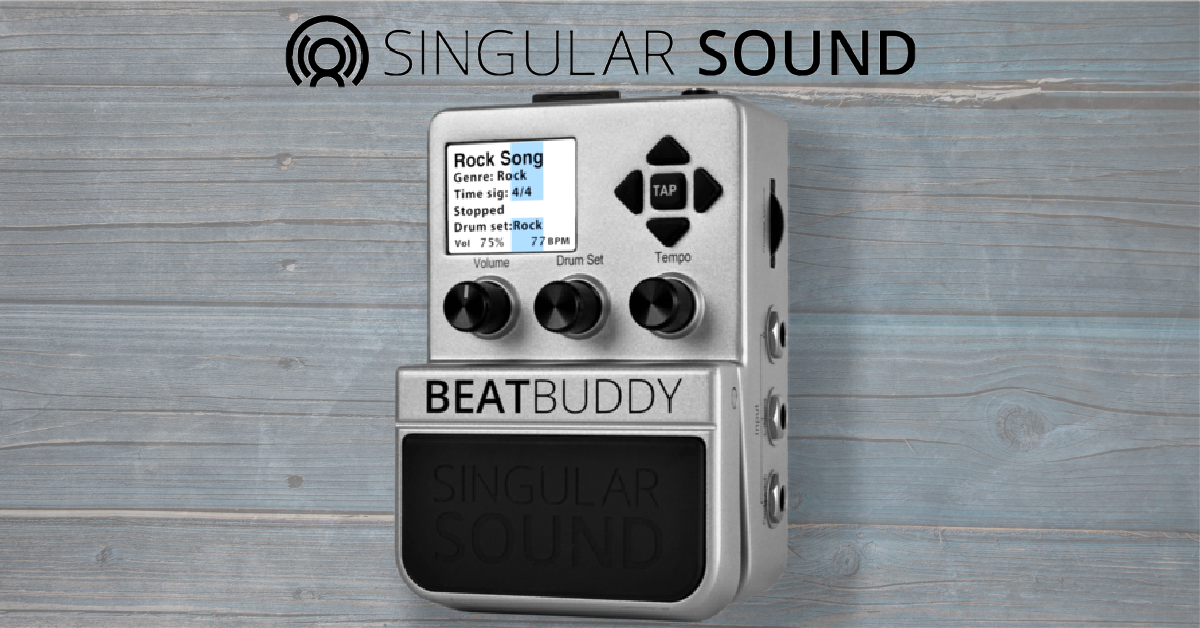
Singular Sound’s BeatBuddy is an innovative drum machine pedal that allows you to easily control everything at your feet, making it a perfect tool for performing live. Sweetwater’s Tech Support team has tons of experience with them, so we decided to put together a few things that every BeatBuddy user should know. Also be sure to check out the BeatBuddy Owner’s Manual for more information!
Download BeatBuddy Manager
BeatBuddy Manager is an application that allows you to do things such as edit BeatBuddy content and use custom files to create drum sets. Follow the instructions below to download BeatBuddy Manager. To learn how to use BeatBuddy Manager, watch Singular Sound’s Getting Started Tutorials.
- Download the BeatBuddy Manager for Windows or Mac.
- Go to your Downloads folder and double-click the installer file.
- Follow the on-screen instructions to complete the installation process.
BeatBuddy How-To: Getting Started with the BeatBuddy Manager
Update the BeatBuddy firmware
Singular Sound is constantly providing Beatbuddy firmware updates to give you access to great new features, such as additional drum kits. The firmware update will also address any bugs present in the current firmware. For those reasons, it’s a good idea to keep your firmware up-to-date so your BeatBuddy runs smoothly. Follow the instructions below to learn how to update your BeatBuddy firmware.
- Insert your BeatBuddy’s SD card into your computer. Then, download the firmware.
- Go to your Downloads folder and unzip the file.
- Drag the files (app, app.bin, boot.bin, MLO, MLO.bin) to the SD card’s main window. If prompted to skip or replace files, click Replace.
- Insert the SD card into your unplugged BeatBuddy. The firmware will automatically upgrade upon powering on.
How to Upgrade Your BeatBuddy Firmware For the Latest Drum Machine Features
Using SD cards with BeatBuddy
IMPORTANT: If your computer or laptop doesn’t have a built-in SD card reader, you will need an adapter, like the Startech USB-C Multiport Adapter to transfer the files.
It’s reassuring to know that you can always retrieve the files that came with your BeatBuddy by downloading the SD Card Backup file. Should anything ever happen to your BeatBuddy’s SD card, this backup file will get you back to how it was when you first got it. If you’re uncomfortable working with zip files, read through How to Zip and Unzip Files.
- Download the SD Card Backup zip file.
- Open the .zip file to create a new uncompressed file.
- Transfer the FINAL Content v120 – SD card files to your SD card’s main folder.
- Within the file, make sure you have Drumsets, Effects, Params, Songs, and the file HASH.BCF.
BeatBuddy Drum Machine Premium Library Collection – How To Import Drumsets
BeatBuddy Drum Machine Premium Library Collection – How To Import Individual Songs
No SD Card or No Song error messages
Although it’s uncommon, you may come across an error message that reads No SD Card or No Song when working with BeatBuddy Manager. Luckily, it’s quickly remedied by reformatting the SD card so it is FAT32. Check out these videos to reformat an SD card for Windows and Mac.
Additional BeatBuddy resources
- What kind of cable do I need to use the MIDI sync on my Singular Sound BeatBuddy?
- Which MIDI sync functions are supported by my Singular Sound BeatBuddy?
- Can I use WAV files with my Singular Sound BeatBuddy?
Related Articles
When you need help, Sweetwater has the answers!
Our knowledge base contains over 28,000 expertly written tech articles that will give you answers and help you get the most out of your gear. Our pro musicians and gear experts update content daily to keep you informed and on your way. Best of all, it’s totally FREE, and it’s just another reason that you get more at Sweetwater.com.

