
Waves Software Activation Instructions
In this guide, we’ll show you how to register and install Waves software. Follow the sections below to get started.
If you purchased a Waves Update Plan (WUP), skip the Register Serial Number section and follow the Waves Update Plan Instructions instead.
Register serial number
To redeem your software, you’ll need an account with Waves. Either go ahead and log in or create a new account. If you forget your Waves login credentials, visit the Forgot Password page to reset them. Once you’re in, register your Serial Number found in the Software Activation Instructions email sent from your Sales Engineer.
- Log in to your Waves account or create a new one.
- Click Register New Products or visit your account’s registration page.
- Enter the Serial Number and click Submit. The product is now registered to your Waves account.
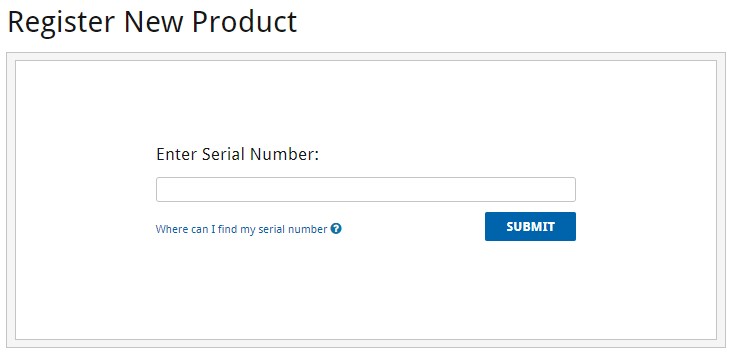
Click the image above to register your Serial Number with Waves!
Waves Update Plan
When you purchase a Waves product, it also comes with one year of Waves Update Plan (WUP) coverage. That means you’ll get compatibility updates for the product and Waves’ VIP Tech Support until the initial year of coverage expires. If you purchased a Waves Upgrade Plan from Sweetwater, you’d need to provide your Sales Engineer a unique code that Waves sent you.
All Waves plugins will continue to work on your system without a WUP, but you might need the latest versions for compatibility if you upgrade or change the system. Renewing a bundle will also give you access to any additional plugins included after your time of purchase. Update Plans can be renewed at any time for easy access to the most recent compatibility updates.
- Visit the Waves Update Renewal page.
- Enter a valid email address. Waves will then send you an email with a code.
- Forward the email which contains the unique code to your Sweetwater Sales Engineer.
- Launch the Waves Central app and log in to download and install the latest versions of your software. If you install it on a computer that doesn’t have an internet connection, check out the offline activation instructions page.
Waves v12 or v11?
Waves Central will install the latest v12 plugins. To have access to both v11 and v12, you’ll need to install the latest v10 versions with Waves Central, and then manually reinstall the legacy v11 afterward. Visit Waves’ Downloads page to download and then reinstall a compatible legacy version. Learn more about versions on Waves’ FAQ page.
Download and install
Now that your products have been registered, all that’s left to do is install and license them. To do so, you’ll need Waves Central, an all-in-one management app for your Waves software. While Waves Central supports most Waves products, VENUE, DiGiCo, Tracks Live, and legacy versions are downloaded and installed separately. Visit Waves’ Download page for more information about accessing these products. Once installed, license the software to your computer and you’re good to go.
Install Waves Central
Waves software is installed and licensed via the Waves Central app. That means you’ll need to install the latest version to access the latest Waves software. View available legacy installers on the Waves Downloads page.
- Visit the Waves Central page.
- Click the Mac or Windows button to download Waves Central for your operating system.
- Open your Downloads folder and launch the installer file:
- PC: Double-click the Install_Waves_Central.exe file and follow the on-screen instructions.
- Mac: Double-click the Install_Waves_Central.dmg file. In the window that appears, drag the Waves Central icon to the Applications folder shortcut.
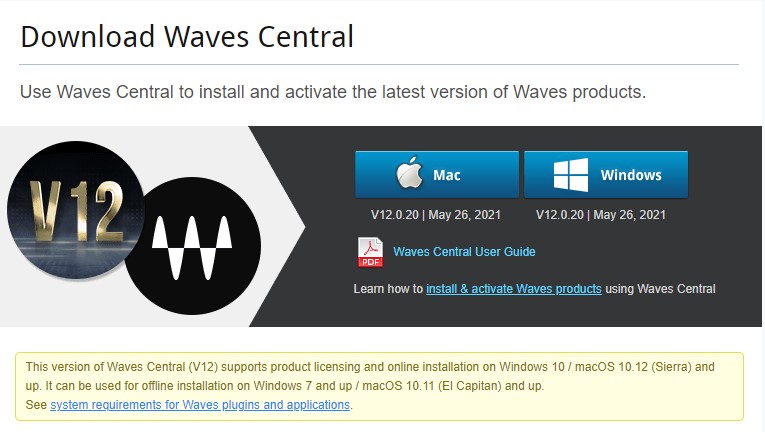
Click the image above to download Waves Central for macOS or Windows!
Install and license plugins
To install your Waves plugins, launch Waves Central and log in. There are a few options for installing your software, but we recommend using the Easy Install & Activate option. Otherwise, you’ll need to run the install and license processes separately. If you have download difficulties, consider installing one plugin at a time. Once installed and licensed, all you have to do is insert the plugin in your favorite DAW. If prompted on the first launch, select the PC or Mac Waves plug-ins folder location and your setup is complete.
- Click Easy Install & Activate.
- Select your Waves product(s).
- Click Install & Activate.
Missing v9, v10, or v11 plugins?
Waves Central will only install the latest v10 plugins in which you have access. To use v9 plugins, you’ll need to use the legacy installers. While v10 and v9 plugins can coexist on the same system, having two different versions of the same plugin will not work. If your v9 plugins aren’t loading as v10, follow these troubleshooting instructions.
Waves licenses
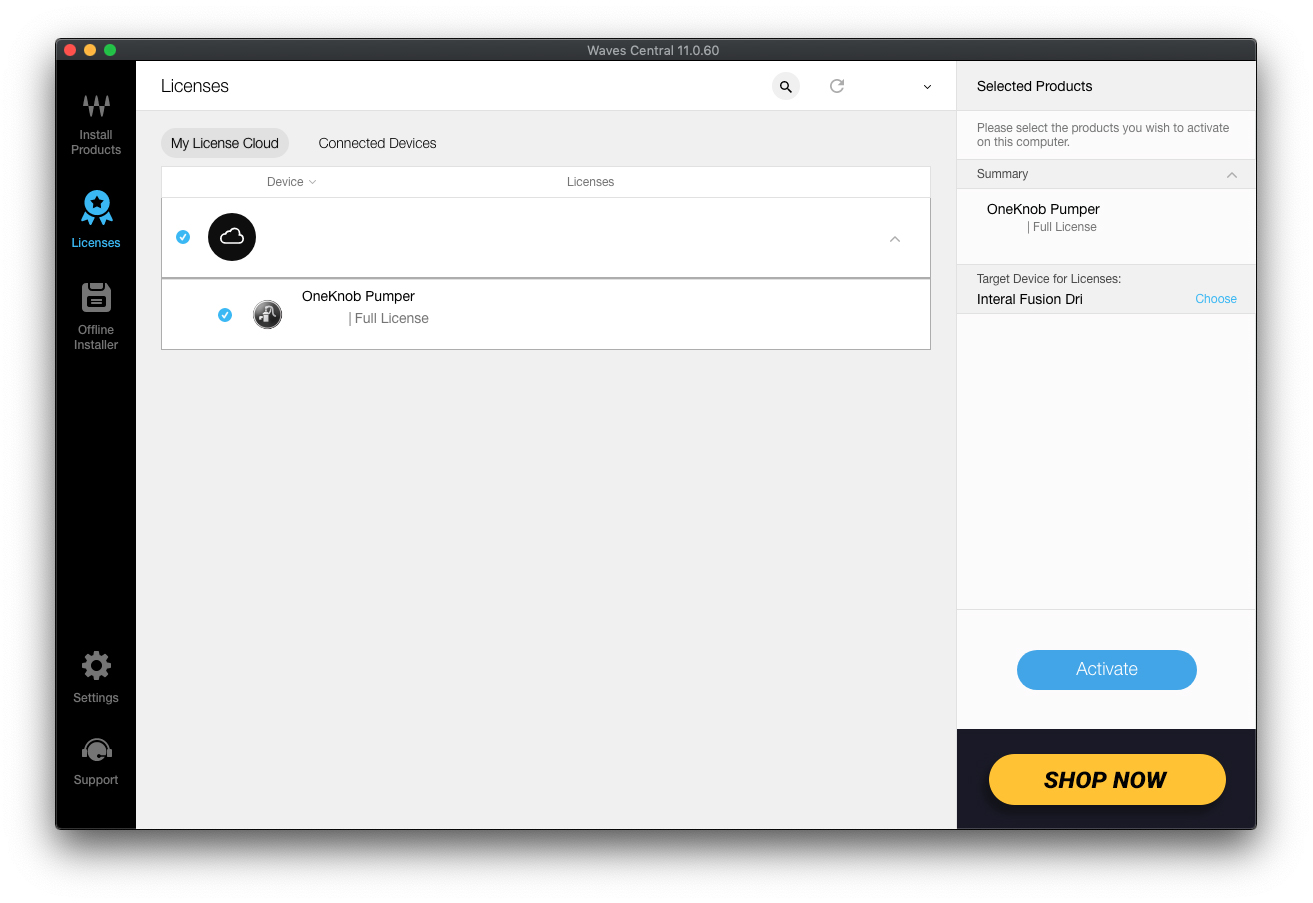
Waves software also needs to be connected with its virtual license. Without it, you will not be able to use your Waves plugins. The license is initially on your Waves License Cloud but needs to be sent to either your computer or a dedicated USB thumb drive (Easy Install & Activate does this automatically). Most users will send the license to their computer, but if you wish to place your Waves license on a portable USB drive, you can do so in the Manage Licenses area of Waves Central. Make sure to backup (save a copy) and then reformat a USB thumb drive before moving any licenses to it. If either an internal or external drive is reformatted or damaged while carrying your Waves Licenses, the licenses need to be recovered before the software can be used again.
Virtual instrument sample libraries
Virtual instruments like Bass Slapper, Grand Rhapsody Piano, Clavinet, Electric 88, 200, and Grand 80 will also be installed along with their respective sample library (sound files). When selecting them within Wave Central, the SD Sample Library will automatically be installed. The HD Sample Library is higher quality but requires more storage space. When installing, you’ll be prompted to select an installation path (location). Either use the default location or select a sample library folder on an external hard drive (e.g., Waves Sample Libraries). Visit Waves’ Sample Libraries page for more information.
When you need help, Sweetwater has the answers!
Our knowledge base contains over 28,000 expertly written tech articles that will give you answers and help you get the most out of your gear. Our pro musicians and gear experts update content daily to keep you informed and on your way. Best of all, it’s totally FREE, and it’s just another reason that you get more at Sweetwater.com.

