

How do I reset my Elektron Digitakt?
Resetting your Elektron Digitakt
In this guide, we will show you different ways on how to troubleshoot your Digitakt. This includes entering Digtakt’s Test Mode, performing a reset, and updating your Digitakt. Follow the sections below to get started.
Early Startup Menu
Troubleshooting your Elektron Digitakt is made easy! When you’re in the Early Startup menu, you can perform multiple tasks such as Tests, an Empty Reset or Factory Reset, and Digitakt updates. You can access the Early Startup Menu by holding FUNC (yellow button) and powering on the Digitakt.
Digitakt Test Mode
The Digitakt’s Test Mode is a tool that will send a short sound through all outputs of the unit. This is useful when troubleshooting your headphones or main outputs. Test Mode also verifies trigger, encoder, and button functionality by displaying their status when pressed. If you don’t receive an error, that means the hardware is fine. If you do receive an error, however, you will need to contact Elektron support for further instructions.
Reset Digitakt
The Digitakt features two reset options to suit your needs. Check the user manual for more information and save and backup any data before performing a reset.
- Empty reset: This will erase any patterns or sounds that have been created. All other data will remain untouched, however.
- Factory reset: When performing a Factory Reset, it will reinitialize the active RAM project that includes the pattern, sound pool and global data settings. Sound Bank A will also be overwritten with the factory preset sounds.
- If you want to keep the active project, save it to a slot that is higher than 1.
Digitakt Update
It may be necessary for a Digitakt update for additional features or to resolve an issue. Digitakt updates are done by sending the SysEx firmware file to the Digitakt via USB or MIDI from a MIDI interface. Available Digitakt updates and files can be found at Elektron’s Digitakt Resource page. Follow the instructions below to perform a Digitakt update. If this is your first time using SysEx, keep this tab open and check out our article to learn more about how to work with SysEx.
- Connect the device sending the OS SysEx file to them via USB or MIDI IN port of Digitakt.
- Download the OS syx file and C6 SysEx utility software from the Digitakt Resource page.
- Open the C6 software, click Configure. For MIDI In and Out, select Digitakt.
- Drag the SysEx file to the C6 main window, select it, and click Send.
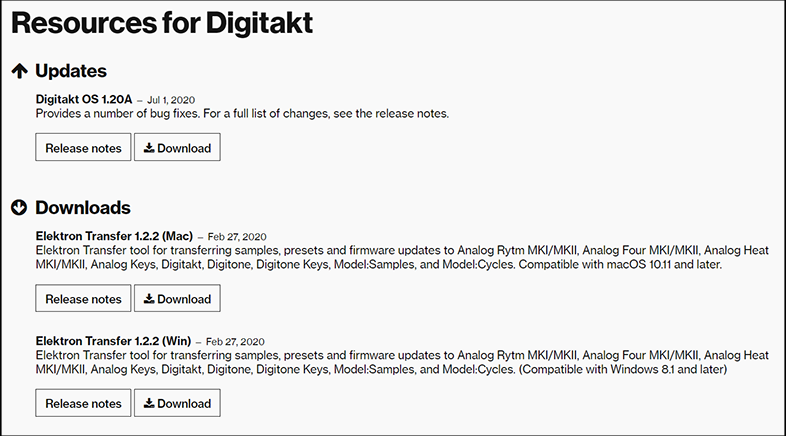
Click the image to download the latest Digitakt OS.
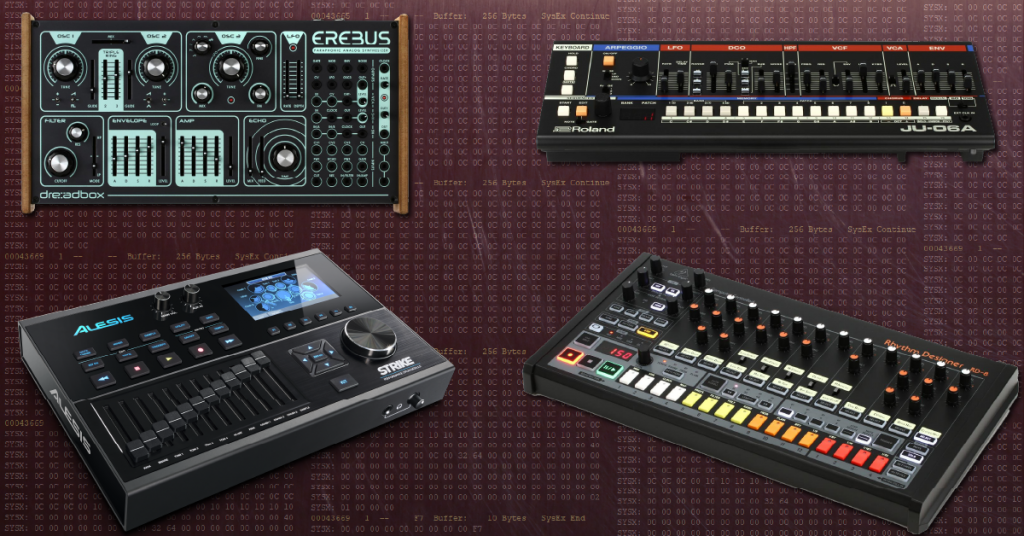
Learn about what SysEx is, and how to send and receive SysEx files on PC or Mac.
How Do I Send and Receive SysEx on PC or Mac?When you need help, Sweetwater has the answers!
Our knowledge base contains over 28,000 expertly written tech articles that will give you answers and help you get the most out of your gear. Our pro musicians and gear experts update content daily to keep you informed and on your way. Best of all, it’s totally FREE, and it’s just another reason that you get more at Sweetwater.com.


