
Spectrasonics Software Activation Instructions

How to use this guide
In this guide, we will show you how to install and activate your new Spectrasonics software. That means we’ll show you how to register the serial number and install the software. Follow the sections below to get started.
Getting Started
Congrats on purchasing your new Spectrasonics software! To begin, you’ll first need to create an account and register the serial number with Spectrasonics. If you have already made an account, you don’t need to make another. Just make sure to continue using the same one.
Register the serial number
To get access to your Spectrasonics installers and updates, you first need to create an account and register the serial number. Follow the steps below to get your software registered.
1. Log into your Spectrasonics account. If you don’t have one yet, create an account here.
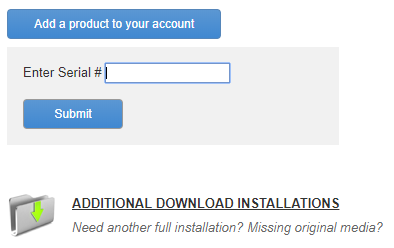
2. In the User Account page, click Add a product to your account.
3. Locate the serial number found on the front page of your product’s printed user guide. Enter the serial number and click Submit.
Install and Authorize
Once you have the serial number registered to your account, the next step is to install it then authorize it.
Install the software
Once you have the serial number registered to your account, the next step is to install it. This is a two-step process as you first need to download the installer files, then run the installation and data update files. We recommend installing them to a dedicated external hard drive and creating a folder with a unique name such as Spectrasonics Library or Spectrasonics Content to install your library to. Follow these steps to get your software installed.
1. Connect the included drive to a USB port, then open the Spectrasonics drive on the computer and double-click the product installation .url file. If your computer doesn’t recognize the disk, flip it the other way.
2. Log into your Spectrasonics account and download the product installer.
3. Open your downloads folder, open the installation folder, then open the Step 1 – Installer folder.
- PC: Right-click the .zip installation folder and select Extract all…. Open the newly extracted folder and double-click the installer .exe file.
- Mac: Double-click the installer .pkg file.
4. Run the installer file and follow the on-screen instructions. During the installation process, you’ll be prompted to select the installation path for your library (STEAM folder).
5. Once the installation is complete, go back to the installation folder within your Downloads.
6. Open the Step 2 – Data Updater folder, then run the Data Updater file within the OS folder.
The installation takes time!
Spectrasonics libraries are large, so it will take a bit of time to complete the installation. Do not unplug the drive from your computer while it’s installing.
Authorizing the libraries
The final step in activating your Spectrasonics library is to authorize it to your computer using the unique response code generated. You will need an internet connection to complete the authorization. Follow the steps below to authorize your library.
1. Launch the standalone application or open your DAW and load your Spectrasonics product on a virtual instrument track.
2. Copy the Challenge Code by clicking the Copy button.
3. Go to the authorization page, then click Authorize product.
4. Paste the challenge code, fill out the required information, then click Submit.
5. Copy the unique Response Code listed, go back to your library, then click the Paste button in the Response Code field.
6. Click Continue, then restart the program to complete authorization.
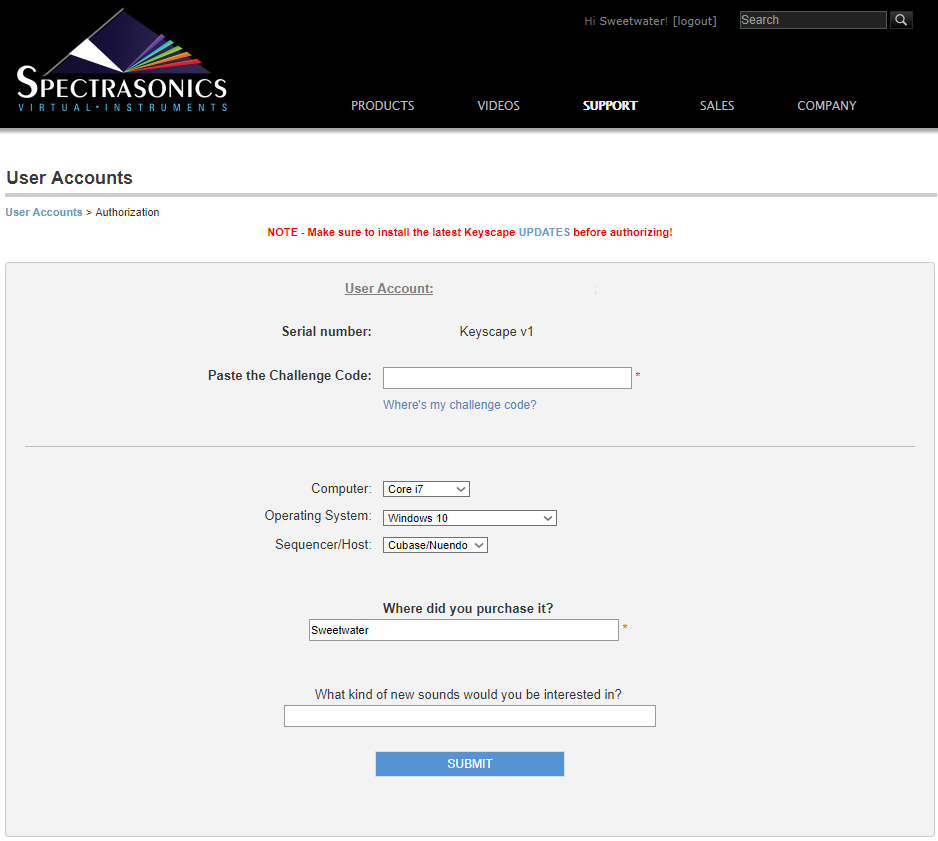
Paste the challenge code on the Authorization page.
Related Content
Omnisphere Memory Management
Stylus RMX Time Designer
Trillian Groove Envelopes
Trillian Latch and Trigger Modes
When you need help, Sweetwater has the answers!
Our knowledge base contains over 28,000 expertly written tech articles that will give you answers and help you get the most out of your gear. Our pro musicians and gear experts update content daily to keep you informed and on your way. Best of all, it’s totally FREE, and it’s just another reason that you get more at Sweetwater.com.

