

Neural DSP Quad Cortex CorOS 3.0.0 Firmware Update
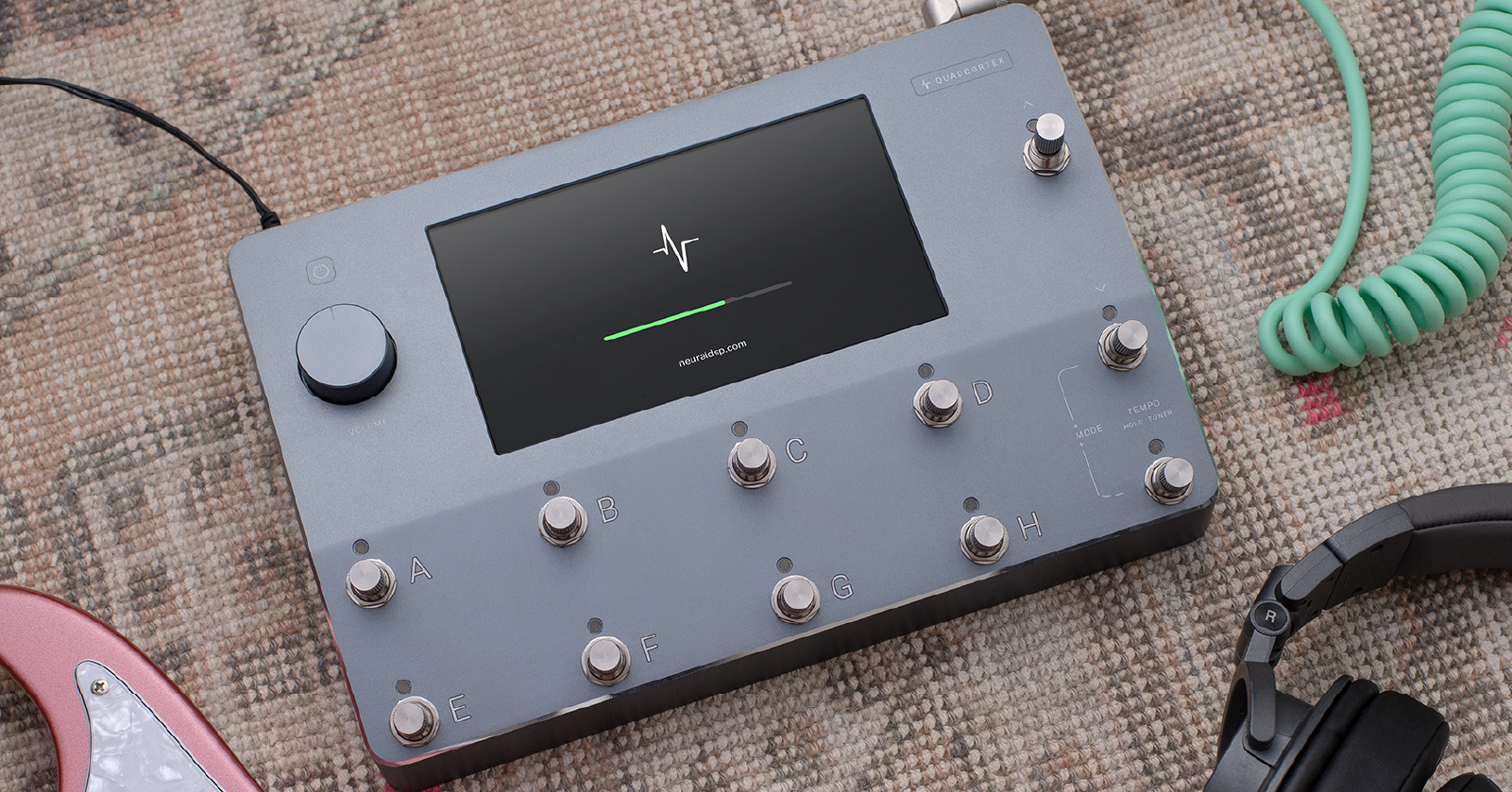
With the release of Quad Cortex CorOS 3.0.0 on July 31, 2024, Sweetwater recommends that all Neural Quad Cortex users update their firmware to take advantage of the new Neural Archetype plug-in compatibility (PCOM), along with numerous improvements. Here’s how to install this free update.
Please read through this guide carefully to ensure that your firmware update goes off without a hitch.
- Connect Your Quad Cortex to Wi-Fi
- Log in to Your Quad Cortex Account
- Back Up Your Data, Captures, and Presets to the Cortex Cloud
- Update Your Firmware
- Verify the Firmware Update
- Verify Your Presets and Restore from Backup
- Neural Archetype Plug-ins and the Quad Cortex with CorOS 3.0.0
- Neural CorOS 3.0.0 Tutorial Videos
Connect Your Quad Cortex to Wi-Fi
- Click the three dots in the top-right corner of any Preset screen.
- Scroll down to Settings.
- Select Wi-Fi from the navigation bar. Connect to your Wi-Fi network and enter your password.
- Verify that there is a check mark next to the network. This confirms there is a successful connection.
Log in to Your Quad Cortex Account
Navigate to Settings > My Account.
Touch Login. Enter your Neural DSP account email and password.
Touch the blue button to link your account. It may take several minutes to complete the connection.
Back Up Your Data, Captures, and Presets to the Cortex Cloud
IMPORTANT: Don’t update your firmware to a new version of CorOS until you have backed up your data. When you have a backup, if anything goes wrong in the update process and you lose your presets, then you can restore everything using the backup.
- Go to Settings > Backup.
- Touch New Cloud Backup.
- Name your backup and wait for verification. The file name will appear as a useable backup once it is complete.
If you encounter a Backup Error message, double-check your Wi-Fi connection. Move your unit closer to your Wi-Fi access point.
Update Your Firmware
IMPORTANT: Do not shut down your Quad Cortex or interrupt its access to Wi-Fi during the firmware-update process. The entire process, during which the Quad Cortex will reboot several times, will take up to 35 minutes. If you interrupt the process, issues may arise, and you will have to start over.
The update is carried out on your Quad Cortex over Wi-Fi. If you are running the Cortex Control app for macOS or Windows, quit the app before you begin the update.
Make sure you are in a location with a strong, stable Wi-Fi connection.
- Go to Settings > Device Options > Device Updates.
- Touch Check for Updates.
- You should see a notification that the new version of CorOS is ready to install. Accept the update.
- A “Downloading Latest Update” message and a progress bar should appear.
Wait patiently as the unit reboots several times.
Verify the Firmware Update
Navigate to Settings > Device Options. You should see the message “Your Quad Cortex is currently running:” with the new version number.
If you don’t see it, then verify that you are connected to Wi-Fi and logged in to your Quad Cortex account. Run the update procedure again.
Verify Your Presets and Restore from Backup
Back at the home screen, cycle through Scene, Stomp, and Preset modes to ensure that your presets are still there. If so, you are all set, and you can enjoy the new features in the latest CorOS.
If not, go to Settings > Backups, select your saved backup, and click Download.
A “Backup ready to install” prompt will appear. Touch Proceed, then wait while all the data is restored.
Neural Archetype Plug-ins and the Quad Cortex with CorOS 3.0.0
As of this writing, on July 31, 2024, Neural has released two Archetype X plug-ins, also available to run on a Windows or macOS computer, that can be loaded onto and run from your Quad Cortex with CorOS 3.0.0. You need to purchase these plug-ins separately.
If you have registered the compatible plug-ins on your Neural DSP account, you will need to refresh the licenses on your Quad Cortex after installing the update. In the Plugins device list menu, under Plugin Presets, press Refresh.
Neural has announced that in the future, it will release more of its plug-ins in CorOS-compatible format for use on the Quad Cortex. Learn more on Neural’s PCOM plug-in compatibility page.
Neural CorOS 3.0.0 Tutorial Videos
Related Articles
When you need help, Sweetwater has the answers!
Our knowledge base contains over 28,000 expertly written tech articles that will give you answers and help you get the most out of your gear. Our pro musicians and gear experts update content daily to keep you informed and on your way. Best of all, it’s totally FREE, and it’s just another reason that you get more at Sweetwater.com.

