
How to Use MBOX Studio Control
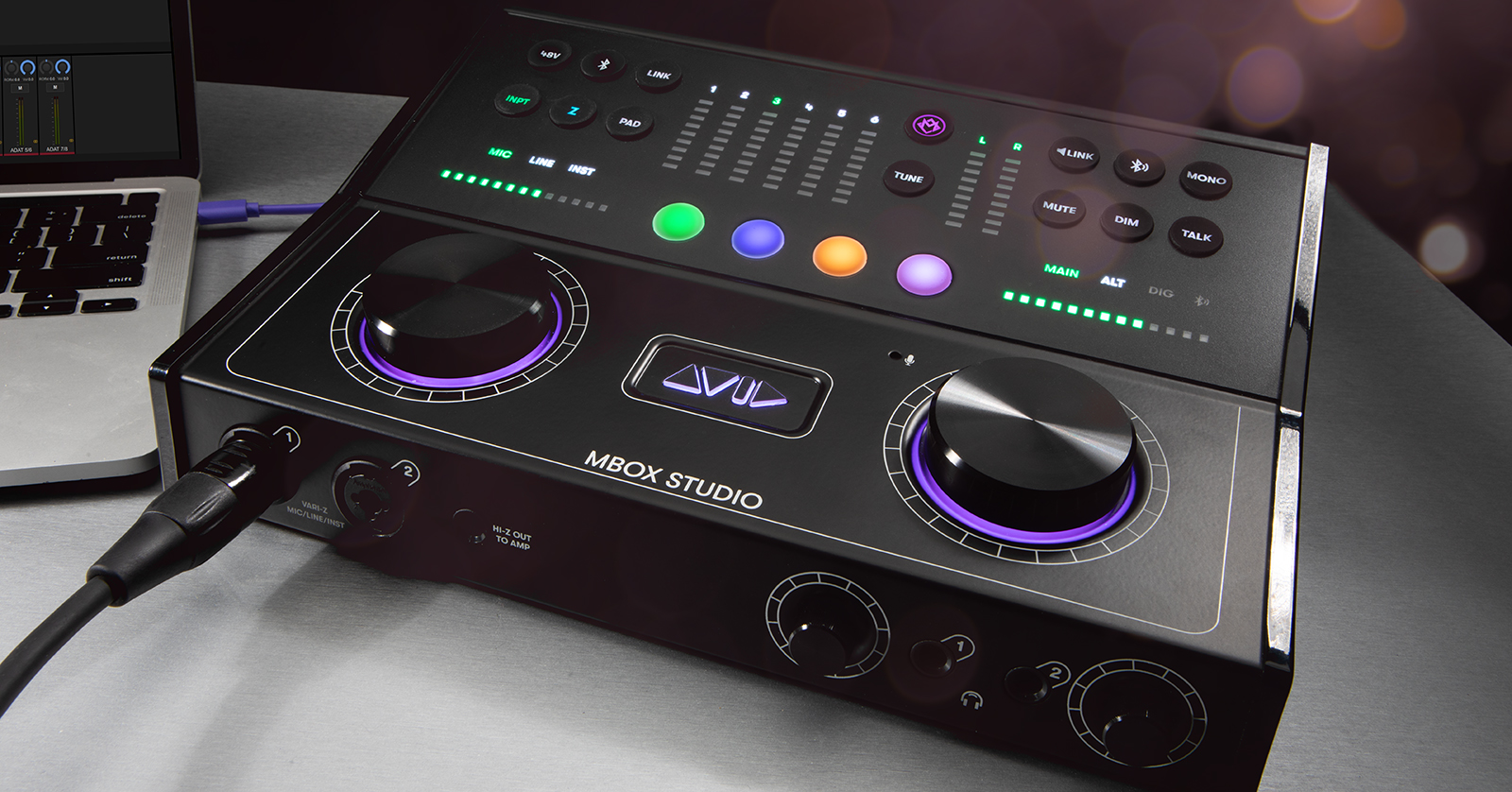
In our MBOX Studio Quickstart Guide, you learned how to register, set up, and connect the interface for the first time. In this guide, you will learn how to use its companion software, MBOX Control. Follow the sections below to get started.
Navigate MBOX Control
TIP: You can launch MBOX Control directly from your desktop or by pressing the MBOX button on the interface, which is located above TUNE.
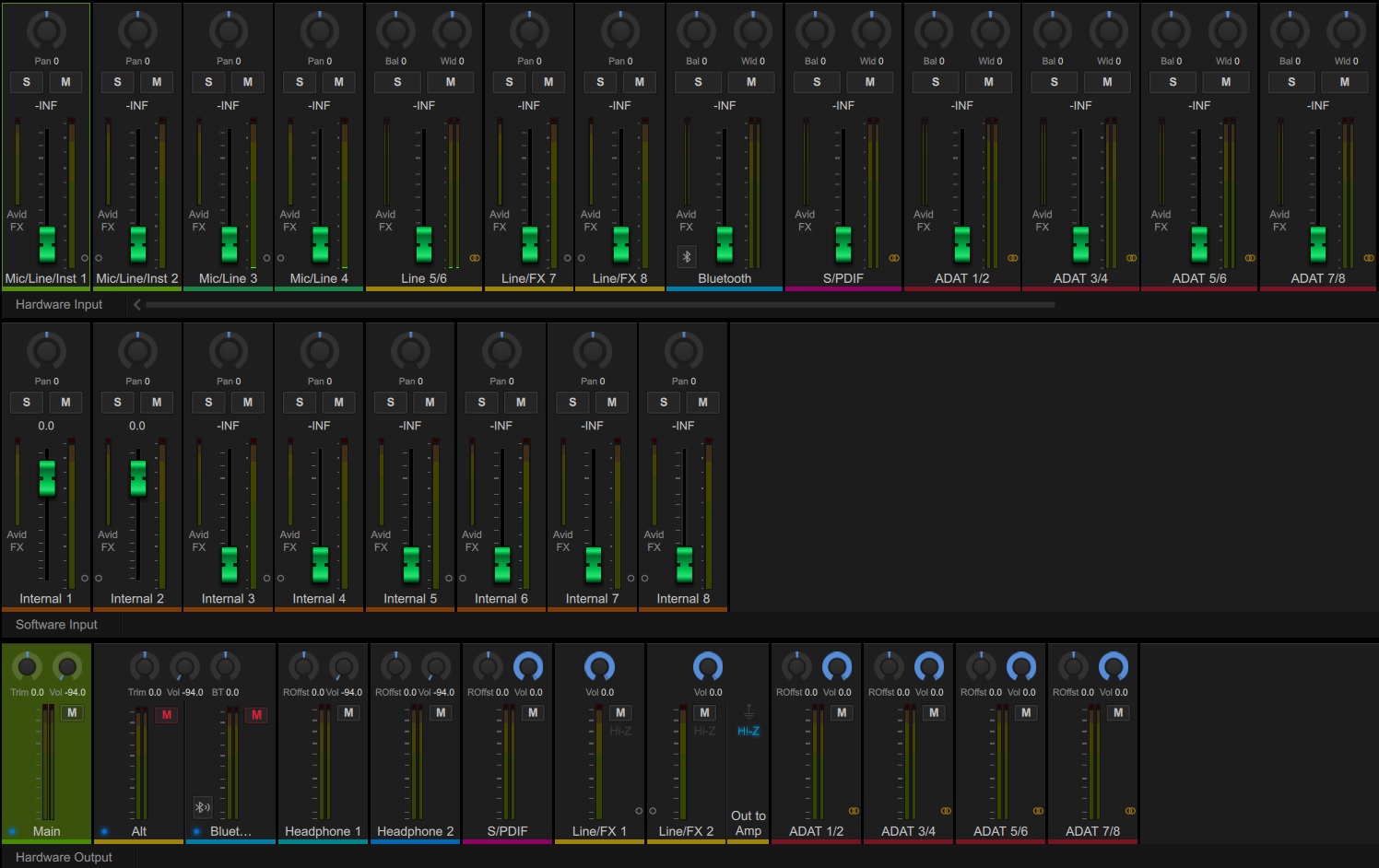
MBOX Control is the standalone software where you will make various changes with the Avid MBOX Studio interface. This includes changing clock sources, input and output routing, and sample rate. When you launch MBOX Control, there are three primary sections you’ll be working with: Hardware input, Software output, and Hardware output.
- Hardware inputs: The top row of MBOX Control is dedicated to the physical inputs of the MBOX Studio.
- Software outputs: This section displays eight software outputs that are routed from your DAW and will be displayed as outputs within your DAW.
- Hardware outputs: These are the physical outputs of your MBOX Studio, such as the Main, Alt, Headphone, and Digital.
- The Alt Mix and Bluetooth outputs are linked together.
- You can use S/PDIF to mirror the Main output to directly connect to digital monitors, but note that those, too, will be linked together. All other outputs can have their own mix.
Options menu
The top part of MBOX Control is dedicated to the global options available.
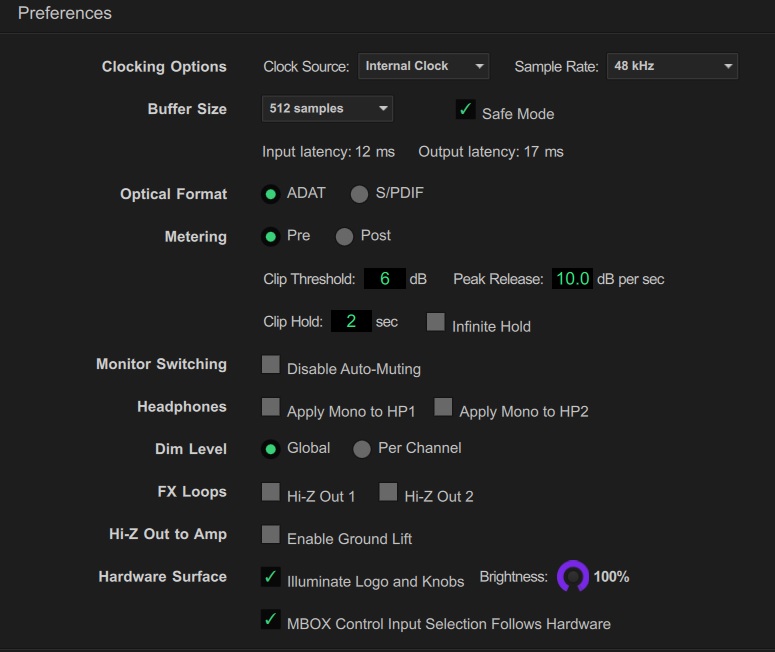
Preferences
If you click the gear icon, this will pull up the audio preferences, where you will adjust options such as Sample Rate, Clock Source, Buffer Size, and Digital Connection Formats.
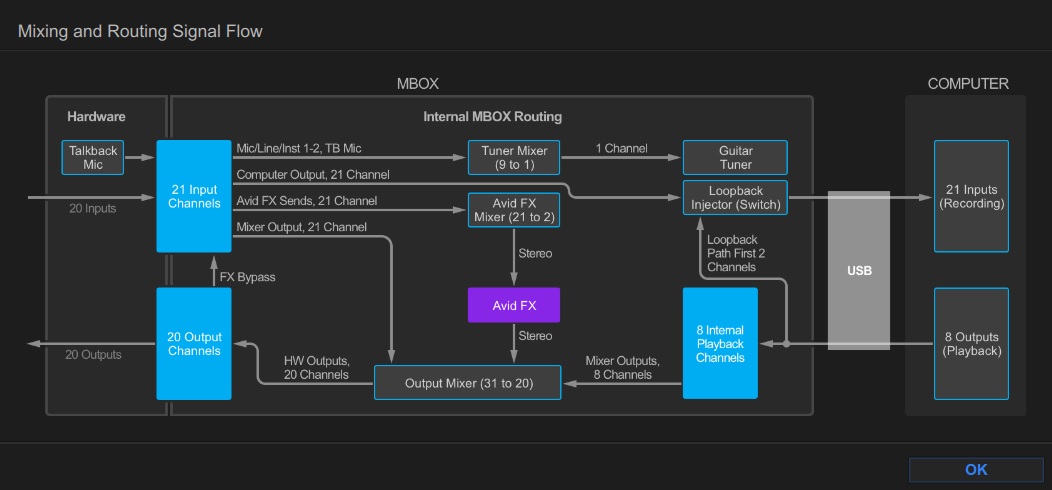
Audio routing hints
Clicking the ? icon will pull up the Mixing and Routing Signal Flow window. This is very useful if you need to refer to how audio is routed within MBOX Control.
Button controls
The four center buttons on the MBOX Studio are shortcuts within MBOX Control. The color and shortcut functions are fully editable, making the interface customizable.

Presets
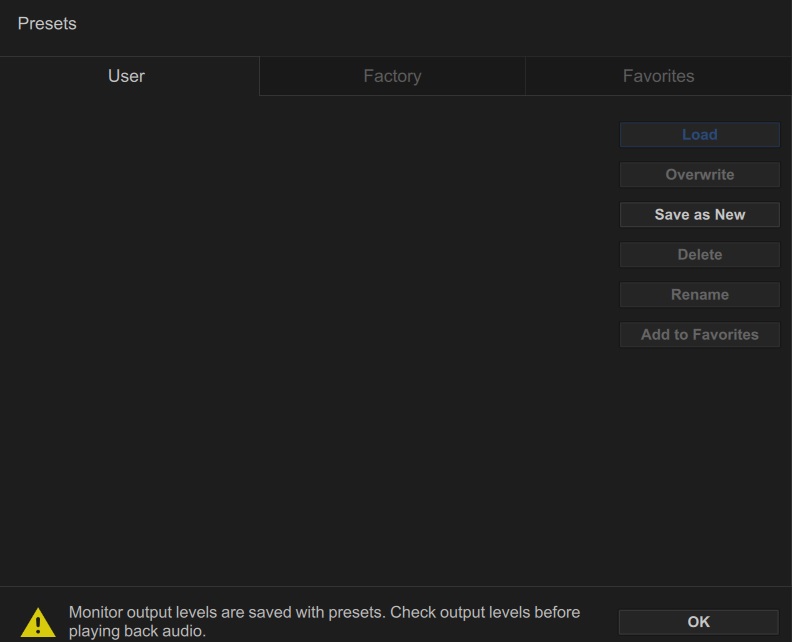
Clicking the Presets dropdown box will allow you to save, name, and reload any mixing presets you have created.
How to Route Audio
Now that you know how each main section works, let’s cover how to create audio mixes and monitor within MBOX Control.
Create cue mixes
When you click on the physical outputs, the faders change colors to mirror the selected physical output. This allows you to create a custom mix from scratch. Creating a custom mix is useful when using outboard gear or recording a band that wants individual headphone mixes. Let’s make a custom mix for routing specific software outputs to a headphone input without affecting the Main Mix.
- Click the Main Mix at the bottom of MBOX Control and adjust the hardware inputs as necessary.
- Click Headphone 1 at the bottom of MBOX. This will allow you to control the hardware inputs and software outputs.
- Use the faders in MBOX Control to adjust the levels as necessary.
- If you want the same custom mix for all monitoring mixes, click Std Mix Mode (located at the top left of MBOX Control), click Group All Monitor Mixes, then click Apply.
- If you click Advanced Mix Mode, this will disable the custom monitoring mix, which means changes will affect the inputs and outputs globally.
Monitoring
NOTE: Monitor output levels are saved along with every preset you create.
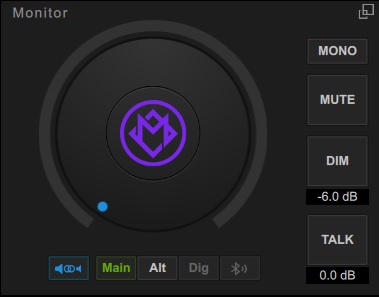
By default, the Main and Alt monitoring are helpfully linked together so you don’t expect any unexpected level jumping. However, there may be a time when you need to adjust and separate these. To link and unlink monitoring levels, click the Link (located next to Main, Alt, Dig, and Bluetooth)button in the Monitor section of MBOX Control and adjust the levels as necessary.
- You can set the Monitor section as a scalable floating window by clicking the box icon at the top right of the Monitor section. Please note that this will always be the top window if detached.
When you need help, Sweetwater has the answers!
Our knowledge base contains over 28,000 expertly written tech articles that will give you answers and help you get the most out of your gear. Our pro musicians and gear experts update content daily to keep you informed and on your way. Best of all, it’s totally FREE, and it’s just another reason that you get more at Sweetwater.com.

