
Logitech Mevo Setup Guide
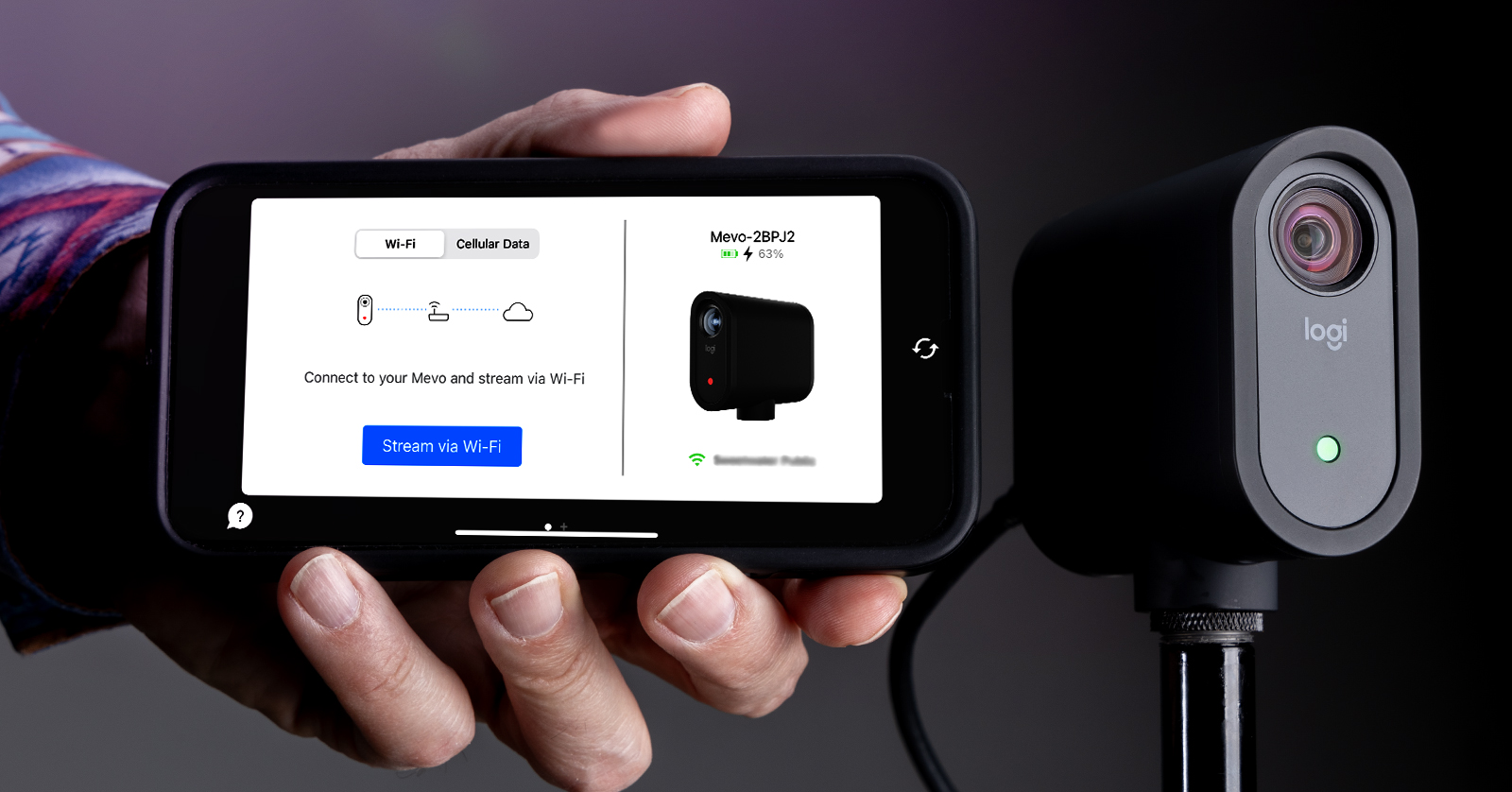
The Logitech Mevo Start is a versatile video camera you can use anywhere because of its portability and ability to stream over USB, Wi-Fi, Bluetooth, LTE, and even Ethernet! In this guide, we will show you how to set up, connect, and use the Logitech Mevo Start wireless camera for the first time. Follow the sections below to get started. Check out the Mevo Start User Manual for more information!
Setup and Connections
IMPORTANT! Make sure Wi-Fi and Bluetooth are enabled when pairing your Mevo Start cameras!
The Mevo Start camera is straightforward to set up. You just need to set up the cameras, download and install the Mevo app on your mobile device, and follow the app’s on-screen instructions to pair the cameras.
- Charge the battery until the Mevo Start is fully charged. Four white LEDs on the back of the camera will be illuminated when charging is complete.
- While you can connect the camera directly to your computer to charge it, we recommend using a USB power adapter, which will charge it faster.
- The battery life lasts approximately four hours, depending on use.
- Set up your camera in the desired position.
- For the best quality, Logitech recommends that the Mevo Start be approximately five feet away from the source.
- If the Mevo Start doesn’t fit on a tripod, use a coin or a flathead screwdriver to install (or uninstall) the tripod adapter.
- Download the Logitech Mevo app on the App Store (iOS) or Google Play Store (Android).
- IMPORTANT! If you are using multiple Mevo Start cameras, please install the Mevo Multicam app on the App Store (iOS) or Google Play Store (Android) instead.
- Press and hold the power button until you hear a beep, then launch the Mevo app. Follow the on-screen prompts.
- If this is your first time pairing the camera to your mobile device, it may take a few moments for it to be recognized.
- Make sure you have your Wi-Fi network password handy, as you’ll need to enter it during the pairing process.
- After the camera is recognized in the app, press Setup, select Yes, I have Wi-Fi, and enter the Wi-Fi network password.
- Press Done.
- Once you see a solid green LED on the front of the camera, press Connect in the app. If you have multiple Mevo Start cameras, follow the same procedure for each one.
Logitech Mevo App
If you only own one Logitech Mevo Start, download the Logitech Mevo app for iOS and Android below.


Logitech Mevo Multicam App
If you are using multiple Logitech Mevo Starts, download the Logitech Mevo Multicam app for iOS and Android below.
TWO COLUMN BUTTON:
Using the Mevo as a Mobile Hotspot
If you don’t have access to a Wi-Fi network, you can use the Mevo Start as a mobile hotspot. That said, it will use a lot of data, so if you have a limited data plan, you may be charged overages by your cellular provider!
- Enable Wi-Fi on your Android or iOS device.
- Turn on the camera, launch the app, and wait for it to be recognized.
- Once the app is recognized, press Setup. Select No, I do not have a Wi-Fi.
- Open your smart device’s Wireless settings. Select Mevo-xxxxx as the Wi-Fi network.
- No Internet Connection will appear. This is normal, as the camera doesn’t provide an Internet connection.
- No Internet Connection will appear. This is normal, as the camera doesn’t provide an Internet connection.
Logitech Mevo Start Firmware Update
IMPORTANT! You must update the Mevo Start’s firmware if a new version is available. If the firmware isn’t updated, the camera will not work.
Logitech will periodically release firmware updates that optimize the camera performance and address any bugs that may be present in the current version. Logitech has made the Mevo Start firmware update process a breeze.
If you see Firmware Update Available when the camera is connected, press >, then choose Update. If multiple cameras are connected, press > on one of the paired cameras, then select Update All.
How to Use the Logitech Mevo App
Now that you have the camera set up, it’s time to start streaming! The app is easy to use and can link to all major streaming platforms. You can also record video directly to a compatible SD card.
Logitech has created some great videos to show you how to use the app to its full potential, so be sure to check them out below!
Streaming With Mevo: Using the Mevo Multicam App
Streaming With Mevo: Switching Camera Angles
Streaming With Mevo: Recording Your Stream
Additional Logitech Mevo Resources
Related Articles
When you need help, Sweetwater has the answers!
Our knowledge base contains over 28,000 expertly written tech articles that will give you answers and help you get the most out of your gear. Our pro musicians and gear experts update content daily to keep you informed and on your way. Best of all, it’s totally FREE, and it’s just another reason that you get more at Sweetwater.com.

