

Line 6 HX One Firmware Update Guide
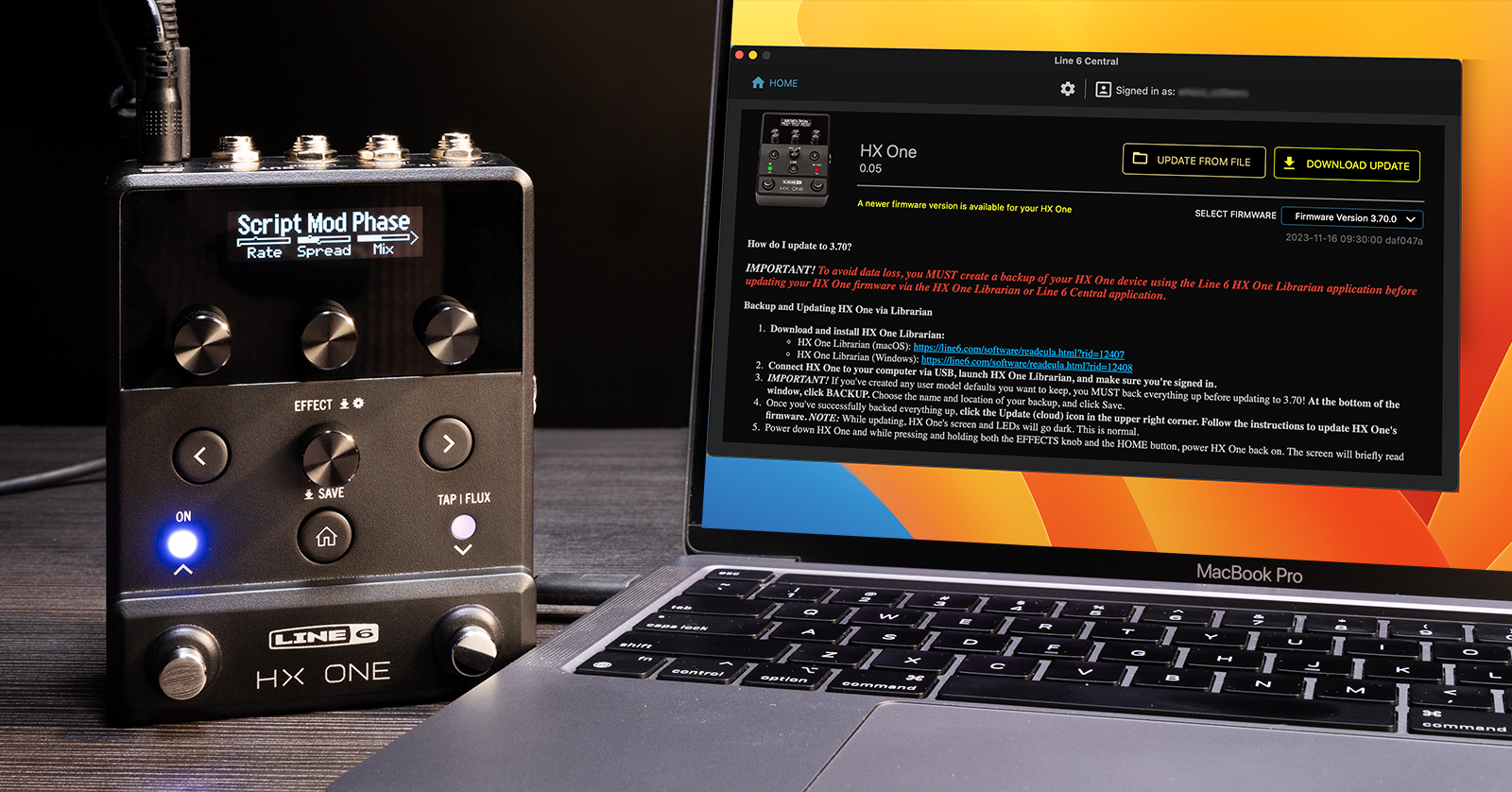
From time to time, Line 6 will release a new version of the HX One firmware in order to fix bugs and add additional features.
The Line 6 HX One Librarian app for macOS and Windows has a built-in feature to update the firmware, and it’s easy to use.
To use the HX One Librarian, you will need to connect your HX One to your computer with a USB-C cable, which is not included with the HX One.
First, on your computer, go to the Line 6 software download page. From the three menus at the top, choose HX One, HX One Librarian, and either Mac OS X or Windows 10. Then click Go to go to the download page. Download the installer and follow the on-screen prompts.
Connect your HX One to your Mac or your Windows PC using a USB-C cable. Turn it on by connecting the power supply.
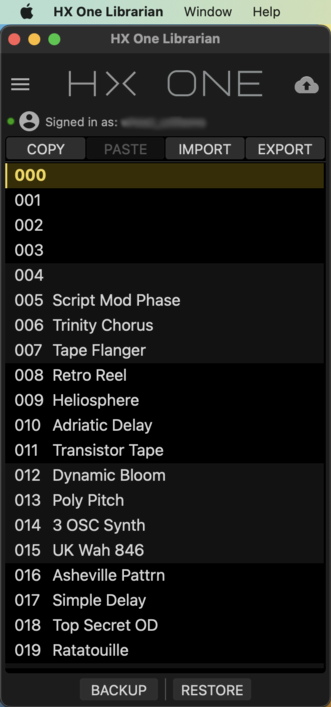
The Line 6 HX One Librarian app on macOS
Launch the app. It will indicate that your HX One is connected, and prompt you to log in to your Line 6 account with your username and password.
Click on the Cloud icon in the upper right to check for new firmware.
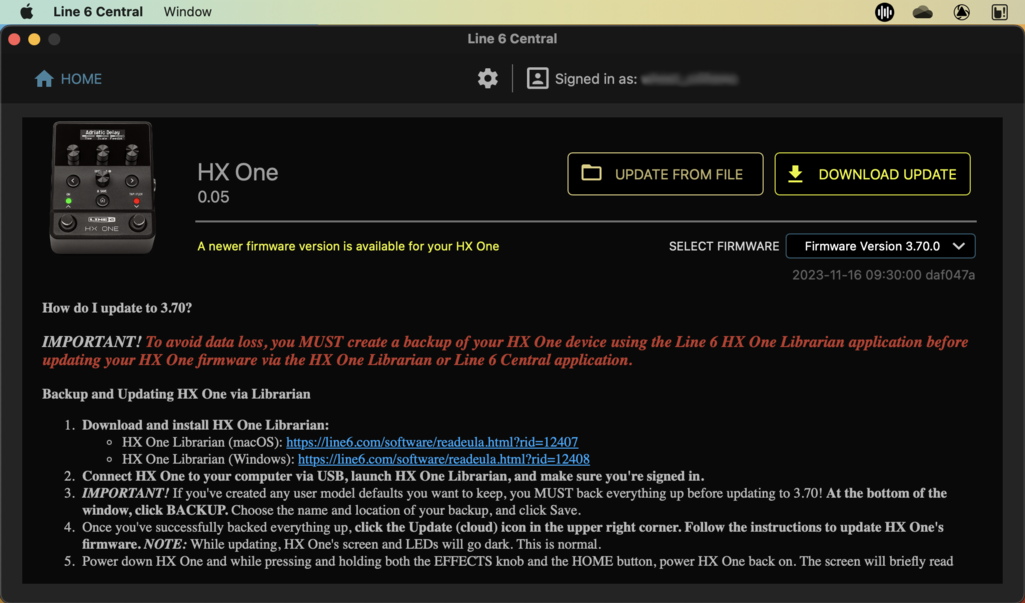
A Firmware Update notification
If the app indicates that there is a new version to install, follow the on-screen instructions. Click the Home icon to return to the main screen.
CAUTION: To avoid data loss, you must create a backup of your HX One’s presets before you perform the firmware update, and then restore your presets from the backup.
At the bottom of the HX One Librarian’s main window, click Backup. Choose the name and location of your backup, and click Save to copy all the data to the hard drive of your computer.
Once you’ve successfully backed everything up, click the Cloud icon again. Follow the instructions to update the firmware.
The update process may take a few minutes. Don’t turn off the power to your HX One or shut down your computer while it is being performed.
When the app informs you that the update is complete, power down the HX One by unplugging the power supply.
While pressing and holding both the Effects knob and the Home button, power the HX One back on. The screen will briefly read Resetting Defaults.
If you wish to restore from a backup file, click Restore in the lower right corner of HX One Librarian, navigate to your saved backup, and click Open.
Now head on over to our SweetCare Line 6 HX One Quickstart Guide to learn about all the effects and features.
Related Articles
When you need help, Sweetwater has the answers!
Our knowledge base contains over 28,000 expertly written tech articles that will give you answers and help you get the most out of your gear. Our pro musicians and gear experts update content daily to keep you informed and on your way. Best of all, it’s totally FREE, and it’s just another reason that you get more at Sweetwater.com.

