

How to Update Firmware on a Line 6 Helix Family Device
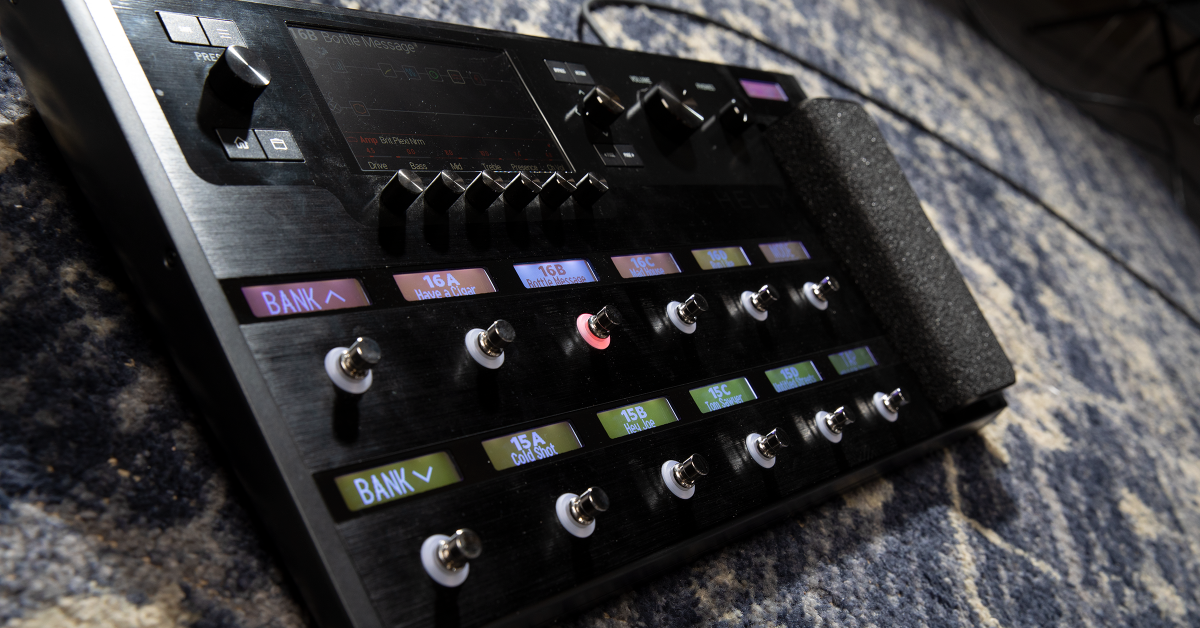
NOTE: This guide is for the original Line 6 Helix and HX families of products. We provide a guide for the Line 6 Helix Stadium family here.
From time to time Line 6 provides free firmware updates for Line 6 Helix devices that fix bugs, improv performance, and may add new amp models and effects. Follow the sections below to get started.
- Getting Started
- Back up presets and settings
- Update Line 6 Helix firmware
- Helix / HX 3.80 Firmware Update
IMPORTANT! If your Helix device is not detected by the computer, try connecting to a different USB port or using another USB cable.
Getting started
In this guide, we will show you how to upload new firmware to a Helix guitar processor. And, because the firmware update affects your Helix device’s presets and settings, we’ll also show you how to back them up before continuing with the update. Follow each of the sections below to get started.
Back up presets and settings
HX processors have an updateable firmware for adding features and optimizing the software. It may also be necessary to reload the firmware when it’s not behaving normally. Before performing a firmware update, use the HX Edit app to back up your Presets. The new firmware will likely have updated Factory Presets, so you’ll want to reset the Helix after updating it to make sure the updated presets are loaded correctly. If you plan on archiving your backups, consider creating sub-folders with unique titles.
.hlx = Preset
.hls = Setlist
.hlb = Bundle
.hxb = Backup
- Download the HX Editor for your operating system.
- From the drop-down menus, select HX Edit, choose your operating system, and click GO.
- Open your Downloads folder and launch the installer file:
- PC: Double-click the HX Edit v2.71 Installer.exe file and follow the on-screen instructions.
- Mac: Double-click the HX Edit 2.71.dmg file. In the window that appears, double-click the HX Edit.pkg file and follow the on-screen instructions.
- After the installation completes, connect your Helix processor to the computer with a USB cable and launch HX Edit.
- (note) If your Helix device does not connect, try other USB ports/cables and make sure Helix is powered on.
- In HX Edit, open the File menu and select Create Backup…. Use either the default Line 6 folder or choose another location (external hard drive, cloud storage, etc.) to save the .hxb backup file. You can also choose to back up your individual presets, folders/setlists, or entire HX library/bundle: File > Export Preset… / Setlist… / Bundle…
Save impulse responses
Any impulse responses you upload are saved with Backups, but they’re not tied to the individual Presets, Setlists, or Bundles, rather their IR number is. Consider naming your Helix IR’s with their HX Edit IR number for easy recall with associated user presets.
Helix Minute | Backing Up a Helix Device with HX Edit
Update Line 6 Helix firmware
Firmware is the software installed to the Helix hardware. Since the firmware is updatable, Line 6 is able to apply new features and optimizations; such as the Snapshots feature included since v2.0. Performing a Helix firmware update requires the Line 6 Updater app, which is installed alongside HX Edit.
- Close all apps and use your current version of Helix/HX Edit to back up your HX presets to a computer.
- If you need to install HX Edit, go to the Line 6 Downloads page and download the latest version closest to your Helix’s current firmware version (shown on-screen while powering on). Don’t use a more recent version of HX Edit until after performing the firmware update.
- After backing up your settings, go to the Line 6 Downloads page and download the latest version of HX Edit for your operating system.
- Both the driver and Line 6 Updater app are installed alongside HX Edit and you do not need to install them separately.
- Open your Downloads folder and launch the installer file:
- PC: Double-click the Line 6 Updater .exe installer file and follow the on-screen instructions.
- Mac: Double-click the HX Edit .dmg file. In the new window that appears, double-click the HX Edit .pkg installer file and follow the on-screen instructions.
- Once HX Edit installation completes, connect Helix to your computer via USB and launch the Line 6 Updater.
- Select your Helix from the Line 6 Updater window and then click the newest firmware’s Update button to start the update.
- Follow the on-screen instructions and wait for the firmware update to complete (about 5 minutes). When the update completes, Helix will restart and rebuild its presets (about 2 minutes).
- Helix Control: If you’re using Helix Control with Helix Rack, connect and power on Helix Control. The inspector will ask if you want to update its firmware. Press Knob 6 (OK) and wait for the update to complete.
- Restart your Helix device.
Update Factory Presets
The included Factory Presets are optimized or updated with each Firmware version, but they won’t be loaded until you restore them with a Factory Reset. When the device restarts, you’ll see the new firmware version, and can then use HX Edit to load your backup file (above) onto your Helix device.
Restore a backup
Backups are best saved in their default Line 6 Documents folder, but you can save them on cloud storage or on a USB drive for a handy backup. Use the Restore from Backup… option and select the backup file.
HX Effects Updating Firmware
Updating HX Stomp
Helix Minute: How to Update a Helix Device
Helix / HX 3.80 Firmware Update
In November 2024, Line 6 released Firmware Update 3.80 for Helix and Helix HX, adding 6 new amps, 4 new cabs, 1 new effect, and bug fixes.
Read the list of new features in the Line 6 Knowledge Base here.
Here’s Line 6’s video introducing the new features.
Line 6 Helix / HX 3.80 Firmware Update Overview
Related Articles
When you need help, Sweetwater has the answers!
Our knowledge base contains over 28,000 expertly written tech articles that will give you answers and help you get the most out of your gear. Our pro musicians and gear experts update content daily to keep you informed and on your way. Best of all, it’s totally FREE, and it’s just another reason that you get more at Sweetwater.com.

