
Getting Started with the Rodecaster Pro
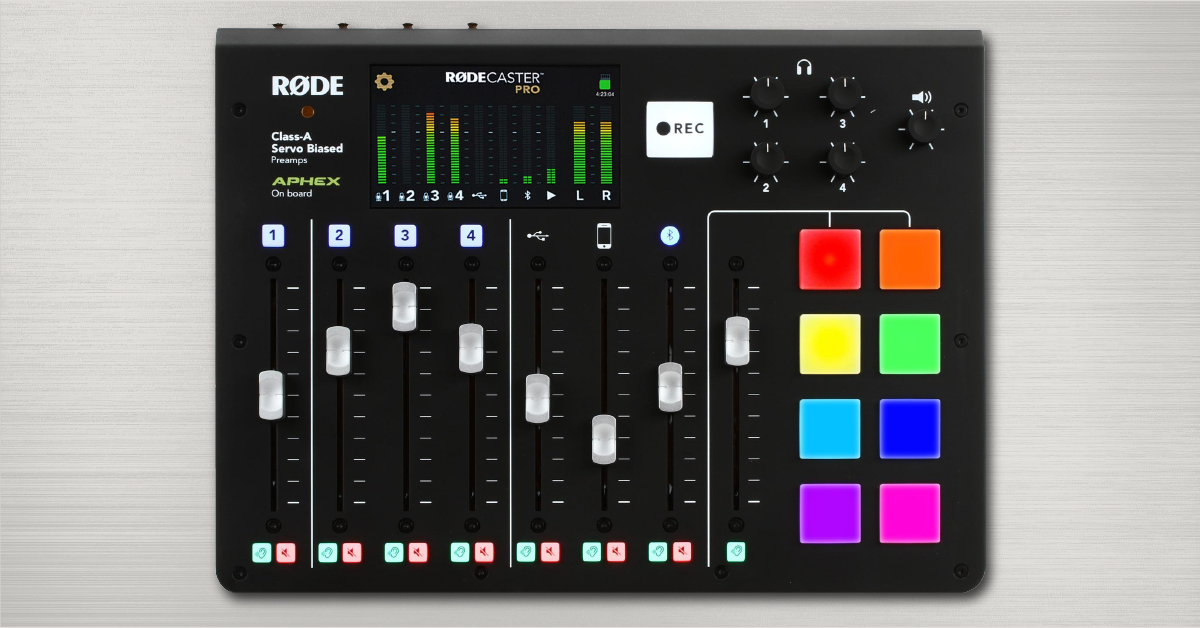
Rodecaster Pro setup guide
In this guide, we will show you how to get up and running with the Rodecaster Pro. Follow the sections below to get started
- Downloading the Rodecaster Pro software
- Hardware and software connections
- Navigate the Rodecaster Pro
- Recording in a DAW
Download the Rodecaster Pro software
IMPORTANT: PC users will need to download and install the third-party audio driver, ASIO4All, for it to work correctly with your DAW. Be sure to check out our guide for more information on how to download, install, and use ASIO4All.
Before you can use the Rodecaster Pro, you first need to download and install the Rodecaster Pro app, as well as the firmware. The Rodecaster Pro is considered class-compliant on Mac, which means it doesn’t need third-party audio drivers. PC users will need to download ASIO4All for proper connectivity. Follow the steps below to get started.
- Go to the Rodecaster Pro download page and download the Rodecaster Pro installer.
- Go to your Downloads folder and run the Companion App installer.
- PC: Right-click the rodecaster_app_installer.zip file, select Extract all…, and then click Extract.
- Mac: Double-click the rodecaster_app_installer.zip file.
Update the Rodecaster Pro firmware
Connect the device using the included USB-C cable to your computer, then power it on. Launch the firmware updater application within the rodecaster_app_installer folder, and follow the on-screen instructions. The unit will restart automatically after it’s completed.
Reloading sounds on the device
If the factory sounds are erased when you perform a factory reset, follow these steps to reload the sound onto your device.
- Log into the Rode website. If you don’t have an account, you can create one here.
- Click Register Your Warranty on the top right of the page.
- Follow the on-screen instructions to register the product, and then scroll to your Roadcaster Pro warranty.
- Click Download Sound Effects Pack, as well as the Rodecaster Pro companion app.
- Click and drag the sounds into the companion app. They will be automatically uploaded onto your device.
Hardware and software connections
Once the Rodecaster Pro Companion app is installed, the next step is to connect it to your computer. Before recording in your DAW or on to an SD card, be sure to update the firmware to the latest version. Follow these steps to update the firmware connect the unit.
Hardware connections
- Speakers: connect ¼” TRS cables to the main outs on the back of the unit.
- Headphones: Connect the headphones to one of the four Headphone Out jacks.
- MicroSD: Insert the MicroSD card in the indicated slot. If transferring the files using a MicroSD to standard SD adapter, be sure that the adapter’s lock is off!
- Media device: Use a TRRS cable to connect a media device such as a smartphone or mp3 player.
- USB-C: Use the included USB-C cable to connect to your computer. Do not use a Thunderbolt cable! Read more about the difference here.
Software connections
- Connect the device to a USB port and verify that it is listed in the system’s hardware as well as sound settings.
- Launch your DAW, navigate to its audio settings, and set the Rodecaster Pro as your driver.
- PC users: The Rodecaster Pro will not appear as an audio driver within your DAW, so be sure to select ASIO4All.
- Turn the Microphone Input(s) & USB Output faders up to an appropriate level to where it isn’t clipping.
Navigate the Rodecaster Pro
There are three primary menus on the device. These menus are where you will make changes such as USB connectivity, microphone level, and connectivity, as well as recording sounds which are triggered by the pads on the right-hand side of the unit. Press the Cog icon to get these settings.
Channel
The channel menu is where you will make changes to individual channels such as the type of microphone that’s connected, the overall level of the channel, and turning effects on or off.
Sounds
The sounds menu is very straight forward. Open the menu, then tap a button on the screen to record audio to the assigned pad.
Hardware
The hardware menu is where you will enable or disable multichannel USB recording, view the microSD card capacity, and also make changes to the Bluetooth settings.
Recording in a DAW
Before you can begin recording within a DAW, you’ll need to make sure that the Microphone and USB settings are set correctly. Make sure to change these settings in the order below; microphone, USB, then DAW. Follow these steps to change the settings appropriately.
Microphone settings
- Press the channel’s pad you wish to edit located above the channel fader.
- Press Microphone, then select the microphone you are using. Be sure to press Condenser to engage Phantom Power (+48v)!
- You can also engage or disengage Phantom Power by pressing Level then pressing the Phantom Power slider at the bottom of the screen.
- Go back to the Channel menu, then press Advanced to enable or disable any effects such as the compressor, high-pass filter, or de-esser.
USB settings
- Navigate to the Hardware menu, then press Advanced.
- Enable USB in the Multichannel Recording section. You will be prompted to disconnect then reconnect the USB cable to save the change.
- Turn up the channels you wish to record, as well as the USB fader up to an appropriate level.
DAW settings
NOTE: This is not a DAW controller, so you will need to manually start and stop recording in your DAW.
- Create a mono track for each channel you will be recording, and then record enable them.
- Press Record on the Rodecaster Pro, as well as within your DAW. Doing this will record both to your DAW and also the MicroSD card (if inserted).
- If you hear an echo or feedback coming through your headphones or speakers, make sure that input monitoring is turned off; either within your DAW or on the device.
Additional resources
Phone Connectivity
Loading Sounds
Advanced Audio Settings
Sound Pads
When you need help, Sweetwater has the answers!
Our knowledge base contains over 28,000 expertly written tech articles that will give you answers and help you get the most out of your gear. Our pro musicians and gear experts update content daily to keep you informed and on your way. Best of all, it’s totally FREE, and it’s just another reason that you get more at Sweetwater.com.

