
Getting Started with Marshall CODE Series Amplifiers
Getting started
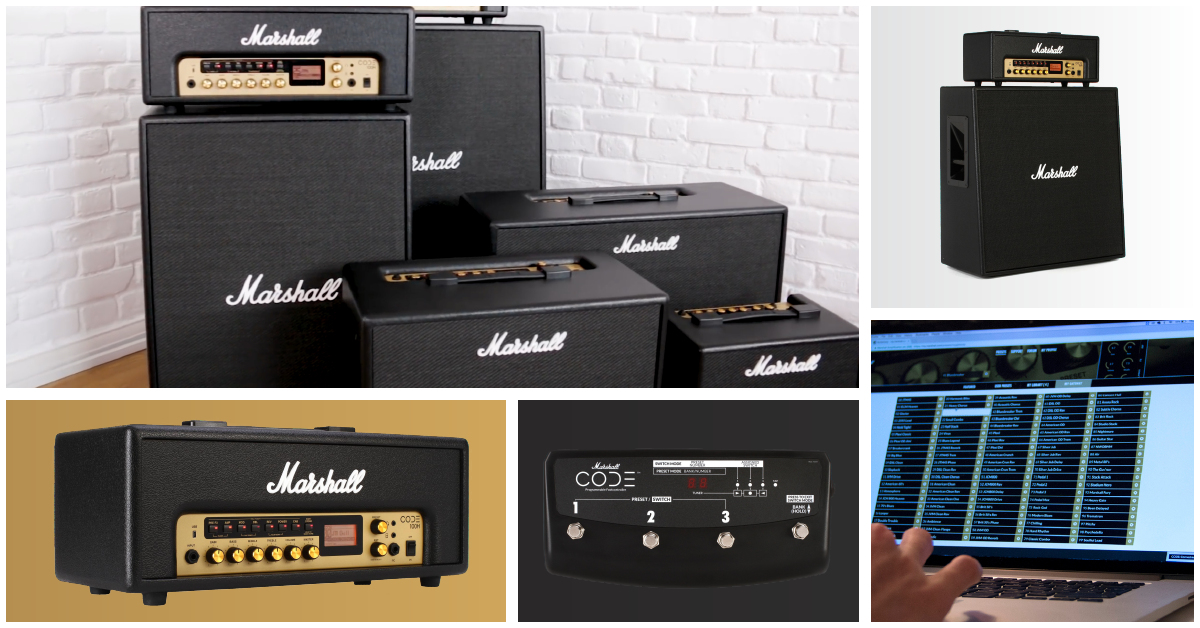
In this guide, we will show you how to get started with the Marshall CODE series amplifiers. We’ve gathered all the resources you need to start using the CODE’s features, including the Gateway remote control app and My Marshall website. Follow each section below to learn more and check out your CODE’s owner’s manual (PDF below) for additional information.
Overview
Owner’s manuals
Using CODE features and preset sounds
The CODE amplifiers are packed full of sounds. We found it easy to plug in, power on, and pick a preset. The preset sounds are awesome and you’ll have a blast editing them with the easy to use FX section. Check out the videos below to learn how to edit and save presets. You can also manage your tones in the Gateway app or My Marshall website. Once you’ve got your tone dialed in just right, connect it to your computer or iOS/Android device to record it.
Factory resets
CODE amps can be returned to their original settings by performing a factory reset. That means all settings will be cleared (non-reversible) and you’ll need to access your CODE library via the Gateway app or MyMarshall.com to reload any previously saved library presets. To perform a factory reset, hold the AMP button while powering on the amp. When prompted, hold EXIT/STORE to confirm the reset.
Use the built-in tuner
Simultaneously press the PRE FX and AMP buttons to access the tuner. Press EXIT/STORE to return to the main screen.
DAW recording via USB
Footswitch or Footcontroller
Edit and save a preset
To change sounds on CODE amplifiers you’ll use their presets feature. You can either use the default preset sounds or create and save your own. We recommend first checking the default presets so you can get a better idea of what each preamp, power amp, cabinet, and FX can sound like. Find a preset that matches the sound in your head or has the same tone as one of your favorite songs. Once selected, you can edit each parameter and then save it over the default or as a custom user preset.
- Rotate the PRESET selector to select a preset sound.
- Enabled FX are previewed on the display screen and button LEDs.
- Press the PRESET selector to select and use the sound.
- Press and hold an FX button to access its parameters.
- Rotate the EDIT selector to browse parameter values
- Press the EDIT selector to select and continue to the next parameter.
- NOTE: CODE 25 uses the PRESET selector to be turned to browse and pushed to select.
- Save the preset by holding the EXIT/STORE button.
- (optional) Or press EXIT/STORE to discard the edits and return to the main screen.
- Hold EXIT/STORE to save over the current preset
- (optional) Rotate the PRESET selector to choose another save location.
- Edit the preset name with the EDIT (change character) and PRESET (move back and forth) to select each character of the preset’s name.

Presets & editing
Advanced preset editing
Gateway remote control app
You can control your CODE amplifier and manage presets with the Gateway app. Gateway connects via Bluetooth to your iOS or Android devices. You can also stream audio files from your device for practicing. Download the Marshall Gateway app for Android or iOS or visit the Gateway page to learn more.
What is Marshall Gateway?
Gateway features explained
Bluetooth setup
Syncing your smartphone or tablet is simple via standard Bluetooth pairing. Make sure to have the app Gateway app downloaded first and that Bluetooth is enabled before trying to connect. If you run into Bluetooth trouble with your device, try unpairing with other devices, restarting, or follow the Marshall Bluetooth troubleshooting guide to reconnect.
- Download Marshall Gateway app for Android or iOS.
- Simultaneously press the REV and POWER buttons to start Bluetooth pairing.
- On your iOS/Android device, enable Bluetooth and select the CODE’s Bluetooth ID to pair.
- Open the Marshall Gateway app and press MENU to select and connect to your CODE.
My Marshall cloud service
Marshall has an website for your CODE called My Marshall where you can upload and share CODE presets with other users. You can even share demos of your tones via Soundcloud and YouTube. The CODE’s firmware can also be updated from My Marshall. Changes made here can be synchronized with your CODE amp and the Gateway app. Connect your CODE amp to the computer in order to save/load presets to/from your library. When you do, make sure to use a web browser that supports MIDI, such as Google Chrome, Safari, or Opera. If prompted, make sure to enable MIDI when using my.marshall.com.
What is My Marshall?
User forum
Managing presets
Firmware update
Artist sounds and tones
Your Marshall CODE amplifier can make A LOT of different sounds. Check out how these Marshall guitarists use their CODE amplifiers.
Nita Strauss (Alice Cooper)
Tommy Hill (Rita Ora)
Lewie Allen (Sam Smith)
Sean Long (While She Sleeps)
When you need help, Sweetwater has the answers!
Our knowledge base contains over 28,000 expertly written tech articles that will give you answers and help you get the most out of your gear. Our pro musicians and gear experts update content daily to keep you informed and on your way. Best of all, it’s totally FREE, and it’s just another reason that you get more at Sweetwater.com.

