
Fable Sounds Software Activation Instructions
In this guide, we will show you how to register and install Fable Sounds software. Follow each of the sections below to get started.
- Enter Registration Code
- Install Software With Pulse Downloader
- Install Native Access and Kontakt
- Activate Serial Number with Native Access
Enter Registration Code
You must first register with Fable Sounds before you can access your software. You’ll need the registration code included in the Software Activation Instructions email from your Sweetwater Sales Engineer.
- Create an account with Fable Sounds. Continue using the same account if you’ve already created one.
- Go to the Fable Sounds registration page, enter your registration code and click REGISTER.
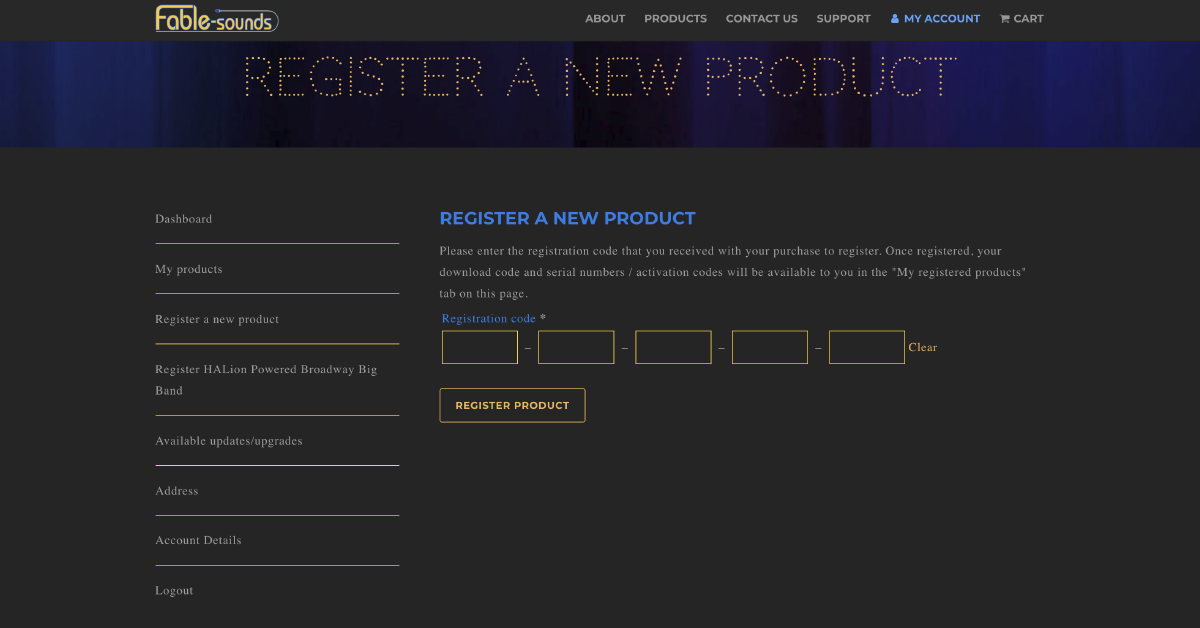
Register with Fable Sounds.
Install Software With Pulse Downloader
The next step is to download and install the sample libraries with the Pulse Downloader app. After activating your registration code, go to your My Products page to get the Download Code for Connect and Serial Number for Native Access. Once Connect has completed the library installation, you may delete any remaining RAR files.
- Download Pulse Downloader and run the installer file.
- Go to your account’s My products page to find the Download Code.
- Launch Pulse Downloader, and log into your Pulse account. If you don’t have one yet, create one now.
- Enter your Download Code and click Download.
- Wait for the download and installation to complete.
Installation requirements
Sound libraries have lots of samples and, when added together, can take up storage space. When you install software, the installer essentially copies its files to the correct locations on your computer. That means in order to install software, you must have enough space to account for both the installer file and the installed software (or in this case samples). After a successful installation you can delete the installer file to get the space back.
- Broadway Big Band: 100GB library, 210GB required
- Broadway Lites: 15GB library, 26GB required
- Broadway Gig: 9GB library, 18GB required
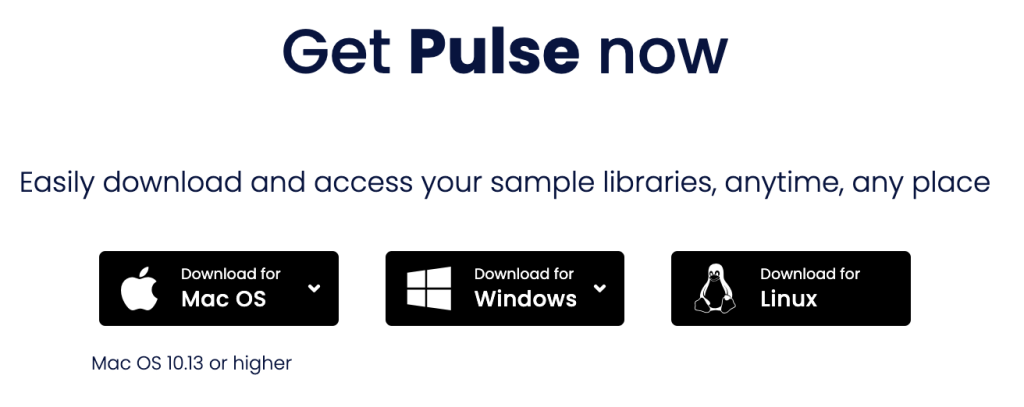
Click the image to download Pulse Downloader
Install Native Access and Kontakt
All Fable Sounds libraries require the use of Kontakt; a sample-based virtual instrument player. In order to get Kontakt 6, you’ll need to create a Native Instruments account and get the Native Access app.
- Visit the Native Access page and download the app for your operating system.
- Open your Downloads folder and launch the installer
- PC: Right-click the Native Access Installer .zip file, select Extract all…, and then click Extract. Double-click the new Native Access Setup PC .exe file and follow the on-screen instructions.
- Mac: Double-click the Native Access Installer .dmg file to decompress it. In the window that appears, drag the Native Access app to the Applications folder.
- Launch the Native Access app log in to your Native Instruments account. If you don’t have one, create one and open the confirmation email sent from Native Instruments.
- Click the Kontakt 6 Player’s INSTALL button. Once done, continue below to enter the Serial Number.
Install Kontakt with Native Access.
Activate Serial Number with Native Access
Once a sound library is installed, it must be activated and linked to Kontakt within Native Access. All you need to do is enter the Serial Number provided by Fable Sounds and then select the folder you installed the library. Once done, you’ll be able to launch Kontakt and use your new instrument. Please note that the Serial Number for Native Access is different than the Pulse Download Code. It is five sets of five digits (12345-12345-12345-12345).
- In the Native Access app, click the Add a serial button.
- Enter your Serial number from the Heavyocity confirmation e-mail and click Add Serial.
- When prompted, select the same folder you installed the sound files.
Additional resources
When you need help, Sweetwater has the answers!
Our knowledge base contains over 28,000 expertly written tech articles that will give you answers and help you get the most out of your gear. Our pro musicians and gear experts update content daily to keep you informed and on your way. Best of all, it’s totally FREE, and it’s just another reason that you get more at Sweetwater.com.

