
DBX DriveRack Setup Guide
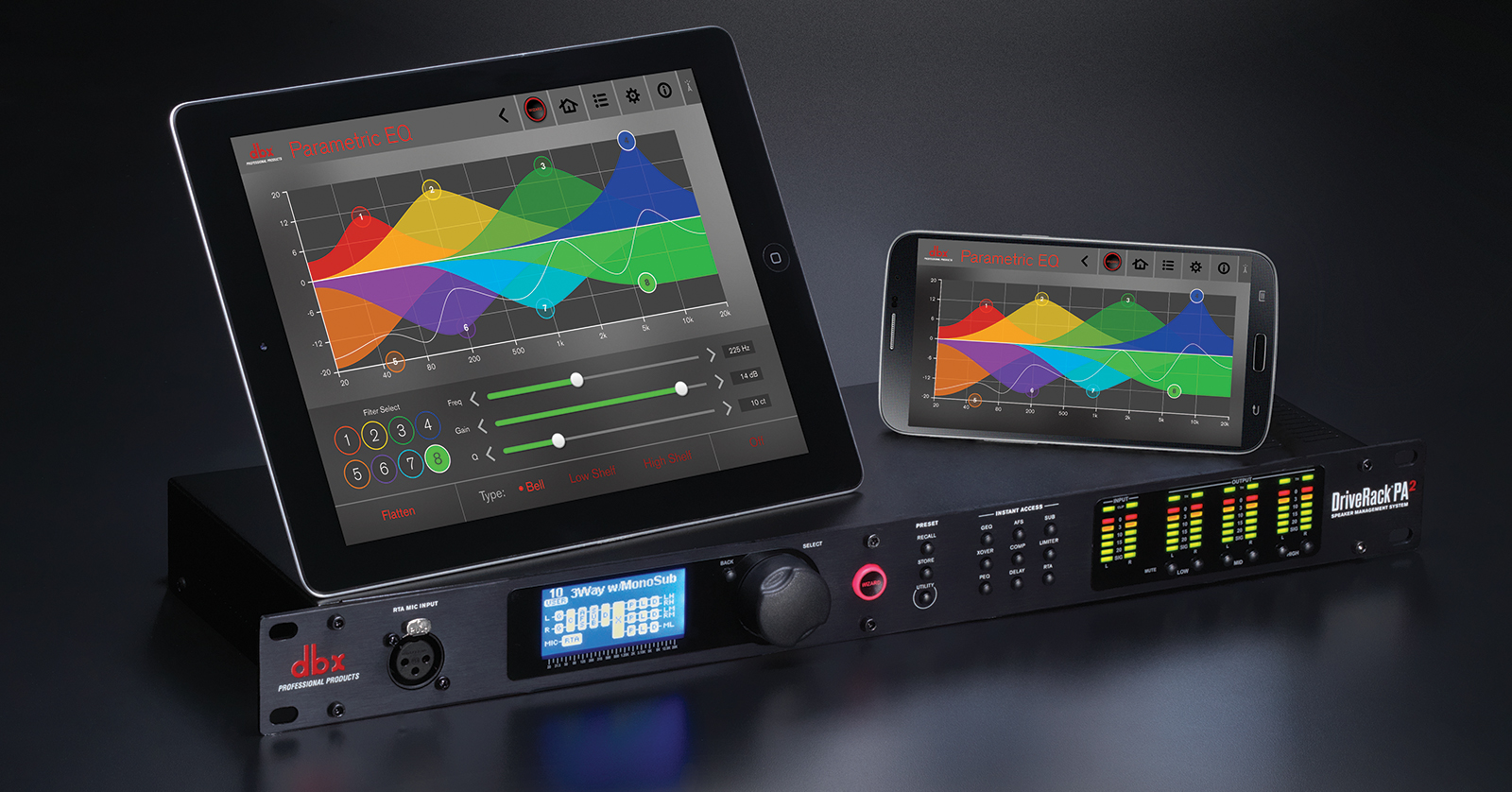
The dbx DriveRack is the factory standard for loudspeaker management; its ease of use and intuitive controls set it apart from the rest. In this guide, we will show you how to register, set up, and incorporate it into your live sound setup. The DriveRack is packed full of features, so this guide will only scratch the surface. Follow the instructions below to get started!
- Register the DriveRack
- How to Update DriveRack Firmware
- DBX DriveRack Setup and Connections
- How to Fine Tune Your System
Register the DriveRack
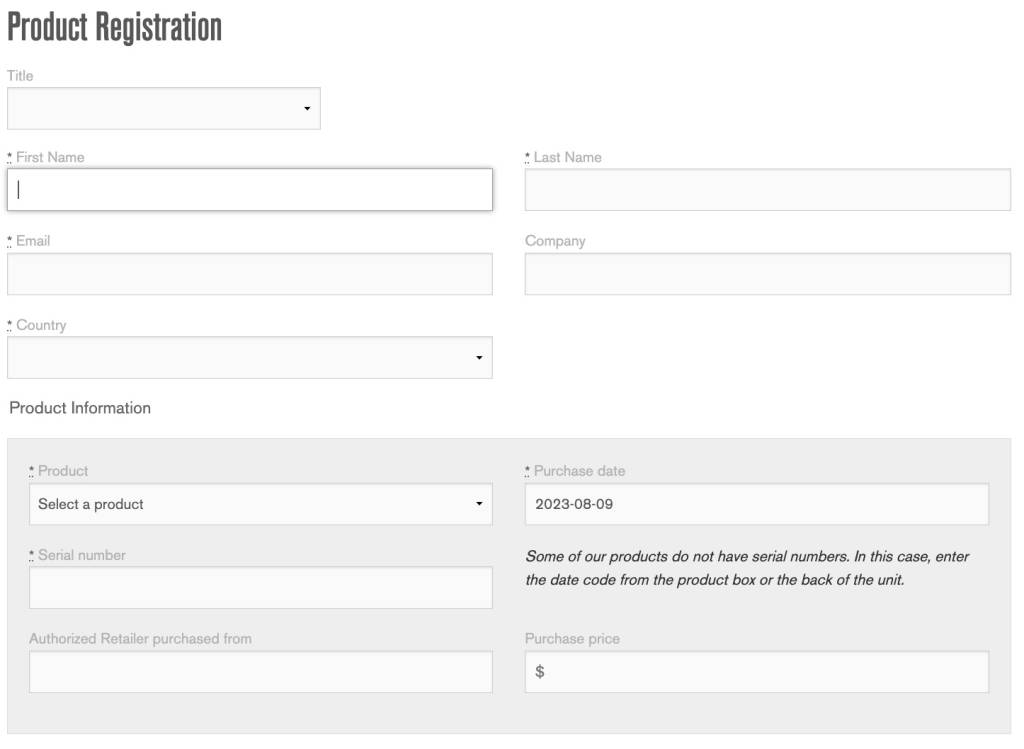
When you take the DriveRack out of the box for the first time, you must register the unit with dbx. Upon registration, you will gain access to product updates and expedited warranty service. Keep your Sweetwater invoice handy; you’ll need some information from it during registration.
- Go to the dbx product registration page.
- Enter the required information, including the serial number. If your unit does not have a serial number, enter the date code, which you can find either on the rear of the unit or in the box.
- Accept the terms, then click Submit Registration.
How to Update DriveRack Firmware
NOTE: If your installed version matches the one listed on the website, you’re all set and can continue to set up and connect your gear.
Dbx will release firmware updates periodically, often including new features or addressing bugs in the current version. Before you update the firmware, check to see what version you have installed.
Press the unit’s Utility button to check the firmware version, then use the data wheel until you see System Info. The firmware version will be listed on this page.
DBX DriveRack Setup and Connections
IMPORTANT! Be sure your speakers are off you when make your connections!
Now that your DriveRack is running on the latest firmware, it’s time to get set up and connected. All live sound system setups are different, so this guide will only cover the basic connections. If you have a more advanced sound setup, please visit page 52 of the User Manual for more information!
- Connect your powered speakers to the HIGH L&R outputs.
- If you have mid speakers, connect them to the MID outputs, and if you have subwoofers, connect them to the LOW outputs.
- If you have unpowered speakers, connect the power amp to the DriveRack, NOT the speakers!
- Connect the Main OUTS of your mixer to the INPUTS of the DriveRack.
- If you have a wireless router, connect it to the ETHERNET jack.
- Visit the dbx software download page to download the latest version of the Control app. This app allows you to set up custom presets, especially if your amplifier or speakers aren’t listed while using the Setup Wizard.
- Turn everything on. Press the Wizard button to begin the initial setup process.
Using the dbx RTA-M measurement microphone
If you have an RTA-M microphone, you will be prompted to run the room measurement wizard while running the Setup Wizard. If you have the dbx RTA-M measurement microphone, you can use the AutoEQ/LEVEL ASSIST function from the DriveRack Wizard. Check out page 14 of the User Manual to learn more about configuring your live sound system using the DriveRack Wizard.
How to Fine Tune Your System
After everything is connected and powered on, you can use the built-in Setup Wizard to automatically optimize your setup to ensure it sounds great. Check out dbx’s videos below to learn about how to use the Setup Wizard!
Custom speaker and amplifier setup
If your speaker or amp models don’t appear during the setup process, you will be using the dbx DriveRack default preset. However, you can use the Control app to customize your settings. Check out the video below to learn how to use the Control app!
When you need help, Sweetwater has the answers!
Our knowledge base contains over 28,000 expertly written tech articles that will give you answers and help you get the most out of your gear. Our pro musicians and gear experts update content daily to keep you informed and on your way. Best of all, it’s totally FREE, and it’s just another reason that you get more at Sweetwater.com.

