
BOSS VG-800 V-Guitar Processor Quickstart Guide
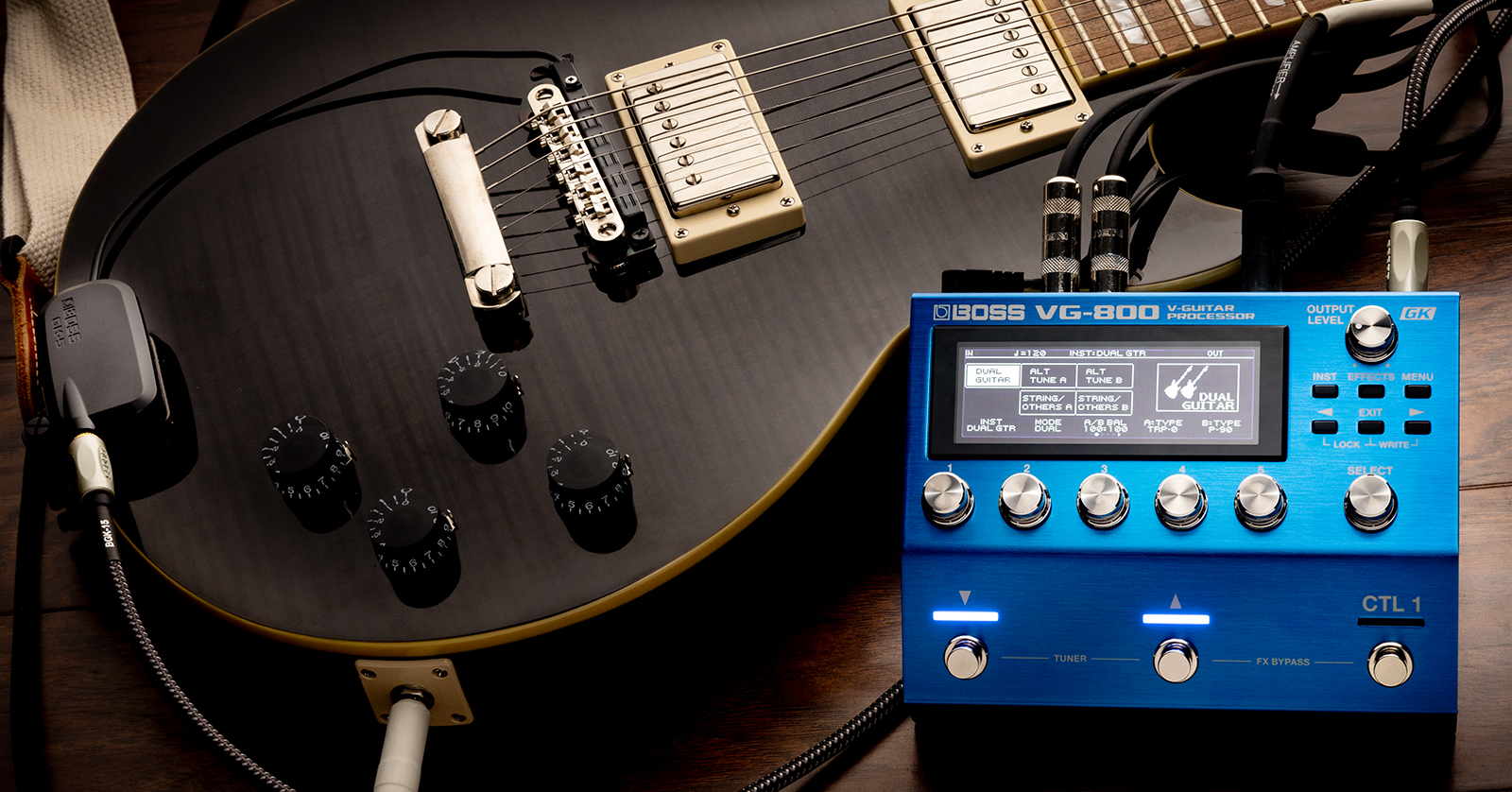
The BOSS VG-800 V-Guitar processor, when connected to your guitar or bass equipped with a Roland or BOSS GK divided pickup, provides a powerful system for modeling the sounds of many types of guitars and any alternate tuning imaginable — not to mention amp models and effects. The VG-800 also translates your playing into MIDI notes for triggering synthesizers.
Getting up and running with this system requires some assembly, but we trust that you will find the results rewarding. Here’s an overview to get you started.
- Register Your Purchase with BOSS
- Download and Install the Software
- Update the Firmware
- How the VG-800 Works
- Divided Pickups Compatible with the VG-800
- Installing the GK-5 Pickup on Your Guitar or Bass
- Setting Up the VG-800 to Work with Your Guitar
- VG-800 Connections and Controls
- The BOSS Tone Studio for VG-800 App
- Using the VG-800 as an Audio Interface
- More Information from Roland and BOSS
Register Your Purchase with BOSS
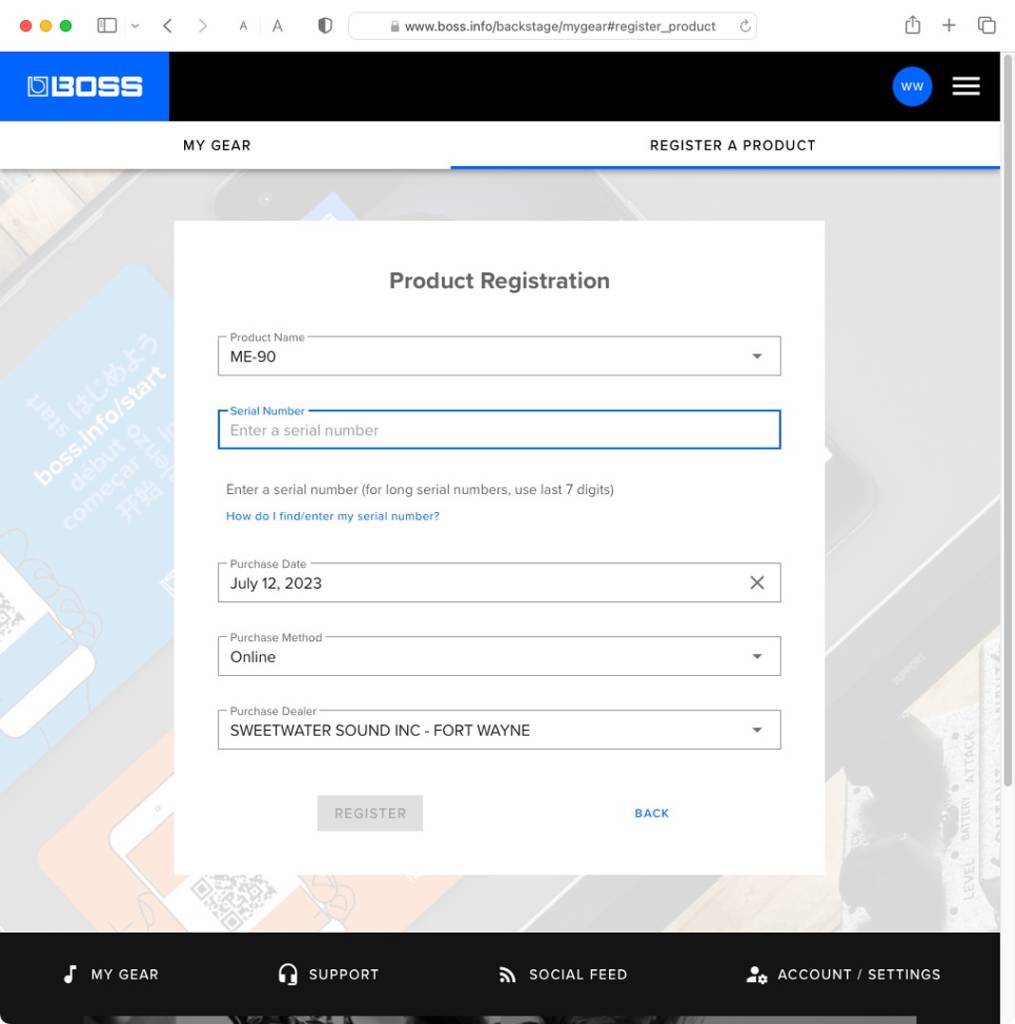
BOSS Product Registration page
First, register your VG-800 and all other components on the BOSS website. When you open each box, there will be a card with a QR code that includes the serial number for your unit. The QR code will direct you to a page where you can register your purchase. You can also click this link, log in to your existing account (or create a new one), and register each unit with its serial number.
Download the Manuals
To understand all the capabilities of the VG-800, you will need the owner’s manuals and guides, which you can download from the VG-800 Support page. They include:
- VG-800 Quick Start
- VG-800 Reference Manual
- VG-800 Parameter Guide
- Using BOSS Tone Studio for VG-800
Download and Install the Software
On your computer, go to the VG-800 Downloads page.
Download and Install the Drivers
Download and install the VG-800 Driver for your version of macOS or Windows. Follow the instructions.
BOSS Tone Studio for VG-800
Download and install the BOSS Tone Studio for VG-800 app for your version of macOS or Windows. Follow the instructions.
If you install the newest version of the Tone Studio app and it does not recognize your VG-800, it’s likely that you need to update the VG-800’s firmware.
Update the Firmware
From time to time, BOSS will release a new version of the VG-800 firmware that will fix bugs and add additional features. BOSS refers to the firmware as the System Program.
Head over to Sweetwater’s BOSS VG-800 Firmware Update Guide, follow the instructions, and return here.
How the VG-800 Works
The Roland/BOSS GK Divided Pickup
In order to access all the V-Guitar functions of the VG-800, you need to have a Roland or BOSS GK-5 divided pickup installed on your guitar or bass. Connect it to the GK In port on the VG-800 using a 1/4-inch BOSS BGK Serial GK cable.
IMPORTANT: The BOSS BGK cable looks similar to a conventional guitar cable or a balanced instrument cable, but it is wired differently. A conventional guitar cable won’t connect the GK pickup to the VG-800, and you can’t connect your guitar’s regular output to the GK In port.
VG-800 Signal Flow
With the VG-800, your guitar or bass playing is picked up by the Roland/BOSS GK divided pickup, which is essentially a separate pickup for each string. The Roland/BOSS cable transmits these separate signals to the VG-800.
Pitch Transposition and Alternate Tunings
Each string’s signal is processed through a transposing function, which you can use to select alternate tunings without physically changing your strings’ tunings.
Modeling Different Kinds of Guitars and Basses
The signal from each string passes into the VG-800’s guitar-modeling function, which creates simulations of different kinds of electric guitars, including Gibsons, Fenders, and Rickenbackers. It also has functions for simulating acoustic steel-string and 12-string guitars, nylon-string guitar, banjo, and sitar, with parameters including body resonance and pickup type.
If you are using a bass guitar, there’s a bass-modeling function to transform your bass sound into that of a Jazz, Precision, Rickenbacker, Music Man, Gibson, or Höfner bass. It has many parameters you can adjust.
The VG-800 has a built-in synthesizer module that models the classic Roland GR-300 and other synths. The “VIO guitar” and “VIO bass” modes (as in “violin”) emulate playing an instrument with a bow.
The VG-800 has “Dual Guitar” and “Dual Bass” modes, which enable modeling two different guitar types at once. You can layer the two independent sounds, assign them to different groups of strings, or assign them above or below a specified fret position.
Amp, Cabinet, and Effects Modeling
The VG-800 sends the modeled guitar sound you select through models of effects, amplifiers, and speaker cabinets. You can set up a single path or a path that splits into two parallel sections to model two amps at once, with chains of multi-effects whose positions you can choose.
Processing Your Guitar’s Regular Pickups
In addition to processing the GK divided pickup signal, the VG-800 can accept the output from the regular pickups on your electric guitar or bass that is connected to the Guitar Input port via a regular TS guitar cable. This enables you to send your guitar’s regular output through a parallel signal chain with more of the VG-800’s amp models and effects but without the more advanced functions made possible with the GK divided pickup.
Guitar-to-MIDI for Synthesizers
The VG-800 can take the separate signals from the GK divided pickup and use them to generate MIDI notes and pitch-bend data. You can then use the MIDI output to trigger external synthesizers and other instruments. You can also connect the output from the VG-800 GK Out port to the BOSS GM-800 guitar synth.
VG-800 Presets (Memories)
A VG-800 preset is called a memory. One memory records the full combination of each block that construct a sound: Instrument, Effect, and Guitar-to-MIDI, plus all the parameters you program for each block.
There are three memories in a bank. The unit comes with factory memories in the first 20 banks. There are 50 banks in all.
Here’s the overview video from BOSS.
BOSSchannel: BOSS VG-800 V-Guitar Processor
Divided Pickups Compatible with the VG-800
If you have a conventional electric guitar or bass
To use the VG-800 with a guitar or bass not otherwise equipped, install a version of the BOSS GK-5 guitar pickup onto the guitar or the BOSS GK-5B bass pickup onto your bass. You then connect the 1/4-inch TRS BOSS BGK cable to the output jack on the GK-5 unit. Connect the other end of the BGK cable to the GK In port on the VG-800.
If you have a guitar with a Roland GK 13-pin system
A guitar with a divided pickup that uses the older Roland GK 13-pin system can also be interfaced to the VG-800.
A guitars with the Roland GK-3 divided pickup uses the Roland GKC-5 13-pin cable.
In addition, several third-party companies make guitars with a Roland-compatible divided pickup already installed, including the Godin Multiac line. Other guitars might be retrofitted with the Graph Tech Ghost system. These also use the 13-pin cable connection.
If you have one of these guitars, you can interface it to the BOSS VG-800 using the BOSS GKC-AD converter box. Your 13-pin cable connection from your guitar goes into the GKC-AD, which converts the signal to the 1/4-inch BOSS Serial BGK cable to connect to the VG-800. In addition, the GKC-AD has a regular 1/4-inch TS guitar audio output for the sound from your regular pickups.
If you have a guitar with a GK-5 and you need to control 13-pin hardware
If you have a guitar with the new GK-5 divided pickup with the GK Serial connection and you need to control older Roland and BOSS guitar synthesizers and V-Guitar units that use the 13-pin connection, BOSS provides the companion BOSS GKC-DA converter box.
For more information, consult the BOSS GKC-AD and GKC-DA owner’s manual.
Installing the GK-5 Pickup on Your Guitar or Your Bass
Here’s our SweetCare guide:
Setting Up the VG-800 to Work with Your Guitar
After you have installed and set up the GK pickup and connected its output to your VG-800, you need to configure a number of settings on the VG-800 so that it’s optimized for your instrument. Using the menu system, you need to indicate:
- Guitar or Bass mode
- Type of pickup, such as GK-5, GK-3, or a Piezo setting for compatible divided pickups from third parties
- Scale length of your guitar or your bass
- Pickup arrangement for 4-, 5-, or 6-string bass
- Distance of the pickup from the bridge (in millimeters)
Next, you must calibrate the pickup sensitivity for each string so that the VG-800 senses all strings equally. This involves playing each string, observing its output in a graph on the unit’s display, and raising or lowering the sensitivity value so that the VG-800’s response is uniform across the strings.
To establish these settings, follow the steps in the BOSS VG-800 Reference Manual > Getting ready.
VG-800 Connections and Controls
Connections
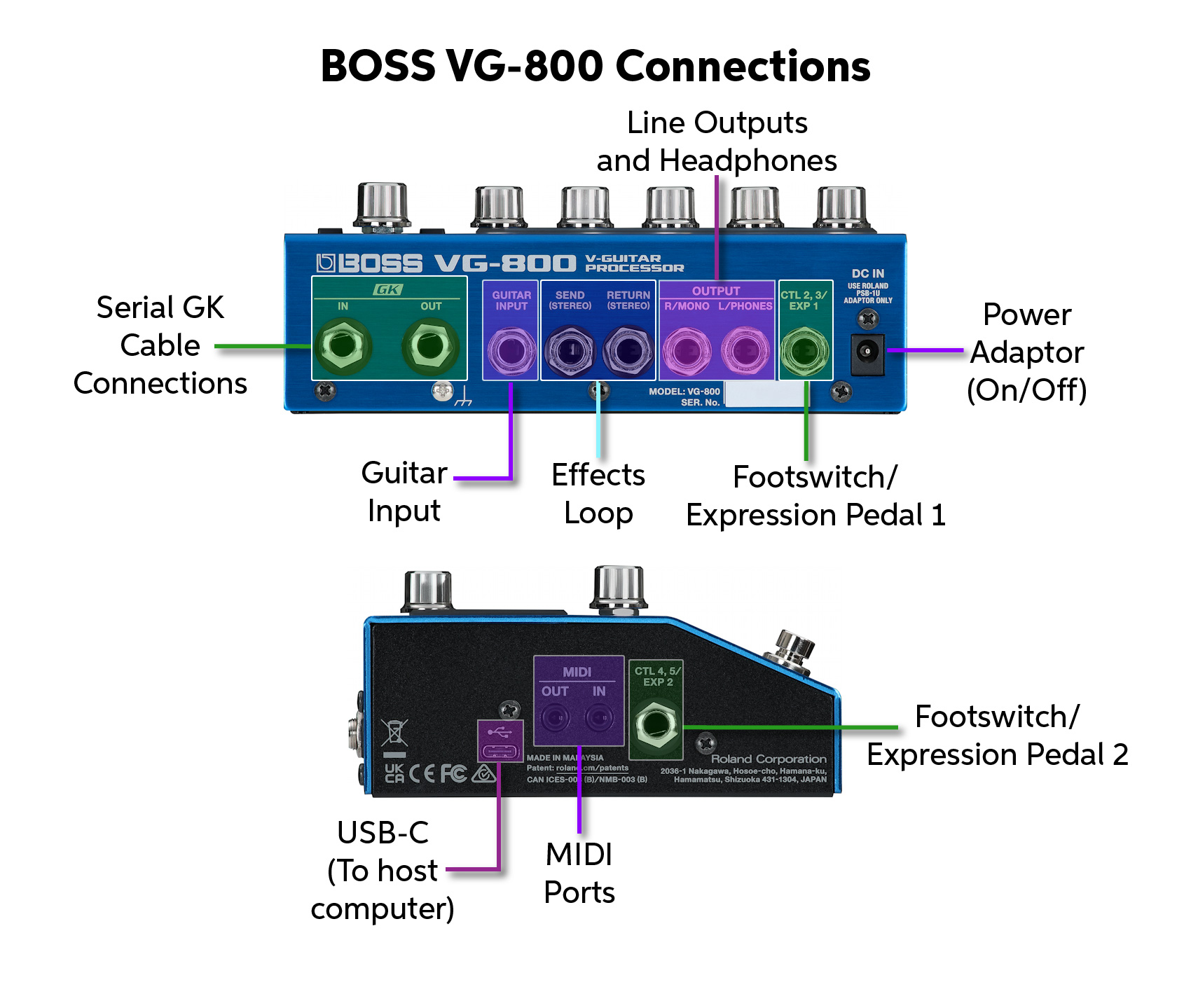
VG-800 connections
DC In
Use only the power supply that comes with the VG-800. There is no on/off switch; simply disconnect the power to turn the unit off.
GK In and Out
Only connect a BOSS BGK cable from the output of your BOSS GK pickup to the GK In connection. This is not the port for your guitar’s regular pickup output.
Use the GK Out port to connect another BGK cable to pass the signal to a second VG-800, a GM-800, or a BOSS GKC-DA converter box for use with Roland and BOSS devices.
Guitar Input
Connect your guitar’s regular output jack to this port using a conventional 1/4-inch TS guitar cable.
Effects Loop (Send and Return)
To patch external analog stereo or mono effects into the VG-800’s signal chain, connect 1/4-inch TRS instrument cables.
Learn more in the VG-800 Parameter Guide > Effect parameters > Send/Return.
Output
Connect stereo headphones to the L/Phone port using a 1/4-inch TRS connection. If you connect headphones, then don’t connect anything to the R/Mono port.
For connecting to a mixer or audio interface in stereo, use 1/4-inch cables in both the L and R ports.
Go to the system settings under Menu > In/Out Setting > Output to select Line/Phones (Recording).
You can also connect the output to a guitar amp.
The VG-800 has several settings for optimizing the output when you connect to different types of guitar and bass amps. Choose the setting that matches your gear in Menu > In/Out Setting > Output.
Learn more in the VG-800 Reference Manual > Getting ready > Selecting devices to connect to the output jacks.
Further information is found in the VG-800 Parameter Guide > System parameters > In/Out Setting parameters.
Footswitch/Expression Pedals 1 and 2
The VG-800 can accept TRS connections for compatible external footswitches or expression pedals (sold separately).
For a list of compatible units, consult the VG-800 Reference Manual > Panel Descriptions > Rear panel/side panel.
Configure the functions of the footswitches or pedals in Menu > Control Function.
Learn more in the VG-800 Reference Manual > Editing: Effects > Configuring the control assignments.
MIDI (Out/In)
These 1/8-inch ports are for MIDI connections, either over 1/8-inch TRS cables or using Type A 1/8-inch TRS to 5-pin DIN MIDI adapters (sold separately).
These ports are not for connecting audio signals.
Learn more in the VG-800 Reference Manual > Connecting with an external MIDI device.
USB-C
Connect a USB-C data cable to your computer, using an adapter as necessary. This serves three functions:
- Connecting to the BOSS Tone Studio for VG-800 editor/librarian app
- Updating the firmware
- Using the VG-800 as a multichannel audio interface for recording
It’s also possible to use the USB connection to your iPhone, your iPad, or your Android device for use as an audio interface.
See the Using the VG-800 as an Audio Interface section below.
VG-800 Front Panel
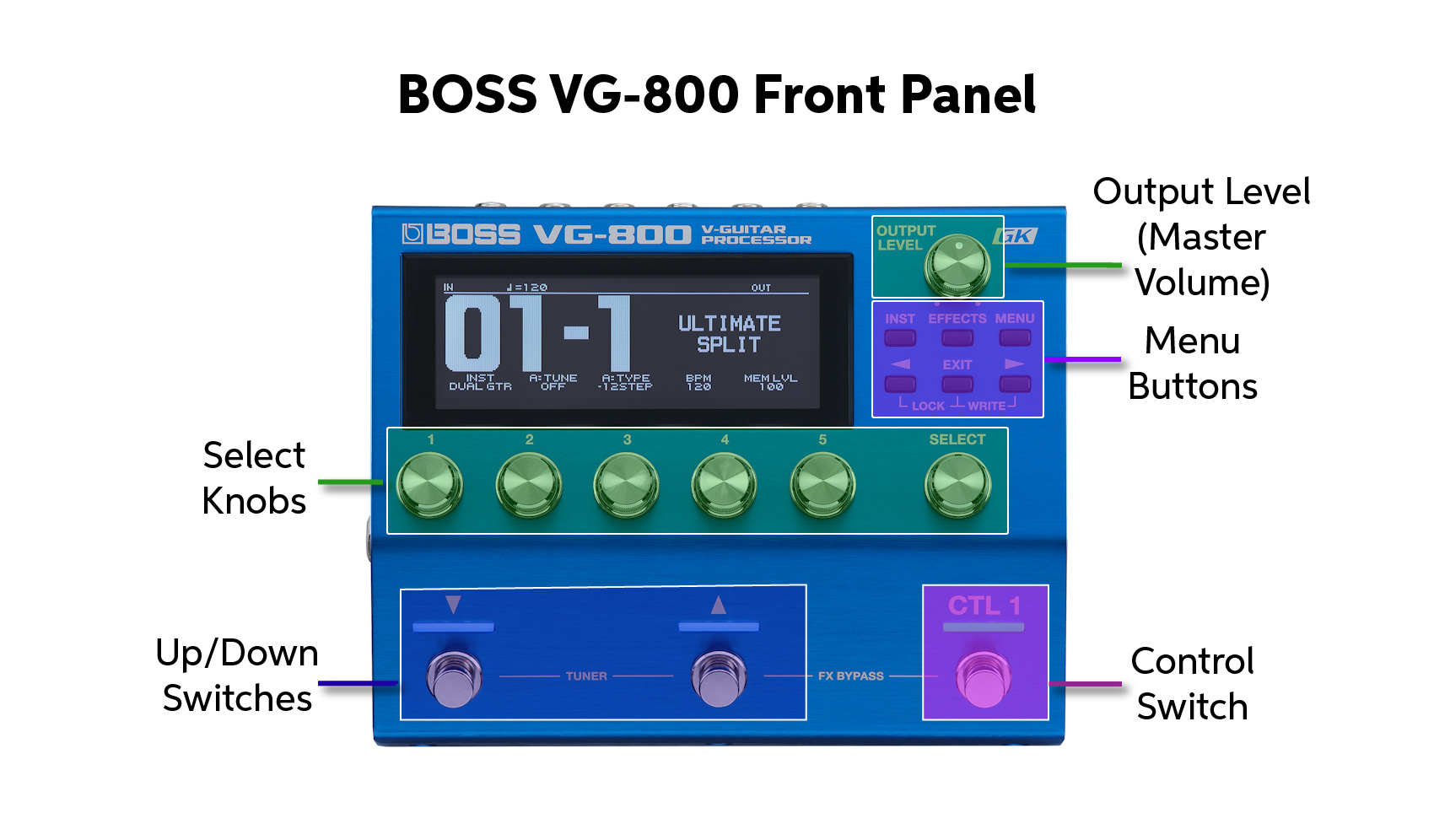
VG-800 front panel
Menu Buttons
- INST: selects the guitar model
- Effects: configures the effects settings and enables you to change the order of effects
- Menu: switches to the Menu screen on the display
- Page buttons: switches between pages on the menu
- Exit: returns to the previous screen or undoes an operation
Select Knobs
Turn the Select knob to scroll through parameters. Choose one by pressing the knob down. The five parameter knobs enable you to edit the parameter displayed above each one on the screen.
Up/Down Switches
Use these footswitches to switch between memories.
CTL 1
Controls the functions set for each memory.
Tuner
Pressing the Up and Down switches together engages the tuner.
Effects Bypass
Pressing down the Up and CTL 1 switches together bypasses all effects and amp models, leaving only the Instrument model to be heard.
The BOSS Tone Studio for VG-800 App
Editor View

The BOSS Tone Studio for VG-800 app
You can set up everything on the VG-800 through its built-in controls, but it’s easier to view all parameters on your Mac or Windows PC screen with the BOSS Tone Studio for VG-800 app.
In the Editor view, select a Memory to see all the elements of a complex signal chain in one view in the upper pane. Click on any element to see and adjust all the parameters for that element in the lower pane.
In the Librarian view, you can organize groups of memories into a liveset.
BOSS Tone Exchange

BOSS Tone Exchange, accessed from within the BOSS Tone Studio for VG-800 app
In the Tone Exchange view, when you log in to your BOSS user account, you can upload and share your memories and livesets with users around the world, as well as download new memories and livesets that you can transfer to your VG-800.
Load Your Own Impulse Responses with the IR Loader
Within the app, you can import your own impulse response (IR) files from your computer, upload them to the VG-800, and use them in your own memories.
Learn more in the Using BOSS Tone Studio for VG-800 owner’s manual.
Using the VG-800 as an Audio Interface
Connecting to your Mac or your Windows PC
The VG-800 can function as a multichannel audio interface over USB-C to your Mac or your Windows PC. It has 10 outputs and 10 inputs at up to 32-bit float/96kHz resolution.
You can use this to:
- Record the audio from each string on its own track using the signals from the GK divided pickup into your DAW
- Record the signals blended together and passed through the VG-800’s amp and effects models
- Play back tracks of guitar from your DAW and send them back to the VG-800 for re-amping
- Stream stereo backing tracks to the VG-800 for playing along and practicing through headphones
To take advantage of the 10 x 10 high-resolution audio, you must first install the BOSS VG-800 audio driver for macOS or Windows.
Confirm that the VG-800 is set to Menu > In/Out Settings > USB Audio > Driver Mode > Vendor. This will use the custom BOSS audio driver.
If the VG-800 is set to Generic rather than Vendor, the unit will only function on your Mac or your Windows PC as a 2 x 2 interface at a fixed 16-bit/48kHz resolution, sending the stereo output from the VG-800 to your DAW.
Learn more in the BOSS VG-800 Parameter Guide > System Parameters > In/Out Setting Parameters > USB Audio.
Connecting to your iPad, your iPhone, or your Android device
To use the VG-800 with your mobile device, first set the VG-800 to Generic mode: Menu > In/Out Settings > USB Audio > Driver Mode > Generic.
Connect the USB-C cable (with an adapter as necessary), and your mobile device will recognize the VG-800 as a 2 x 2 interface at 16-bit/48kHz resolution.
More Information from Roland and BOSS
- A Beginner’s Guide to the BOSS V-Guitar System
- Exploring the Advanced Features of the BOSS V-Guitar System
- Recording with the BOSS V-Guitar System
- Using the BOSS V-Guitar System with Synthesizers
- The V-Guitar Story
- The Ultimate Guide to Roland and BOSS GK-Series Divided Pickups
- A History of Roland and BOSS Guitar Synthesizers
Related Articles
When you need help, Sweetwater has the answers!
Our knowledge base contains over 28,000 expertly written tech articles that will give you answers and help you get the most out of your gear. Our pro musicians and gear experts update content daily to keep you informed and on your way. Best of all, it’s totally FREE, and it’s just another reason that you get more at Sweetwater.com.

