
BFD3 Quickstart Guide
In this guide, we will show you how to set up and navigate BFD3, create kits, create and arrange songs, and provide some tips and tricks along the way. Follow the sections below to get started, and check out the BFD3 Operation Manual for more information!
- How to Set Up and Navigate BFD3
- Navigating the BFD3 Interface
- How to Create a Drum Kit in BFD3
- Managing BFD3 Libraries and Data
How to Set Up and Navigate BFD3
BFD3 is a virtual drum instrument that you can use on its own (standalone) or as a virtual instrument plug-in within your DAW. After it’s registered and installed, you can launch the standalone BFD3 application or load it as a virtual instrument track in your DAW. Most functions remain the same whether the BFD3 is working as a plug-in or a standalone.
If you want to practice along with some music or you need a quick arrangement, the desktop application is preferred. However, if you plan on recording, use BFD3 as a virtual instrument plug-in.
Set Up Electronic Drums and Controllers
NOTE: You only need to update MIDI and audio settings when using the BFD3 desktop application. If you plan to use BFD3 as a virtual instrument, MIDI and audio configurations are done within your DAW’s settings.
If you want to trigger BFD3 samples using an electronic drum kit or an external MIDI controller, you must update the MIDI settings inside the Settings menu.
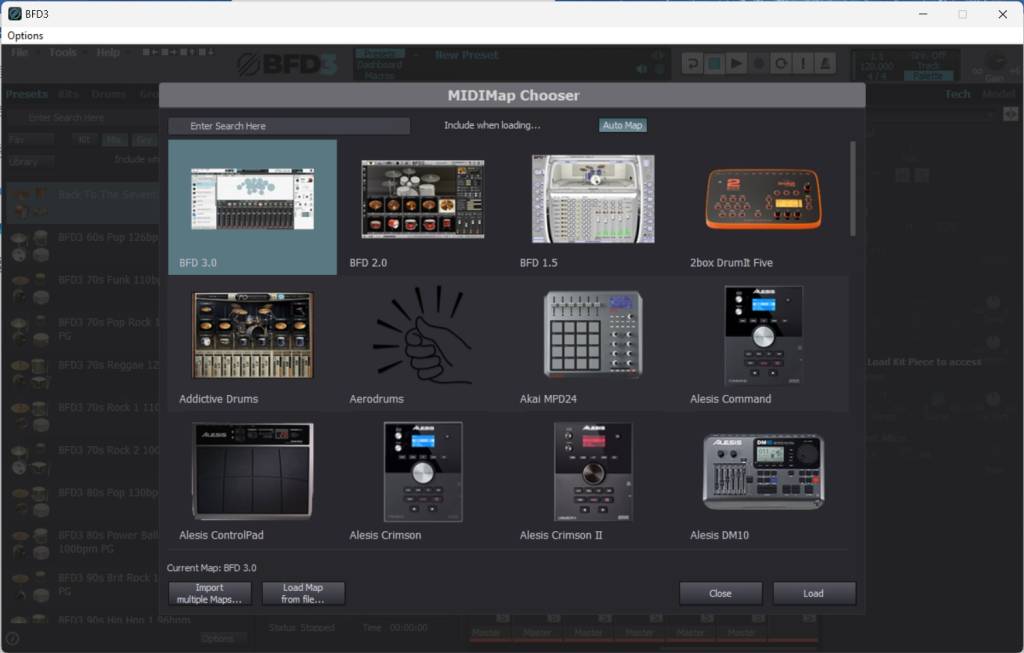
BFD3 MIDI Settings
Navigating the BFD3 Interface
TIP: Double-click one of the menu tabs to hide the browser and make the interface look cleaner and easier to work with.
BFD3 has many features, so knowing how to navigate the interface will speed up your workflow. Let’s cover the basic menus to get you up and running.
Presets
Presets are a great starting point when you’re creating kits for specific genres. Loading a preset will auto-populate specific drums, grooves, and mixer levels, giving you a great baseline on where to start.
- Double-click or drag the preset over to the Kit display to load it.
- You will see a progress bar above the drum/cymbal indicating how long it takes for that piece to load. So, if you don’t hear a specific kit piece when you first load a BFD preset, it’s likely because the sample has yet to finish loading.
- Use the filters beneath the search bar to include or exclude what you want to import. For example, click both Kit and Groove if you only want a preset kit and groove. It will only load the kit and groove, not the preset mix, the automation, or the keymap.
- The Mix filter will only work if the Grv (groove) is also included.
Kits
BFD3 comes with over 50 high-quality drum kits that are fully editable.
- Click Library to view all the installed kit collections.
- Right-click the selected drum kit to mark it as a favorite, show what filters it is tagged for, and view the kit file in your OS Explorer folder.
- Double-click or drag the kit over to the kit image to load it.
Drums
The base version of BFD3 includes over 100 drum samples, so you have plenty of flexibility when editing or building your drum kit. We’ll discuss drums more below.
Grooves
BFD3 has preset grooves for every genre imaginable. These grooves not only give you a good idea of what a kit sounds like together, but they can also inspire you during the writing process!
BFD3 Tutorial 01 – Overview
How to Create a Drum Kit in BFD3
While the BFD3 factory preset drum kits are fantastic, you can also edit them or create your own to get a unique sound. They have made it very easy, too, so you’ll spend less time menu diving and more time playing.
- If you’ve loaded a preset kit and only want to change the sample of one piece, click the Drums tab, then use the filters to find the drum or cymbal you want.
- After you have found the sample, double-click or drag and drop it into the associated drum in the Kit view window.
- If you drag it over anywhere besides the drum piece you are replacing, you will receive a prompt asking if you wish to add an additional piece.
- Right-click anywhere in the Kit view window to build a kit from scratch. Choose Clear Kit, and all drums will be grayed out.
- You can add additional drums to a kit by clicking and dragging the drum sample to an empty space on the kit display. When you do so, another kit piece should appear.
- If you want both samples to be triggered simultaneously, click Link, then drag the line from the selected drum to the other drum you want to trigger.
Can I Import Custom Samples in BFD3?
BFD allows you to import custom .WAV samples, but there are a few caveats. There can only be one articulation, they can only produce sound in the direct Sound bus (the microphones or ambience cannot be applied), and only one channel is active for the imported sample (unless it’s loaded on the Kick1 or Snare1 slot). Also, while samples can be mono or stereo, you cannot combine the two in the same imported sample.
- Move your .WAV sample to the library location where you installed your BFD samples.
- Click Drums, click File, and select Import sample….
- Choose the samples you want to import, use the Drum Typedrop-down box, name the drum, and click Import. Your custom sample will then appear in the proper drum type.
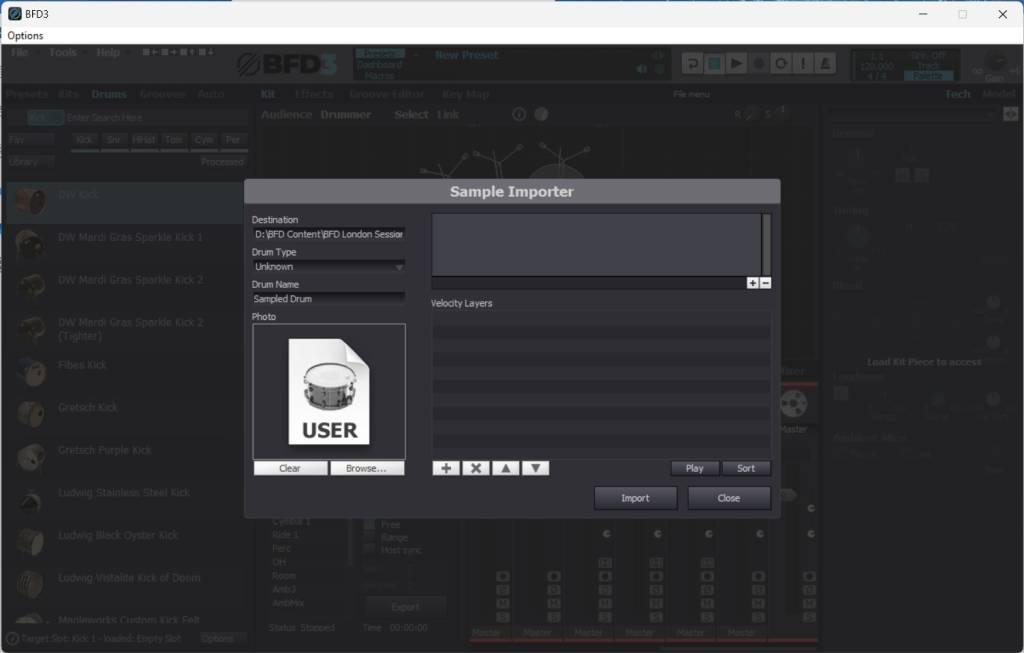
Drum import window
Managing BFD3 Libraries and Data
TIP: If BFD3 is lagging, your system may need more resources to run the virtual instrument. If this is the case, the profile performance may be set too high. Go to the Preferences menu, choose Engine, and use the Profile drop-down box to change it.
Managing your BFD3 libraries and data is critical to the software working correctly. The sound libraries can be quite large, so it’s recommended that you store everything on a dedicated external SSD with at least 200GB of free space.
To add additional folder paths to BFD3, click Tools, select Set up content locations, then choose Search Folders or Search Drives.
- If you know the exact folder path, choose Search Folder. If you’re unsure of the folder path, but you know on what drive your content is stored, choose Search Drives. The process may take a moment since it will scan all folders, so be patient!
- Always select the root folder where your content is stored. If your BFD content folder has multiple subfolders, choose the BFD content folder.
BFD3 has different file types for grooves, drum samples, and other data, so keeping track of these will ensure you don’t run into any issues. Here are some tips for managing your BFD3 libraries and data.
- Create a dedicated folder and name it something applicable, like “BFD3 Content” or “BFD3 Libraries.”
- During the installation process, take note of the default installation paths and update them if necessary.
Additional BFD3 Resources
Now that you know the basics of using the virtual instrument, check out the tutorial playlist below to learn more about the ins and outs of BFD3!
BFD3 Tutorials | Playlist
Related Articles
When you need help, Sweetwater has the answers!
Our knowledge base contains over 28,000 expertly written tech articles that will give you answers and help you get the most out of your gear. Our pro musicians and gear experts update content daily to keep you informed and on your way. Best of all, it’s totally FREE, and it’s just another reason that you get more at Sweetwater.com.

