
Audiomodern Software Activation Instructions

In this guide, we will show you how you register, download, and activate your Audiomodern software. Follow the sections below to get started.
Register your software
IMPORTANT: If you purchased an Audiomodern virtual instrument such as Atom, Opacity VI, or Opacity II, please visit our Audiomodern Kontakt Activation Instructions.
The first step in the activation process is registering your product with Audiomodern using the Serial Number provided by your Sweetwater Sales Engineer.
- Log into your Audiomodern account. If you don’t have one, you can create one here.
- When on your account page, click Register Product, copy and paste the Serial Number you received from your Sweetwater Sales Engineer into the blank field, then click Submit.
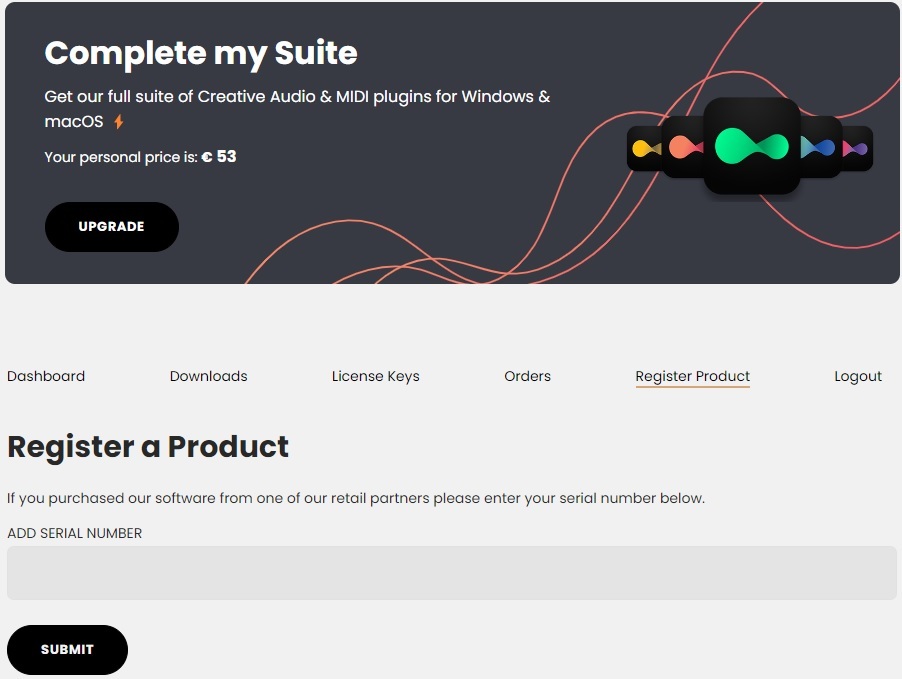
Click the image to register your Audiomodern product.
Download and activate
IMPORTANT: If you purchased an Audiomodern virtual instrument such as Atom, Opacity VI or Opacity II, you will need please visit our Audiomodern Kontakt Activation Instructions.
Once registered, the last step in the process is to download, install and activate your software.
- On your Audiomodern account page, click Downloads and download your registered software.
- Navigate to your Downloads folder, then unzip and launch the installer.
- Launch the standalone application and enter your email address and the License Key, which can be located in the License Keys section of your Audiomodern account.

Enter your Audiomodern email address and license key to activate your software.
When you need help, Sweetwater has the answers!
Our knowledge base contains over 28,000 expertly written tech articles that will give you answers and help you get the most out of your gear. Our pro musicians and gear experts update content daily to keep you informed and on your way. Best of all, it’s totally FREE, and it’s just another reason that you get more at Sweetwater.com.

