

Boss Katana: Boss Tone Studio
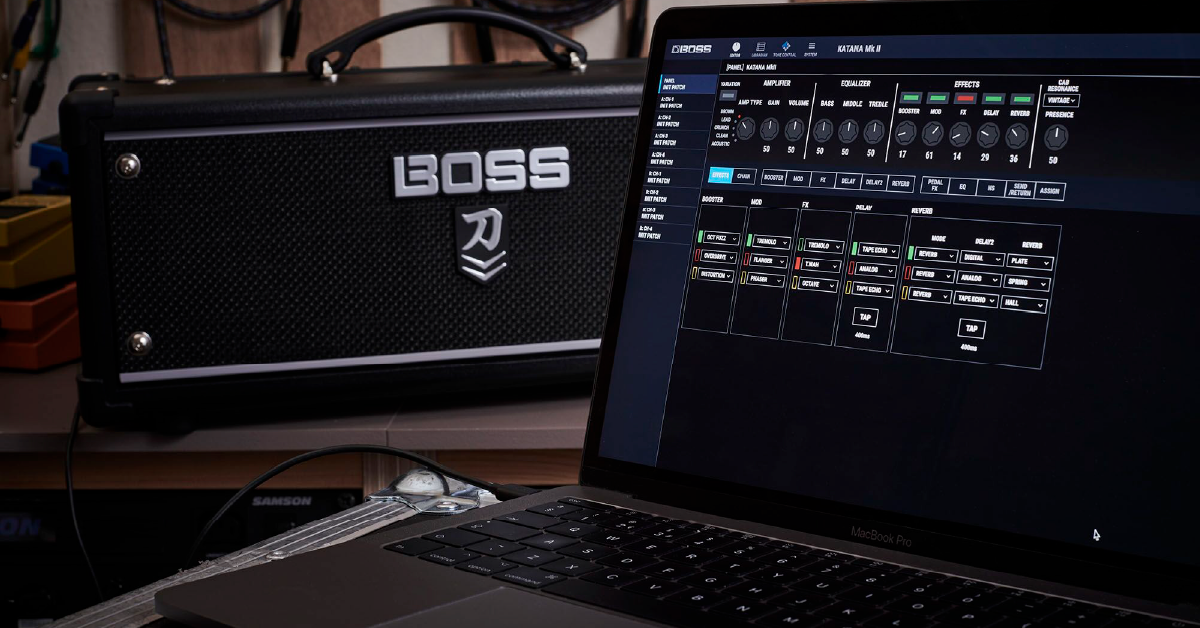
NOTE: This article pertains to the original BOSS Katana and the Katana Mk II lines of amplifiers. If you have a BOSS Katana Gen 3 amp, see our BOSS Tone Studio for Katana Gen 3 Quickstart Guide.
Getting started
In this guide, we will show you how to control your Katana amp using Boss Tone Studio. This means we’ll show you how to create, edit, and save custom sounds to your Boss Katana. Follow the sections below to get started.
Download and install Boss Tone Studio
IMPORTANT FOR WINDOWS USERS: If you receive a prompt saying “Windows protected your PC” while installing the software, click More info and select Run anyway.
Boss Tone Studio is a tone editor that allows you to edit, save, and export both factory, as well as, custom tone presets for your Boss Katana. After you’ve downloaded and installed Boss Tone Studio, you can plug the amp in via USB and start working. The Katana is class-compliant on Windows, so if you’re a PC user, continue to Use Boss Tone Studio. If you’re a Mac user, you must first download and install the Boss Tone Studio driver.
How to install the Boss Katana driver (macOS only)
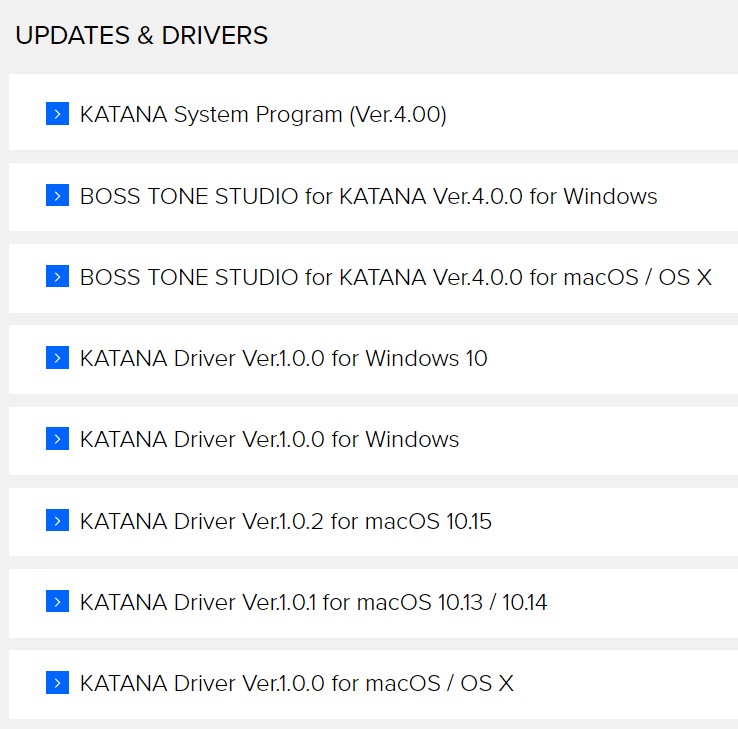
- With the Katana disconnected from your Mac, go to the product page for your version of the Katana and download the latest version of your software.
- The Katana is now compatible with macOS Catalina.
- Double-click the .pkg file and follow the on-screen instructions. If you receive a message “System Extension Blocked”, click OK.
- Once the installation is complete, restart your computer.
- Once your computer has restarted, connect the Katana to your computer and turn the amp on.
Install Adobe AIR (Windows PC)
For Boss Tone Studio to work correctly, you first must install the latest version of the free Adobe AIR software on your PC. The Adobe AIR installer is built in to the Boss Tone Studio installer so you just need to launch that in order to install Adobe AIR.
- Go to the Boss Katana Support page and download the latest version of Boss Tone Studio for your OS.
- Navigate to your Downloads folder, extract, then launch the BOSS_TONE_STUDIO_for_KATANA installer.
- When prompted, Click Next to install Adobe AIR.
- If, by any chance, you still run into issues when launching Boss Tone Studio, go to Harmon’s AIR download page to get the latest version.
Important note to Catalina users
If you’ve updated to macOS Catalina, you must first give permission to allow the driver to be loaded properly before completing the driver installation. If you run into any issues during the installation process, check out Boss’s driver installation troubleshooting guide.
- Navigate to System Preferences and click Security & Privacy.
- Click General. You should see a message “System software from developer “Roland Corporation” or “Some system software was blocked from loading”.
- Click the Key icon, enter your User Name and Password, then click OK.
- Select the Roland Corporation checkbox, then click OK.
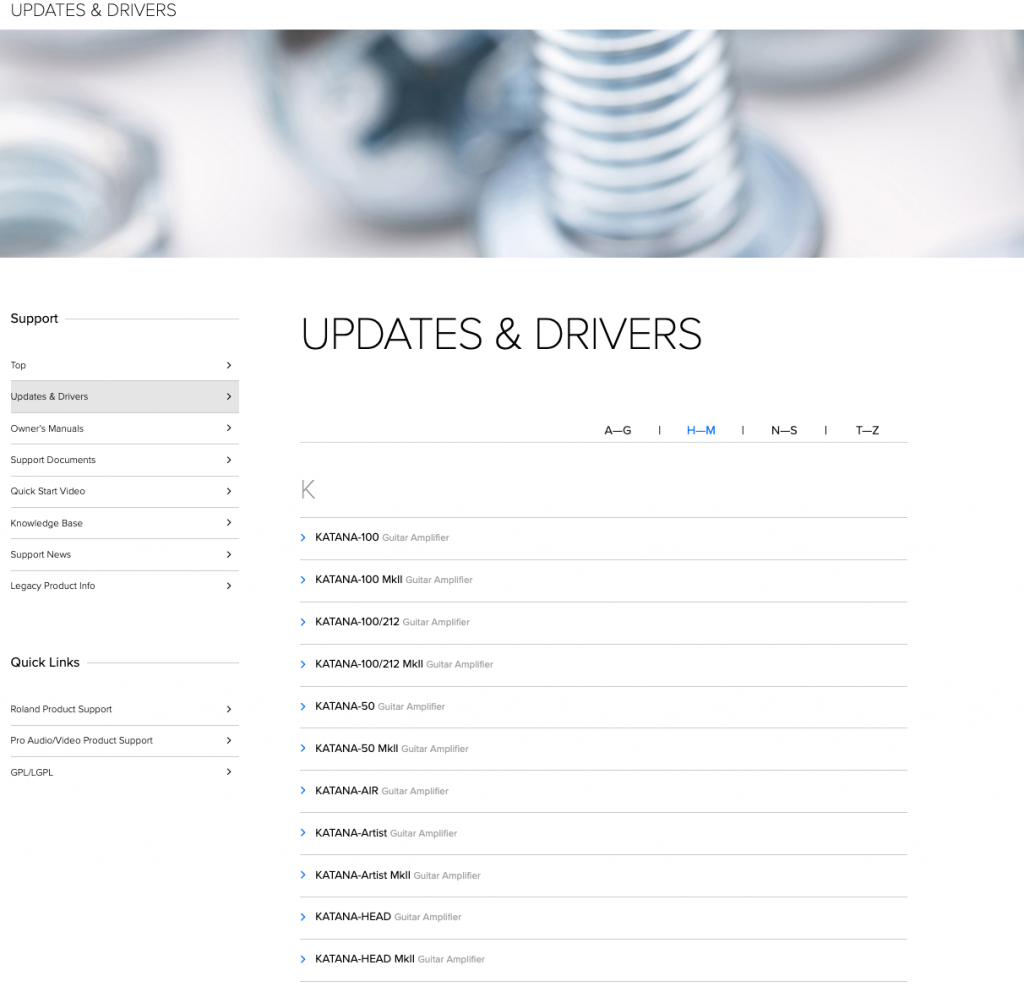
Click the image to download your drivers\
Using Boss Tone Studio
There are three main functions you’ll be working with when using the Boss Tone Studio app. These include Editor, Librarian, and Livesets. You can also download and import custom Livesets using Tone Central. Finally, you will change global system settings using Boss Tone Studio.
Editor
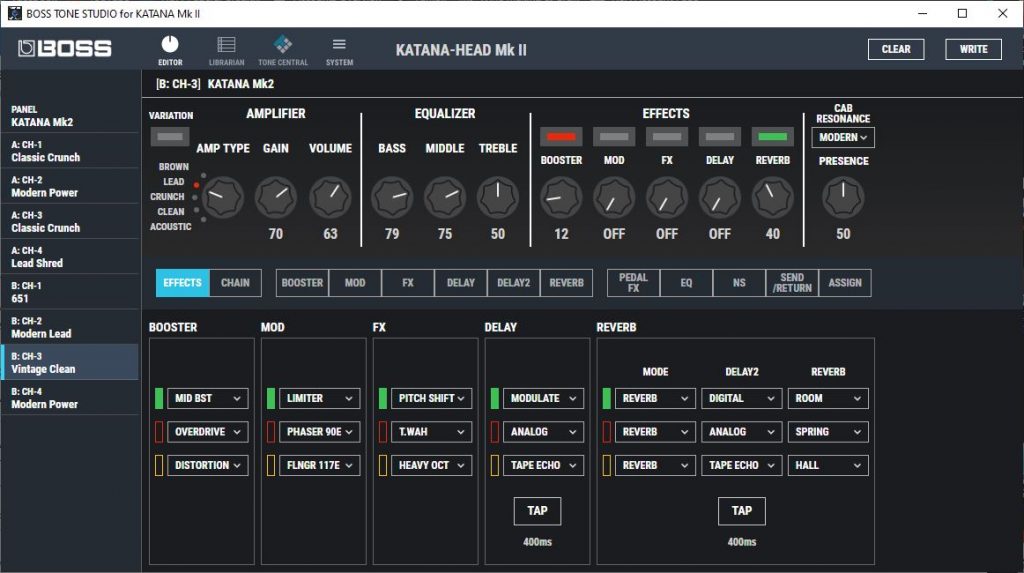
The Editor allows you to change the tone of your Katana in real-time. Using the Editor is very useful since you’ll get access to more effects, flexible internal routing, and even customizable foot pedal assignments. All of the tones currently on your Katana are displayed on the left side of the app.
- To edit a tone, just click the channel tone you want to change, adjust the parameters to where you want them, then click Write. Name it something unique, and then click Write once more.
- The PANEL TONE is a direct reflection of the current position of the knobs on your Katana.
- Click CHAIN to select one of the four effects routing chains for your amp. The Reverb and Delay 2 will always be at the end of the signal chain.
- Click CLEAR to initialize the current settings of the selected tone.
- Check out the Boss Tone Studio manual for a detailed list of all of the effects parameters available.
Librarian
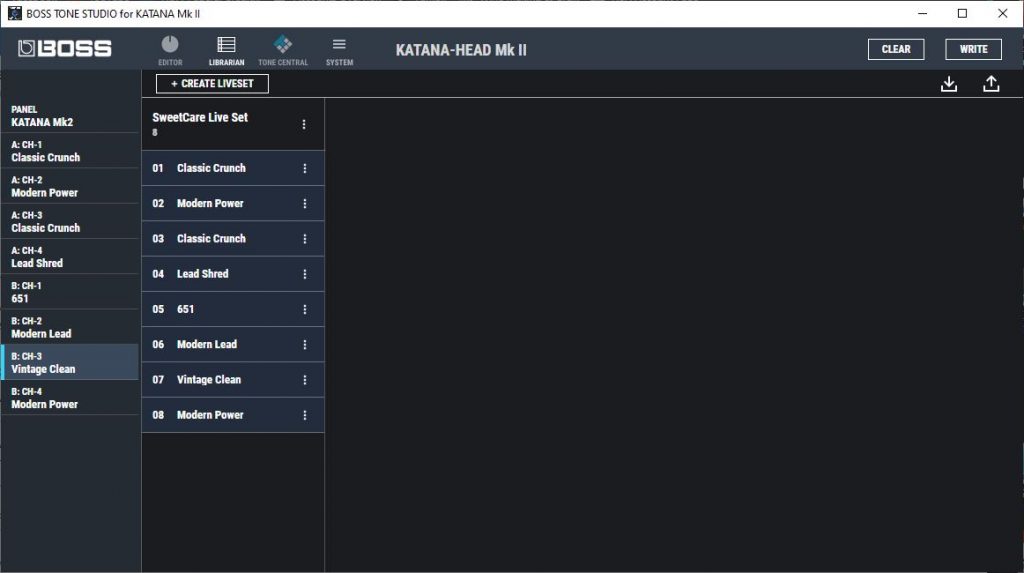
While in the Librarian window, you can create and edit Livesets, edit tone and Liveset names, and also import/export data from your Katana. Livesets and tones can also be duplicated, arranged, and removed within the Librarian menu. You can save up to 15 tones per Liveset, and have up to 50 Livesets.
- Click and drag a channel tone to add it to your Liveset. Hold the Shift key to select multiple tones. Follow the same procedure when sending a tone to your Katana.
- If you wish to have more than 50 Livesets, you’ll need to click the Export button, select the Livesets you want to transfer, and click Export to File to free up a slot for a new Liveset.
- If a Liveset contains more than the allotted number of tones, only the first eight (four if using the Katana-50 Combo) presets will be imported onto your amp.
Having issues on Windows?
If you’re still running into issues even after installing Adobe AIR, you may need to allow your PC to access your microphone.
- Go to your Windows settings, navigate to Privacy & Security.
- Navigate to Microphone, then allow Boss Tone Studio as an app to access your microphone.
Related Articles
When you need help, Sweetwater has the answers!
Our knowledge base contains over 28,000 expertly written tech articles that will give you answers and help you get the most out of your gear. Our pro musicians and gear experts update content daily to keep you informed and on your way. Best of all, it’s totally FREE, and it’s just another reason that you get more at Sweetwater.com.



Offer applies only to single-receipt qualifying purchases. Select manufacturers may require that only the manufacturer’s products qualify towards the minimum purchase amount needed to be eligible for promotional financing. Otherwise, an invoice that meets the minimum purchase amount and contains at least one qualifying manufacturer product is eligible for promotional financing. No interest will be charged on promo purchase balance, and equal monthly payments are required on promo purchase until it is paid in full. The payments equal the amount financed divided by the number of months in the promo period, rounded up to the next whole dollar. These payments may be higher than the payments that would be required if this purchase was a non-promo purchase. During the last month(s) of the promo period the required monthly payment may be reduced due to the prior months’ rounding. Regular account terms apply to non-promo purchases. New Accounts as of 07/31/2025: Purchase APR is 34.99%. Penalty APR is 39.99%. Min Interest Charge is $2. Existing cardholders: See your credit card agreement terms. Subject to credit approval.
Offer applies only to single-receipt qualifying purchases. No interest will be charged on the promo balance if you pay it off, in full, within the promo period. If you do not, interest will be charged on the promo balance from the purchase date. The required minimum monthly payments may or may not pay off the promo balance before the end of the promo period, depending on purchase amount, promo length and payment allocation. Regular account terms apply to non-promo purchases and, after promo period ends, to the promo balance. New Accounts as of 07/31/2025: Purchase APR is 34.99%. Penalty APR is 39.99%. Min Interest Charge is $2. Existing cardholders: See your credit card agreement terms. Subject to credit approval.
The estimated required monthly payment shown which excludes taxes and delivery equals the amount financed divided by the number of months in the promo period, rounded up to the next cent. During the last month(s) of the promo period the required monthly payment may be reduced due to this rounding. These payments apply only with the financing offer shown. If you make these payments by the due date each month, you should pay off this amount financed within the promo period, if it is the only balance you are paying off. If you have other balances on your account, this payment will be added to any other minimum monthly payments.
Applies only to select items from this manufacturer. Ask your Sweetwater Sales Engineer for more details.