Today’s audio interfaces and USB mics have made it easy to get audio from the outside world into a computer or tablet.
But let’s say you’re filming a software review, streaming a longplay, sampling a beat, or archiving an important work meeting — how do you route audio internally from one application into another?
The answer is a loopback. And, if you’ve bought an audio interface from Sweetwater in the past few years, chances are you may have this functionality already available on your device.
What Is a Loopback?
Have you ever thought, “I wish my audience could hear what I hear when I’m streaming”? Or “I’d really like to sample the audio from that online video and remix it”? If so, then your interface’s loopback feature is the key.
Loopback on an interface, mixer, or sound card allows you to reroute internal audio — be it in-game audio, system audio, or virtual instrument applications — back into the interface to reuse in other applications.
Said another way, a loopback redirects any audio playing out of your headphones or studio monitors, in perfect fidelity, into another app for streaming or recording.
Whereas mic and instrument inputs on your interface require physical connections to capture audio, loopback occurs entirely in the digital domain. This opens up a world of powerful routing options all without having to lift a finger.
When Should I Use Loopback Audio?
Here are five common scenarios where loopback audio comes in handy.
Podcasting with Virtual Guests
Nothing kills an interview faster than your audience not being able to hear your guest or collaborator on stream. Loopback audio helps ensure each guest’s voice comes across live and in living color.
Example: EposVox’s JAMPACK’d vlog series
Video Conferencing
As archiver and organizer of your team meetings, it’s important that every attendee’s voice is heard — not just your own.
Example: How to Make a Virtual Choir Music Video | inSync
Game Streaming
Loopback can allow your audience to hear not just your microphone while you stream but also in-game dialogue and sound effects and audio from chat.
Example: Relyea’s Hollow Knight First Speed Run Attempt Live
“React” Videos
We’re told there’s big money in people reacting to existing content on the web. Hey, no judgment here. A loopback allows your listeners to hear the source material in perfect sync with your commentary.
Example: Linus Tech Tips’ xQc PC Build Stream Reaction
Reviews/How-tos
We music producers love turning to YouTube for the latest plug-in shootout or software tutorial. Loopback audio is essential to ensure your audience is able to hear the effects of every virtual knob you’re turning and fader you’re pushing all in real time.
Example: Audio Tech TV’s Cherry Audio Galactic Reverb Review
Audio Interfaces with Loopback
Below is a short list of Sweetwater’s most popular audio interfaces that have built-in (native) loopback capability followed by a full tutorial on how to configure it.
Focusrite Scarlett 4i4 3rd Gen Interface
The Scarlett series of mobile and studio interfaces has proven to be a rock-solid recording platform for Mac and Windows users. Users of the third-generation 4i4 can find loopback configuration under the “Output Routing” section of Focusrite Control.
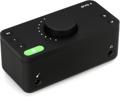
Audient EVO 4 Interface
The EVO 4 is a favorite among podcasters and content producers due to its compact size and streamlined workflow. Loopback controls for the EVO 4 are found under the “Show Loopback Mixer” menu option of the EVO control software.
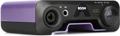
PreSonus Revelator USB-C Microphone
The Revelator packs big broadcast sound and simplified under-the-hood DSP into a tidy setup. Driving it all is PreSonus’s Universal Control app. The Revelator’s three stereo loopback channels appear as dedicated faders labeled “Playback,” “Loopback 1,” and “Loopback 2.”
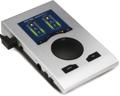
RME Babyface Pro FS Interface
RME’s Babyface interfaces enjoy a legacy in the audio world that few mobile interfaces can touch. The latest iteration, the Babyface Pro FS, packs pro-level preamps, clocking, conversion, and routing into a small desktop format. Loopback controls are found within the TotalMix FX app behind the Tool (wrench) icon.
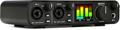
MOTU M2 Interface
MOTU’s M-Series of compact USB-C interfaces means high-quality recording at home or on the go. The secret lies in the M2’s ESS Sabre32 digital-to-analog conversion and optimized drivers, which together are able to deliver 120dB of dynamic range and a low 2.5ms round trip at 96kHz. Just select “Loopback 1–2” as your input device in your DAW or streaming platform, and you’re all set to capture audio from your favorite streaming platform into your DAW in real time.
Universal Audio Apollo Twin X DUO Interface
UA’s premium hardware and exclusive DSP make for an irresistible combination in the Apollo Twin X DUO. Audio can easily be routed from external music apps and audio sources by using the UA Console app’s Virtual Channels. Virtual Channels accomplish the same goal as a loopback with the added benefit of letting you route your UAD plug-ins onto input sources as insert effects for that huge analog-emulated character.
Apogee BOOM Interface
Apogee’s latest bus-powered mobile interface brings powerful DSP and world-class conversion to your podcasts and home recordings. The BOOM’s included Symphony ECS Channel Strip offers 3-band EQ, compression, and tape-emulated saturation with zero-latency monitoring — very cool for sweetening your sound on the way into your DAW. Stereo loopback faders can be found inside the Apogee Control 2 desktop/mobile app labeled “Playback 1–2” and “Playback 3–4.”
What If My Interface Can’t Do Loopback?
Own an interface without native loopback? You may not be totally out of luck. There are a few third-party software options that may be able to give you loopback functionality without dropping coin on a new piece of gear.
How to Achieve Loopback Audio on Mac with Third-party Apps
- Rogue Amoeba Loopback — The aptly named Loopback is the big player in the third-party audio-loopback space. It uses a proprietary Audio Capture Engine (ACE) to seamlessly route audio between apps. It’s free to try but requires a paid license to access advanced audio routing.
- iShowU Audio Capture — Audio Capture is a free app based on the fan-favorite open-source Soundflower. It’s a smart option for any creator who’s just testing the waters of loopback audio. Running macOS Monterey? Look at iShowU’s SWB Audio App instead.
- BlackHole — BlackHole (another free option) may offer the simplest loopback integration for Mac users. Its lightweight installer allows you to easily route sound from one app to another. It can also be used to create an audio Aggregate Device in macOS.
How to Achieve Loopback Audio on Windows with Third-party Apps
- VB-Audio Voicemeeter — Voicemeeter and its derivatives (Potato, Banana, Virtual Audio Cable) comprise a suite of powerful donationware (free with nag screens) options for getting loopback audio on your Windows PC.
- Jack Audio Connection Kit — Jack works similarly to Virtual Audio Cable above, allowing you to route audio from your Windows playback devices to your Windows recording devices with minimal latency. Jack also has builds for Linux and macOS.
- ASIO Link Pro Patcher — ODeus Audio’s powerful audio linking matrix lives on in the patched version of ASIO Link Pro — a passion project made possible by a dedicated group of audiophiles. Much like Reason, ASIO Link Pro makes it possible to patch virtual cables between playback and recording devices.
Need Loopback Help? Give Us a Call
We hope this guide has sparked some ideas about how you can start using loopback in your online content and audio productions. If you have any questions about loopback interfaces, then contact your Sweetwater Sales Engineer at (800) 222-4700. We’ll work with you to help you find the right tools for all your loopback needs.