If you own a latter-gen iOS device, then you may be carrying around a powerful mobile studio without even realizing it. And we’re not just talking fully loaded iPad Pros here, either — your hand-me-down iPhone from years ago is still capable of creating deep house bangers and spellbinding symphonic arrangements that’ll rival your desktop studio. That is, provided you have the right tools.
Whether you’re an industry vet or you have no experience making music whatsoever, this guide will walk you through the tools and apps that Sweetwater’s staff turns to for making music on our iOS devices at home and on the go.
Option 1: No Gear
Capture rehearsals in Voice Memos
If you’re just looking for a quick way to archive rehearsals and bottle those fleeting moments of musical inspiration, Apple’s native Voice Memos app can’t be beat. You can access Voice Memos with a swipe of the thumb directly from Control Center (Settings > Control Center > Customize Controls) or via Siri, so it’s always on hand to take down your important ideas. Once loaded, you simply hit Record and sing/speak/beatbox directly into your iPhone’s microphone — there’s no external gear required.

Two features that’ll help you get the most of this bare-bones audio recorder: set audio quality to “Lossless” (provided you’ve got the storage space) in Settings > Voice Memos and turn on “Location-based Naming,” just in case you forget to create a label. The Voice Memos app probably won’t win you any awards for production quality, but the predominant limitation is the iPhone mic. Voice Memos can definitely capture a moment and keep you from losing an idea forever — and once saved, you can easily share those recordings via iMessage, Dropbox, or Google Drive for collaboration and safekeeping.
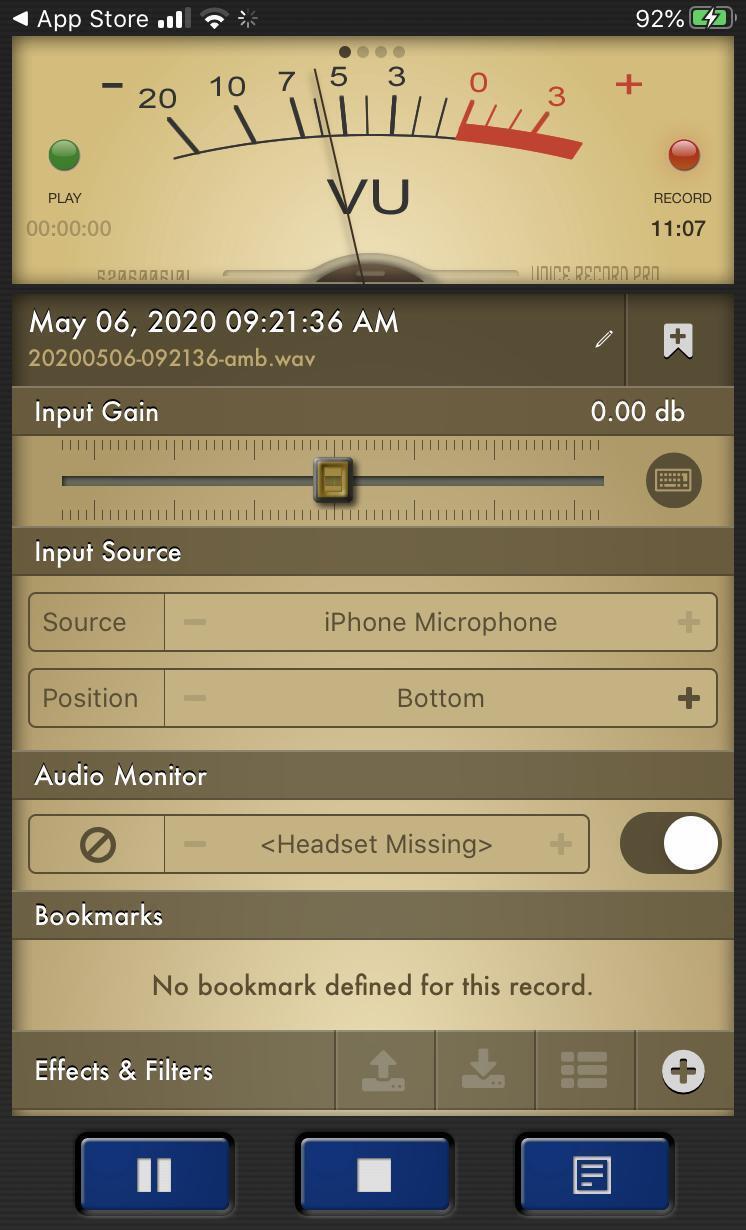
There are lots of other recording apps out there, as well — some with very powerful options — such as Voice Record Pro (shown in the image above), which allows you to select sampling frequency (up to 96kHz), file type (WAV, MP3, M4A), bit depth (up to 32-bit), and channels (mono/stereo). It allows silence detection for intermittent recording and even gives you the option to choose which of the multiple microphones in your iPhone you want to use. You can save or send files by email, SMS, Google Drive, Dropbox, OneDrive, Box Cloud, iCloud, SoundCloud, and more.
Flesh out songs in Music Memos
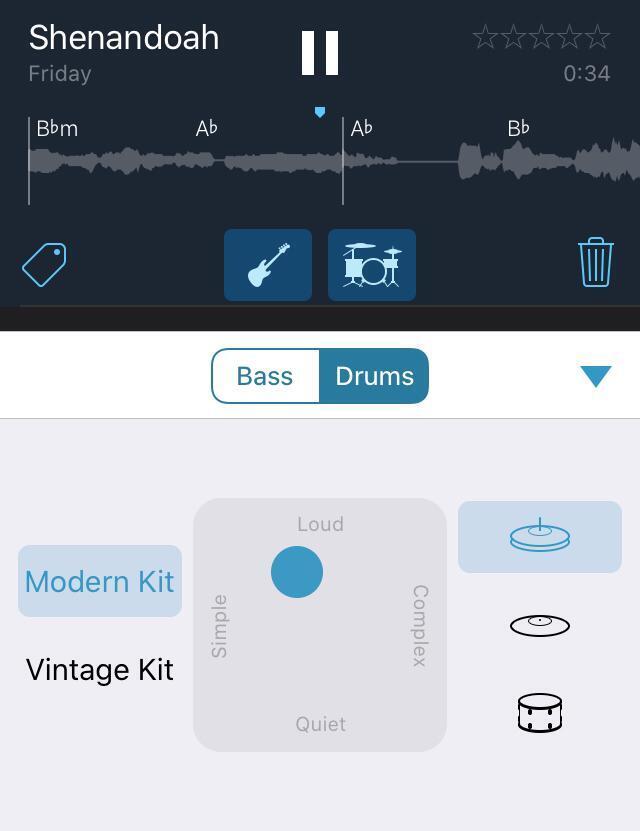
Apple’s Music Memos app for iPhone/iPad can (“can” being the operative word) be an excellent sketchpad for building the bones of a song idea. And, if you’re just looking for a fast way to flesh out instrumentation for personal and collaborative use, this app is super low impact, since you’ve already got everything you need in your back pocket.
Here’s how it works. Let’s say you’ve got a piano-and-vocal verse and you want to hear how it’ll sound with drums and bass. Just press “Record” in Music Memos and play/sing the part directly into your onboard microphone. Music Memos doesn’t require any external audio gear or pre-planning; it’ll automatically detect the key and tempo from your live performance. And once recorded, with the touch of a button, you can drop in virtual drums and bass guitar to inform your songwriting direction or to create a fully realized demo for bandmates. An XY slider lets you adjust how prominent the supplemental parts are — whether it’s a roots-only bass rounding out the low end or a cut-time, washy-Bonham drum track with fills.
Results can be pretty hit-or-miss in our experience, but you do have the option to go in after the recording and tell Music Memos where bar lines begin and to manually finesse chords and time signatures. Bear in mind that this app caters to live demos only, as there are no multitrack-recording, integrated-editing, or post-processing features inside. For that, you’re going to need some additional tools.
Option 2: Minimal Gear
Want Simple? Try Spire
iZotope’s Spire Studio recording hub and, optionally, a 1/4″ guitar cable are all you need to start cutting competent multitrack recordings on your iOS device. The Spire Studio is a completely wireless and otherwise gear-optional recording solution — it interfaces with the 8-track Spire app over a generated Wi-Fi access point and even operates on an internal USB-rechargeable battery for maximum portability.
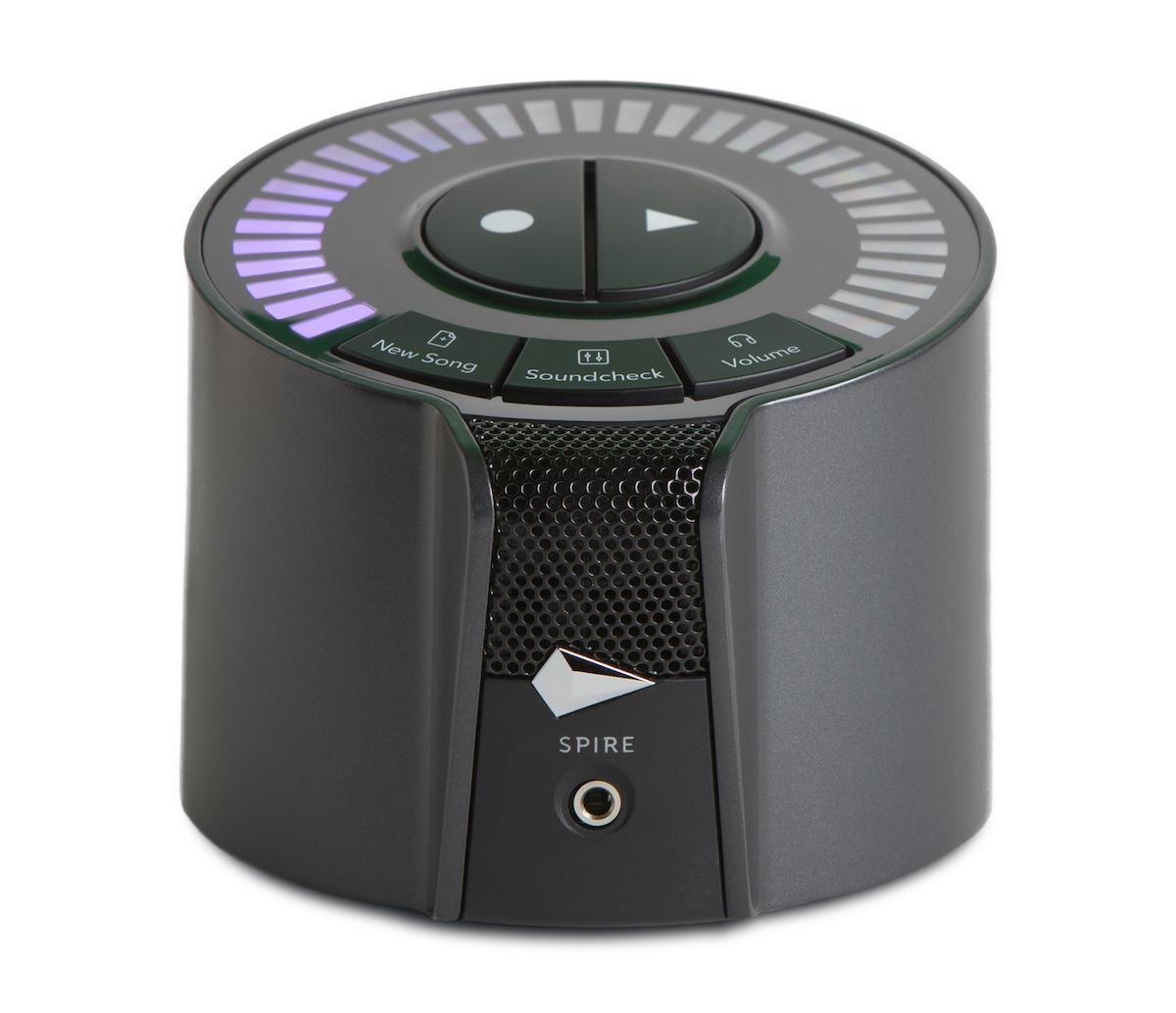
The Spire Studio’s onboard omnidirectional mic does a commendable job of capturing vocals and acoustic instruments with lifelike realism. One timesaving feature we especially like in the Spire Studio is Soundcheck, which effectively sets the gain levels for you in order to prevent clipping. You just click a button, strum for 10 seconds, and you’re all set to record.
The Spire app’s effects suite comes loaded with studio equalizers, lush reverbs, and even a complete suite of amp and pedal sims. That’s right: just plug in your guitar or bass with an instrument cable and audition dozens of the world’s most sought-out amp tones for instant bedroom inspiration.
Collaboration is refreshingly straightforward in the Spire app. As long as you’ve got open tracks (layers) of the total eight available, you can share the entire session with a bandmate who has a Spire Studio directly over iMessage. You can also export the mixed track to SoundCloud and other hosting platforms.
Even mixing and mastering get a fresh face in the Spire app. iZotope’s Visual Mixer eliminates the common hang-ups with volume and panning. Instead of slider bars, you get a two-dimensional visual layout where you can place each audio track in space.
Foresee yourself leveling up in the future? The Spire Studio’s phantom-powered Grace Design mic preamps — a high-end name in the world of preamps — give all your studio condenser mics the sonic transparency and low noise they need to achieve some truly professional results, even thousands of miles away from your laptop.
Looking for DAW-like features and control? Go GarageBand.
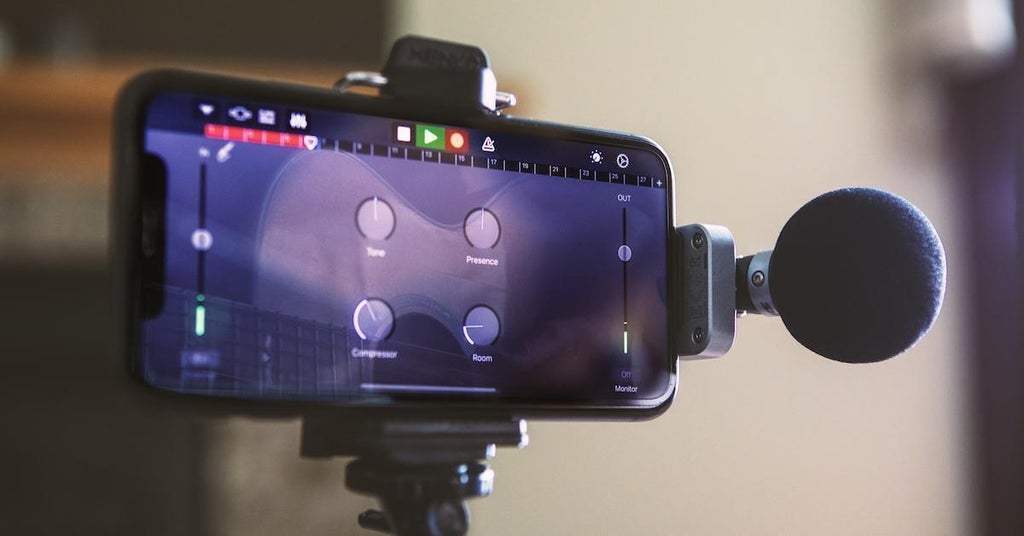
GarageBand has been a gateway to multitrack recording and more advanced DAWs since its mid-2000s debut. Today’s iOS-based GarageBand app platform is the ultimate blend of simplicity and sonics, making it the ideal starting point for any hobbyist song arranger and beat maker. And, best of all, it’s completely free for iPad and iOS.
GarageBand’s revolving-window interface makes it easy to breeze between the timeline for editing, the track view for mixing, and the instrument-specific panes for choosing virtual instruments and setting effects. It’s one of the most space-effective multitrack apps we’ve seen, and it really does make the most out of the iPhone’s limited real estate.
Now, to get the most out of GarageBand, you’ll want to invest in some iOS-compatible audio gear: microphones, guitar interfaces, keyboard controller, etc. Here are some of our top picks with regard to features and compatibility.
Microphones
- Apogee HypeMiC — Don’t let the name fool you. This mighty mini packs a studio’s worth of class-leading preamplification, in-your-face analog compression, and premium AD/DA conversion into a tiny, class-compliant iOS mic. For pop vocals and voice-over work, the HypeMiC absolutely slays. It’s so good, it’s even got some heavyweight producers singing its praises. And it plugs directly into your Lightning jack.

- Shure MV88 — Stereo recording directly into GarageBand is a snap using the MV88 mini condenser mic. Acoustic guitars, choirs, horn ensembles, drum overheads, and more — if you’re looking for realism, then this mic is your match. The Shure MOTIV app even lets you tap into advanced stereo mic configurations, such as variable-width stereo and mid-side modes.

Guitar Interfaces
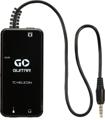
- TC-Helicon Go Guitar — If you’ve got an iOS device with a headphone jack (increasingly rare these days), then the Go Guitar is a cost-effective way to get a guitar or bass signal into GarageBand — which is crucial for accessing those onboard guitar sims. It’ll also handle your monophonic analog synths, no problem.
- IK Multimedia iRig HD 2 — An included Lightning cable delivers your instrument signal to your GarageBand session in lossless 24-bit/96kHz resolution with the iRig HD 2. You even get an amp-thru output for live monitoring through an emulated tube stack while you track.
Keyboard Controllers
- IK Multimedia iRig Keys 2 Pro — When it comes to small-form-factor keyboard controllers, this 37-key controller has the lock on the competition. Its full-size, synth-action keys are roomy enough to accommodate piano players yet have the snap and speed needed to handle palm wipes and lead breaks. The portable iRig Keys 2 Pro easily tucks under an arm for transport and connects to your device via a single Lightning cable.
- Novation Launchkey 61 — Need more two-hand space? Look no further than the 61-key Launchkey. It’s got a great-feeling synth-action keybed and knobs/faders/pads galore, which you can assign for hands-on control over innumerable functions within GarageBand. Be advised that use of this controller with your iOS device will require the Apple Lightning to USB Camera Adapter (sold separately).
Once you’ve got your gear integrated, making music in GarageBand is as easy as playing in the sandbox. To start, select a drum pattern or sequence a beat. Lay down a synth pad and map out some brassy stabs. Pick out an amp sim and scratch in a percussive funk guitar. Drop in a bass groove, sing a hook, overdub some handclaps; before you know it, you’ve got the makings of a masterpiece.
GarageBand’s layout encourages experimentation and play. And, thanks to its prominent Undo and Redo buttons, the cost of getting messy remains low. Don’t like a take? Scratch it and re-record until you’re happy.
One additional benefit to using GarageBand for iOS is that you can easily export sessions into Pro Tools, Logic, and GarageBand on your Mac. This makes it an unbeatable solution for capturing ideas on the road and fleshing them out later at home or in the studio.
Up for a little GarageBand app inspiration? Check out this iPhone-only cover of “Paint It Black” by iSongs.
iOS Recording? The Sky’s the Limit!
This article has only scratched the surface of all the recording and music-making tools available to your iPad or iPhone. Factor in a glut of third-party instrument apps with AU3 inter-app support for direct access within GarageBand, and the sonic possibilities are endless. Looking to score the best iOS-gear prices on the web and the type of support money can’t buy? Hit up your Sweetwater Sales Engineer at (800) 222-4700 and let us know what you’re looking for.