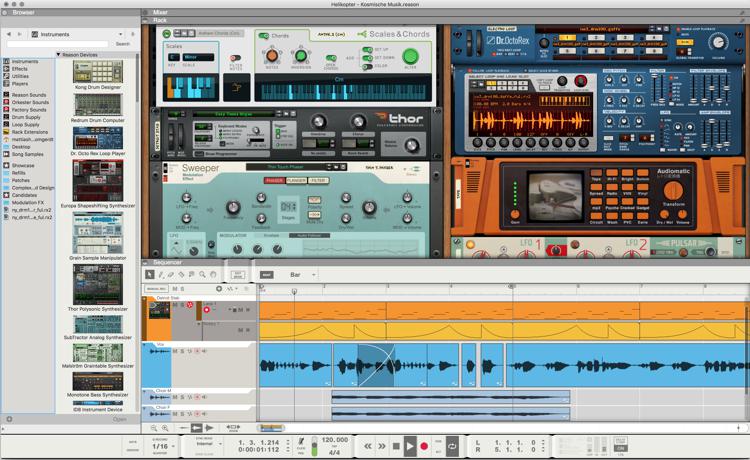
The release of Reason 11 and the Reason Rack Plug-in has made it easier than ever to incorporate Reason’s powerful instruments into your live sets. Utilizing Reason’s Combinator and expansive collection of built-in instruments can help take your live sets to the next level.
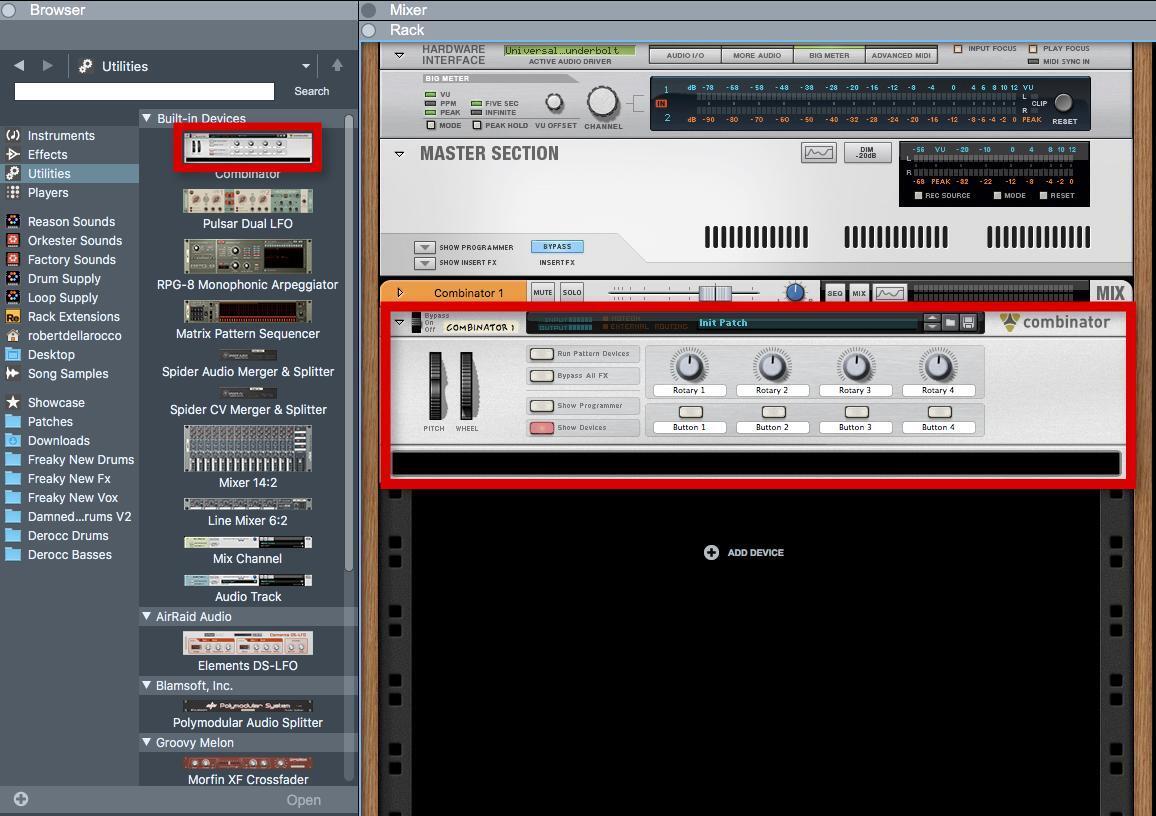
The Combinator is a utility device in Reason that allows you to stack and control multiple devices housed within it. It contains four knobs and four buttons that can be programmed to a host of parameters on the devices within the combiner. Using this to house your instruments and effects will give you immense control and creativity over your instruments.
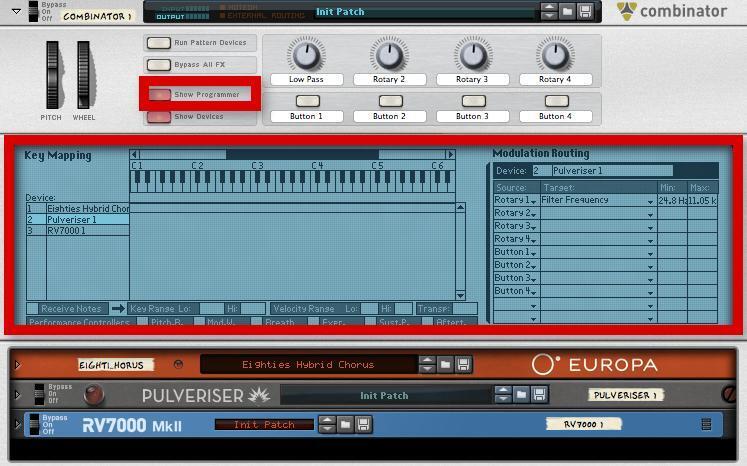
Programming with the Combinator is quite simple and intuitive. Clicking on “Show Programmer” will open a drop-down window that shows your devices, Modulation Routing, and a keyboard. To begin assigning controls, select a device from the device list in the Programmer; then in the Modulation Routing section, you can choose the target parameter. You may also want to adjust the minimum and maximum values. In the photo above, the filter frequency of the lowpass filter is set to only go as low as 24.8Hz; this allows some sound to come through even when the Combinator knob labeled “Low Pass” is all the way down.
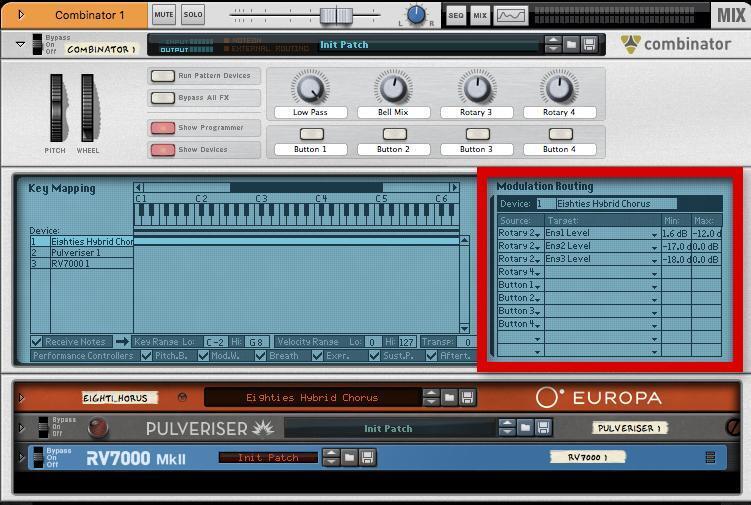
You may also route multiple parameters to the same control. In the photo above, we have the three engines in Europa routed to the second knob on the Combinator. Engine 1 is a bell sound, while engines 2 and 3 make up a super saw. In the Modulation Routing section, we’ve made it so the bell sound is more prominent with the second knob turned down, while the super saw is featured as the knob is turned up.
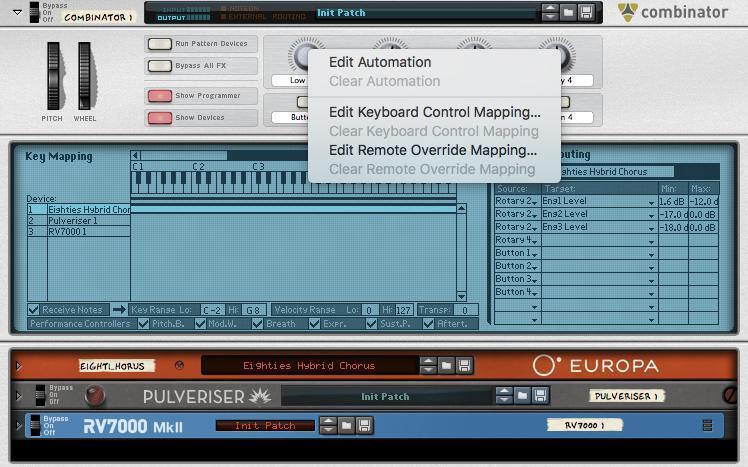
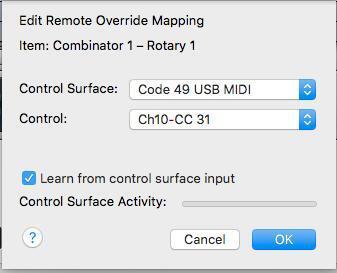
It is also very easy to route the Combinator knobs and buttons to your MIDI controller. Right-click on the parameter you want to route to your controller and select “Edit Remote Override Mapping.” You can then simply move the control on your MIDI controller, and Reason will learn it. Click “OK” to commit this routing.
For layering multiple instruments, you will need a mixer such as the 14:2 mixer that comes with Reason. Insert the mixer into the Combinator as well as two accompanying instruments: in this example, we will use bass and piano. The instruments automatically route to individual channels on the mixer for easy level control. Now you have the two sounds stacked over one another.
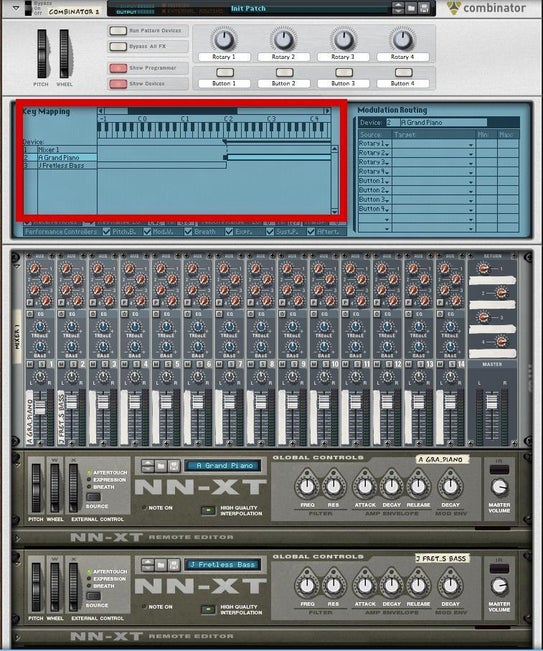
With the Combinator though, we can also split the keyboard to play bass with our left hand and piano with our right. Instruments default to playing the entire length of the keyboard, but this is easily adjusted in the Combinator’s Programmer. In the Programmer, when you select a device, it will show you the key mapping, or what section of the keyboard will control that instrument. In the example above, we have split the keyboard so that C2 and below will play the bass instrument, while above C2 is piano.
After setting up your instrument, make sure you save it! The icon at the top of the Combinator will save all your programming as well as any devices inside of the Combinator. I would recommend creating a folder with all of your favorites to quickly pull them into your live set if need be.
Reason is a great, powerful tool to add to your live sets. Using a combination of both the split keyboard as well as the multifunctional Combinator controls, you can add an immense amount of depth to your live performances. For more information on Reason Studios, reach out to your Sweetwater Sales Engineer at (800) 222-4700.