

One of the great time-saving features of Pro Tools is the ability to create and use templates. Integrating these templates into your regular workflow can save you hours of time. Here’s how I use them for tracking.
Template for Tracking
In my experience, most studio tracking sessions follow a pretty consistent pattern. For example, here in the Sweetwater Studios we’ll usually do our basic tracking sessions with drums, bass, guitar, keys, and a vocalist, which is usually the artist. But there are significant variables in every session, so here’s my approach to building and using templates.
There’s a generic tracking template for Sweetwater’s Studio A that includes the most common instruments we use on tracking sessions (and the number of Pro Tools audio tracks we use for those instruments), as well as the various buses and sends that are a part of our tracking sessions. This template also includes the various sends for our 16-channel headphone system. Each track is labeled with the correct name (i.e., Kick, Snare Top, Piano, Bass DI), color coded, and arranged in order, with the correct input and output for each of those tracks, as well as the correct sends and levels to the headphones (for example, drums go to channels 1–2 on the headphone boxes, electric guitar goes to channels 5–6, acoustic guitar is on 7–8, etc.).
The generic tracking session template includes a number of aux tracks that are used for routing the musicians’ talkback mics and the control room talkback to the headphones, as well as an aux track for the click.
Template for an Entire Project
When setting up the studio to record a project, we start by choosing the instruments that will be played first, then use the generic template to create a Project template. For example, though the generic tracking template includes enough drum tracks for our largest studio kit with five toms, three overhead mics (left, center, and right), and multiple room mic options, a smaller kit won’t need as many tracks for drums. If the project will use piano during the live rhythm section, we won’t need to have organ, electric piano, or synthesizer tracks as part of the project template. If acoustic guitar will always be tracked before electrics, then only the acoustic tracks will be a part of this particular project template.
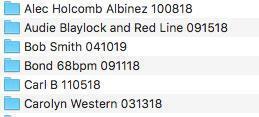
As part of my usual file management practice, I create a folder on the recording drive labeled with the artist or band name and the current date. For a project for an artist named Bob Smith that starts on April 10, 2019, the folder would be named “Bob Smith 041019” (MM-DD-YY).
Create a new session inside the Bob Smith 041019 folder, with the appropriate sampling rate and bit depth, and name it Bob Smith Tracking Template.

Finally, using Shift+Option+I (Or Import Session Data from the File menu), choose only those tracks needed to record the instruments for the current project from the main tracking template, along with whatever aux tracks are needed (in our case, the musicians’ talkback mics).

When those tracks are imported, save and close the session. (Note: You CAN save this session as a template, but since I use it only with the Import Session Data function, I don’t generally bother.) You might have read along with this and thought, “What a pain — this much work before the session even starts!” But since we already had a generic tracking template, creating the project folder for the client and importing the session data for tracking that client takes only a couple of minutes — and once the musicians and clients arrive, that little bit of prep work will save you lots of time, especially when you have to do it again each time for 10 songs. Here’s how:
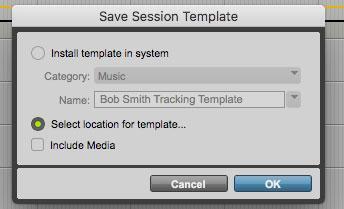
I start by getting sounds using the template session — and once we’re happy with those sounds, I’ll ask the name of the first song. I save and close the template, then create a new session with the name of that song. The new session will automatically save in the Bob Smith 041019 folder. Then I use Import Session Data to bring all the tracks from the Bob Smith Tracking Template into the new session, hold the Option key while clicking record on any channel (which puts all the tracks into record), and we’re ready to record in well under a minute, even taking the time to enter the tempo of the new song (if the click will be used).
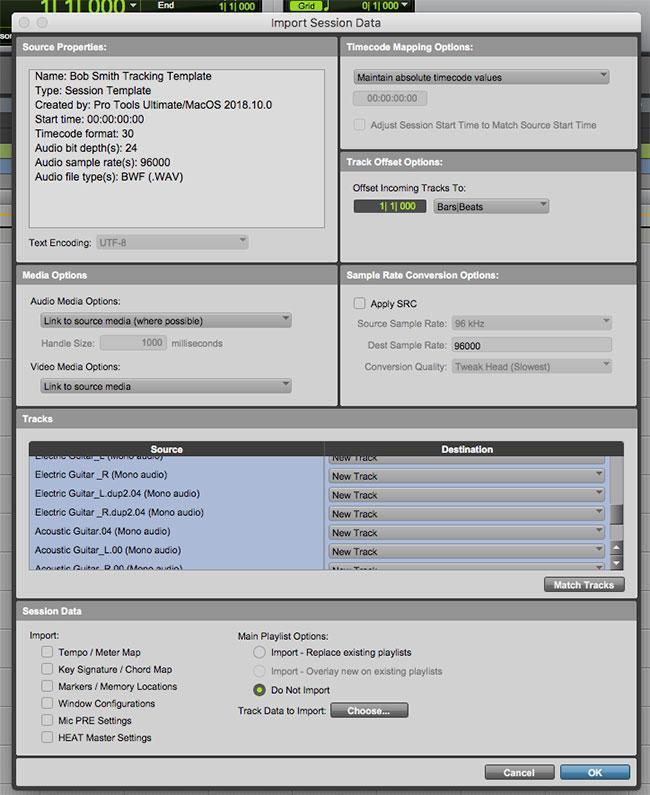
The best thing is that for the rest of the project, this template allows each new session for each song to be created this quickly and easily.